 Download Netflix videos to MP4 or MKV format in 1080P Full HD resolution.
 English
 Arabic
 Chinese (Simplified)
 Chinese (Traditional)
 Croatian
 Czech
Czech Danish
 Dutch
Dutch Finnish
 French
 German
 Greek
Greek Hebrew
 Hindi
Hindi Indonesian
 Italian
 Japanese
 Korean
 Malay
Malay Norwegian
 Polish
 Portuguese
 Russian
 Slovenian
 Spanish
 Swedish
 Thai
Thai Turkish
 Ukrainian
 Vietnamese

If you come across the YouTube Music not downloading songs on your iPhone or Android phone, this article covers the common reasons behind this problem and provide you with 10 methods to fix songs not downloading on YouTube Music.
Whether you are traveling, outside, or trying to save mobile data, downloading YouTube Music to your mobile devices is a great option. However, many users frequently report frustrating issues such as YouTube Music not downloading songs:
“Does YouTube Music limit downloads? YouTube Music songs won’t download on my iPhone 17! How to fix it?”
“I suddenly cannot download songs. I have YouTube Music for several years. It suddenly stopped letting me download songs on my Android tablet. Any suggestion?”
If you’re also struggling with YouTube Music not downloading playlists, facing errors on iOS or Android, you can’t miss this guide. Here we’ll walk you through 10 proven methods to fix YouTube Music not downloading songs on Android and iPhone. We’ll also introduce a reliable alternative that helps you download YouTube Music to MP3 for unlimited offline playback without app restrictions.
CONTENTS
- 10 Methods to Fix YouTube Music Not Downloading Songs
- 1. Check Your Internet Connection and Network Settings
- 2. Check Your YouTube Music Subscription Status
- 3. Try Playing the Song or Playlist First
- 4. Check Download Settings
- 5. Review App Permissions
- 6. Clear App Cache and Data
- 7. Free Up Storage Space
- 8. Update the YouTube Music App
- 9. Reinstall the YouTube Music App
- 10. Check YouTube Music Server Status
- Download YouTube Music to MP3 with Best YouTube Music Downloader
- Final Words
10 Methods to Fix YouTube Music Not Downloading Songs
When your YouTube Music app fails to download songs or playlists, there are variety of underlying causes, including an expired subscription, weak internet connection, insufficient storage, or corrupted app cache. Other causes include misconfigured download settings, lack of proper permissions, outdated apps, or even server-side issues. Based on these common factors, Let’s dive into 10 proven methods to fix YouTube Music not downloading songs issues.
1. Check Your Internet Connection and Network Settings
A weak or unstable internet connection is one of the most common reasons YouTube Music is not downloading songs, especially for playlists or high-quality audio. You can check your network status, consistent network. Switch between Wi-Fi and mobile data, disable VPNs, and ensure background data is enabled for YouTube Music to stabilize the download process.
2. Check Your YouTube Music Subscription Status
YouTube Music only allows Premium subscribers to download songs and playlists for offline listening. If your YouTube Premium or YouTube Music Premium plan has expired, been paused, or failed to renew, the download feature will stop working. So, verify your subscription status in your Google account to ensure Premium access is active and valid.
3. Try Playing the Song or Playlist First
Sometimes, YouTube Music not downloading playlists happens because the app hasn’t fully loaded the track metadata. In such case, try streaming the song or playlist for a few seconds before tapping the Download button. This often refreshes the connection and resolves download initiation issues. If this method doesn’t work, try another fixes below.
4. Check Download Settings
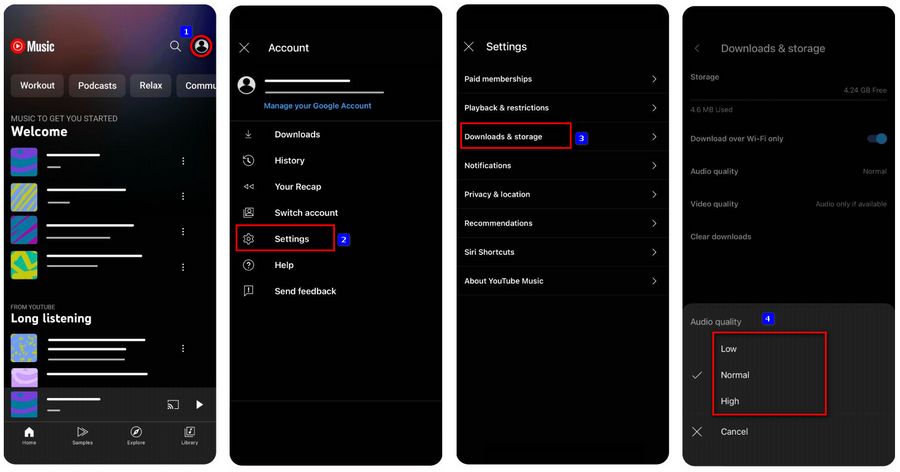
Incorrect settings can prevent downloads from starting, especially on mobile data. If you set to “Download over Wi-Fi only”, YouTube Music downloads will fail when using mobile data. Also, a very high audio quality setting may struggle on slower networks. To fix YouTube Music not downloading songs on iPhone or Android, you can check your download settings. Here’s how to set it up correctly:
Step 1. Open the YouTube Music app. Tap your profile picture > Settings.
Step 2. Go to Downloads & storage. Disable “Download over Wi-Fi only”.
Step 3. Meanwhile, tap “Audio quality”, select “Low” or “Normal” option.
5. Review App Permissions
If YouTube Music doesn’t have permission to access storage or background data, downloads may fail silently. This is a common cause of YouTube Music not downloading songs on Android after system updates. Therefore, go to your device’s app settings and ensure YouTube Music has all required permissions enabled.
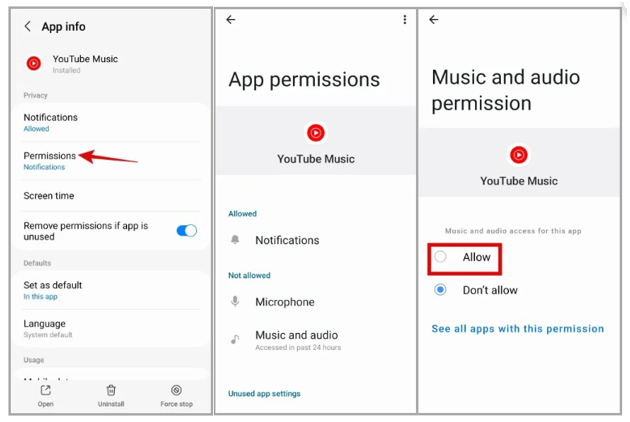
On Android:
Step 1. Find the YouTube Music app and long press icon, then tap the “Information” icon.
Step 2. Tap “Permissions”.
Step 3. Check each permission one by one and grant each permission.
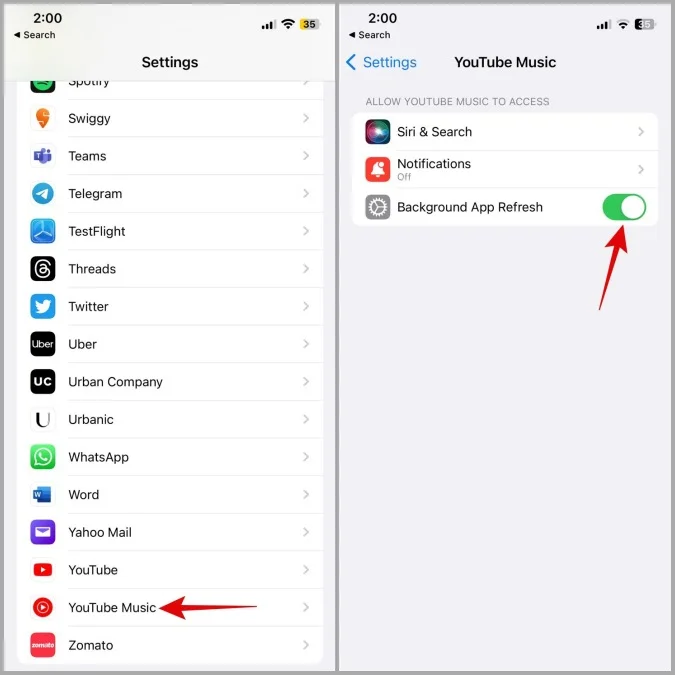
On iPhone:
Step 1. Go to your iPhone’s Settings > Apps.
Step 2. Select YouTube Music, enable “Background App Refresh” option.
6. Clear App Cache and Data
Corrupted cache files can interfere with downloads, causing repeated failures or stuck progress bars. To fix “YouTube Music not downloading” issue, you need to regularly clear the cache of the YouTube Music app.
On Android:
Step 1. Go to Settings > Apps > YouTube Music.
Step 2. Tap “Storage”, select “Clear cache”.
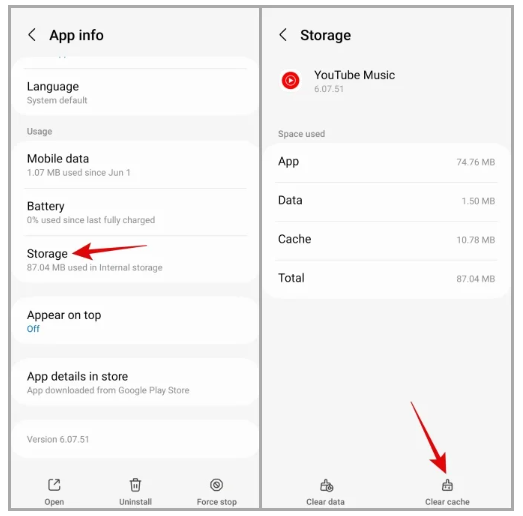
If needed, tap “Clear Data” (login required afterward)
On iPhone:
iOS does not allow manual cache clearing. You’ll need to reinstall the app (or see Method 9).
Step 1. Go to Settings > General > iPhone Storage > YouTube Music.
Step 2. Tap “Offload App,” then reinstall the app to clear cached data.
7. Free Up Storage Space
If the new YouTube Music track or playlist cannot be downloaded to your mobile device, you’d better check your device’s available storage space. When you phone runs low on storage, you need to free up storage space.
On Android:
Go to Settings > Storage. Delete unused apps, videos, or cached files.
On iPhone:
Go to Settings > General > iPhone Storage. Remove large apps or media files.
8. Update the YouTube Music App
Sometimes, running an outdated app version may lead to bugs, download failures, or compatibility issues with newer operating systems. So, update the YouTube Music app to the latest version, it will help to solve the songs not downloading in YouTube Music.
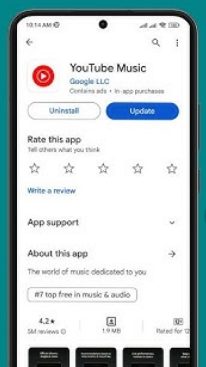
Step 1. Open Google Play Store or App Store on your phone.
Step 2. Search for YouTube Music.
Step 3. Tap “Update” if available.
9. Reinstall the YouTube Music App
If clearing cache and updating didn’t work, reinstalling the YouTube Music app can resolve deep-rooted issues, including YouTube Music not downloading/working. Do not download the YouTube Music app from any source other than the official channels.
On Android:
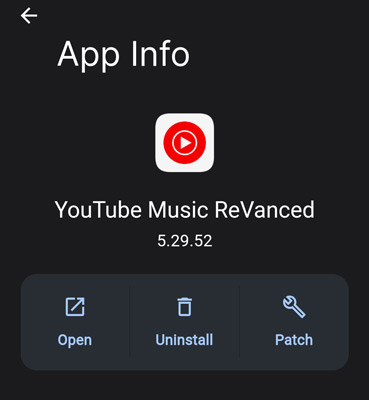
Step 1. Long-press the YouTube Music app icon and select “Uninstall”. Confirm your action.
Step 2. Restart your Android phone.
Step 3. Open the Google Play Store, search for “YouTube Music”, and tap “Install”.
Step 4. Open the YouTube Music app, log in your account and test a download.
On iPhone:
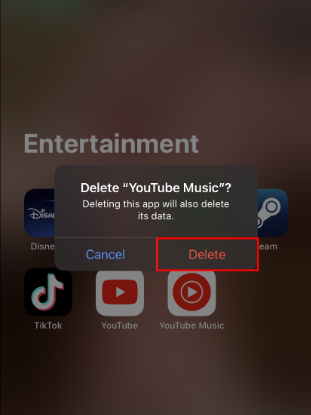
Step 1. Long-press the YouTube Music app icon and tap “Remove App” > “Delete”.
Step 2. Restart your iPhone or iPad.
Step 3. Open the App Store, search for “YouTube Music”, and reinstall it.
Step 4. Run YouTube Music app, log in your Premium account and test a download.
10. Check YouTube Music Server Status
Sometimes the issue isn’t on your device. If YouTube Music servers are experiencing outages or maintenance, downloads may temporarily stop working. You can check YouTube Music’s server status on official platforms like DownDetector or Google’s official status pages.
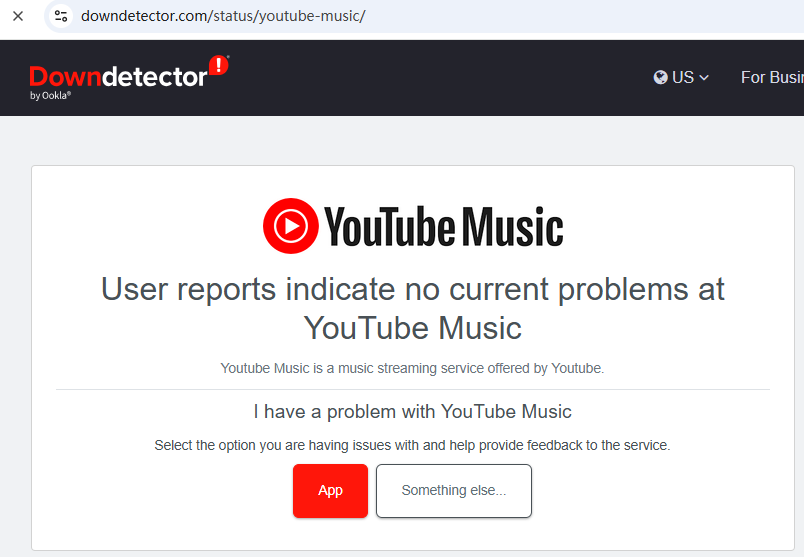
If there’s a server-side issue, all you need to do is to wait until services are restored.
Download YouTube Music to MP3 with Best YouTube Music Downloader
If you still cannot fix YouTube Music not downloading songs issue through the above 10 methods, you can consider using an effective alternative tool to download songs from YouTube Music. Here, a powerful YouTube Music downloader can help, which is 4kFinder YouTube Music Converter.
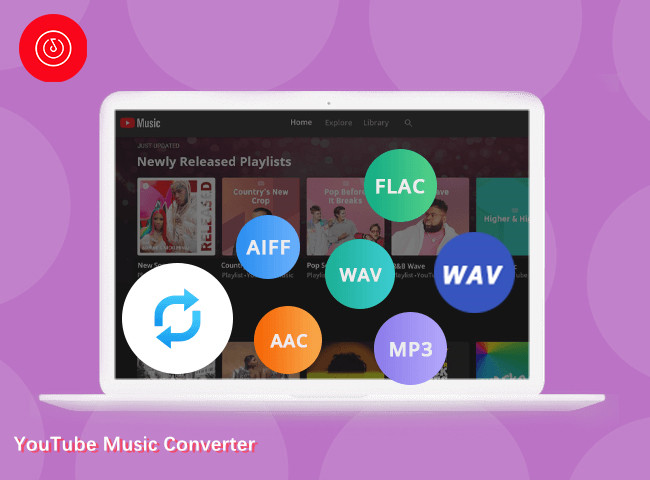
4kFinder YouTube Music Converter is a reliable desktop tool designed to help users download YouTube Music to computer without the YouTube Music app. It integrates a built-in YouTube Music web player, enabling direct access to to whole music library, including your created playlists, albums, MVs, and liked songs. Better still, it supports all types account, including Free and Premium. So, even the free users can utilize it to download music from YouTube Music and save the downloaded music permanently.
It allows users to download and convert YouTube Music tracks, albums, playlists and music videos to popular audio formats, like MP3, AAC, M4A, WAV, FLAC and AIFF in high quality. Moreover, it provides up to 10X faster speed and batch conversion to enhance download efficiency. After conversion, you can easily transfer the YouTube music to any device or player you like to play, manage and edit them freely.
Now, let’s walk through simple steps to learn how to use 4kFinder YouTube Music Converter to solve YouTube Music not downloading songs error without the download restrictions.
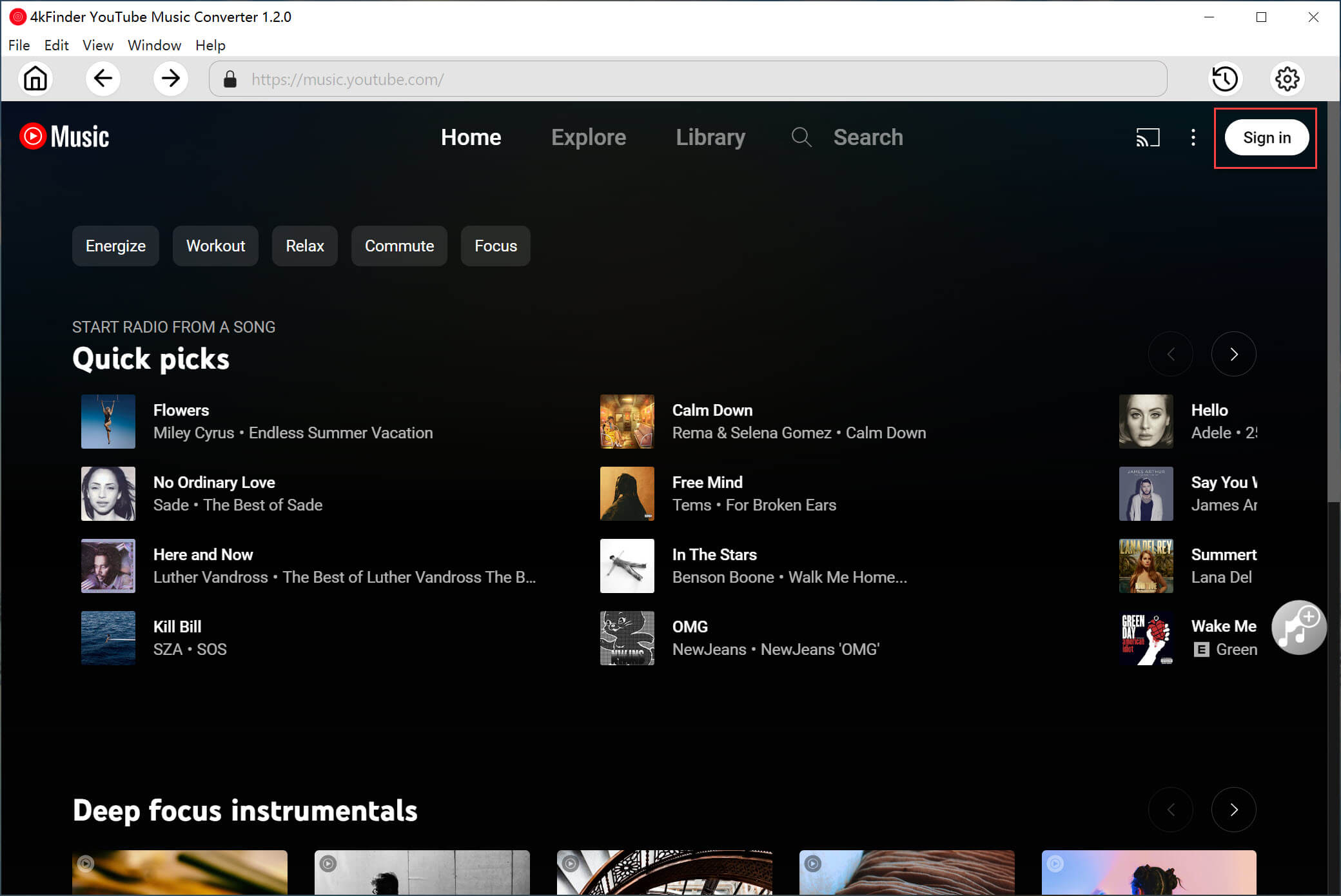
Step 1. Run 4kFinder YouTube Music Converter
Install and open 4kFinder YouTube Music Converter on your computer, then log in to your YouTube Music account through the built-in player.
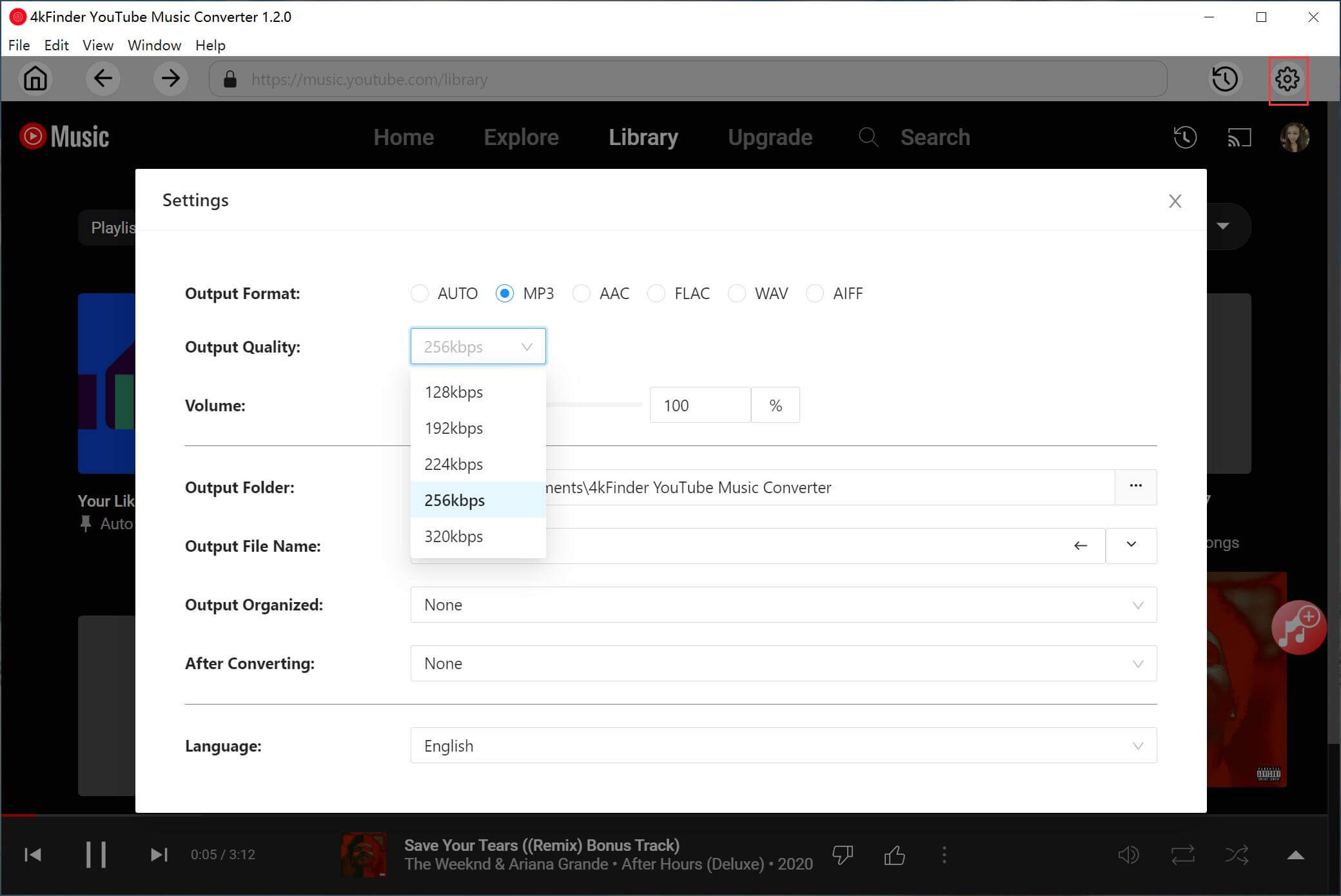
Step 2. Set Output Settings
Click “Gear” icon to open Settings window, choose MP3 as the output format, and adjust output quality, output folder, output file name and other settings as needed.
Step 3. Add YouTube Music Songs
Navigate to the song, album, music video or playlist you wish to save. Open any content page and click “Add to list” in the right side.
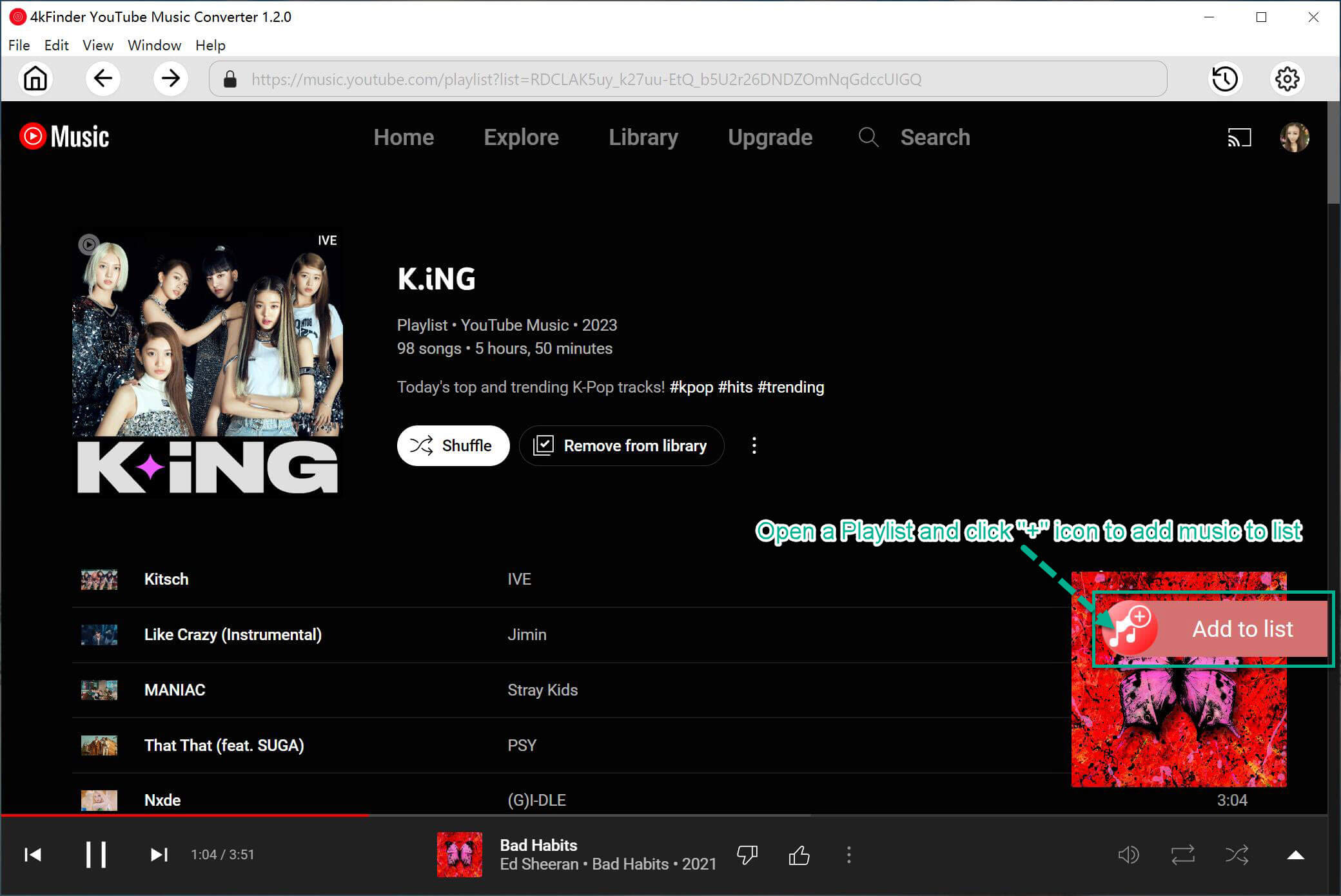
It will list all available tracks, select the ones you want download.
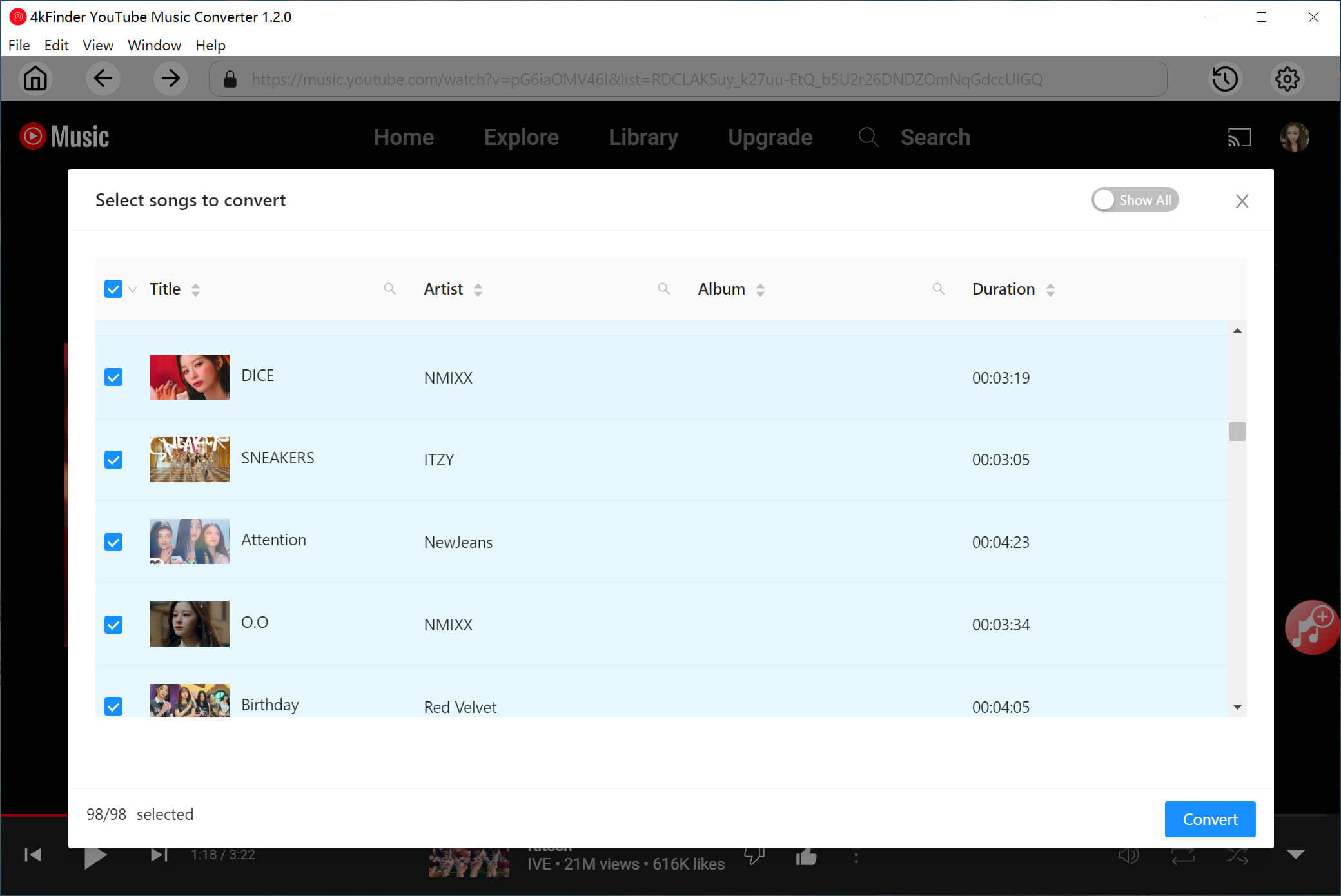
Step 4. Start Downloading YouTube Music to MP3
With your tracks listed in the queue, click the “Convert” button. 4kFinder will begin downloading and converting YouTube Music songs to MP3 files in high quality.
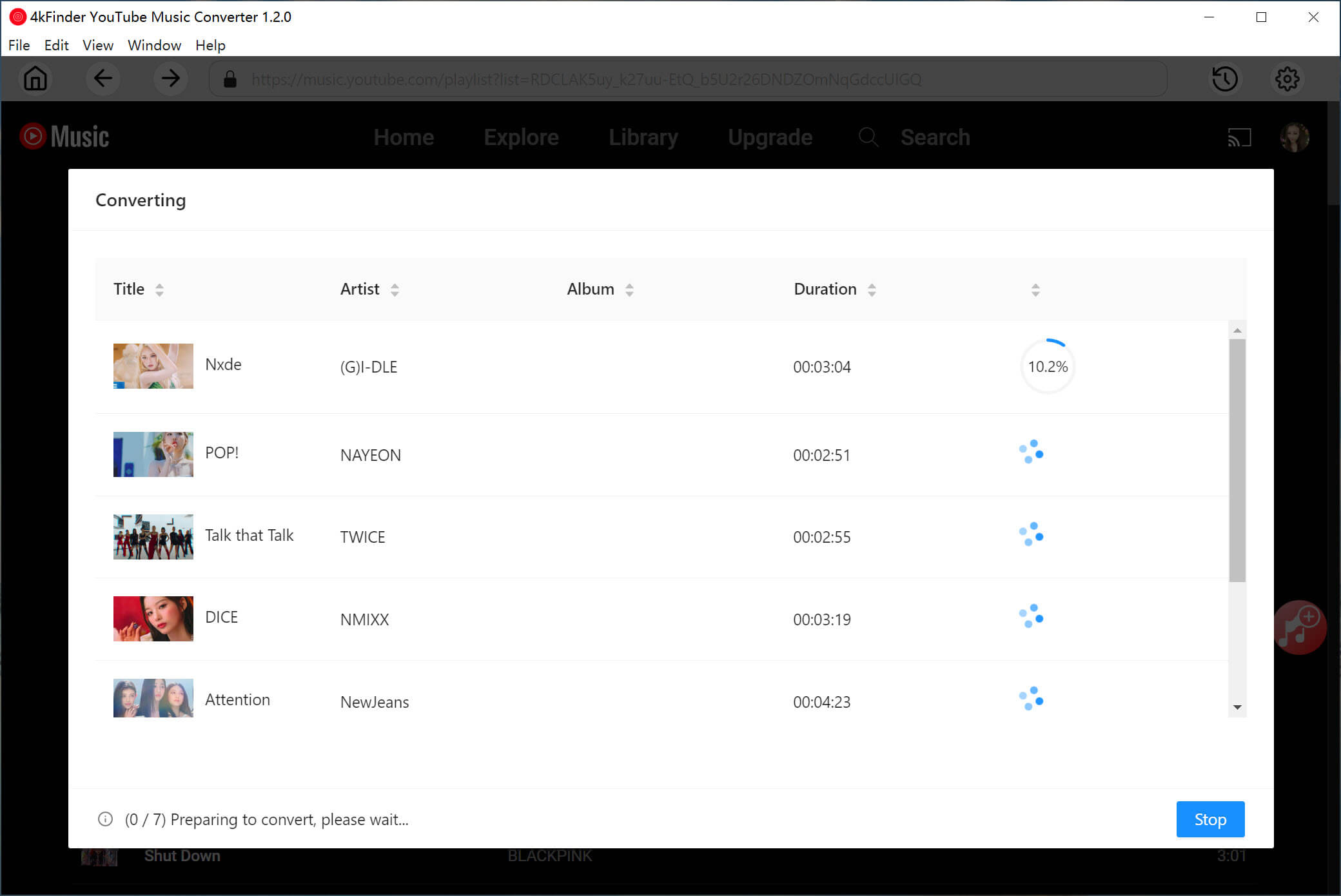
Step 5. Listen to YouTube Music Offline
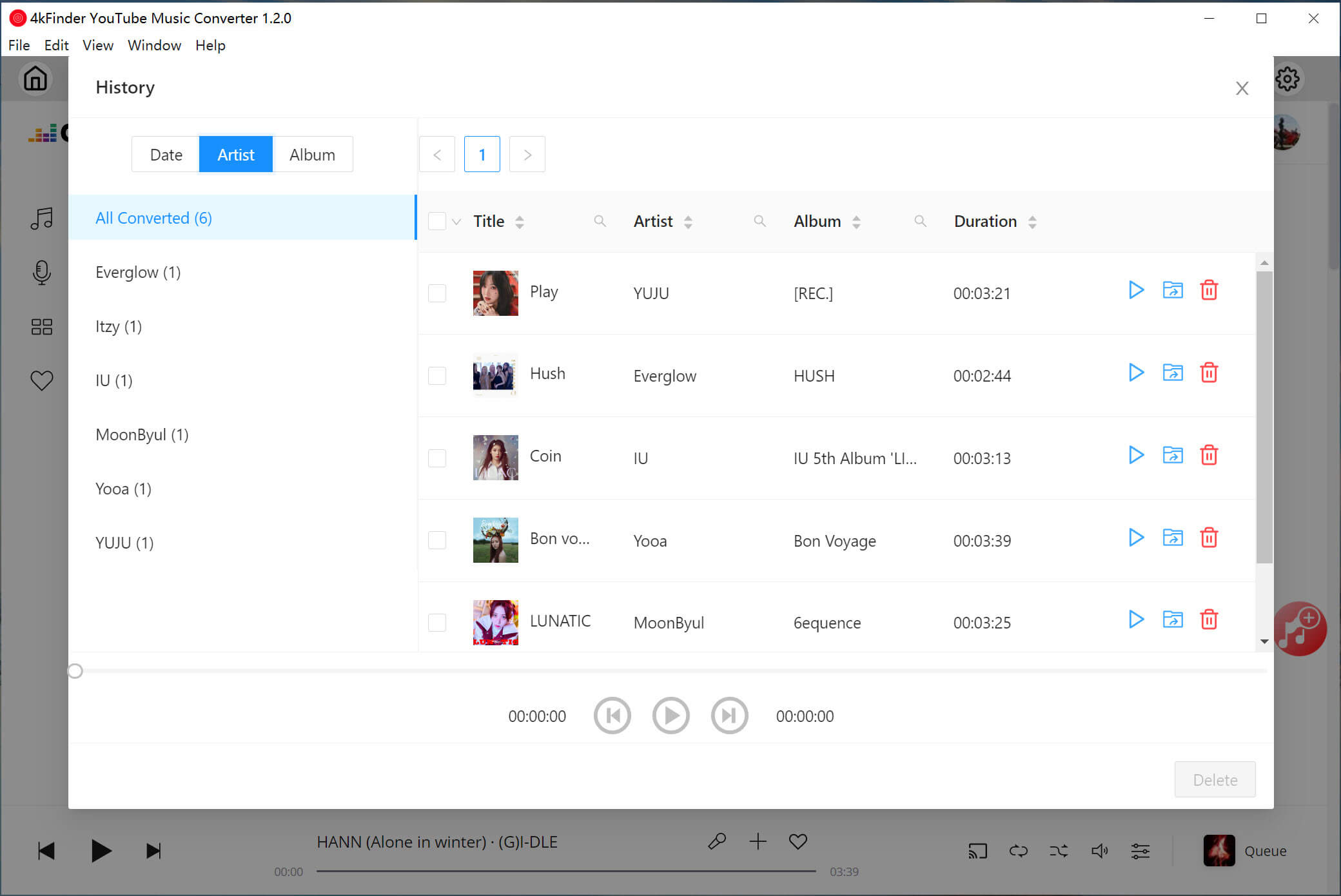
Once complete, click the “History” tab or navigate to your preset output folder. You can listen to YouTube music on your computer without the YouTube Music app, as 4kFinder has a built-in music player! Not only that, you may also classify these downloaded songs by artist, album, or date!
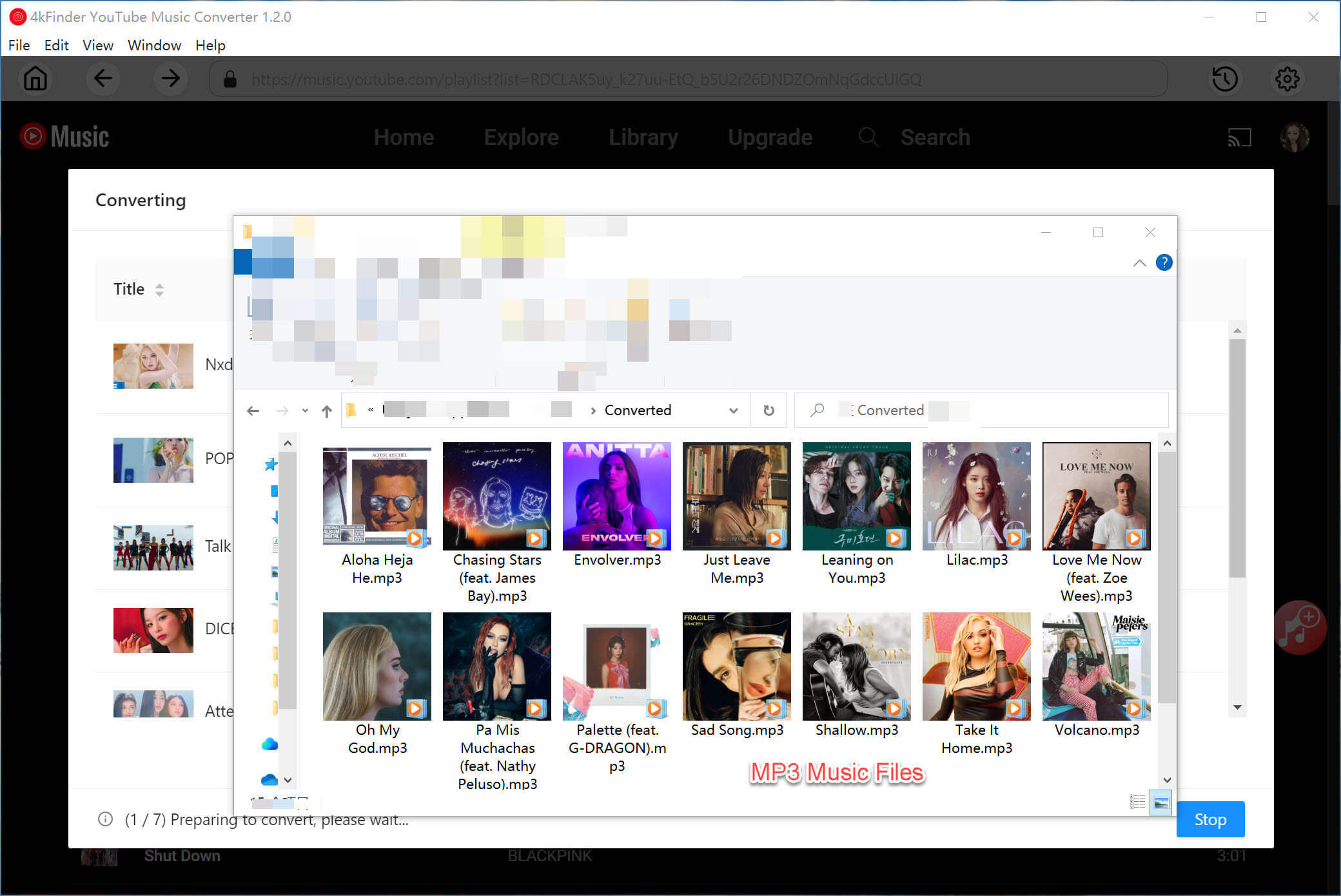
You can now transfer these output MP3 YouTube Music files to your Android or iPhone via USB cable, add them to cloud storage, or play them on any media player!
Final Words
It can be frustrating when you are experiencing YouTube Music not downloading songs on Android or iPhone, especially when you rely on offline listening. This guide has shown you the above 10 methods to help you resolve the YouTube Music not downloading issue. If you need a stable and 100% successful solution, try the 4kFinder YouTube Music Converter. It can help you download YouTube Music to MP3 at 320kbps with a free account. It doesn’t require the YouTube Music app, or even a login account. Start its free trial and download your YouTube Music library right now!