
 Download Netflix videos to MP4 or MKV format in 1080P Full HD resolution.
 English
 Arabic
 Chinese (Simplified)
 Chinese (Traditional)
 Croatian
 Czech
Czech Danish
 Dutch
Dutch Finnish
 French
 German
 Greek
Greek Hebrew
 Hindi
Hindi Indonesian
 Italian
 Japanese
 Korean
 Malay
Malay Norwegian
 Polish
 Portuguese
 Russian
 Slovenian
 Spanish
 Swedish
 Thai
Thai Turkish
 Ukrainian
 Vietnamese

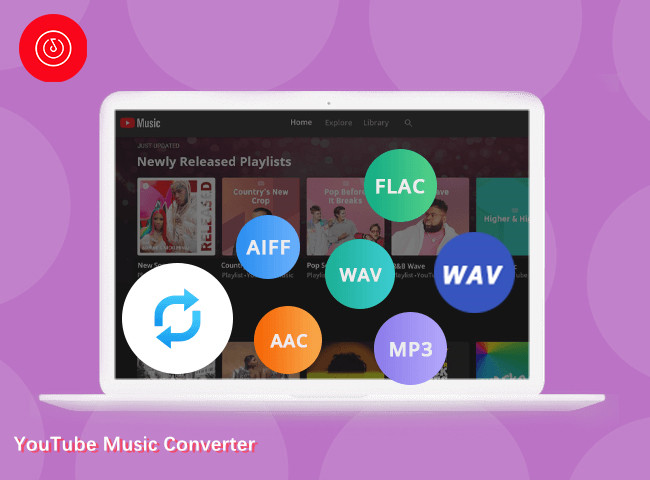
Are you facing YouTube Music app crashes? Here’s how to fix it! This guide has explained why YouTube Music keeps crashing and provided 10 solutions to fix YouTube Music app keeps crashing on Android and iPhone. Alternatively, you can use 4kFinder YouTube Music Converter to download YouTube Music to MP3 for offline listening on other players and devices.
YouTube Music has quickly become one of the most popular music streaming platforms in the world, but it doesn’t mean that it has no drawbacks. Usually when you have been using the YouTube Music app for a while, you may face some common issues, such as YouTube Music keeps crashing, the app suddenly stopping, or songs failing to play properly. Why your YouTube Music keeps crashing? What cause it to happen? How to fix YouTube Music issue? Keep reading, here you will find the answers and solutions. We’ll provides 10 proven solutions to fix YouTube Music app crashing on Android, iPhone, and other devices. Let’s get started!
CONTENTS
Part 1. Why Does YouTube Music Keep Crashing?
Before attempting any fix, it is necessary to understand the root cause of YouTube Music crashes. This helps you apply the correct solution faster and avoid repeated problems in the future. Here are some common reasons:
Network Issues: A weak, unstable, or constantly switching internet connection may cause buffering or pauses.
Server Outages: YouTube Music servers sometimes go down, making the app temporarily unusable.
Background Processes: Too many background apps consume memory and processing power, increasing the chances that YouTube Music keeps crashing, especially on older phones.
App Settings: Restrictive data or background permissions may prevent proper playback, causing the YouTube Music app to stop.
Insufficient Storage: Low device storage prevents proper caching and temporary file creation, which can cause YouTube Music keeps crashing repeatedly during use.
Outdated Apps: Running an outdated version of YouTube Music often introduces unresolved bugs and compatibility conflicts that cause crashes.
System Compatibility Issues: Conflicts between the operating system and the YouTube Music app can cause software glitches, instability, and recurring crash problems.
Part 2. 10 Ways to Fix YouTube Keeps Crashing
If YouTube Music keeps crashing on your phone, tablet, or browser, the following methods can help you fix YouTube Music issues step by step. From checking the network connection to sending feedback to Google.
Way 1. Check the Internet Connection Status
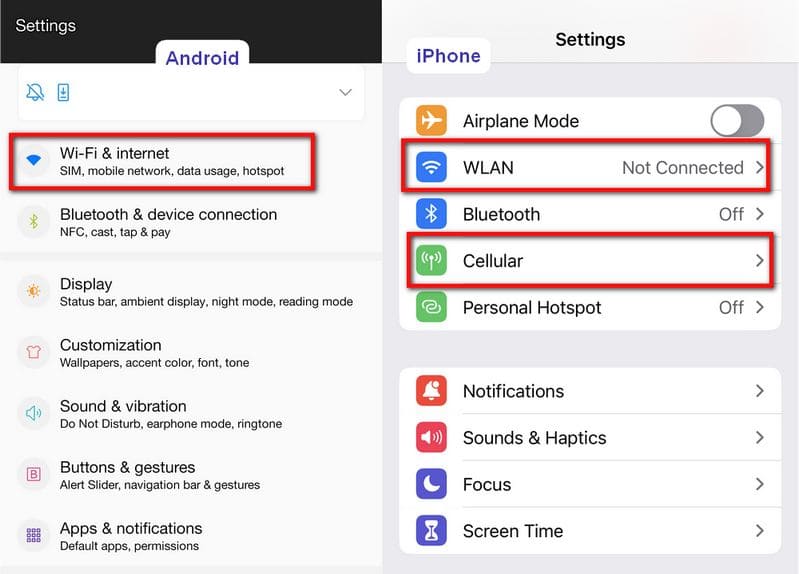
An unstable internet connection is one of the most common reasons YouTube Music keeps crashing. If you are streaming music on YouTube Music online, make sure you are connected to a stable connection. Otherwise, you can try to switch between Wi-Fi or mobile data restart your router, or move to a location with stronger signal strength.
Way 2. Disable Streaming Over Wi-Fi Only
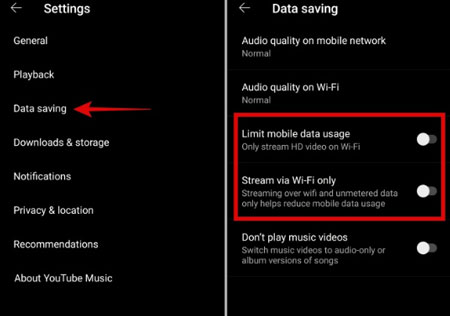
When the “stream via Wi-Fi only” setting is enabled, YouTube Music may crash if your Wi-Fi signal weakens or disconnects briefly. This setting prevents the app from switching to mobile data automatically, triggering the why does my YouTube Music keep stopping issue during playback. In such case you need to disable “Stream via Wi-Fi Only” option.
Step 1. Open the YouTube Music app on your phone.
Step 2. Tap your profile icon in the top-right corner.
Step 3. Go to “Settings” > “Data saving”.
Step 4. Turn off “Stream via Wi-Fi only”.
Step 5. Now, restart the YouTube Music app and test playback.
Way 3. Check Server Issue
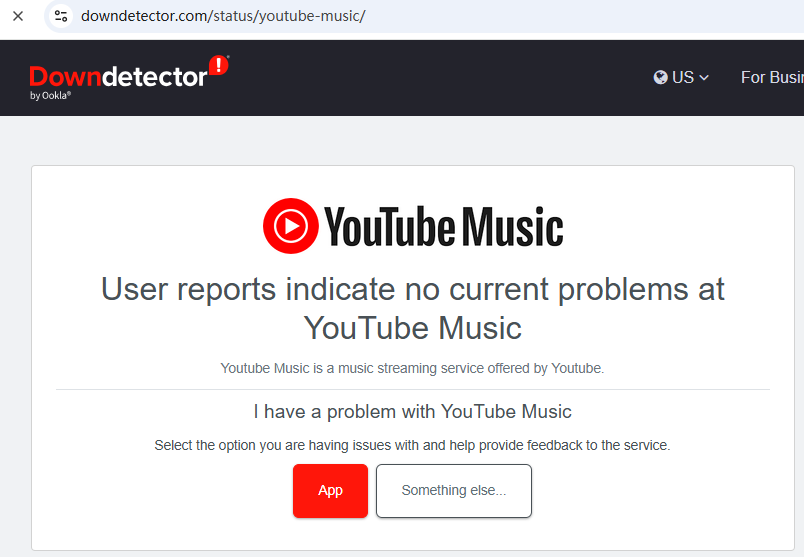
Sometimes YouTube Music keeps crashing not because of your device, but due to server-side problems. When YouTube Music servers are down or overloaded, the app may freeze, crash, fail to load content properly, or not downloading songs, etc. Go to website like DownDetector, to check real-time outage reports.
Way 4. Check YouTube Music Premium Subscription
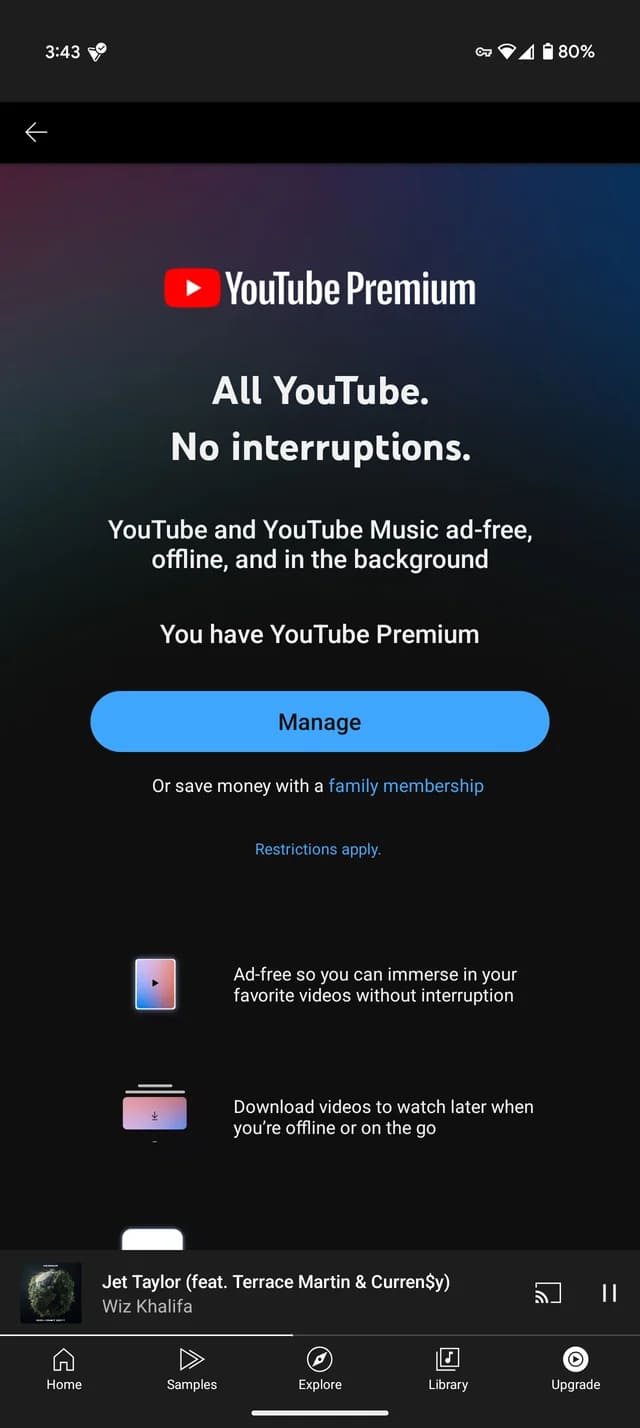
If your YouTube Music Premium subscription has expired or failed to renew, you can’t enjoy any Premium features such as offline downloads, background playback, and ad-free streaming, etc. This situation may also cause YouTube Music app crashing on phone issues. If you discover your YouTube Music account has been closed or you’ve been logged out unexpectedly, re-logging in on your devices. If your Premium subscription ends, you can continue to subscribe to Premium to enjoy the membership benefits.
Way 5. Check Audio Quality
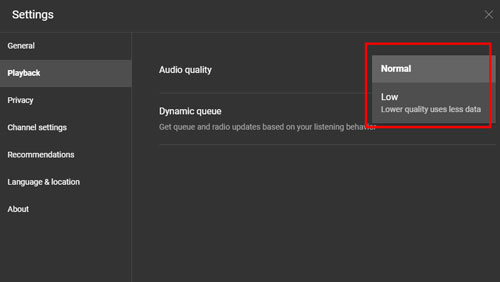
High audio quality settings increase data usage and system load, this can make YouTube Music keeps crashing frequently, especially on slower networks or older devices. To solve this problem, go to YouTube Music’s Settings > Playback > Audio quality > low.
Way 6. Force Stop YouTube Music
If YouTube Music keeps crashing repeatedly, force stopping the app can clear temporary glitches and memory conflicts. This method is especially effective when YouTube Music freezes, stops responding, or crashes immediately after launch. To fix YouTube Music keeps crashing issue, you can try to force stop YouTube Music app on your phone.
On iPhone:
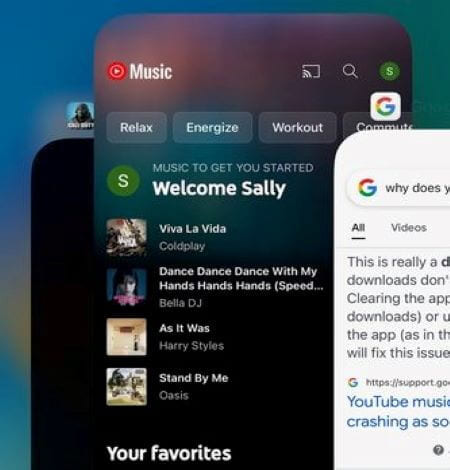
Step 1. Swipe up from the bottom of the screen to open the App Switcher.
Step 2. Locate YouTube Music.
Step 3. Swipe the app upward to close it completely.
Step 4. Reopen YouTube Music and test playback stability.
On Android:
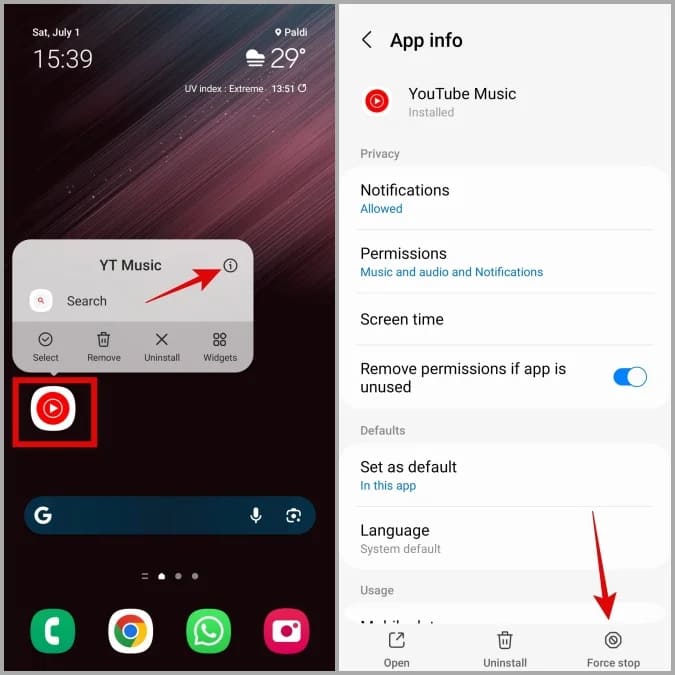
Step 1. Go to Settings > Apps.
Step 2. Find and tap YouTube Music.
Step 3. Tap “Force Stop”.
Step 4. Relaunch the YouTube Music app and check if YouTube Music keeps crashing.
Way 7. Turn Off Battery Optimization
Battery optimization features are designed to save power on your device, but they often restrict background activity for streaming apps. When you enabled the battery optimization function, these settings can cause YouTube Music keeps crashing or stopping when your screen turns off. Hence, you’d better check and disable this mode to fix “YouTube Music app keeps crashing” problem.
On Android:
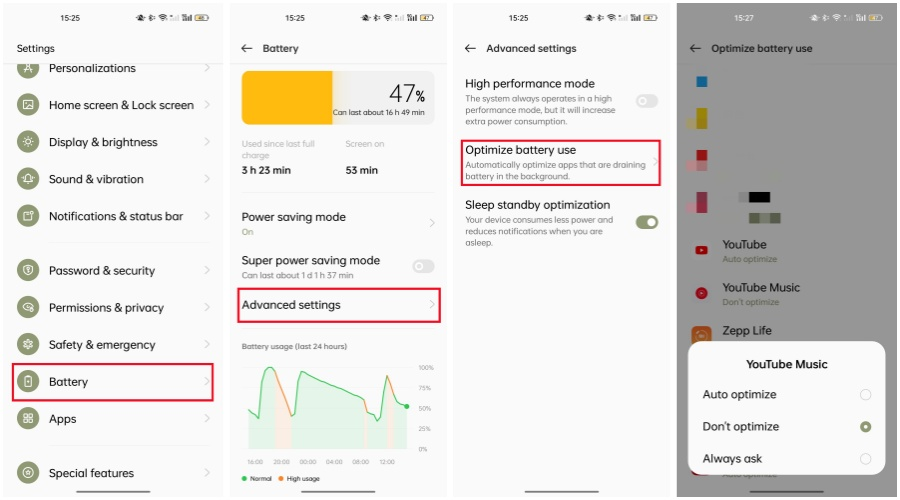
Step 1. Go to “Settings” > “Battery” > “Advanced settings”.
Step 2. You may see options like “Background restriction,” “Optimize battery use,” or “Battery optimization.” Tap it.
Step 3. From the dropdown menu (which may say “Apps not optimized”), select “All apps.”
Step 4. Find YouTube Music in the list.
Step 5. Select it and choose “Don’t optimize” or “Unrestricted.” Tap “Done.”
On iPhone:
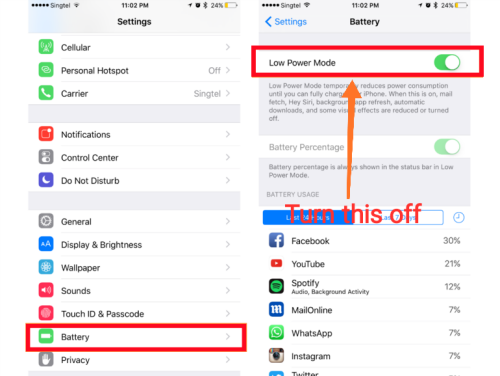
Step 1. Open “Settings” > “Battery”.
Step 2. Turn of “Low Power Mode”.
Way 8. Clear YouTube Music Cache
Cached data can become corrupted over time, leading to frequent crashes and playback failures. To fix YouTube Music keeps crashing on iPhone or Android, you may also consider clearing YouTube Music cache data.
On Android:
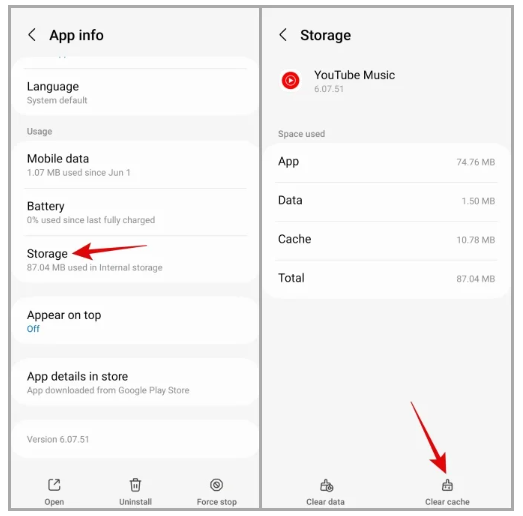
Step 1. Open “Settings” > “Apps” > “YouTube Music”.
Step 2. Select “Storage” > “Clear Cache”.
On iPhone:
iOS does not allow manual cache clearing. To clear app data, uninstall and reinstall YouTube Music. Scroll down to Way 9.
Way 9. Update or Reinstall YouTube Music App
Using an outdated app version is a major reason YouTube Music keeps crashing on both Android and iPhone. Updates often fix bugs, improve compatibility, and enhance overall stability. If updating does not work, a full reinstall is the most powerful troubleshooting step.
On Android:
Step 1. Open the Google Play Store app.
Step 2. Tap your profile icon and go to “Manage apps & device.”
Step 3. Under “Updates available”, see if YouTube Music is listed. If so, tap “Update” next to it.
If problems persist, try to uninstall and reinstall the YouTube Music app.
On iPhone:
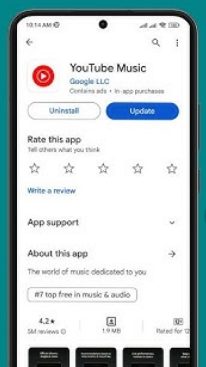
Step 1. Open App Store.
Step 2. Search for YouTube Music, tap “Update”.
To reinstall, press and hold the YouTube Music app icon on your Home Screen until a menu appears.
Tap “Remove App,” then select “Delete App” to uninstall it.
Go to the App Store, search for “YouTube Music,” and tap “Install”.
Afterward, open the YouTube Music app and log back in.
Way 10. Send Feedback to Google
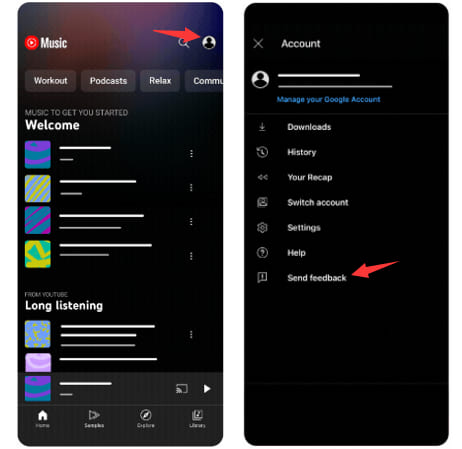
If you’ve tried above all methods and the YouTube Music keeps crashing problem persists, you can try to send feedback to Google. Open the YouTube Music app, tap your profile picture, go to “Help & feedback,” and then select “Send feedback” and list the app crashes problems.
Part 3. Bonus: Avoid YouTube Music Keeps Crashing Issue Forever
If you are tired of constantly troubleshooting and searching for ways to fix YouTube Music keeps crashing, there is a permanent and more reliable alternative: downloading YouTube Music to MP3 for offline playback. You will need help from a third-party YouTube Music downloader – 4kFinder YouTube Music Converter.
As one of the best YouTube Music to MP3 Converter, 4kFinder provides a powerful downloading function to rip music from YouTube Music without a Premium. It allows you to download songs, albums, playlists, and music videos directly from YouTube Music and save them as local MP3 audio files. Additionally, 4kFinder supports popular formats like M4A, AAC, WAV, FLAC, and AIFF, ensuring compatibility with almost all devices.
One of the biggest advantages it the software preserves lossless 320kbps quality, even for the Free users. What’s more, 4kFinder supports batch downloads and guarantees downloading process at 10X faster speed to save your time. Once downloaded, you can play YouTube music offline anytime using 4kFinder’s built‑in music player, or imported them into other media players like iTunes, VLC, WMP, and portable devices.
More Features of 4kFinder YouTube Music Converter:
- Download YouTube Music to Mac/PC computer without Premium account.
- Download YouTube Music songs, albums, MVs, and playlists in bulk.
- Convert YouTube Music to MP3, WAV, AAC, FLAC, M4A, AAC, AIFF formats.
- Preserve original audio quality (up to 320kbps/640kbps) and ID3 metadata.
- Built‑in music player for offline playback, and magage your library easily.
- Import downloaded YouTube music into other players or devices freely.
Verdict:
This approach completely eliminates network errors, server outages, background restrictions, and app instability. The best option for those who want uninterrupted music playback without relying on the YouTube Music app.
How to Download YouTube Music to MP3 for Playback without YouTube Music App?
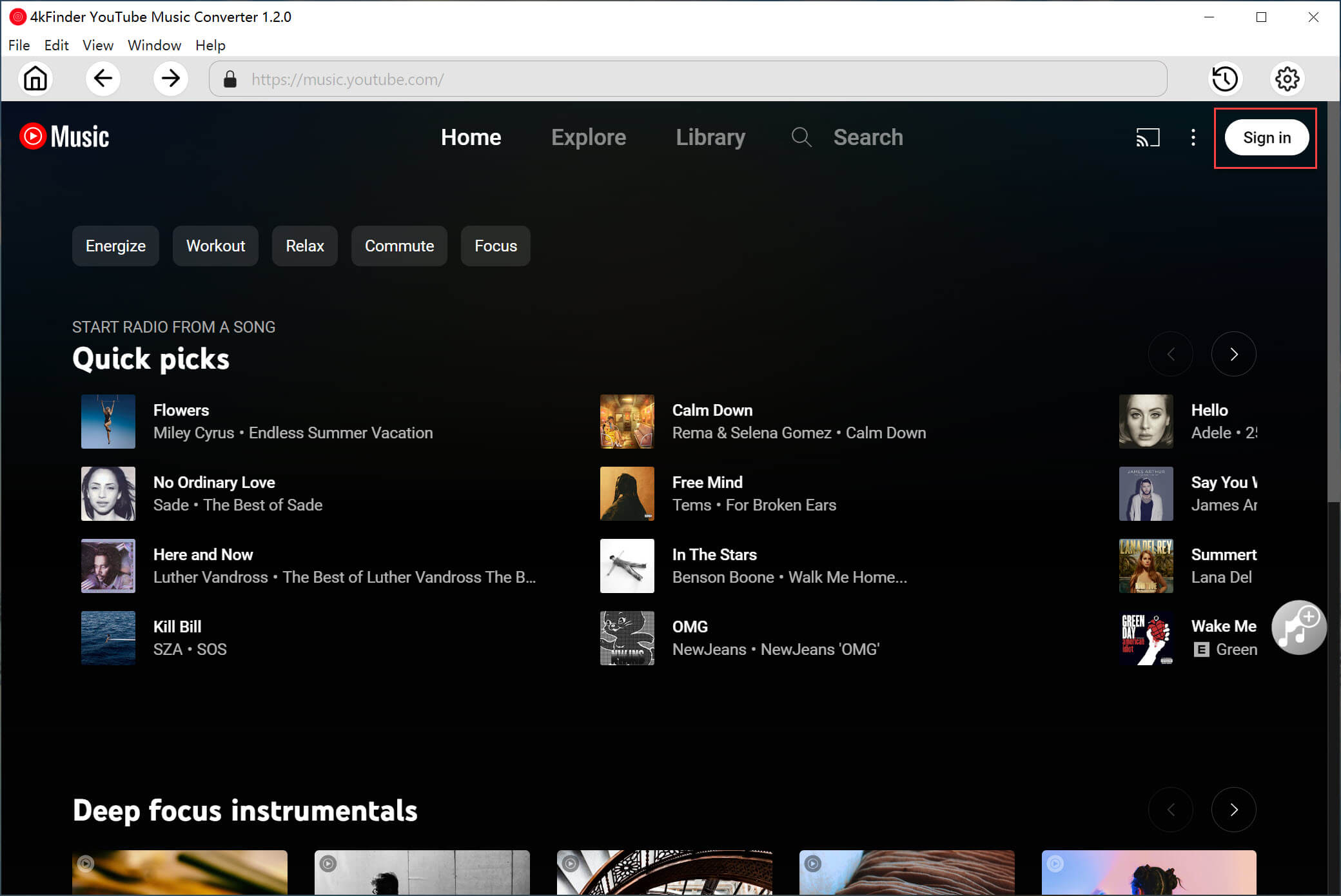
Step 1. Run 4kFinder YouTube Music Converter
First, download the correct version of 4kFinder YouTube Music Converter for your Windows or Mac computer, and follow the installation prompts. Launch the 4kFinder YouTube Music Converter, log in to your YouTube Music free or premium account. Of course, you can access the music library online without logging in.
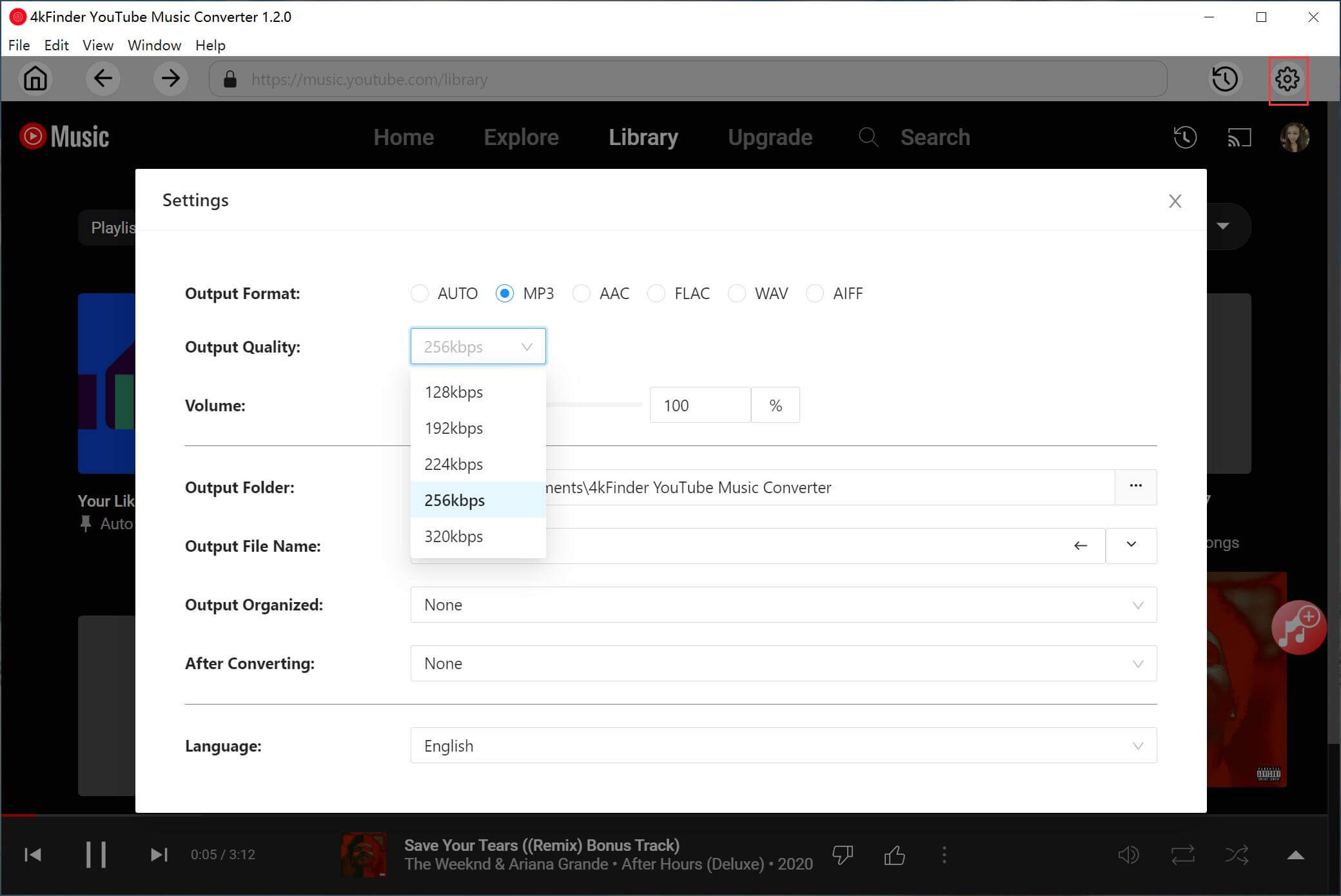
Step 2. Define Output Settings
Click “Gear” icon at the upper right corner. In the output settings window, select MP3 as your preferred format. Choose your desired audio bitrate (we recommend 320kbps for excellent quality). Set the target output folder on your computer and customize the file naming rule as needed.
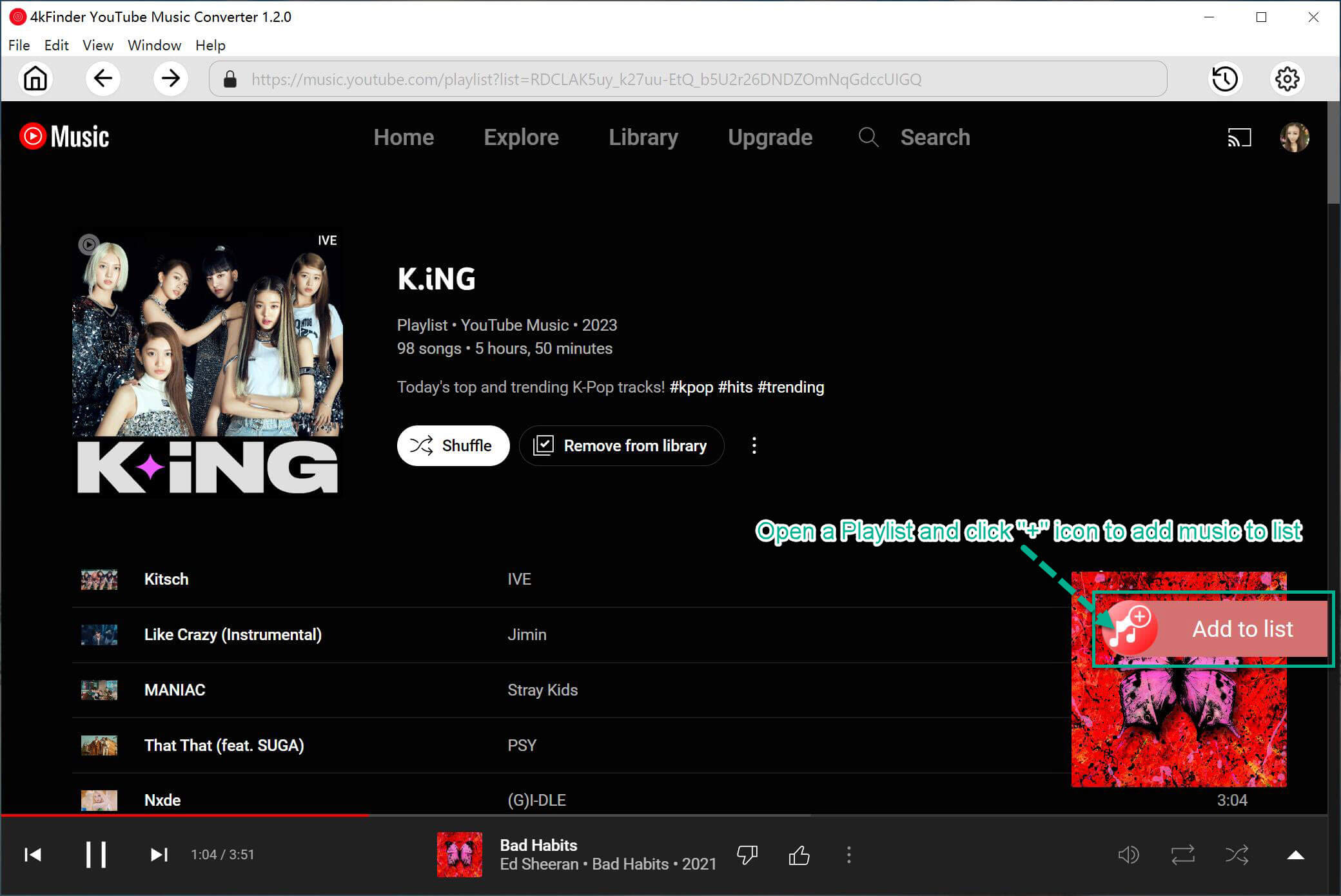
Step 3. Add Songs/Albums/Playlists/MVs
Navigate to any song, album, playlist, or music video you wish to download. To add the song, you can use the “+” button within the software.
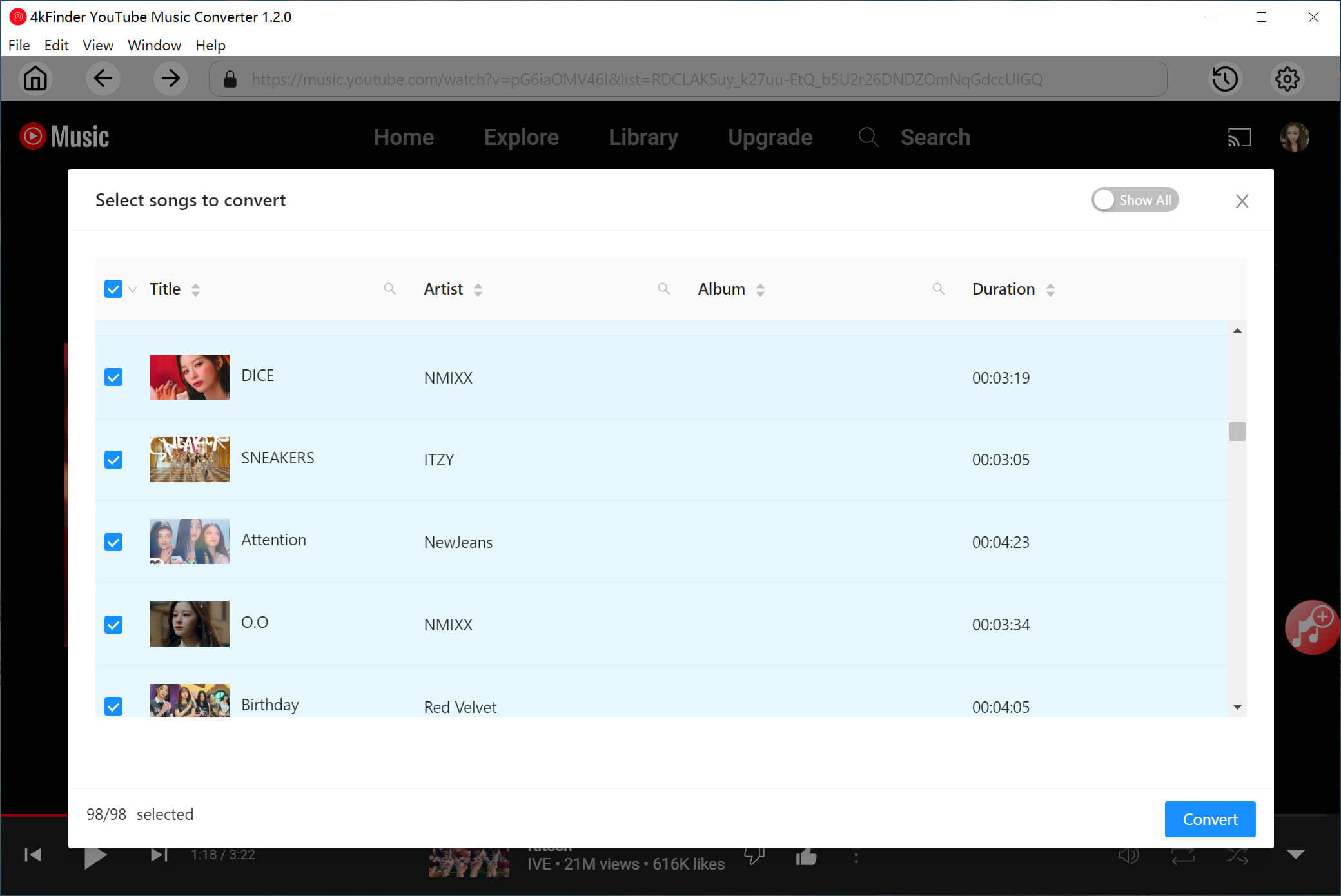
If you add an album or playlist, it will intelligently parse and list all tracks, choose and confirm your target tracks.
Step 4. Start Downloading YouTube Music to MP3
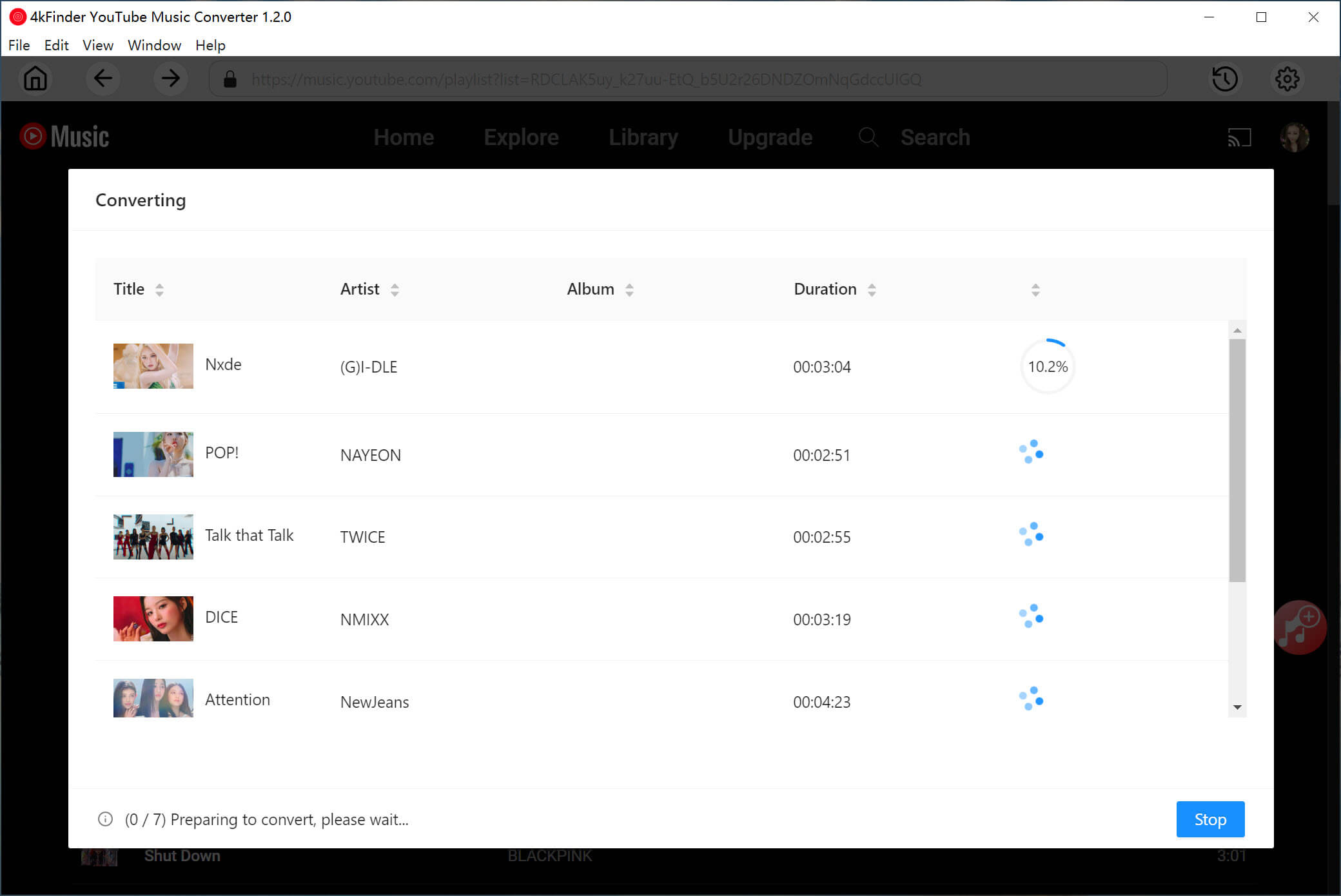
Click “Convert” button, 4kFinder will start downloading the high-quality audio streams from YouTube Music and converting them to MP3 file at high speed.
Step 5. Listen to YouTube Music Offline
Upon completion, click the “Clock” icon to check the music download history. You can now play these high-quality YouTube music using its built-in music player, or add them to any media player like VLC, iTunes, Windows Media Player, or MusicBee.
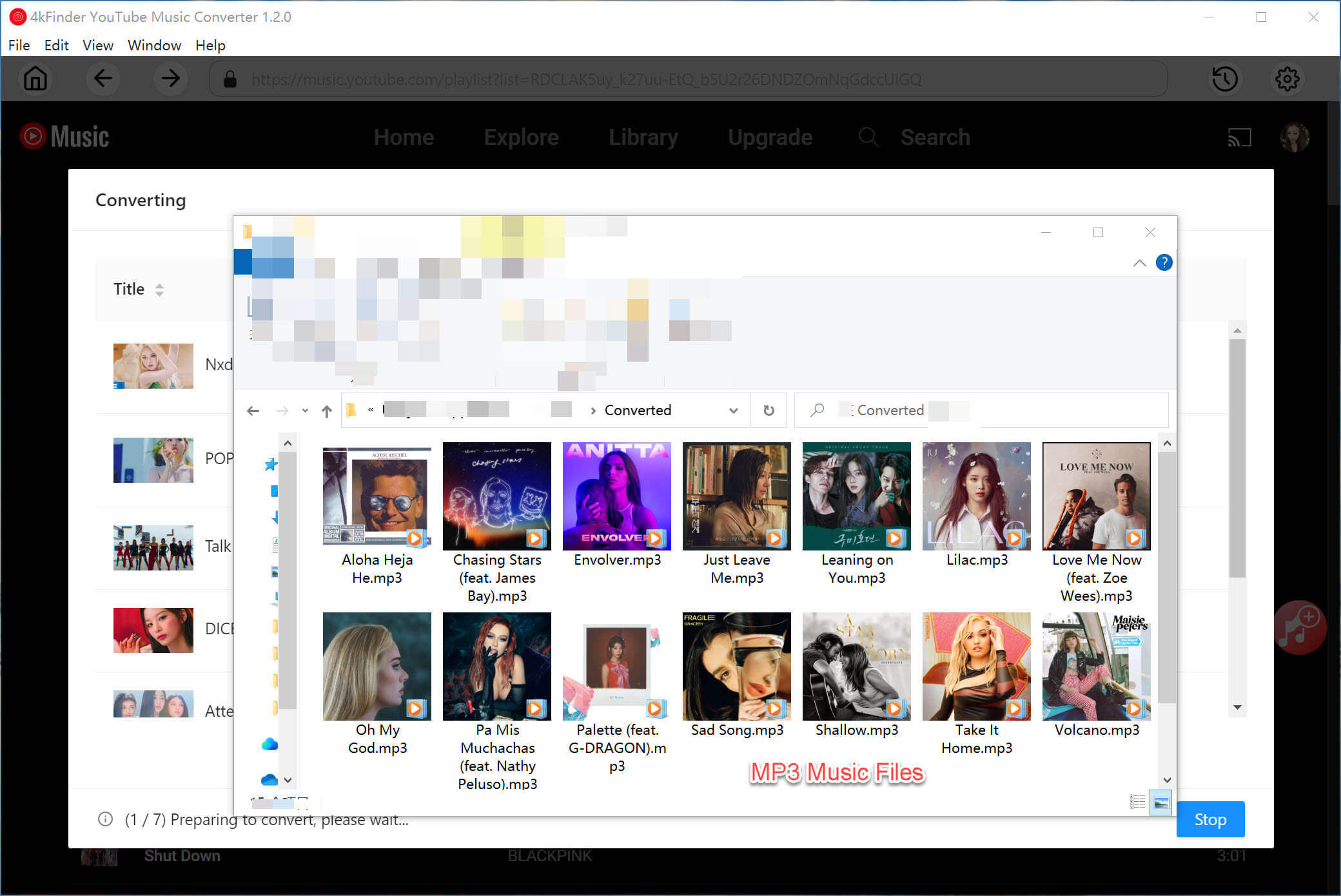
You can get uninterrupted music enjoyment without relying on unstable YouTube Music app!
Part 4. Final Words
When YouTube Music keeps crashing, it can seriously disrupt your listening experience. Fortunately, the issue to be resolved with above 10 effective ways. For users who want a permanent, hassle-free solution, downloading YouTube Music to MP3 with 4kFinder YouTube Music Converter is the best and most reliable option. 4kFinder YouTube Music Converter is an all-in-one YouTube Music downloader, YouTube Music converter, YouTube Music player, and YouTube Music manager! Say goodbye to YouTube Music app! With offline playback, no buffering, no ads interruption and zero crashes, you can finally enjoy your favorite music on your own schedule!