 Download Netflix videos to MP4 or MKV format in 1080P Full HD resolution.
 English
 Arabic
 Chinese (Simplified)
 Chinese (Traditional)
 Croatian
 Czech
Czech Danish
 Dutch
Dutch Finnish
 French
 German
 Greek
Greek Hebrew
 Hindi
Hindi Indonesian
 Italian
 Japanese
 Korean
 Malay
Malay Norwegian
 Polish
 Portuguese
 Russian
 Slovenian
 Spanish
 Swedish
 Thai
Thai Turkish
 Ukrainian
 Vietnamese

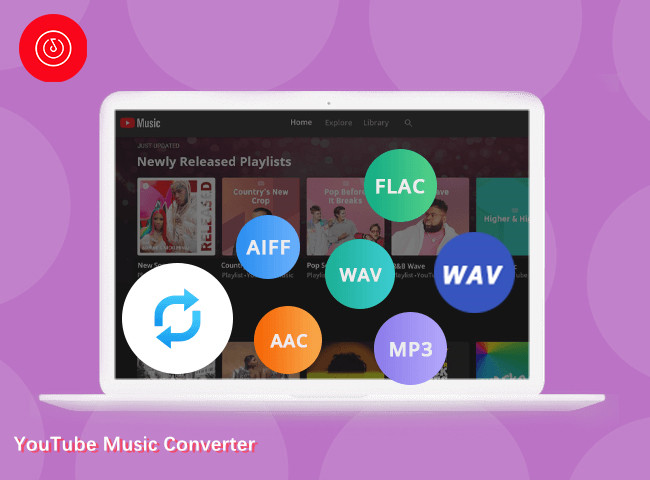
The post will guide you to 8 workable methods to fix songs not playing in YouTube Music. Try any of the solutions if you are facing this problem. For a quick fix, you may use 4kFinder YouTube Music Converter to download YouTube Music to MP3 for smooth and unlimited offline playback.
YouTube Music has become one of the most popular music streaming platforms, offering official tracks, albums, playlists, remixes, and live performances. However, many users frequently encounter a frustrating issue: songs not playing in YouTube Music. Whether you’re trying to stream online or play downloaded tracks offline, playback failures can lead to a poor listening experience.
If you’re facing YouTube Music not playing songs, you’re not alone. This issue can be caused by unstable internet connections, expired subscriptions, app bugs, outdated devices, or corrupted cache data. The good news is that there are various fixes for letting your YouTube Music songs play again. Here we’ll walk you through 8 proven solutions to fix songs not playing in YouTube Music.
CONTENTS
Fix Youtube Music Not Working
Below are the most effective methods to fix YouTube Music not playing songs on Android, iPhone, Windows, Mac, or even in a browser. Keep reading and figure it out!
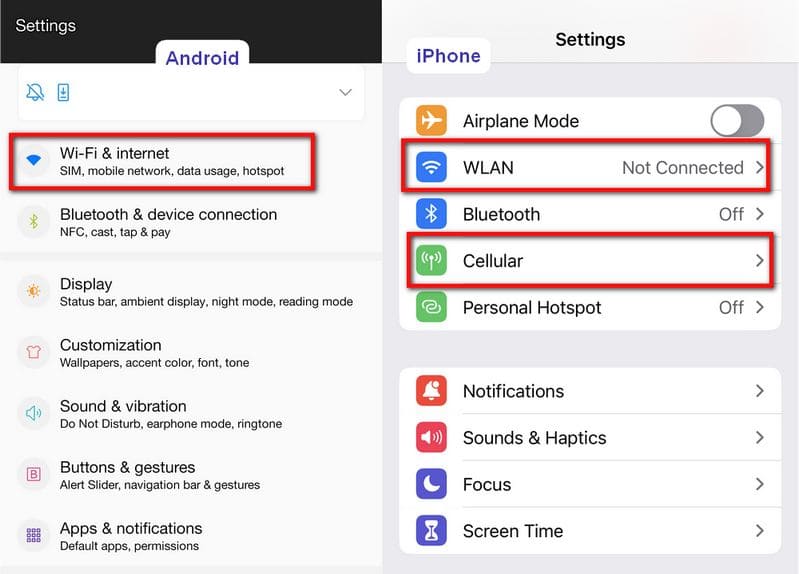
Solution 1. Check Your Internet Connection
YouTube Music is a streaming music platform that requires an Internet connection to verify your account. Whether you are free or premium users, you need a stable internet connection to get access its music library. If you are experiencing something like YouTube Music not working, not playing, please first check if your WiFi or mobile data connection is successful.
Solution 2. Check Your Subscription Status
YouTube Music requires an active Premium subscription to play downloaded songs offline. If your subscription expires, downloaded tracks become inaccessible. You may also face issues like YouTube Music not playing downloads.
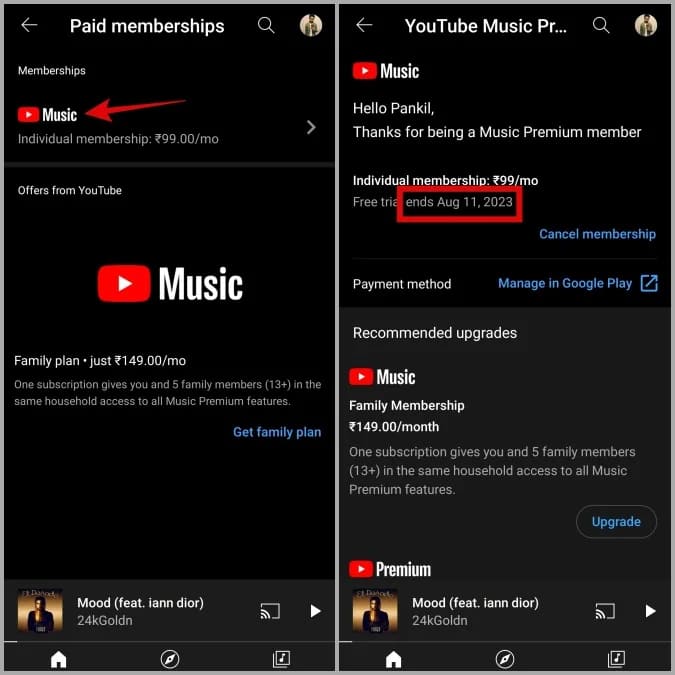
Log in to your Google account and verify your YouTube Music Premium status. If your payment failed or your plan expired, this could directly cause songs not playing in YouTube Music, especially for offline content.
Solution 3. Sign Out and Then Re-Sign In
YouTube Music requires a YouTube/Google account to access its library. Sometimes, account authentication errors can prevent songs from playing properly. If there is a problem with playing or downloading songs on YouTube Music, you can try to sign out and re-sign in your YouTube Music account to see if it helps.
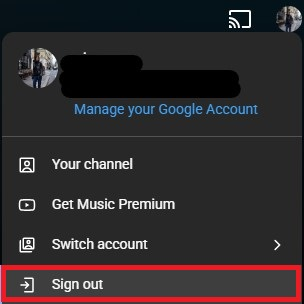
Step 1. Open the YouTube Music app or web player, tap your Profile picture.
Step 2. Select “Sign out”.
Step 3. Close the YouTube Music app or player completely.
Step 4. Reopen YouTube Music app or web player.
Step 5. Sign back in with your Google account.
Solution 4. Update YouTube Music App
Running an outdated app version can lead to bugs, crashes, and songs not playing in YouTube Music. You should check if you are using the latest version of YouTube Music app. If not, go to the App Store or Google Play Store, search for YouTube Music, and click “Update”.
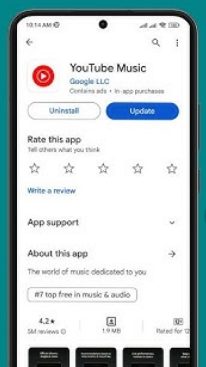
Solution 5. Reinstall YouTube Music App
YouTube Music app sometimes will have sudden bugs occur. If updating doesn’t help, reinstalling the app can fix corrupted installation files causing YouTube Music not playing songs.
Step 1. Open the App Store or Google Play Store.
Step 2. Search for YouTube Music, click “Uninstall” and confirm your action.
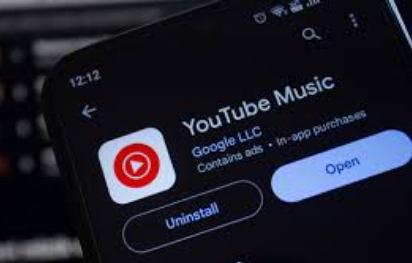
Step 3. Then reinstall the YouTube Music app from the App Store or Google Play Store.
Solution 6. Switch to YouTube Music Web Player
If the update and reinstall the YouTube Music app doesn’t work, try another way to enjoy your YouTube Music collection. Normally, YouTube Music allows you to play and even download songs in its app or web player. If the YouTube Music app keeps failing, try using the YouTube Music Web Player.
Step 1. Visit music.youtube.com in a browser and log in.
Step 2. Select a playlist or song and start playing.
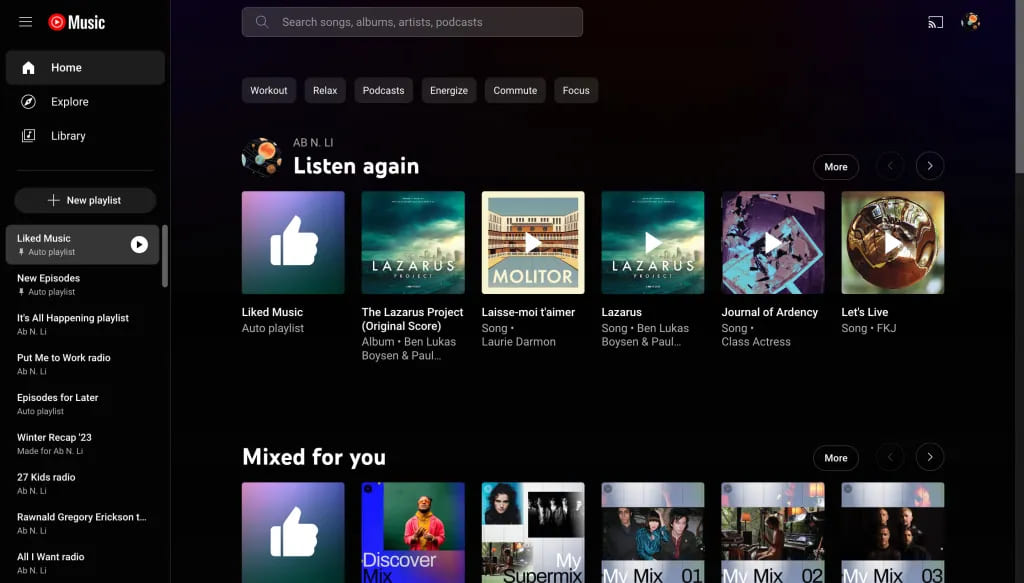
If songs play perfectly in your desktop web browser but not in the mobile app, it confirms the issue is localized to your mobile app or device.
Solution 7. Clear YouTube Music Cache
Cached data can become corrupted or outdated over time, causing playback problems and app instability. Clearing the cache can immediately fix songs not playing in YouTube Music without affecting your account data.
Step 1. Go to “Settings” > “Apps” > “YouTube Music”.
Step 2. Tap “Storage”, and select “Clear Cache”.
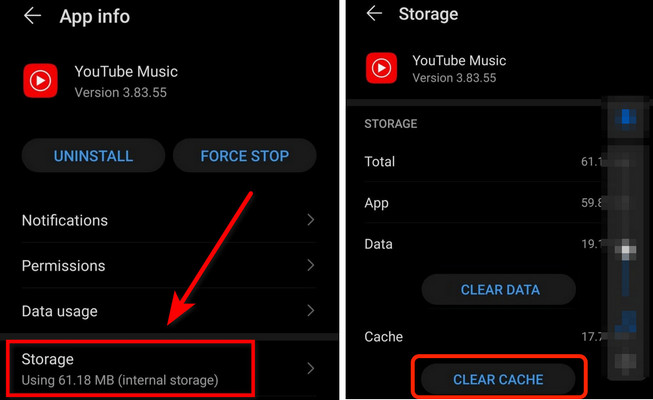
Step 3. Restart the YouTube Music app and then log back in.
Solution 8. Update Your Device to the Latest Version
If all the above solutions fail and music on YouTube Music does not play as normal, then it could be your outdated system. An outdated operating system may cause compatibility issues, leading to frequent playback failures, app crashes, etc. To resolve songs on YouTube Music not playing problem, you’d better update your device to the latest version.
On iOS:
Step 1. Go to Settings > General > Software Update.
Step 2. If an update is available, tap “Download and Install.”
On Android:
Step 1. Open Settings > System > System Update.
Step 2. Tap “Check for update.” If an update is available, follow the prompts to download and install it.
Note: Ensure your device is connected to Wi-Fi and has sufficient battery.
Bonus: Download YouTube Music to MP3 for Unlimited Playback
If the songs on YouTube Music not playing/working issue still isn’t resolved, the most reliable solution is to download YouTube Music to MP3 files. In this way, you can get rid of the error permanently and enjoy YouTube Music offline outside the app. To achieve this target, you need help from a third-party YouTube Music downloader. Here, the 4kFinder YouTube Music Converter is highly recommend.
4kFinder YouTube Music Converter is a professional desktop tool designed to help users download YouTube Music songs as MP3 files for permanent offline playback. What’s more, it lets you download and converter YouTube Music tracks to M4A, FLAC, WAV, AAC, or AIFF in bulk while preserving original audio quality and metadata. Unlike the YouTube Music app, 4kFinder removes DRM restrictions, ensuring that downloaded songs can be playable with other media players such as iTunes, VLC, Windows Media Player, or any MP3-compatible device.
With its built-in YouTube Music web player, 4kFinder YouTube Music allows you to access the whole music library without installing the YouTube Music app, even without logging in. In other words, you can download tracks, albums, playlists, and music videos from YouTube Music without Premium. For users who want full control, unlimited playback, and zero interruptions, 4kFinder offers a future-proof solution.
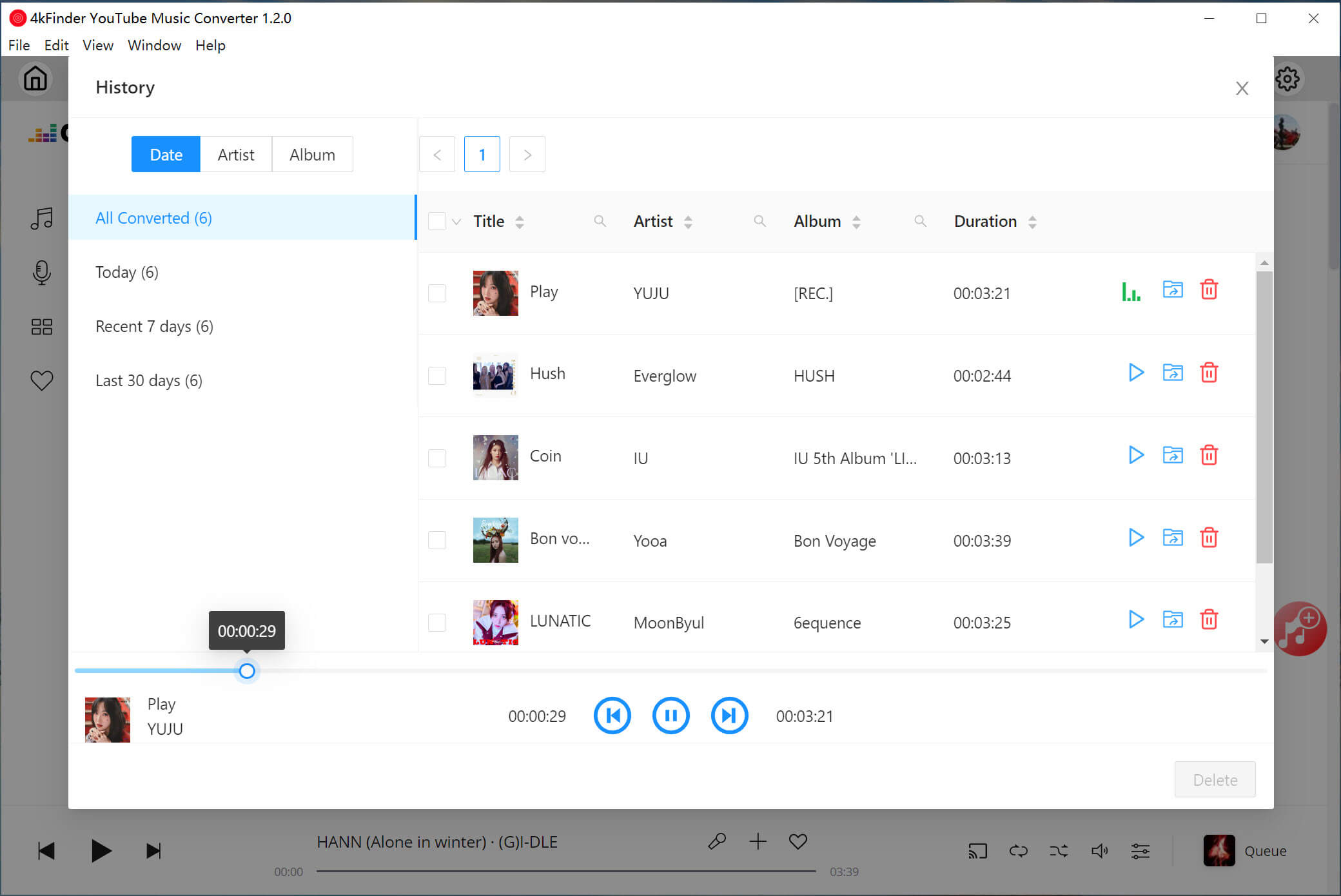
So goodbye to YouTube Music app! 4kFinder YouTube Music Converter lets you stream, play and download any music content without the YouTube Music app! It has an in-built Music Player!
More Features of 4kFinder YouTube Music Converter:
- An integrated browser lets you search, browse, and download directly.
- Download YouTube Music tracks, MVs, playlists, albums without Premium.
- Convert YouTube Music songs to MP3, WAV, AAC, FLAC, M4A, AAC, AIFF.
- Batch download YouTube Music songs, playlists, albums at 10X speed.
- Preserve original audio quality up to 320kbps, 512kbps, 640kbps.
- Customize the output folder and file naming conventions freely.
How to Download YouTube Music to MP3 with 4kFinder?
Step 1. Open 4kFinder YouTube Music Converter
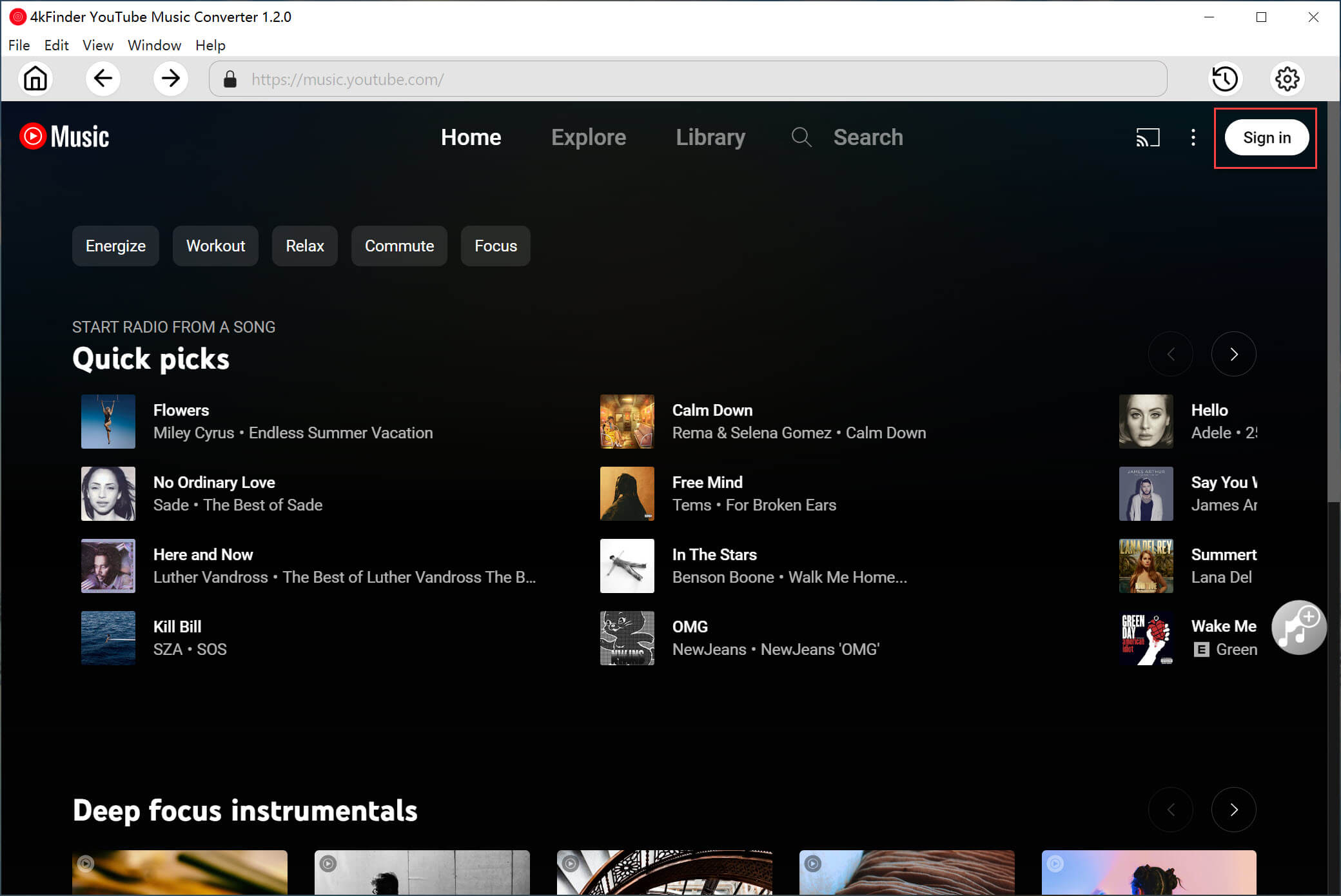
After installation, open 4kFinder YouTube Music Converter on the desktop, and log in to your YouTube Music account via the built-in web player. Of course, you can skip this step, as it allows to access the library and download YouTube Music tracks without logging in.
Step 2. Change Output Settings
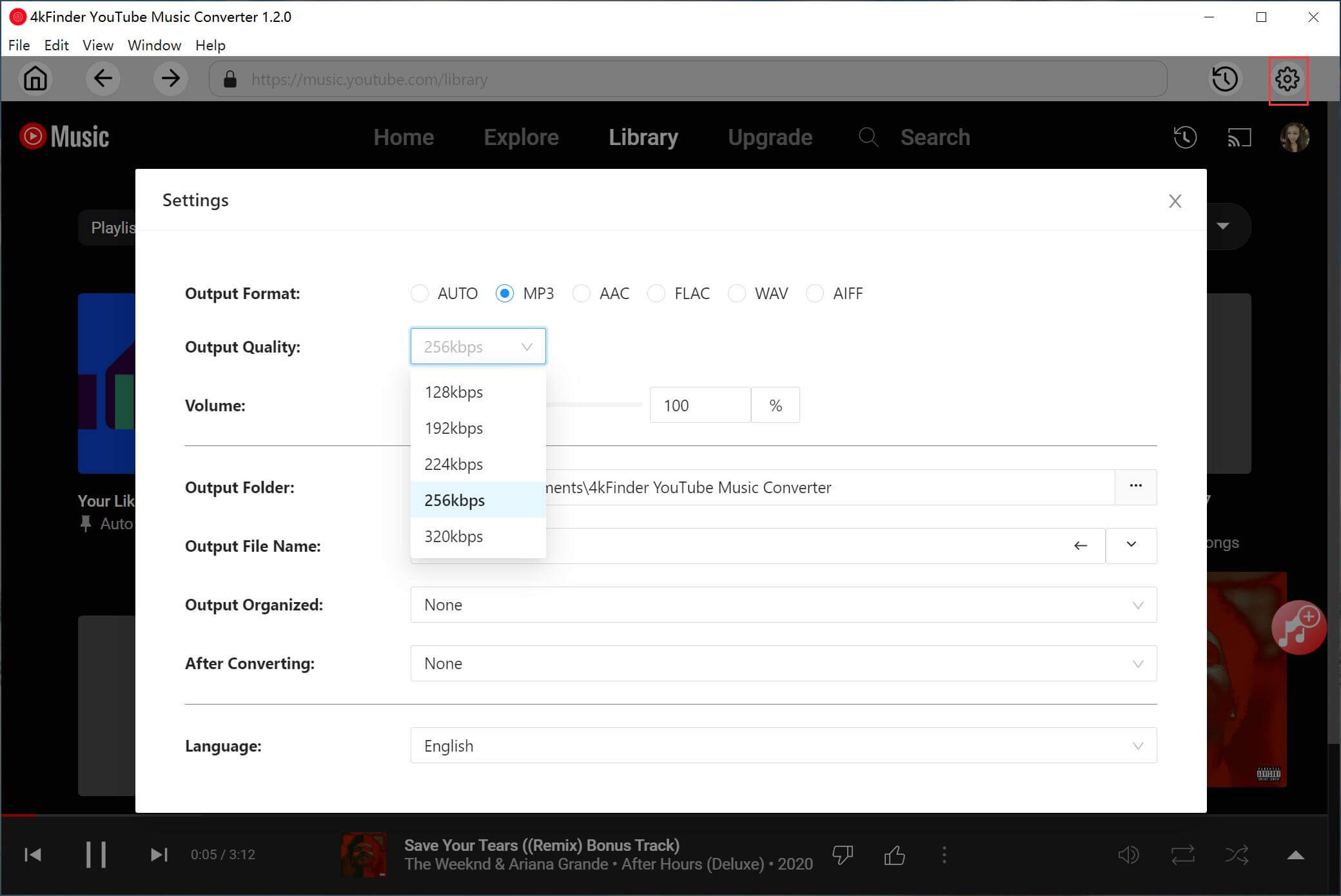
Click “Gear” icon to modify the output audio parameters, select MP3 as the output format, and 320kbps as the output quality. Customize the output file name and change the output path.
Step 3. Add Songs/Playlists/Albums/MVs
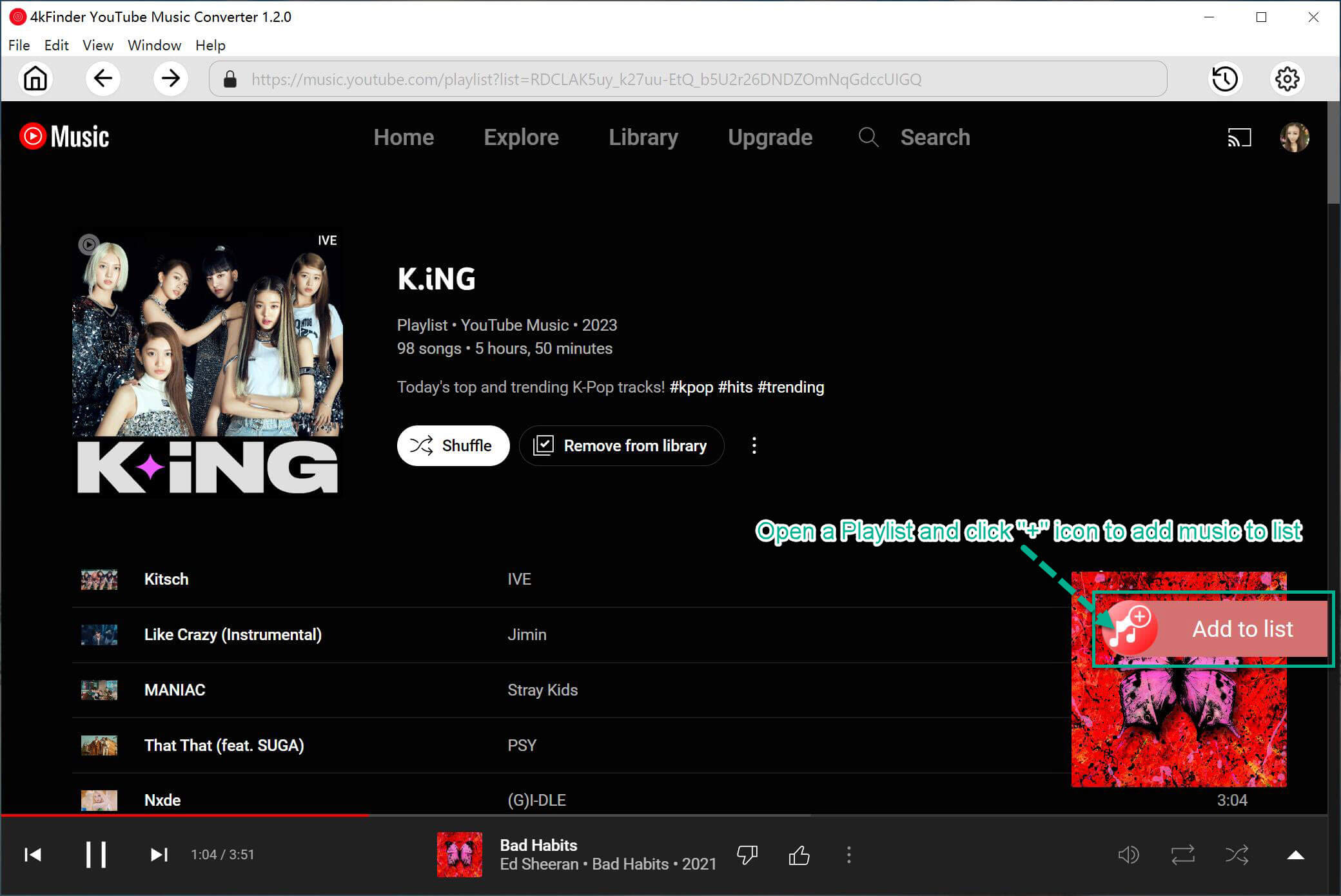
Browse YouTube Music and add the songs, albums, music videos, or playlists you want to download. It supports batch downloading. Open any music and click the “Add to list” icon to load the items. The software will parse and list all tracks in its conversion queue.
With your desired tracks checked in the queue, double check and confirm.
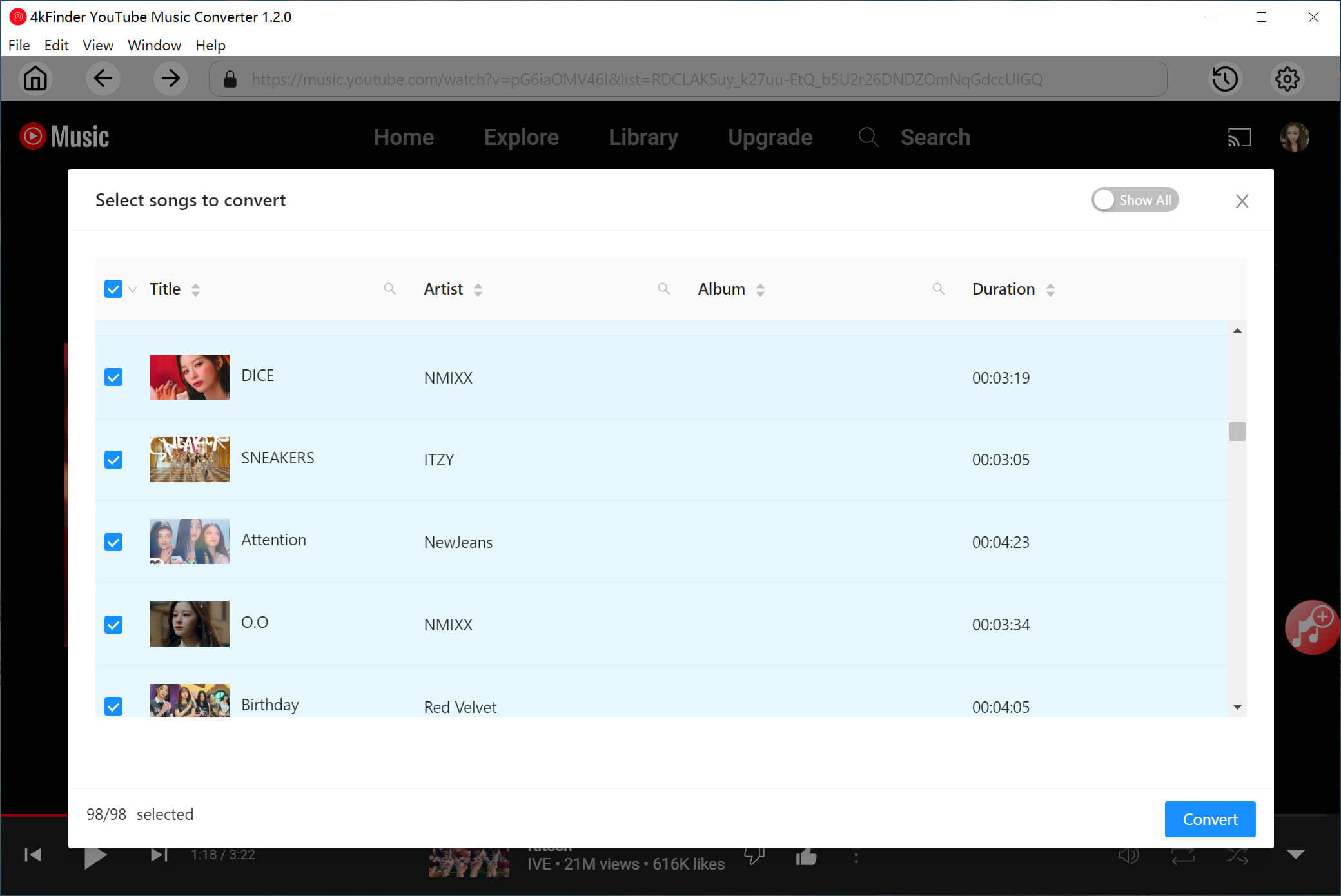
Step 4. Start Downloading YouTube Music to MP3
Click “Convert” button, and 4kFinder will begin downloading and converting each track into an individual, high-quality MP3 file. You can monitor the progress.
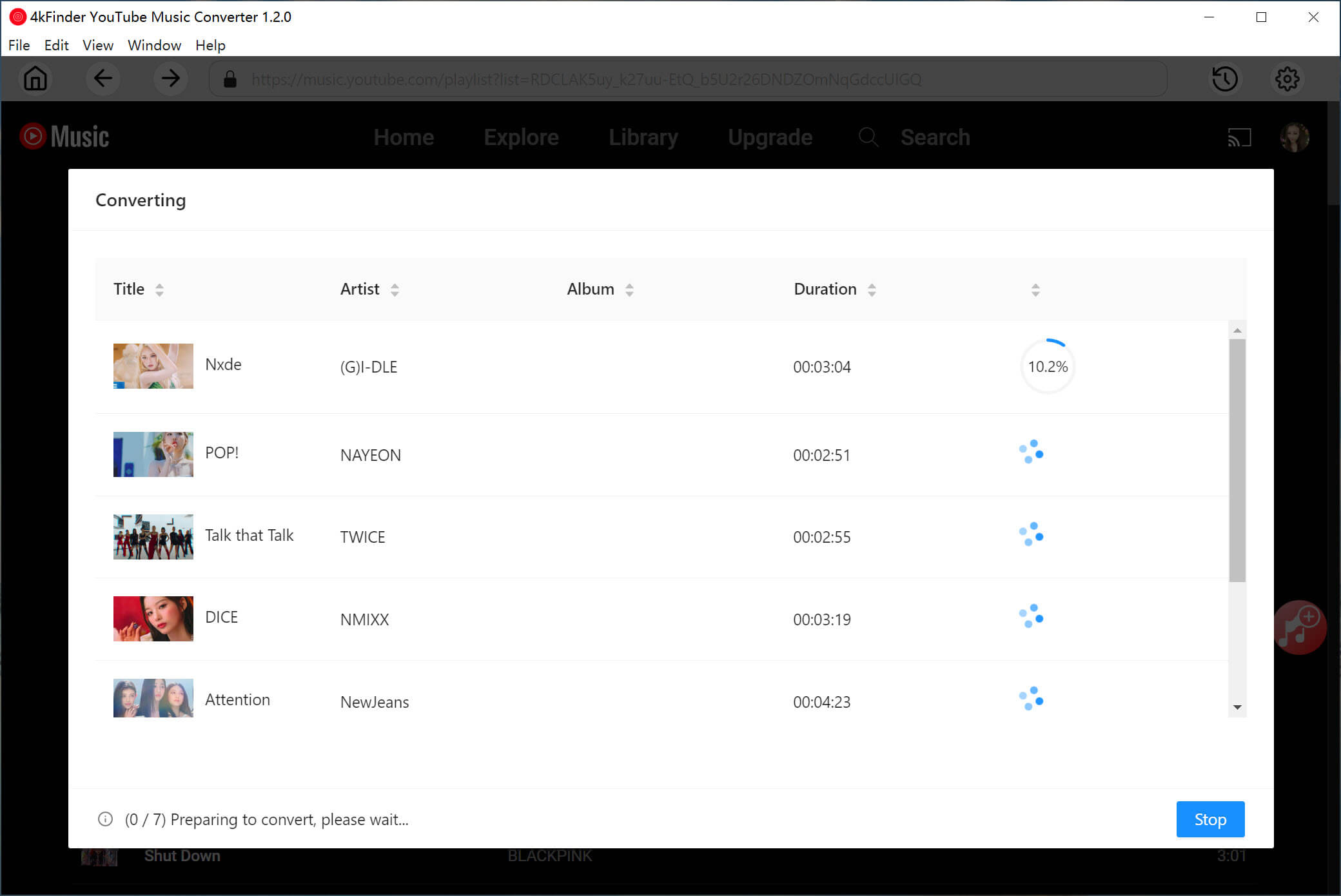
Step 5. Listen to YouTube Music Offline
Once complete, click the “Clock” icon to check the history. You can now open the output folder and play these downloaded YouTube Music songs with 4kFinder’s Music Player, or import them to other players like iTunes, WMP, VLC, etc.
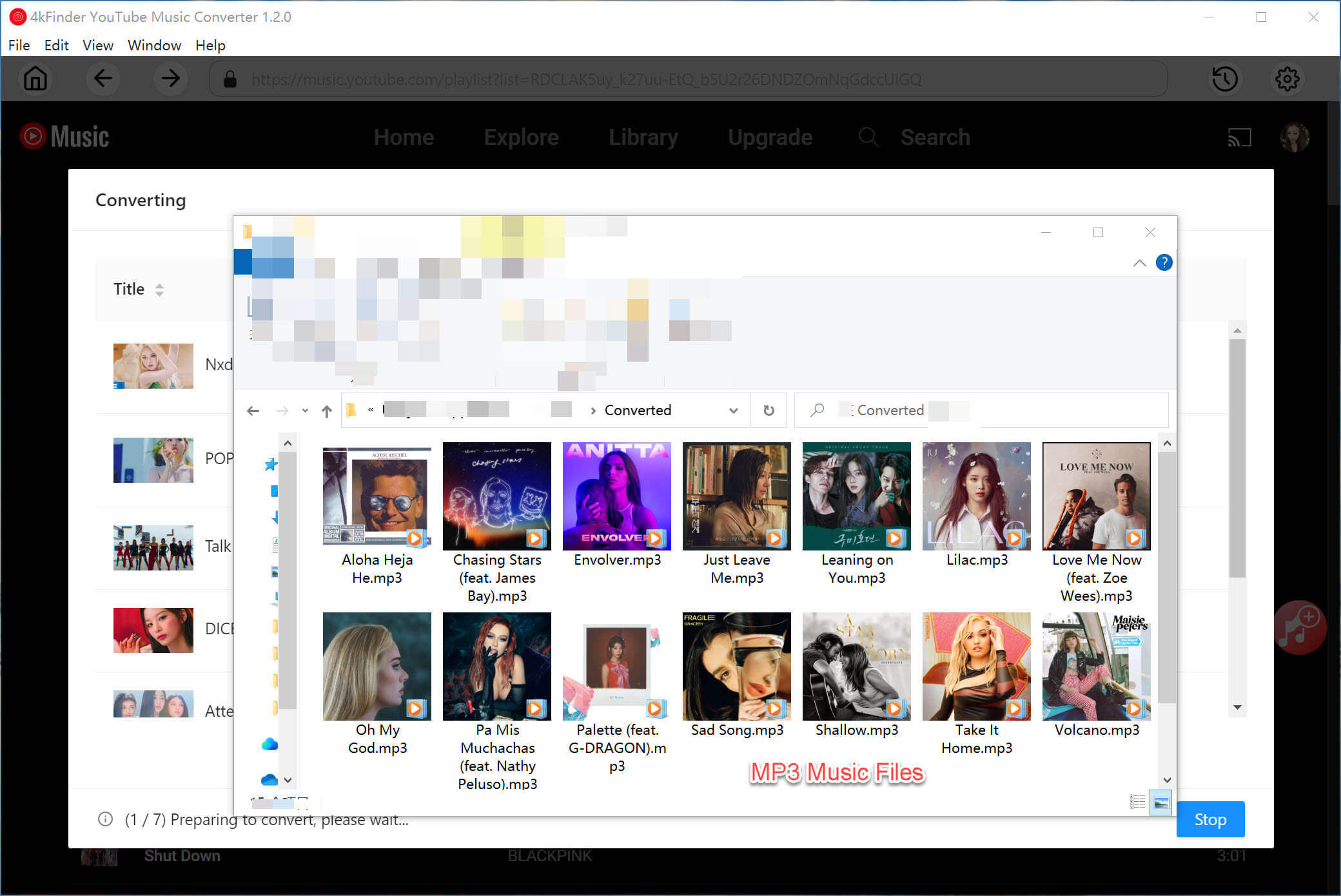
Final Words
Experiencing songs not playing in YouTube Music can be extremely frustrating, but most issues are easy to fix with the above approaches. From checking your internet and subscription to clearing cache and updating your device, these solutions help you fix YouTube Music not playing songs quickly.
For users who want a permanent solution, downloading YouTube Music as MP3 files with 4kFinder YouTube Music Converter is the most reliable way to avoid playback issues forever. Enjoy your favorite YouTube Music songs without limits, interruptions, or restrictions, across any device and player, anytime, anywhere!