 Download Netflix videos to MP4 or MKV format in 1080P Full HD resolution.
 English
 Arabic
 Chinese (Simplified)
 Chinese (Traditional)
 Croatian
 Czech
Czech Danish
 Dutch
Dutch Finnish
 French
 German
 Greek
Greek Hebrew
 Hindi
Hindi Indonesian
 Italian
 Japanese
 Korean
 Malay
Malay Norwegian
 Polish
 Portuguese
 Russian
 Slovenian
 Spanish
 Swedish
 Thai
Thai Turkish
 Ukrainian
 Vietnamese

Why are songs unavailable on YouTube Music, and how can you fix it? In this guide, we explain the main reasons behind the “Song Is Unavailable” in YouTube Music issue and share effective solutions to fix it. We will also show you how to download YouTube Music songs to your computer so you can avoid unavailability and enjoy offline playback anytime.
YouTube Music is now one of the most widely used music streaming services, giving users access to millions of songs and music videos. However, many people run into the “Song Is Unavailable” in YouTube Music message when trying to play certain tracks or albums. This problem can interrupt listening and cause confusion for users. In this article, we will explain why “Song Is Unavailable” in YouTube Music happens and show you how to fix “Song Is Unavailable” in YouTube Music with practical solutions.

CONTENTS
Part 1. Why Is “Song Is Unavailabe” in YouTube Music?
Many YouTube Music users find that some songs or albums suddenly won’t play, even though they worked before. This can be annoying and confusing. Understanding why this happens can help you handle the problem more easily. Below are the main reasons songs may be unavailable on YouTube Music.
⚠️ Licensing Restrictions
Some songs are only allowed in certain countries. If a track is not licensed in your region, YouTube Music may block it.
⚠️ Account Type or Subscription Plan
YouTube Music offers free and Premium plans. Some songs are only available to Premium users, so free accounts may not be able to play them.
You May Like:
⚠️ Content Removed from YouTube Music
Sometimes songs or albums are removed when YouTube Music’s licensing agreements change. When this happens, the content is no longer available.
⚠️ Library Updates
YouTube Music updates its library from time to time. During these updates, some songs or playlists may be temporarily unavailable, but this usually doesn’t last long.
Part 2. Solutions to Fix “Song Is Unavailabe” in YouTube Music
Understanding why YouTube Music song is unavailable is just the first step. The good news is that there are several ways to fix this issue. Whether the problem is caused by regional limits, account type, or licensing rules, you can try different methods to get back to enjoying your music. Below are some practical solutions to help you access unavailable songs on YouTube Music.
🛠 Use a VPN for Region-Locked Songs
YouTube Music offers different content in different countries. If a song is unavailable because of location restrictions, a VPN can help by changing your IP address to another region where the song is available.
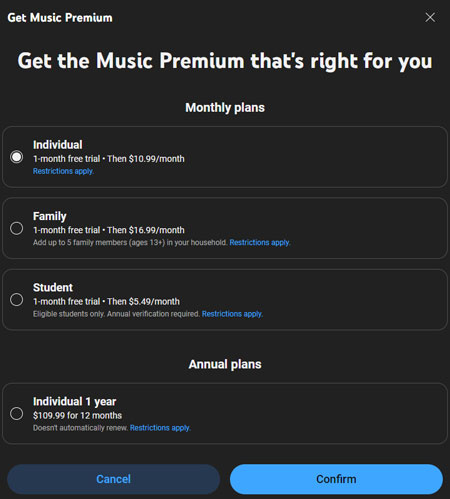
🛠 Switch Accounts or Upgrade to YouTube Music Premium
Free users may not have access to all songs. Upgrading to YouTube Music Premium unlocks more tracks and features. You can also log in with a Premium account to check if the content becomes available.
Step 1. Open YouTube Music settings or visit the YouTube Music Premium page.
Step 2. Select the Premium plan and complete the upgrade.
Step 3. Enjoy access to more songs and Premium features.
🛠 Clear the YouTube Music App Cache
App glitches can sometimes make songs appear unavailable. Clearing the cache can fix these temporary problems.
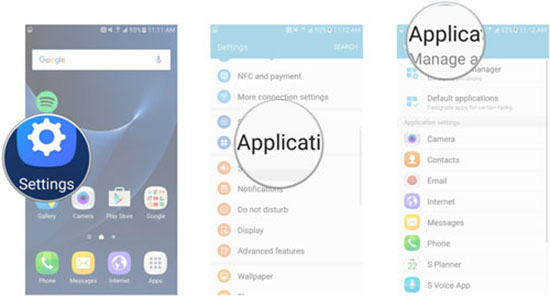
Step 1. Open your device settings. On Android, go to Apps > YouTube Music > Storage. On iPhone, go to General > iPhone Storage > YouTube Music.
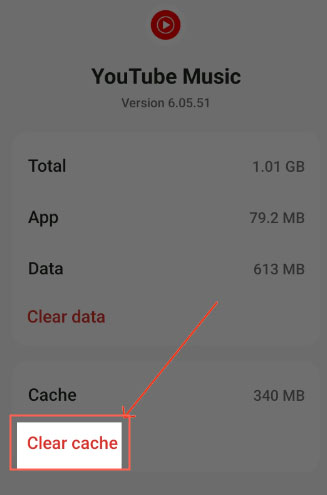
Step 2. Tap Clear Cache or Clear Data on Android, or Documents & Data or Offload App on iPhone.
Step 3. Restart the app and try again.
🛠 Update the YouTube Music App
Using an outdated app version may cause playback issues.
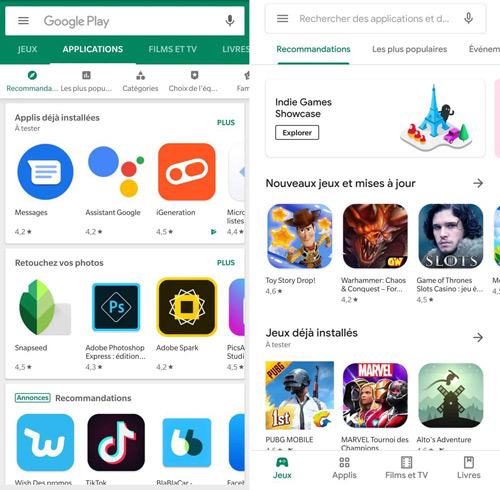
Step 1. Open the Google Play Store or Apple App Store.
Step 2. Search for YouTube Music and check for updates.
Step 3. Install the update and reopen the app.
🛠 Use Another Music Streaming Service
If a song has been removed or is still unavailable, try other platforms like Spotify, Apple Music, or Tidal. Music availability differs between services due to separate licensing agreements.
Part 3. Download YouTube Music Locally to Prevent Unavailability [Best]
Because YouTube Music songs can become unavailable for many reasons, it is difficult to make sure your favorite tracks stay playable all the time. To truly fix “Song Is Unavailable” in YouTube Music and avoid this problem in the future, a reliable solution is to save your favorite YouTube Music songs as local audio files in advance. This way, even if you see the “Song Is Unavailable” in YouTube Music message later, you can still enjoy your music without interruption.
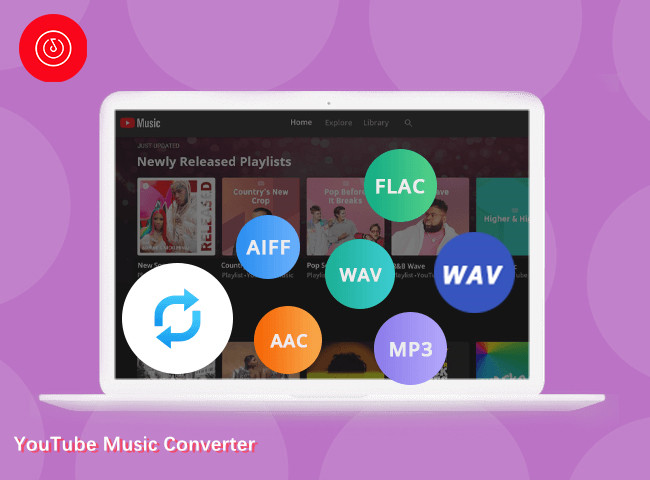
4kFinder YouTube Music Converter is a useful tool for this purpose. It allows you to download audio from YouTube Music on your computer and convert protected music into common formats such as MP3, M4A, AAC, FLAC, WAV, and AIFF. After conversion, the songs are stored directly in a local folder on your device. This means you can play your downloaded music anytime, even when songs are unavailable on YouTube Music or removed from the platform.
👍 Great Features of 4kFinder YouTube Music Converter
- Download songs/playlists/albums from YouTube Music.
- Works with both YouTube Music Free and Premium accounts.
- Convert YouTube Music to MP3, M4A, AAC, FLAC, WAV, AIFF.
- Keep original audio quality and ID3 tag information.
- Download YouTube Music in batches at up to 16X faster speed.
- Save songs and playlists permanently and play them offline on any device.
- Fully compatible with Windows and Mac.
Tutorial: How to Download YouTube Music Locally
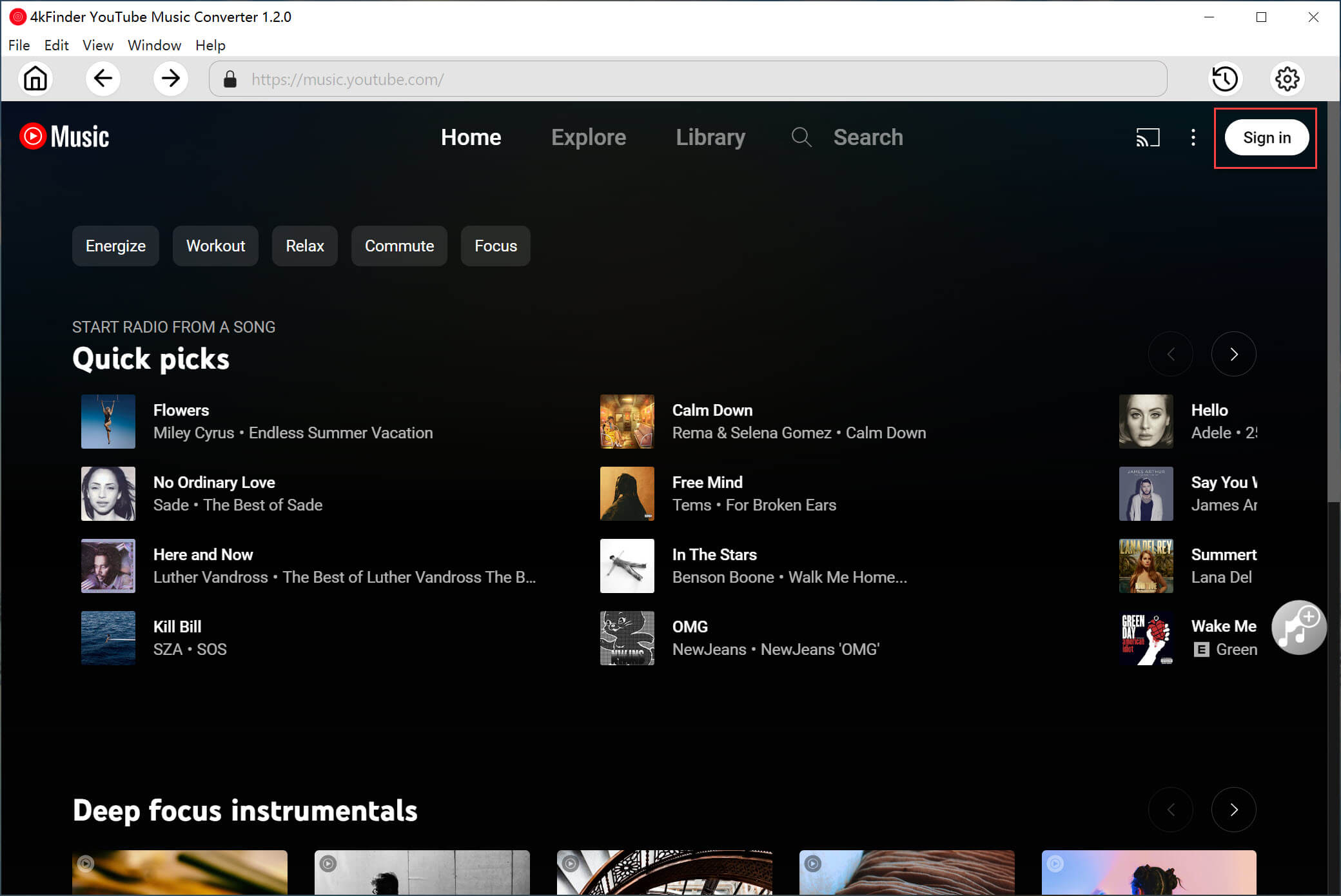
Step 1. Sign in to Your YouTube Music Account
Open 4kFinder YouTube Music Converter and click SIGN IN. Log in to your YouTube Music account, whether it is Free or Premium.
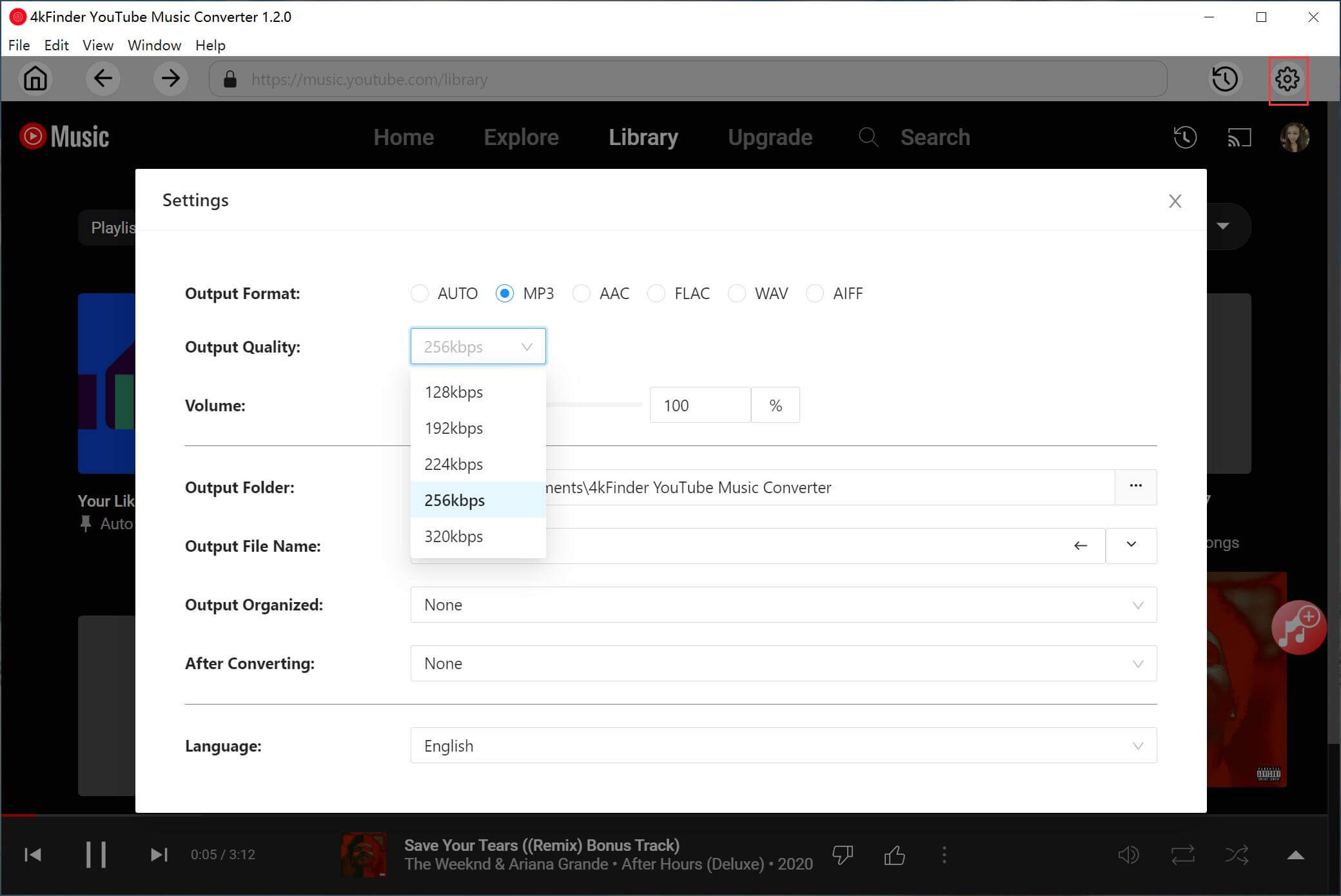
Step 2. Select the Output Format
Click the Settings icon in the top corner to open the settings window. The default format is AUTO M4A at 256 kbps. You can change it to MP3 or another format if you prefer better compatibility.
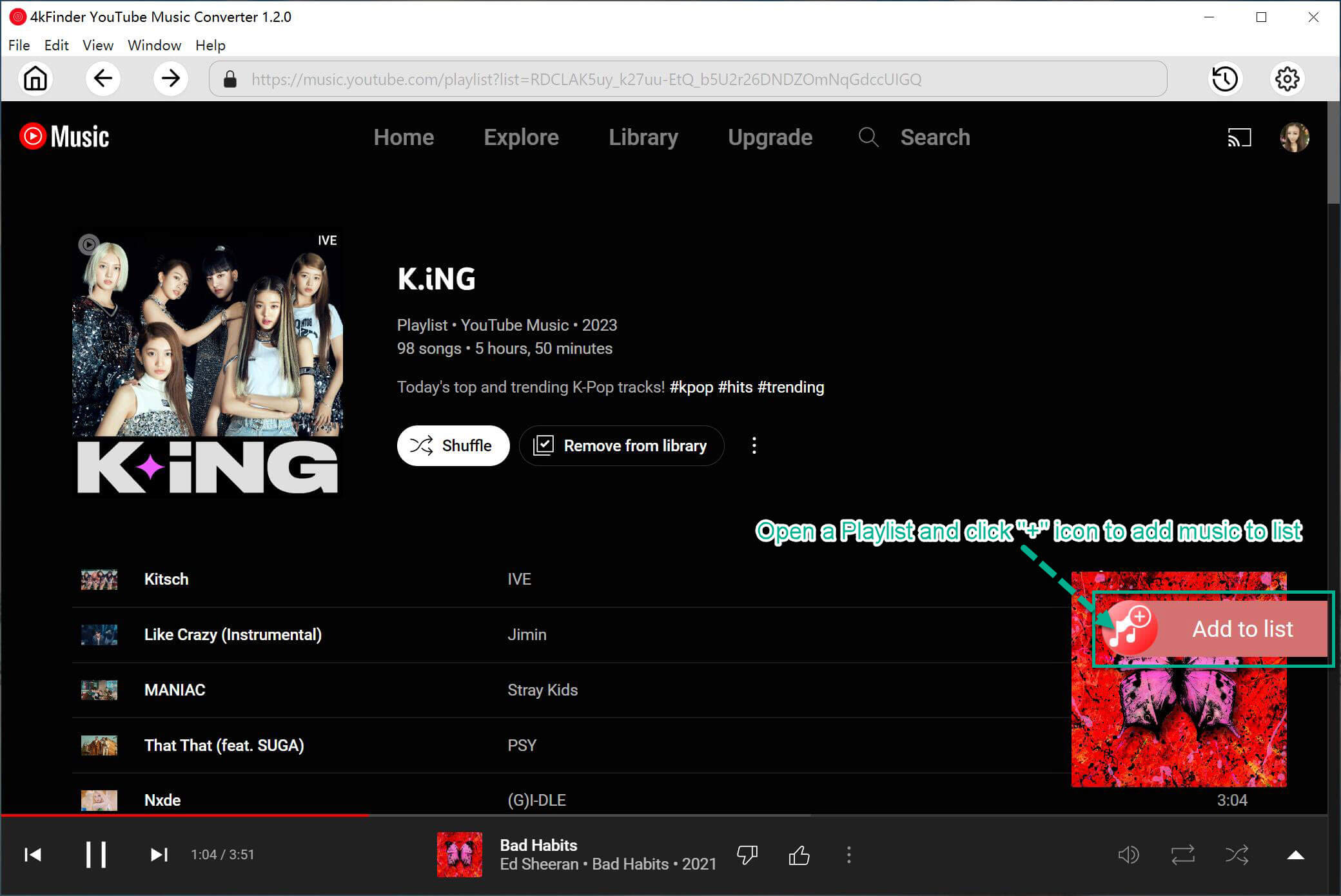
Step 3. Add Songs, Albums, or Playlists
Using the built in YouTube Music web player, you can search and play music directly in the converter. Open a song, album, or playlist, then click the red + button to add it to the download list.
All tracks in the album or playlist will be added automatically, and you can uncheck any songs you do not want.
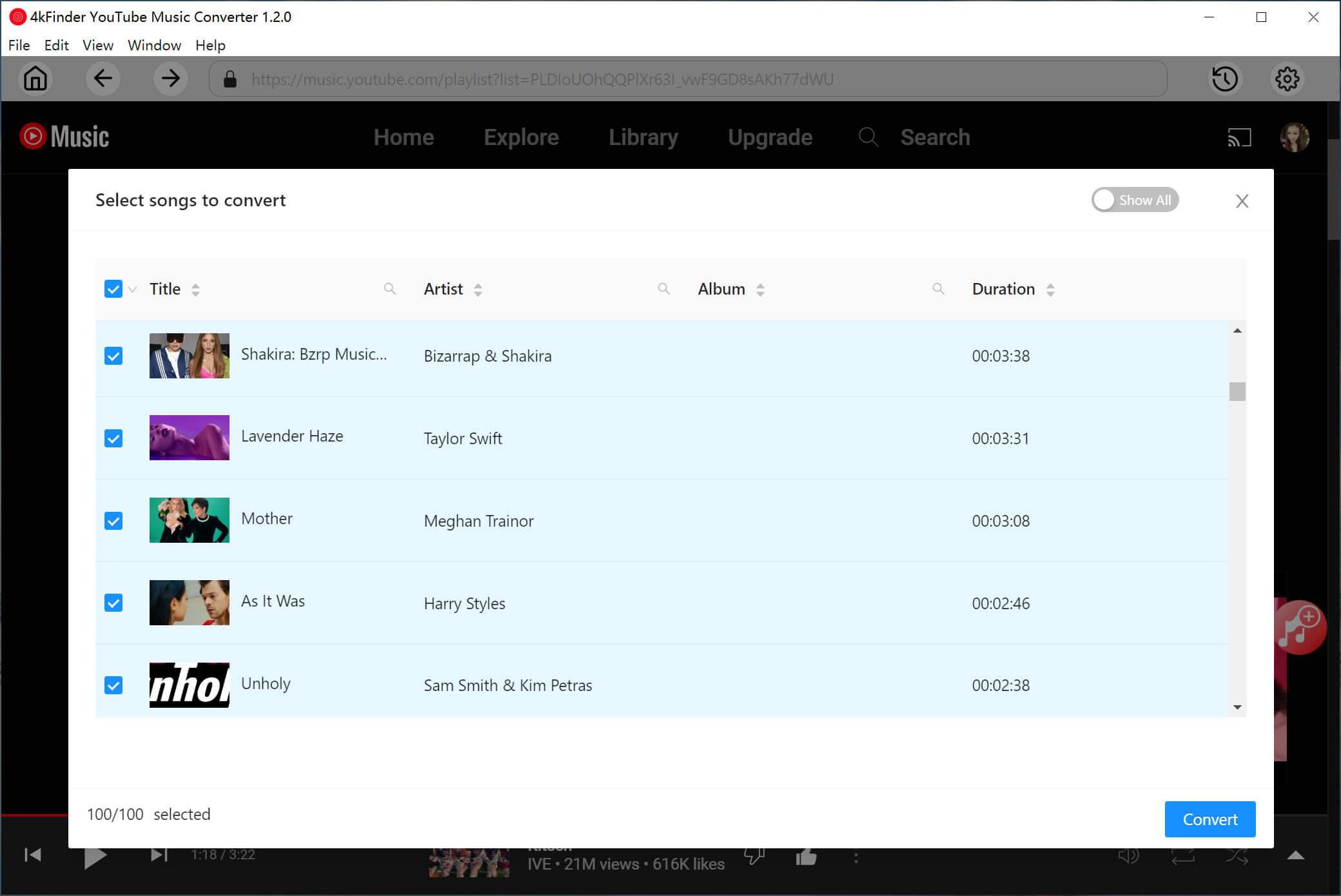
Step 4. Convert YouTube Music Songs
After choosing the songs, click the Convert button. The program will download and convert YouTube Music tracks to MP3, M4A, AAC, or another format you selected.
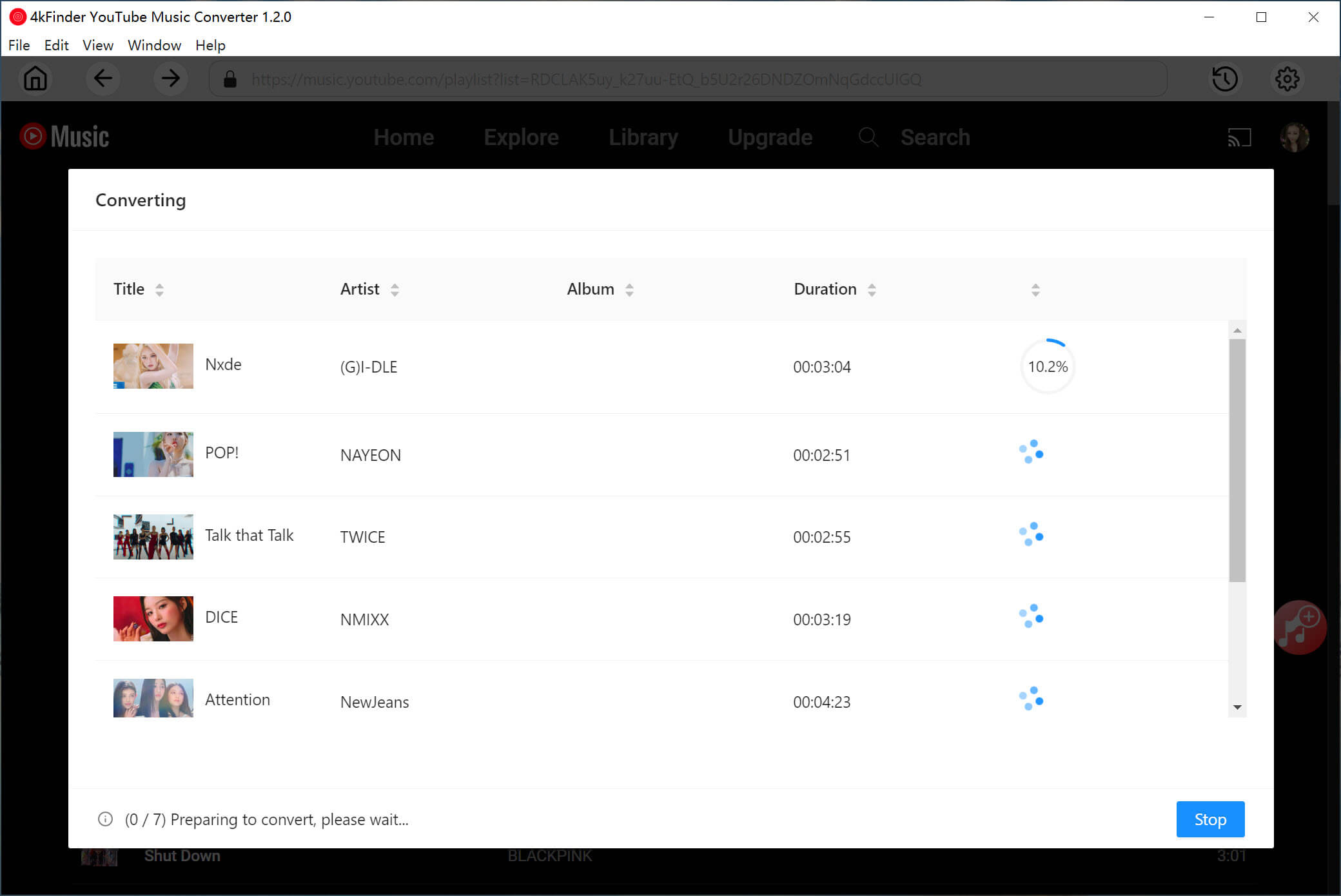
Step 5. Check the Converted Songs
Once the conversion is finished, click the History icon to view your downloaded songs by date, artist, or album.
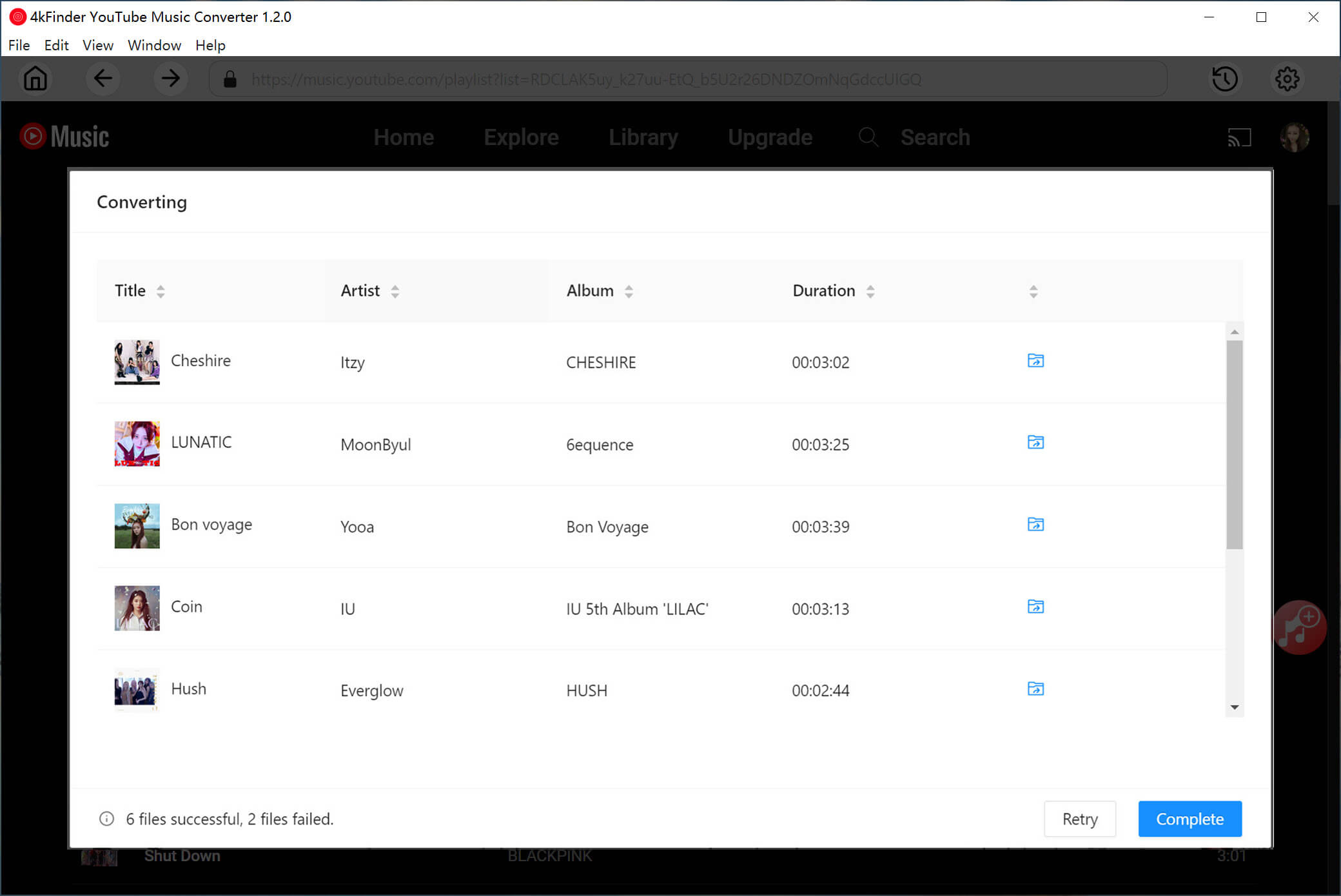
After that, you can enjoy your downloaded music anytime without worrying about YouTube Music songs being unavailable.
Part 4. Conclusion
Why does “Song Is Unavailable” in YouTube Music appear? After reading Part 1, you should now understand the main reasons behind this issue. In Part 2, you can try different methods to fix “Song Is Unavailable” in YouTube Music and deal with these limitations.
If you want a long term solution to avoid “Song Is Unavailable” in YouTube Music, 4kFinder YouTube Music Converter is a practical and easy to use option. It lets you export songs from YouTube Music to your computer, so you can listen to them offline without relying on the YouTube Music app. This way, even if YouTube Music content becomes unavailable, it will no longer affect your listening experience.