 Download Netflix videos to MP4 or MKV format in 1080P Full HD resolution.
 English
 Arabic
 Chinese (Simplified)
 Chinese (Traditional)
 Croatian
 Czech
Czech Danish
 Dutch
Dutch Finnish
 French
 German
 Greek
Greek Hebrew
 Hindi
Hindi Indonesian
 Italian
 Japanese
 Korean
 Malay
Malay Norwegian
 Polish
 Portuguese
 Russian
 Slovenian
 Spanish
 Swedish
 Thai
Thai Turkish
 Ukrainian
 Vietnamese
Want to learn how to play YouTube Music on Garmin Watch? In this guide, we will walk you through the easy setup steps, required settings, and everything you need to get started. You will also learn different ways to enjoy offline listening on your Garmin watch, even without a Premium subscription.
Starting June 13, 2024, the YouTube Music app is available on selected Garmin watches through the Garmin Connect IQ Store. This adds more music options to Garmin devices, along with Spotify, Deezer, and Amazon Music. With YouTube Music, you can enjoy over 100 million songs, playlists, and podcasts directly on your watch. You can also play YouTube Music on Garmin Watch offline by downloading your favorite tracks for phone free listening during workouts.
In this article, we will show you how to install the YouTube Music app, explain the requirements, introduce supported audio formats, and teach you how to transfer YouTube Music to Garmin Watch for listening anytime, even without a Premium subscription.
CONTENTS
Part 1. Requirements for Using YouTube Music on Garmin Watch
Before you start using the YouTube Music app on your Garmin watch, make sure the following requirements are met:
1. Compatible Garmin Watch
Your Garmin watch should run the latest firmware that supports the YouTube Music app. Most models with Wear OS 2 or later are supported.
Tip: If you are not sure whether your device is compatible, check the official compatibility page for details.
2. YouTube Premium Subscription
A YouTube Premium or YouTube Music Premium account is required to use all app features.
3. Stable Internet Connection
You need a stable internet connection during setup to download the app and music content. Using WiFi is recommended for faster downloads.
Part 2. How to Install the YouTube Music App on a Garmin Watch
You can quickly install and start using the YouTube Music app on a compatible Garmin smartwatch. There are two ways to install it: using the Connect IQ Store app on your smartphone or installing it directly from your watch. Before you begin, make sure your watch is connected to WiFi and that the Garmin Connect and Connect IQ Store apps are installed on your phone.
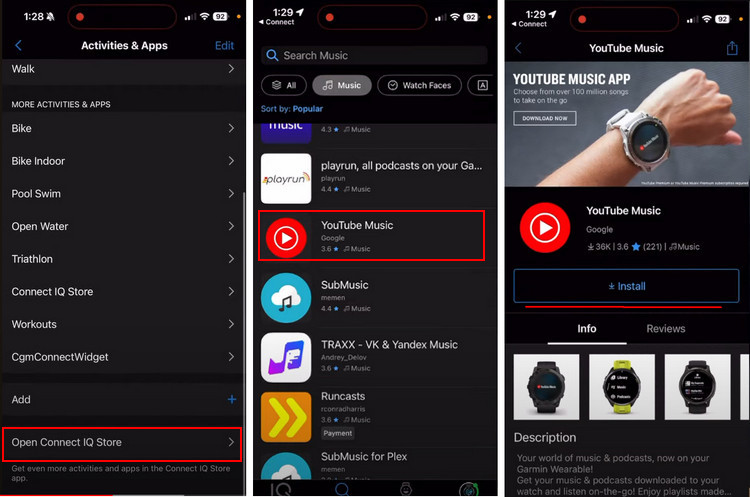
Install from Your Smartphone
Step 1. Open the Connect IQ Store app on your smartphone.
Step 2. Search for YouTube Music using the search bar.
Step 3. Tap Install.
Step 4. Allow any permission requests if prompted.
Step 5. The app will be added to the installation queue and installed during the next sync. A notification will appear on your watch once the installation is complete.
Install Directly from Your Watch
Step 1. Press START on your watch to open the apps and activities list.
Step 2. Select Connect IQ Store.
Step 3. Choose Browse, then go to Music.
Step 4. Find YouTube Music and select it.
Step 5. Tap Install to begin installing the app.
Part 3. How to Play YouTube Music on Garmin Watch Offline without Premium [Best]
As mentioned in Part 1, a YouTube Music or YouTube Premium subscription is normally required to use the YouTube Music app on a Garmin watch. If you do not have a Premium subscription, you can still listen to your favorite songs by using 4kFinder YouTube Music Converter. This tool lets you convert YouTube Music tracks into common audio formats such as MP3, making them fully compatible with Garmin devices. After conversion, you can transfer YouTube Music to Garmin Watch and play YouTube Music on Garmin Watch offline anytime without needing a Premium account.
4kFinder YouTube Music Converter is a powerful program designed to download and convert YouTube Music to MP3, M4A, AAC, FLAC, WAV, and AIFF formats without needing a YouTube Music Premium subscription. The software supports up to 16X conversion speed while keeping the original audio quality and preserving full ID3 tag information. Morever, It also includes a built-in YouTube Music web player, allowing you to browse, search, download, and play music directly inside the program without installing any additional apps.
👍Main Features of 4kFinder YouTube Music Converter
- Download tracks/playlists/albums from YouTube Music.
- Convert YouTube Music to MP3, M4A, AAC, FLAC, WAV, AIFF.
- Keep 100% original audio quality and ID3 tags.
- Convert YouTube Music at 16x faster speed in batch.
- Keep YouTube Music after subscription.
- Play YouTube Music on Garmin Watch and other devices.
- Built-in YouTube Music web player, no need extra apps.
- Fully compatible with Windows & Mac.
Tutorial: How to Convert YouTube Music to MP3
Next, we will show you how to use 4kFinder YouTube Music Converter to download and convert YouTube Music to MP3 so you can play it smoothly on your Garmin watch.
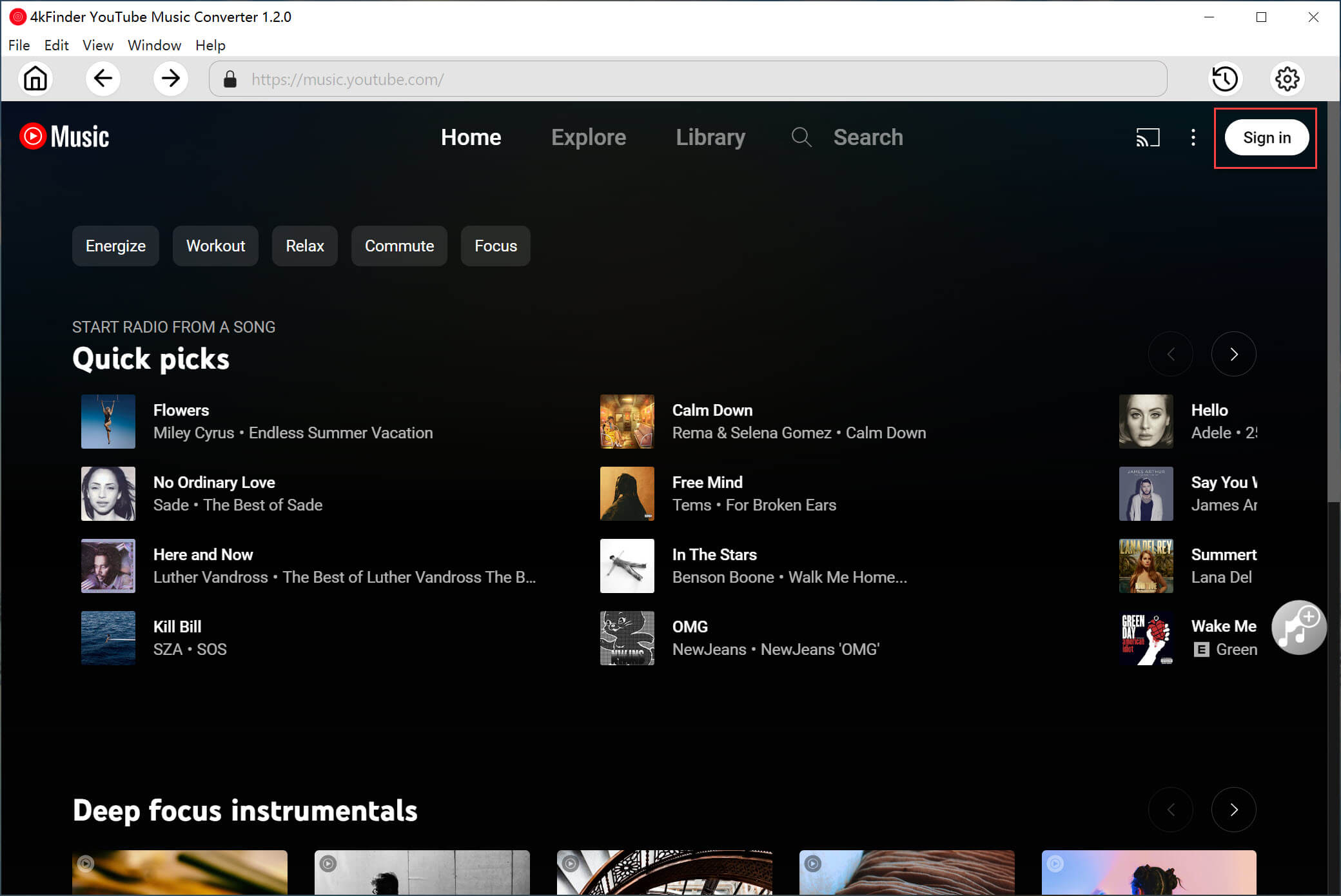
Step 1. Sign in to Your YouTube Music Account
After installing 4kFinder YouTube Music Converter, open the program and click SIGN IN. Log in to your YouTube Music account, whether you are using a Free or Premium plan.
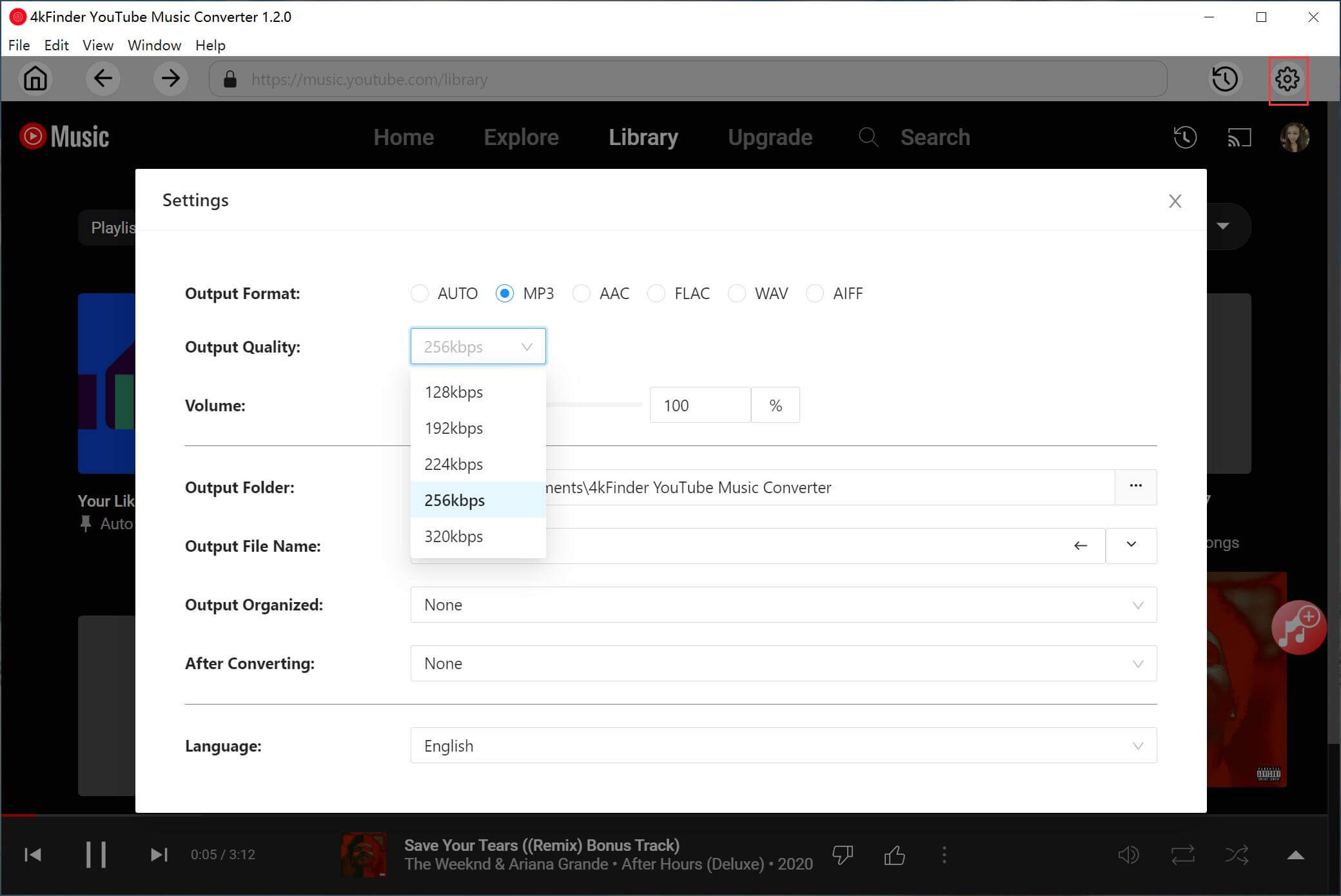
Step 2. Select MP3 as the Output Format
Click the Settings icon in the upper corner. When the settings window opens, choose the output format. The default format is AUTO M4A, so select MP3 for Garmin watch compatibility.
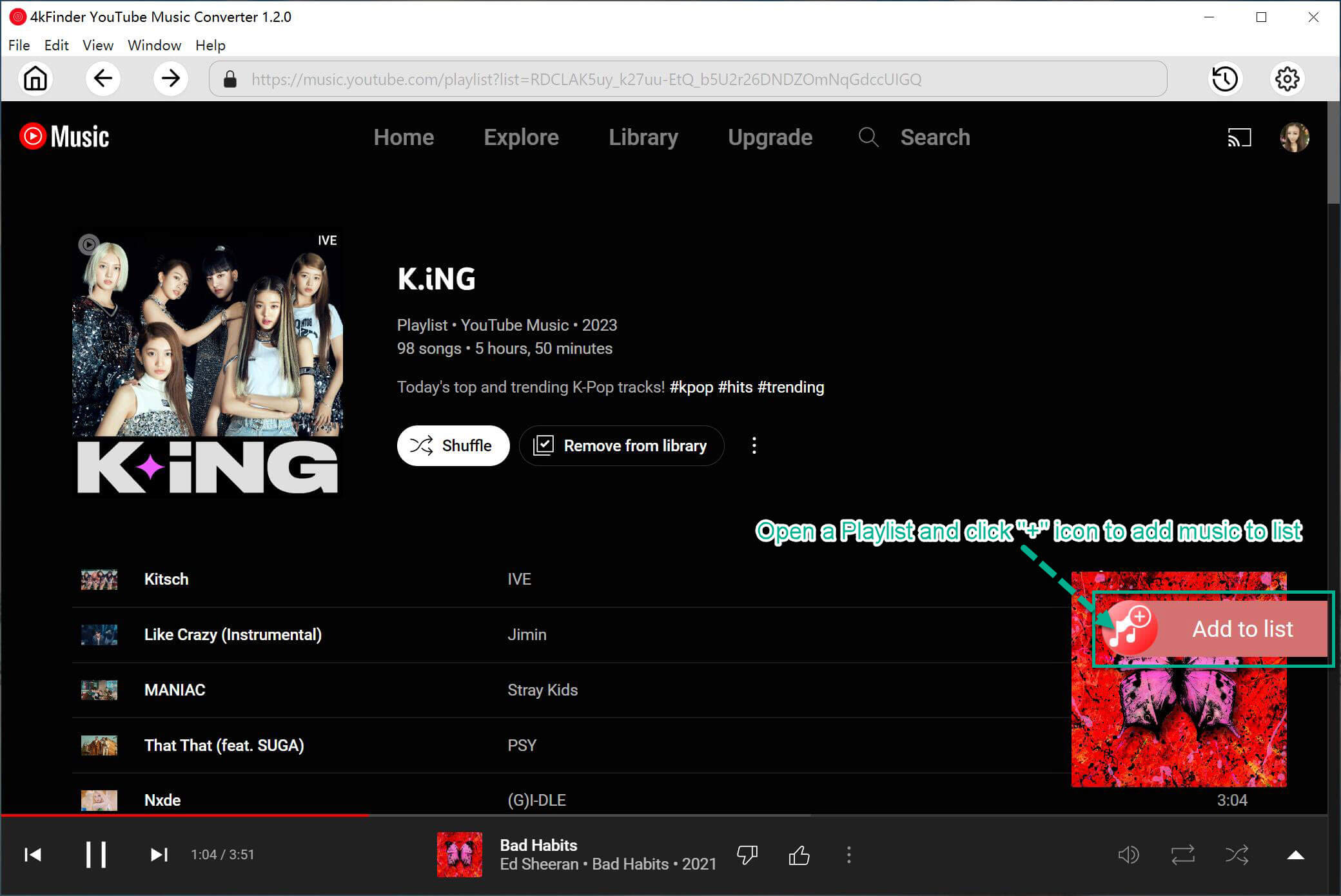
Step 3. Add Songs, Albums, or Playlists
Use the built in YouTube Music web player to search and play music directly inside the program. Open any song, album, or playlist, then click the red + icon to add it to the conversion list.
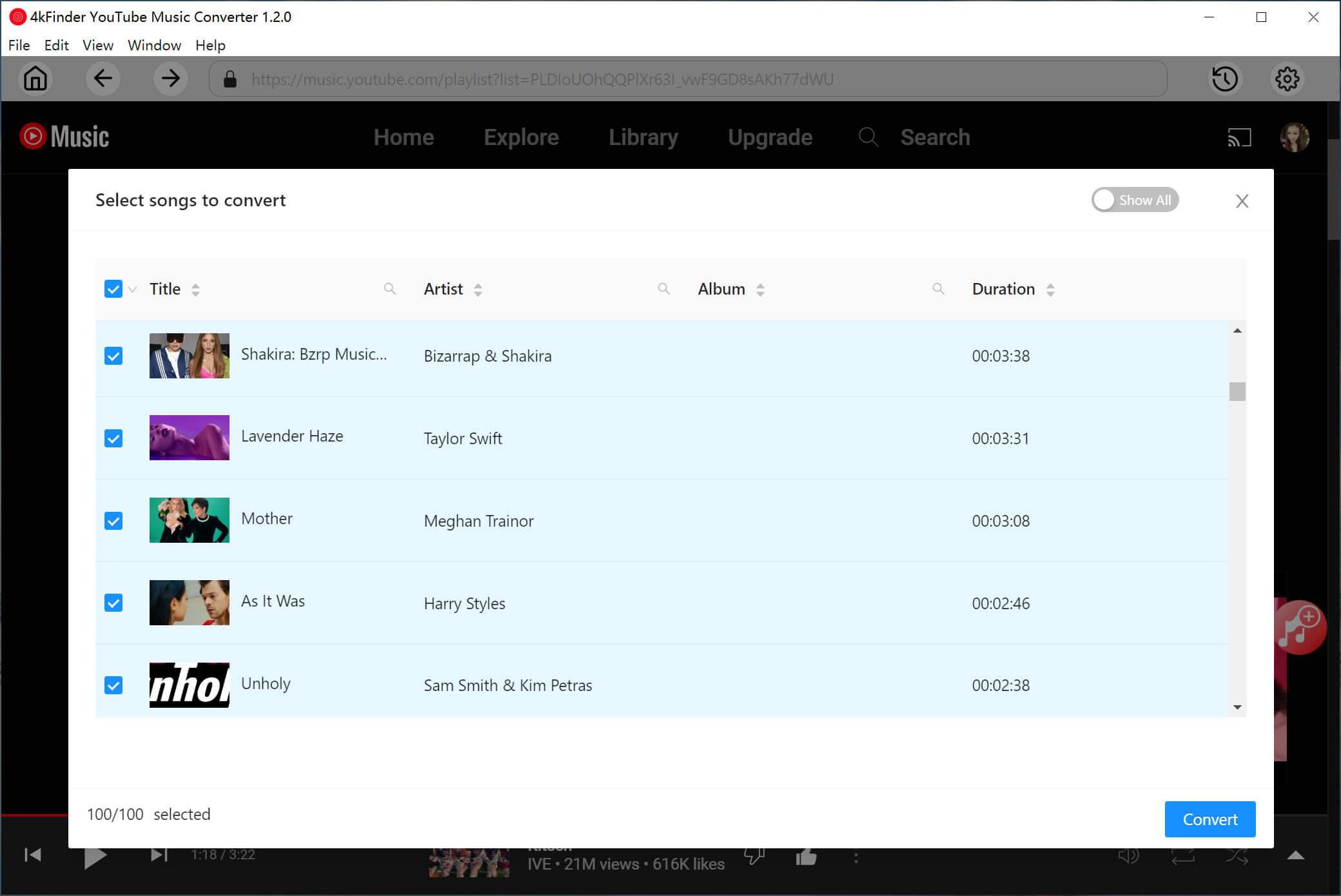
Step 4. Choose Songs to Convert
All songs in the selected album or playlist will be added automatically. You can uncheck any tracks you do not want to convert.
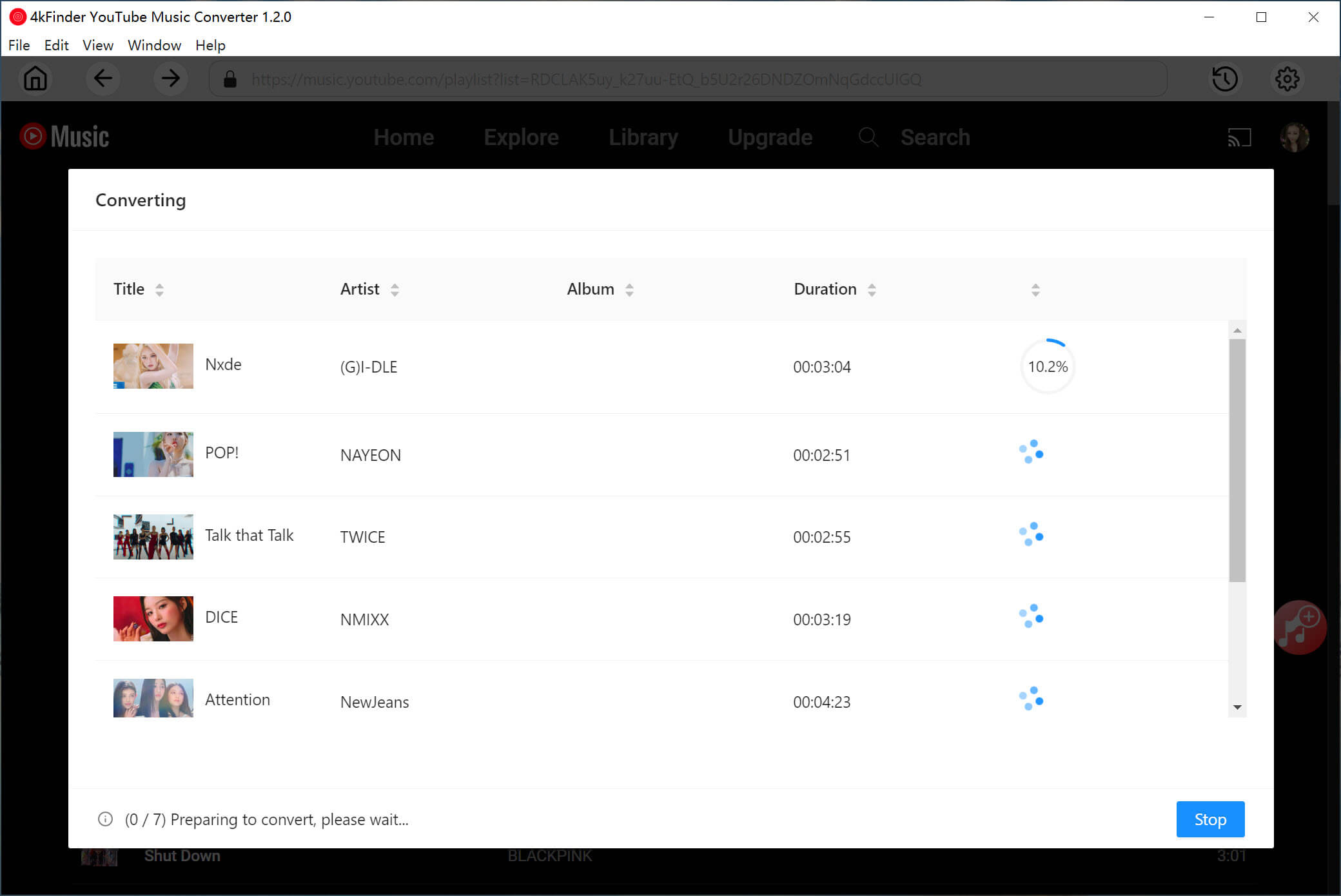
Step 5. Start to Convert YouTube Music to MP3
After selecting your songs, click the Convert button to start downloading and converting YouTube Music tracks to MP3.
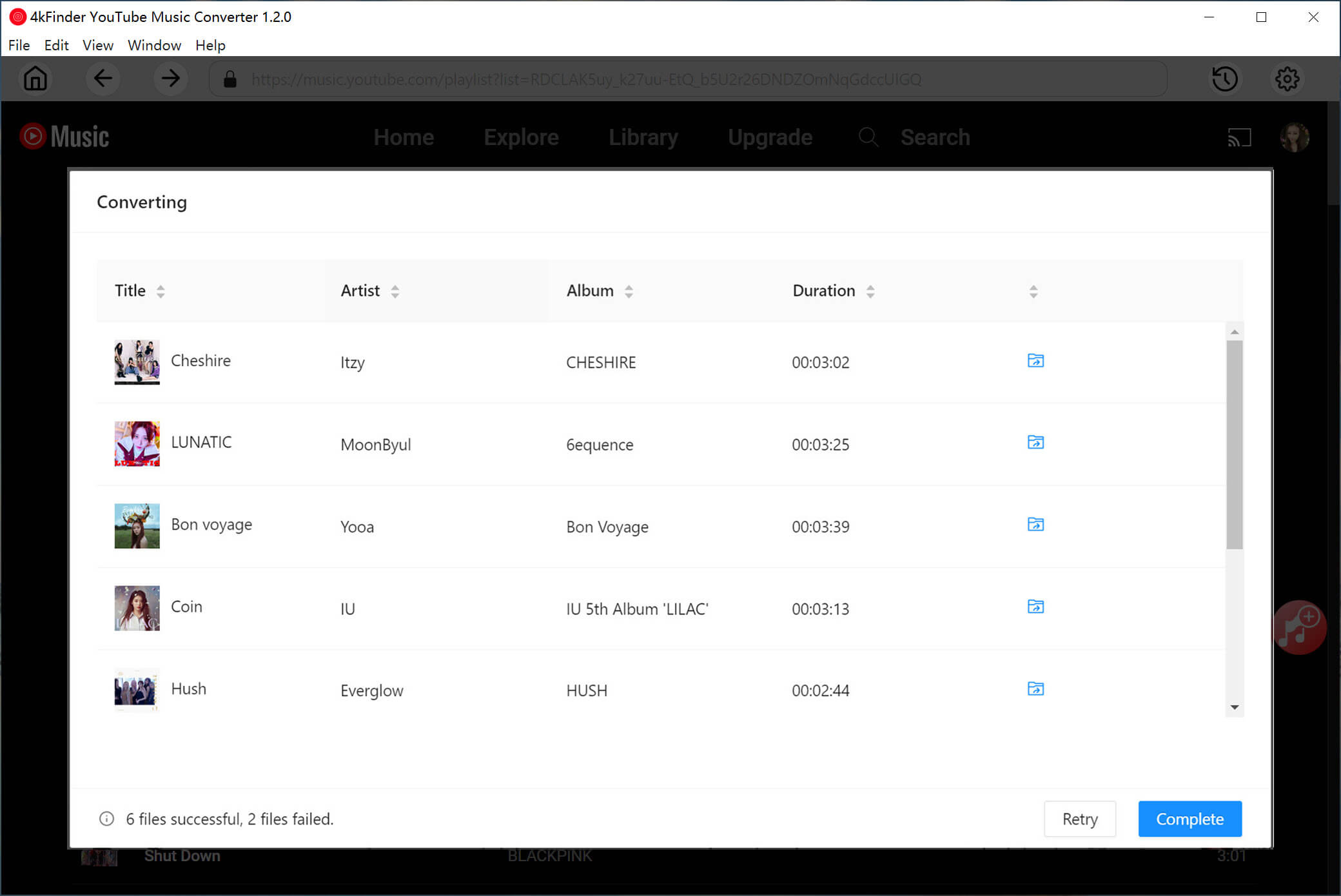
Step 6. Check the Converted Songs
Once the conversion is finished, click the History icon to view your converted songs. You can browse them by date, artist, or album.
How to Transfer Converted YouTube Music to Your Garmin Watch
To transfer the converted YouTube Music to your Garmin watch, you need to use the Garmin Express app. Follow these steps:
Step 1. Connect your Garmin watch to your computer using a USB cable.
Step 2. Download and install Garmin Express from the official Garmin website.
Step 3. Open Garmin Express, select your watch, then click Add Music to choose the MP3 files stored on your computer.
Step 4. After selecting the songs, click Send to Device to start transferring them.
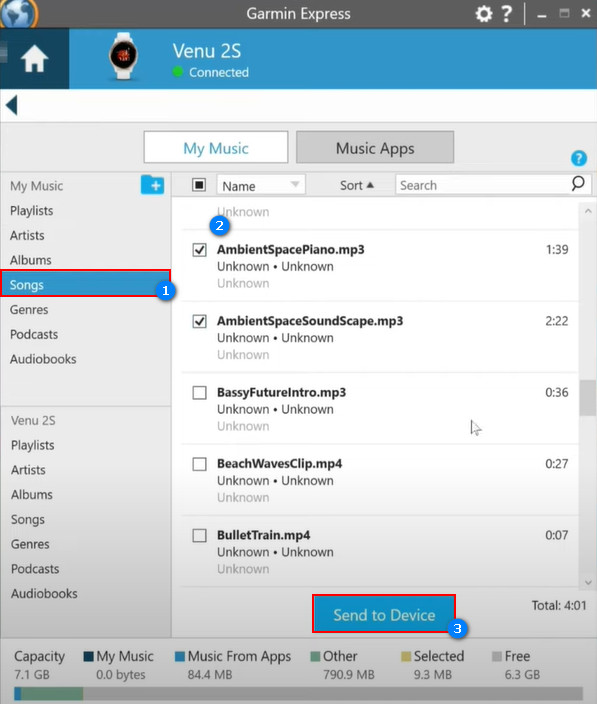
Once the transfer is complete, safely eject your watch. You can then open the Music app on your Garmin watch to find and play your YouTube Music tracks anytime, even without YouTube Music Premium.
Conclusion
Using YouTube Music on your Garmin watch makes listening to music more enjoyable during workouts and daily activities. Premium users can stream music directly, while free users can still listen offline with the right tool. 4kFinder YouTube Music Converter helps you convert YouTube Music songs to MP3, AAC and more, so you can easily transfer YouTube Music to Garmin Watch. After transferring, you can play YouTube Music on Garmin Watch offline anytime. Don’t hesitate to try 4kFinder to enjoy a personalized listening experience on your Garmin watch.