 Download Netflix videos to MP4 or MKV format in 1080P Full HD resolution.
 English
 Arabic
 Chinese (Simplified)
 Chinese (Traditional)
 Croatian
 Czech
Czech Danish
 Dutch
Dutch Finnish
 French
 German
 Greek
Greek Hebrew
 Hindi
Hindi Indonesian
 Italian
 Japanese
 Korean
 Malay
Malay Norwegian
 Polish
 Portuguese
 Russian
 Slovenian
 Spanish
 Swedish
 Thai
Thai Turkish
 Ukrainian
 Vietnamese

Netflix title not available to watch instantly? Don’t worry. In this post, we’ll delve deep into the reasons behind this message and provide a detailed, step-by-step walkthrough of the most effective fixes, ensuring uninterrupted access to your favorite Netflix content.
Netflix has become the ultimate entertainment hub for millions of users worldwide. Yet, despite its convenience, many subscribers have ever faced different error messages while streaming titles on Netflix web player or app. If you’ve seen errors like “This title is not available to watch instantly“, or “Sorry, this title cannot be watched instantly at this time“, etc. Don’t worry, you’re not alone.
This guide will walk you through why Netflix shows this error and provide step-by-step solutions to fix Netflix title not available to watch instantly issues. Whether you’re using a phone, tablet, PC, Mac, or Smart TV, you’ll find the solutions here. Plus, we’ll share the ultimate method to download Netflix titles to MP4 for offline watching anywhere, giving you a smooth and great streaming experience!
CONTENTS
Why Netflix Says “This Title Is Not Available to Watch Instantly”?
When you encounter the Netflix error this title is not available to watch instantly, it can feel confusing. After all, Netflix is supposed to give you instant access to its massive library. However, there are several reasons why you might encounter this problem:
App or Device Issues: Outdated Netflix apps, corrupted cache, or unsupported device software may cause this error.
Poor Internet Connection: A weak or unstable network can cause Netflix to fail in loading titles, displaying the “title not available” message.
Server-Side Issues: Sometimes, Netflix experiences temporary outages or server overloads. In this case, you may see messages like “Sorry, this title cannot be watched instantly at this time.” This usually resolves itself within a few hours.
Account or Subscription Problems: If your Netflix subscription has expired, been downgraded, or is limited to a specific plan (like the Standard With Ads plan not supporting Ultra HD/4K), you may see “Netflix error this title is not available to watch instantly.”
Geographical Restrictions (Licensing): Not all Netflix titles are available in every country. For example, if your IP address is Japan, you won’t be able to access content restricted to the United States. If you’re traveling abroad, some content available in your home country may not be available where you are.
In short, the Netflix title not available to watch instantly problem could stem from licensing, technical, or connectivity issues. The following section will provide targeted solutions for each case.
Common Fixes for Netflix Titles Not Available to Watch Error
This frustrating issue isn’t rare. Many Netflix subscribers report seeing messages like:
- “This title is not available to watch instantly. Please try another title.“
- “Sorry, this title cannot be watched instantly at this time. Please try again later or select a different title.“
- “Title not available.“
- “This title is not available in your current region. Please select a different title.”
- “We’re having trouble playing this title right now.“
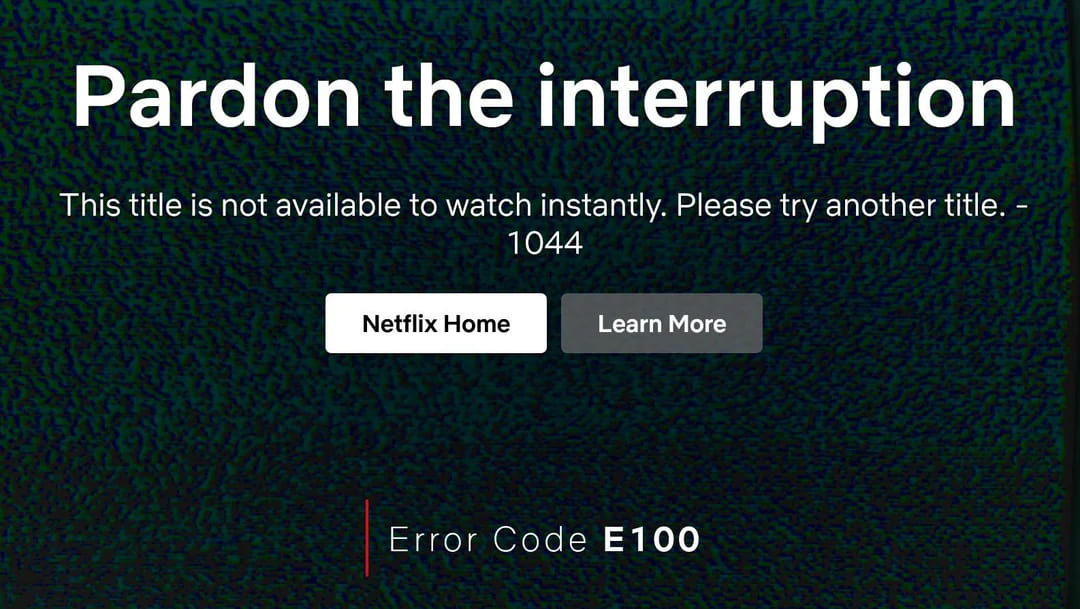
This section breaks down the various error messages and provides detailed, step-by-step solutions to fix Netflix title not available to watch instantly issues. Let’s go!
Case 1. The Message: “This Title Is Not Available to Watch Instantly”
This error appears when a specific title won’t play, even though other shows work fine. It could be a temporary glitch or subscription-related.
Solution 1: Restart the Netflix App
Normally, restarting the Netflix app clears temporary glitches and refreshes your connection. Completely close the Netflix app on your mobile, Windows, smart TV or streaming stick. Then relaunch it. A fresh restart often resolves Netflix this title is not available to watch instantly. If not, try the next fix.
Solution 2: Sign Out of Netflix and Sign In Again
When the issue of Netflix title not available to watch instantly, it might be related to your account settings and preferences. Signing out forces Netflix to refresh your account session.
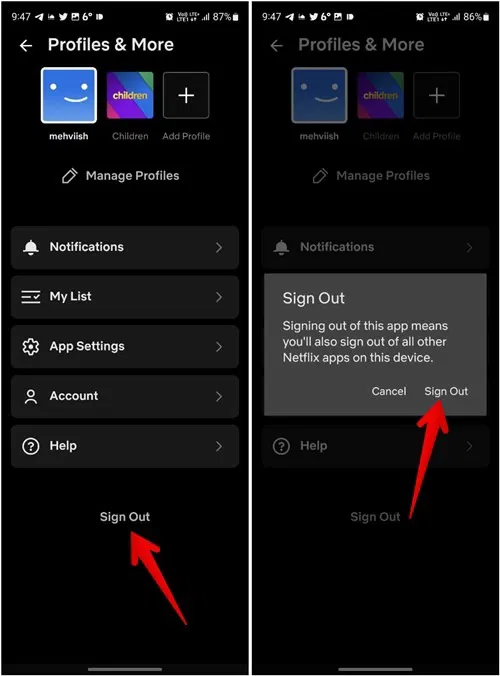
On iOS/Android Devices:
Step 1. Open the Netflix app and tap your Profile icon. Go to Settings.
Step 3. Scroll down and tap “Sign Out”, confirm your choice.
Step 4. Reopen Netflix and sign in with your email and password.
On Windows/Mac Computer (Netflix Web Player):
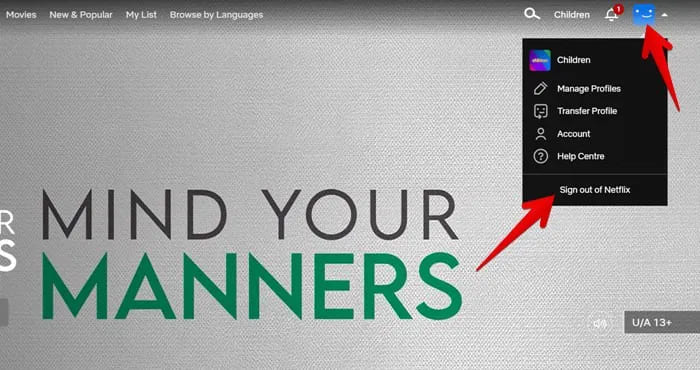
Step 1. Visit Netflix website in a browser.
Step 2. Hover over your Profile icon in the top-right corner, click “Account”.
Step 3. On your Account page, scroll down and click “Sign out of Netflix”.
On Netflix Windows App:
Step 1. Launch the Netflix app on your Windows PC or laptop.
Step 2. Tap on three dots and select “Sign out” from the menu.
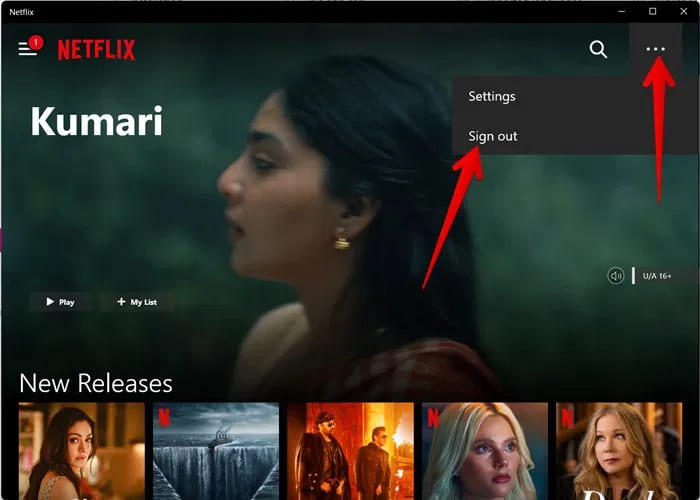
Step 3. Close the Netflix app. Then re-open it, and log back in with your credentials.
On Smart TV:
Step 1. Turn to the App section and select Netflix.
Step 2. Open the Netflix app. Navigate to the Settings or Get Help menu.
Step 3. Scroll down, look for an option that says “Sign Out”, or “Log Out”, select it.
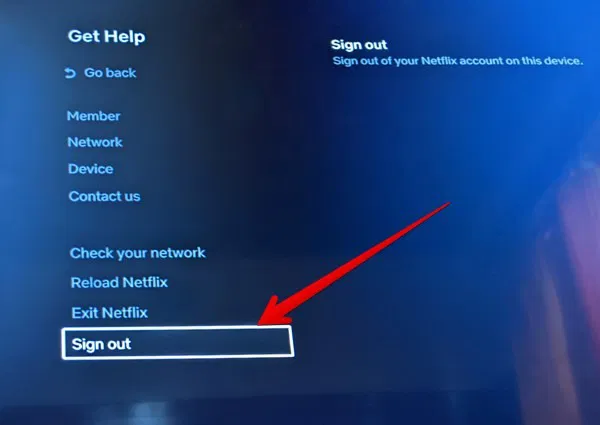
Step 4. A confirmation message will appear. Click “Yes” to confirm your action.
Step 5. Once signed out, you will be prompted to sign in again. Enter your credentials.
Solution 3: Ensure Your Account Active
An inactive or expired plan may restrict Netflix video playback. Make sure your Netflix account is active before streaming or downloading movies and TV shows on Netflix.
Step 1. Go to the Netflix website on a computer or phone browser and log into your account.
Step 2. Click on your Profile icon > Account.
Step 3. Under “Membership & Billing”, check that your status is Active and that your next billing date is correct.
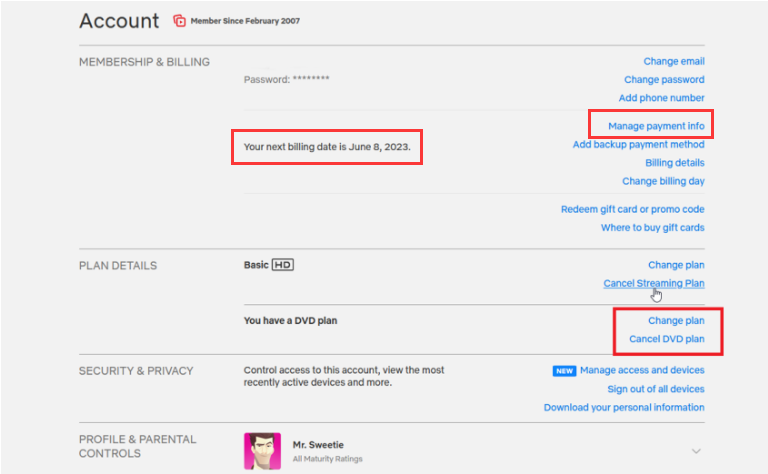
If there is a payment issue, you will be prompted to Update Payment Info.
If downgraded, confirm your plan supports Ultra HD/4K streaming (requires Netflix Premium).
Case 2. Netflix This Title Can Not be Watched Instantly at This Time
If you see an error that says “Sorry, this title cannot be watched instantly at this time, please try again later or select a different title.” This error means Netflix can’t stream a title temporarily. Here are the solutions to resolve it.
Solution 1: Verify the Internet Connection
Unstable networks can lead to Netflix streaming and downloads not working. Run a speed test (Netflix recommends 5 Mbps for HD, 15 Mbps for 4K). If you experience issues like “Netflix title is not available to watch instantly” error, it’s a simple fix. Restart your router, switch to a wired connection, or move closer to your WiFi source.
Solution 2: Update Netflix App on Your Device
Outdated apps often trigger errors. When the error of “Netflix titles not available to watch” happens, you can try to update the Netflix app.
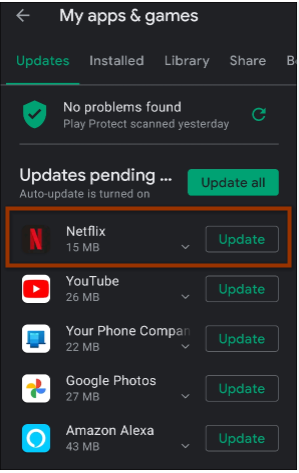
Therefore, you can visit Google Play Store (Android), App Store (iOS), or your Smart TV’s app store to update Netflix app to the newest version. A fresh update ensures compatibility and removes bugs.
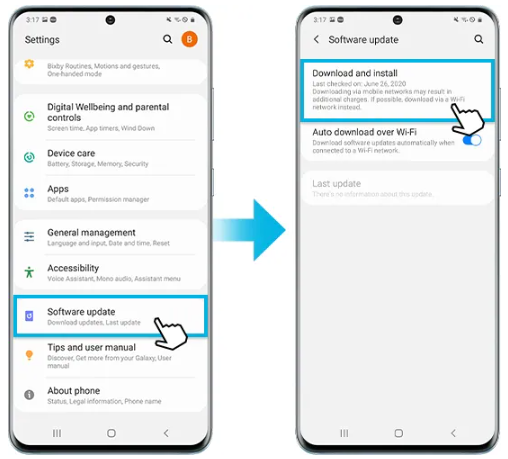
Solution 3: Update Your Device’s Firmware or Software
If you still see the “Netflix Titles Not Available to watch” error after updating the Netflix app, you’d better to update your device’s firmware or software.
On iOS: Go to Settings > General > Software Update > Download and Install.
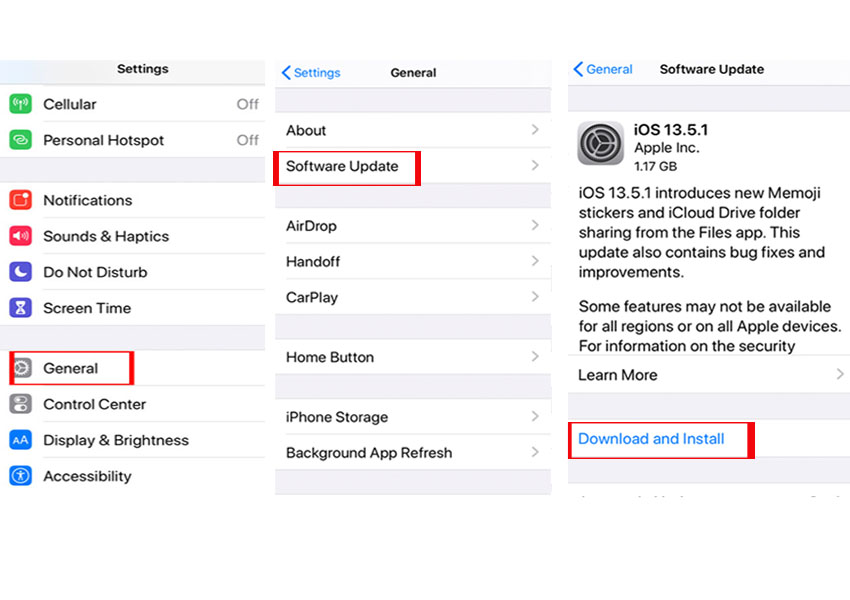
On Android: Settings > About Phone > System Updates.
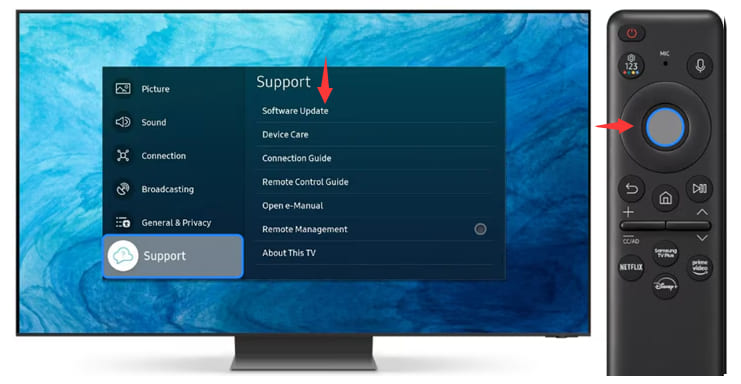
On Smart TV: Use the remote to press left on the Home screen. Go to Settings > All Settings>Support > Software Update > Update Now.
Solution 4: Factory Reset Your Device
If the above solutions still don’t fix the issue of Netflix this title is not available to watch instantly, you can consider factory resetting your device. This removes all glitches but also erases all data and settings on your device, so back up data first.
On Phones/Tablets: Go to “Settings”, find “General Management” or “System”, and tap “Reset”.
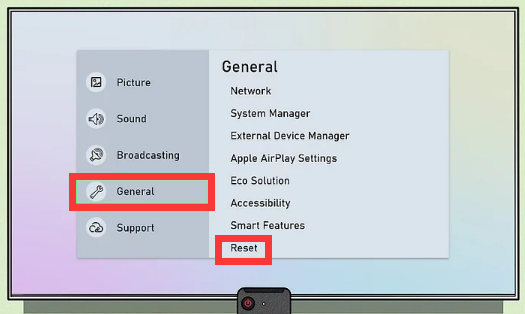
On Smart TVs: This is usually in “Settings” > “General” > “Reset”.
Case 3. Netflix Says “Titles Not Available”
Cache files can become corrupted over time. When you see an error message in the Netflix app or website that says “Titles not available”, you are suggested to clear out the app and its related files.
Solutions 1: Clear the Netflix App Data
When your encounter streaming interruption issues in the Netflix app, it might be due to to much app cache or corrupted data. At this time, you need to clear the cache to make the Netflix app restart its operations.
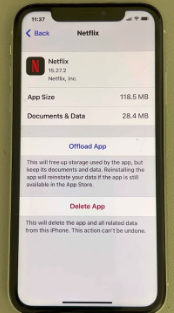
On iOS: Head to Settings > General > iPhone Storage. Find and select Netflix app, tap “Offload App”.
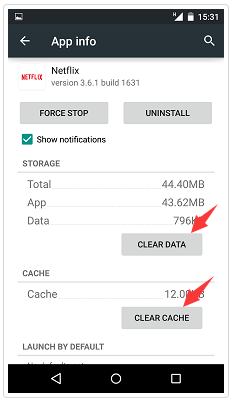
On Android: Go to Settings > Apps > Netflix > Storage > Clear cache .
On Windows: Close the Netflix Windows app and navigate to the following path in File Explorer: C:\Users\YourUserName\AppData\Roaming\Netflix. Then, delete all files.
On Mac: Try to delete your browser’s cache and see if that helps.
On Smart TV:
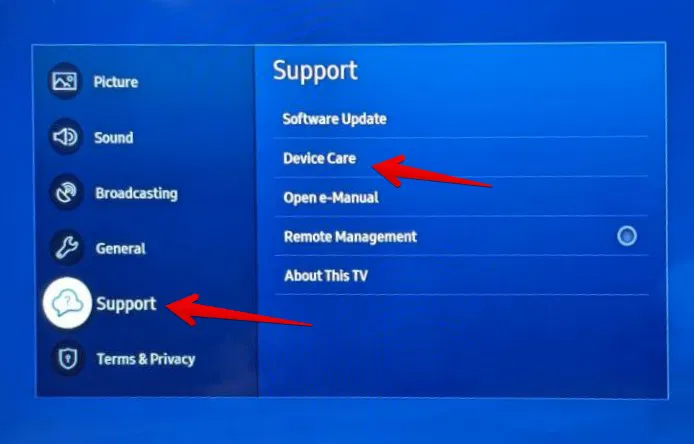
Open Settings > Support > Device Care > Manage storage.
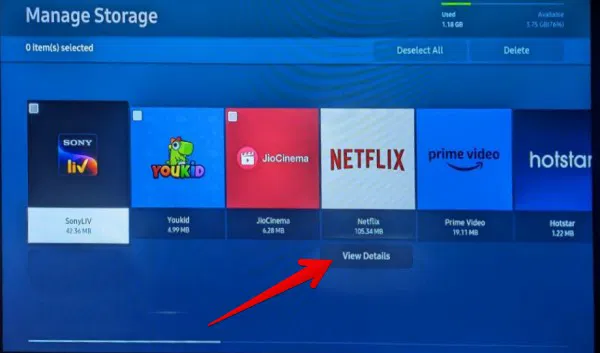
Find and select Netflix app, press the “View Details” button.
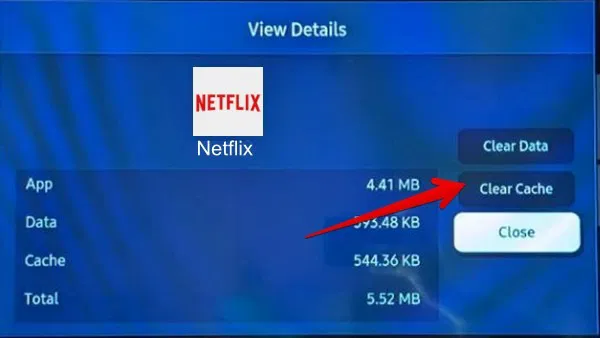
Select “Clear cache” option using your remote.
Solutions 2: Reinstall the Netflix App
For those who are still experiencing issuers with Netflix Titles not available after trying the above solutions, you can attempt this solution: uninstall and reinstall Netflix app. Sometimes, a clean installation clears any app-level glitches blocking playback. Here are the simple steps to follow:
Step 1. Delete the Netflix app from your device.
Step 2. Restart your device.
Step 3. Go to your device’s app store, download Netflix app again, and log in.
Case 4. Netflix Prompts “This Title Is Not Available in Your Current Region”
Due to content licensing agreements, shows and movies may be blocked in your region, which is why you might see the error “This title is not available in your current region. Please select a different title.”
Solution 1: Use VPN Services
A VPN masks your IP and lets you access content libraries from other countries. Choose a reputable VPN that works reliably with Netflix. Change your IP address by connecting to another country server such as US or UK, and then open Netflix.
Solution 2: Reset Network Settings
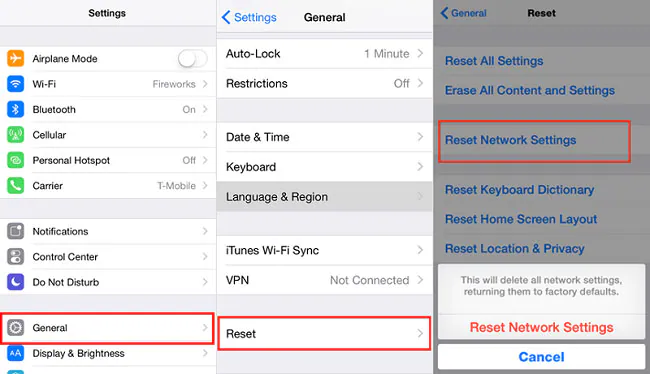
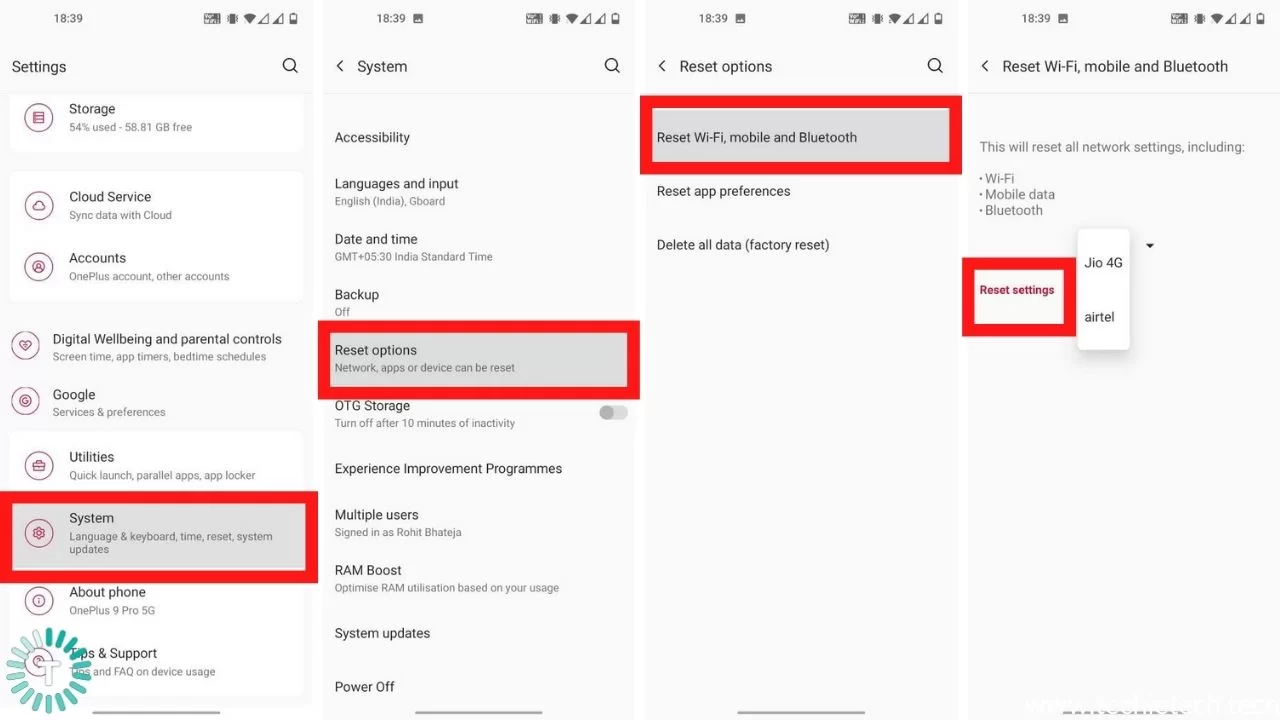
In addition to changing a VPN server, you may also reset your network settings to fix Netflix streaming error issue. Resetting ensures your device doesn’t retain old DNS/IP data blocking access.
On iOS, go to Settings > General > Transfer or Reset iPhone > Reset Network Settings.
On Android, use System > Reset Options > Reset WiFi, Mobile & Bluetooth.
Case 5. Netflix Says “We’re Having Trouble Playing This Title Right Now”
If you get a message from Netflix that says “We’re having trouble playing this title right now.” This is often a server-side issue or a very specific problem with that one title. To fix the error, try following methods:
Solution 1: Check If Other Titles Work
When you cannot play one Netflix title on your devices, try playing several other movies or shows. If they all work, the problem is likely isolated to that specific title, possibly a temporary server issue on Netflix’s end for that content. All you need to do is wait or try again later.
Solution 2: Check if Netflix Is Down for Everyone
If you tested other Netflix video titles could not be played at all, the problem might not be on your end. Visit sites like Downdetector.com or check Netflix’s official social media accounts (like @NetflixHelps on Twitter) to see if there is a widespread outage. If Netflix servers are down, the issue is temporary.
Solution 3. Restart Your Device
Simple restarts often solve playback errors. If you also cannot play other Netflix videos, it is a good choice to restart your device. Power cycle your phone, PC, Mac, smart TV or streaming device. After a few minutes, restart your device.
Best Solution: Download Netflix Titles to MP4 for Offline Watching Anywhere
Through the solutions and tricks mentioned above, you can resolve the issue with Netflix Titles Not Available to Watch in most cases. However, you always need a stable and fast network to stream on Netflix app or website. Also, you are allowed to download Netflix videos to watch offline. But, there are certain Netflix download limits. When this problem happens frequently, it can be frustrating.
Here is the best solution to prevent the issue entirely and get a smooth and hassle-free streaming experience of Netflix. That is, download Netflix videos as local MP4 files using a third-party tool. In this way, you can freely control your downloaded Netflix videos, and watch Netflix offline on any device anytime, anywhere, without having the Netflix app!
Here we highly recommend the 4kFinder Netflix Video Downloader. It is a desktop application on both Windows and Mac. The software includes a dedicated Netflix web browser for secure and easy login to your Netflix account, streamlining the download process. Using it, users can download unlimited Netflix videos in up to 1080p Full HD quality with EAC3 5.1 audio for a cinematic experience. It save Netflix videos in the universal MP4 or MKV format, ensuring compatibility with all devices and media players.
Additionally, 4kFinder supports download an entire TV series or multiple movies in one go with the batch mode, saving you significant time and effort. When downloading, it automatically fetches and saves metadata like title, cover art, season, and episode names, keeping your media library perfectly organized.
Main Features of 4kFinder Netflix Video Downloader:
- Download Netflix movies & TV shows to MP4/MKV formats.
- Works on both Windows and Mac. No Netflix app needed.
- Preserve HD quality, multiple audio tracks, and subtitles.
- Bypass regional & licensing limitations, access a global catalog of content.
- Batch download entire seasons, episodes, up to 50X faster speed.
- Play Netflix content on any device without restrictions.
- Keep Netflix videos forever, even after subscription expires.
Simple Steps:
Step 1. Install and launch 4kFinder Netflix Video Downloader. Log into your Netflix account.
Step 2. Enter the name of the show/movie or paste the URL in the search bar.
Step 3. Click “Gear” icon to change output settings, select MP4 format, audio languages, and subtitle options.
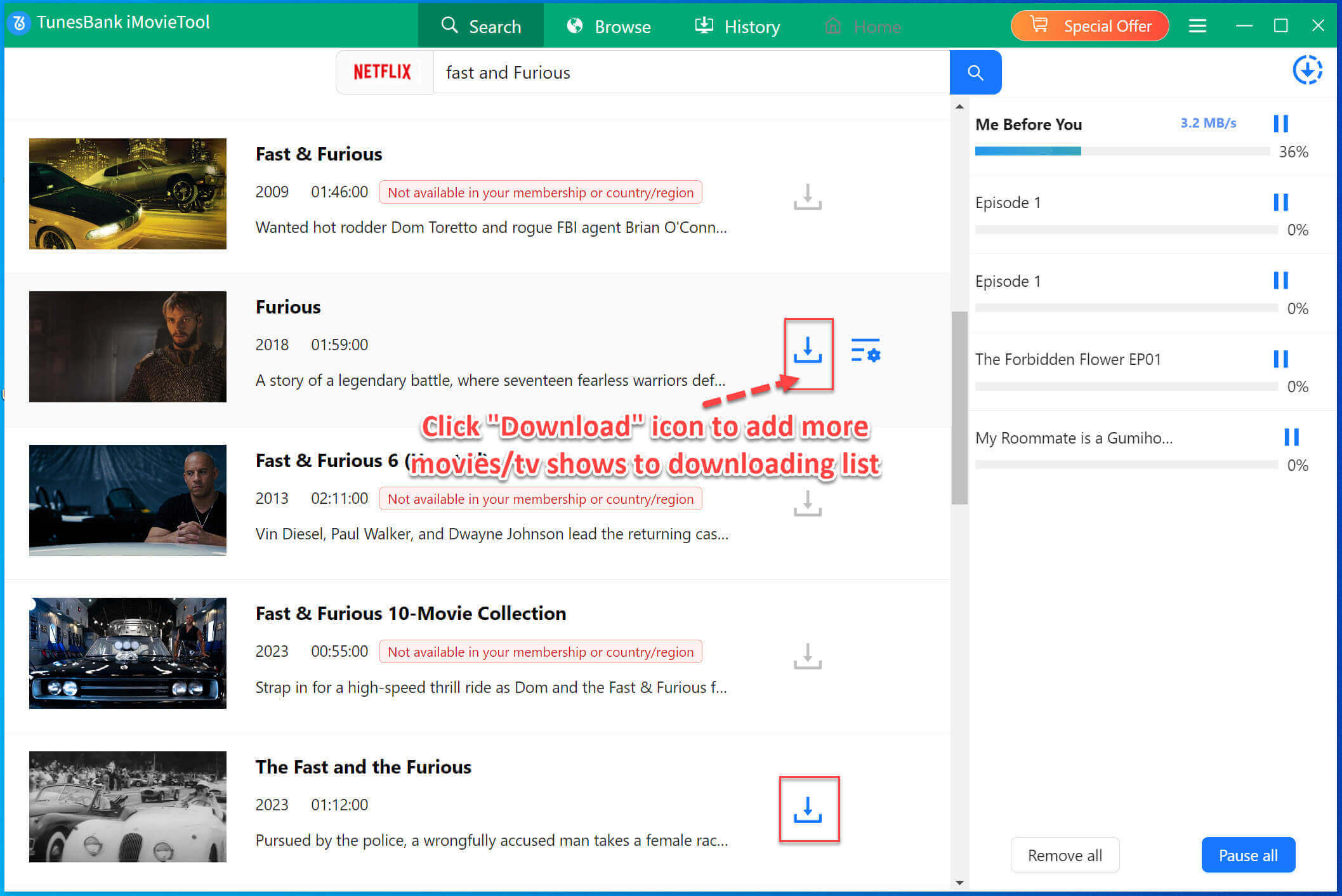
Step 4. Click the “Download button”, then enjoy Netflix videos offline anytime.
Final Words
Netflix is a fantastic streaming service, but errors like “Netflix title not available to watch instantly” can interrupt your entertainment. These errors arise from subscription issues, internet problems, outdated apps, or licensing restrictions. Above, we’ve outlined step-by-step fixes, from restarting your app to updating your device and clearing cache. For a truly permanent and powerful solution, 4kFinder Netflix Video Downloader is the definitive answer. It empowers you to download Netflix videos as local MP4 or MKV files, thus you can take full control of your viewing experience. You’ll never have to worry about Netflix this title is not available to watch instantly again!