 Download Netflix videos to MP4 or MKV format in 1080P Full HD resolution.
 English
 Arabic
 Chinese (Simplified)
 Chinese (Traditional)
 Croatian
 Czech
Czech Danish
 Dutch
Dutch Finnish
 French
 German
 Greek
Greek Hebrew
 Hindi
Hindi Indonesian
 Italian
 Japanese
 Korean
 Malay
Malay Norwegian
 Polish
 Portuguese
 Russian
 Slovenian
 Spanish
 Swedish
 Thai
Thai Turkish
 Ukrainian
 Vietnamese


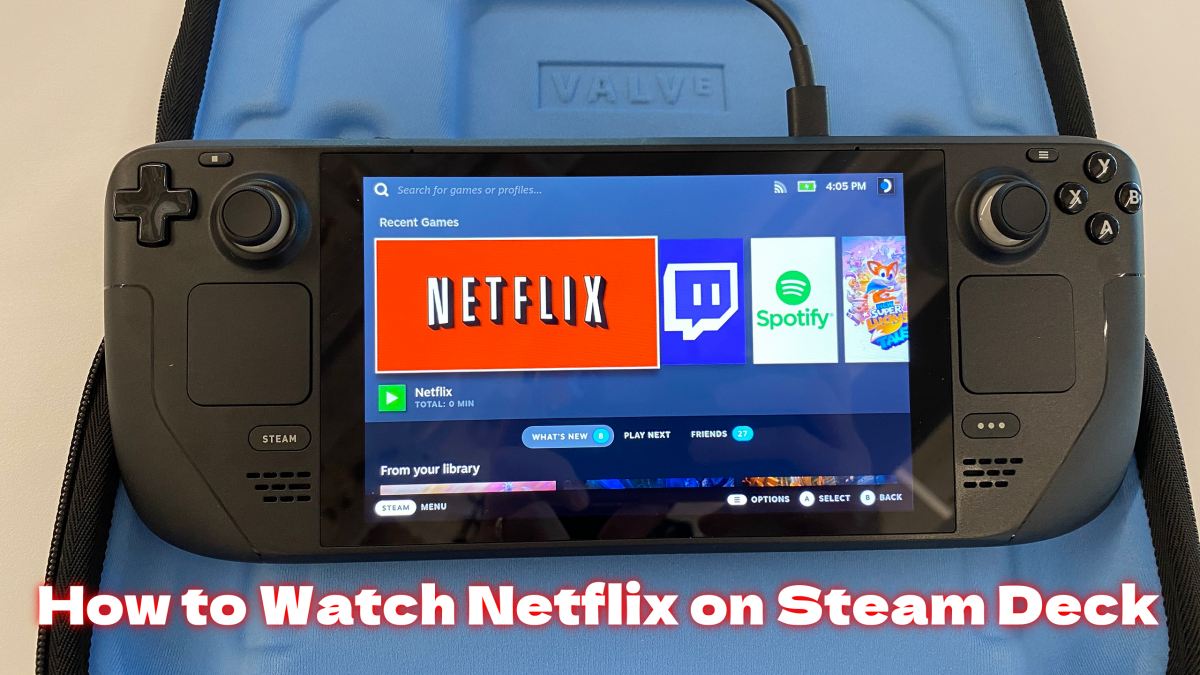
Want to watch Netflix on Steam Deck? Whether you want to stream your favorite shows online or watch them offline, this guide will show you two easy ways to enjoy Netflix on Steam Deck without any hassle. By following these steps, you can make the most of Netflix on Steam Deck and enjoy your favorite content wherever you are.
The Steam Deck, developed by Valve Corporation, is a powerful handheld gaming device that brings the entire Steam library into a portable, user-friendly design. Besides gaming, many users also use it for entertainment like music and streaming apps. If you want to watch Netflix on Steam Deck, you might wonder how to make it work.
This guide will show you easy ways to play Netflix on Steam Deck both online and offline. Whether you want to stream directly or save videos for later, we’ll cover two effective methods to enjoy Netflix on Steam Deck without hassle. Just follow the steps below, and watching your favorite movies and shows on your device will be simple.
CONTENTS
Part 1. Can You Watch Netflix on Steam Deck?
Netflix is mainly available through its app and web player, so many people wonder if they can install the Netflix app on Steam Deck. The answer is no, because Steam Deck uses a Linux system that doesn’t support the Netflix app.
But you can still watch Netflix on Steam Deck. One way is to use the built-in browser to stream shows and movies online. If you want to watch offline, you can use a tool like 4kFinder Netflix Video Downloader to save videos and then play Netflix on Steam Deck without the internet. In the next part, we’ll show you how to enjoy Netflix on Steam Deck both online and offline.
Part 2. How to Watch Netflix on Steam Deck Online via Web Player
To watch Netflix on Steam Deck through the web player, you just need a stable internet connection and an active Netflix account. Once ready, follow these steps to install and set up Chrome so you can stream directly:
Step 1. Install Chrome on Steam Deck
1. Open your Steam Deck, tap the Steam Menu, and go to Power > Switch to Desktop.
2. In desktop mode, click the blue bag icon on the taskbar to open the Discover app store.
3. Search for Google Chrome and click Install.
4. Once installed, open Konsole from the System menu and paste this command:
flatpak –user override –filesystem=/run/udev:ro com.google.Chrome
This adds Chrome as a non-Steam game.
5. Go back to your Home menu, find Chrome, right-click it, and choose Add to Steam.
Step 2. Set Up Chrome for Netflix
1. In your Steam Library, right-click Chrome and select Properties.
2. In the Launch Options box, paste this command:
–window-size=1024,640 –force-device-scale-factor=1.25 –device-scale-factor=1.25 –kiosk “https://www.netflix.com/”
3. Rename it to Netflix so it’s easy to find.
4. Close Properties, click Play, log in to your account, and start streaming Netflix on Steam Deck.
Part 3. How to Watch Netflix on Steam Deck Offline [Hot]
Accessing Netflix through Chrome on Steam Deck might seem a little tricky. A much easier and more reliable way is to download Netflix videos on your computer first, then transfer them to your Steam Deck. This way, you can watch Netflix on Steam Deck offline without worrying about internet connection or streaming issues.
4kFinder Netflix Video Downloader is a great tool for this. It removes DRM protection and lets you download Netflix videos in MP4 or MKV format. Once saved on your computer, the videos can be kept forever and transferred to your Steam Deck or any other device for offline viewing. With 4kFinder, you’ll still enjoy HD 1080P videos quality along with multi-language audio tracks and subtitles, making it just like streaming online.
Even better, the program gives you full control over settings. You can choose the format, quality, audio, and subtitles before downloading. It also supports batch downloading, so you can save multiple videos at once. This way, you can play Netflix on Steam Deck anytime, anywhere, and enjoy the best of Netflix on Steam Deck.
👍Key Features of 4kFinder Netflix Video Downloader
- Download movies, TV shows and more contents on Netflix.
- Convert Netflix to MP4 and MKV in HD 1080P.
- Keep audio track and subtitles in multiple language.
- Offers 50X faster download speed in batch.
- Play Netflix offline on Steam Deck, Xbox, PS5, etc.
- Keep Netflix permanently even subscription ends.
- Compatible with Windows and Mac.
Tutorial: How to Download Netflix Videos Locally
Download and install 4kFinder Netflix Video Downloader on your computer to save Netflix videos locally in MP4 or MKV format. Follow these steps:
Step 1. Open 4kFinder Netflix Video Downloader
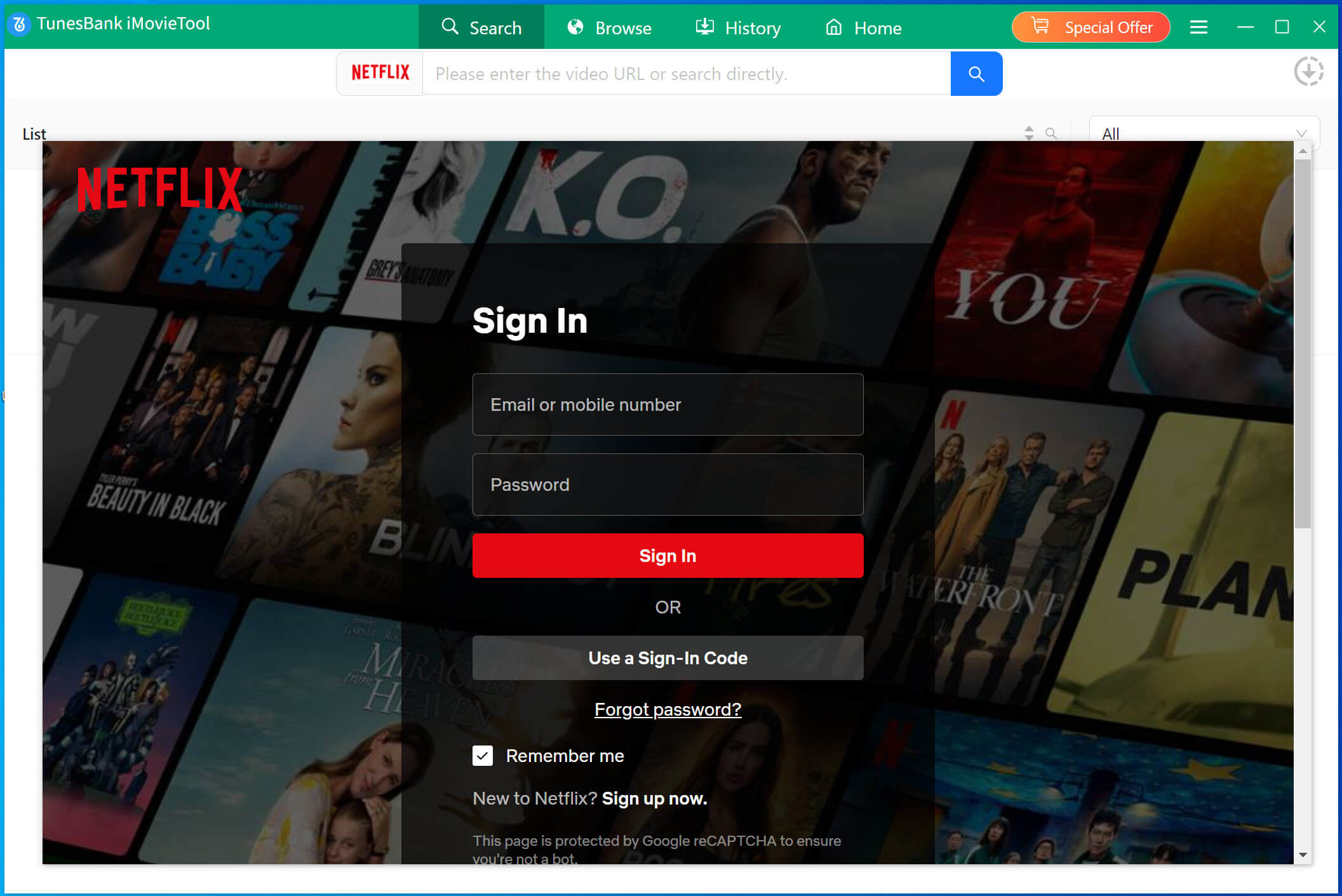
Launch the program on your PC or Mac. Its built-in Netflix web player will open automatically, just log in to your Netflix account.
Step 2. Find the Movie or TV Show
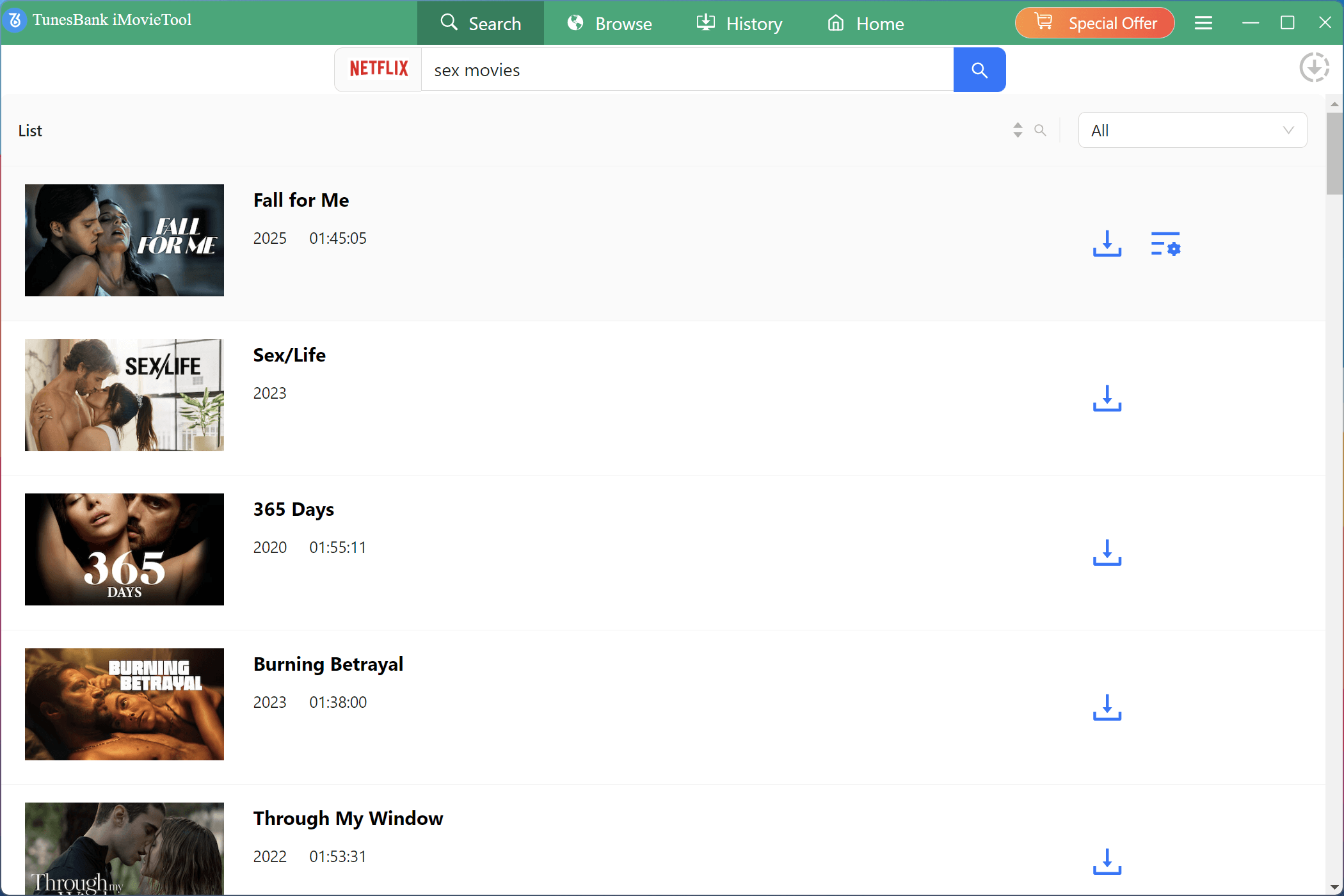
You have two ways to search for videos:
Way 1: Type the movie or TV show name directly into the search box.
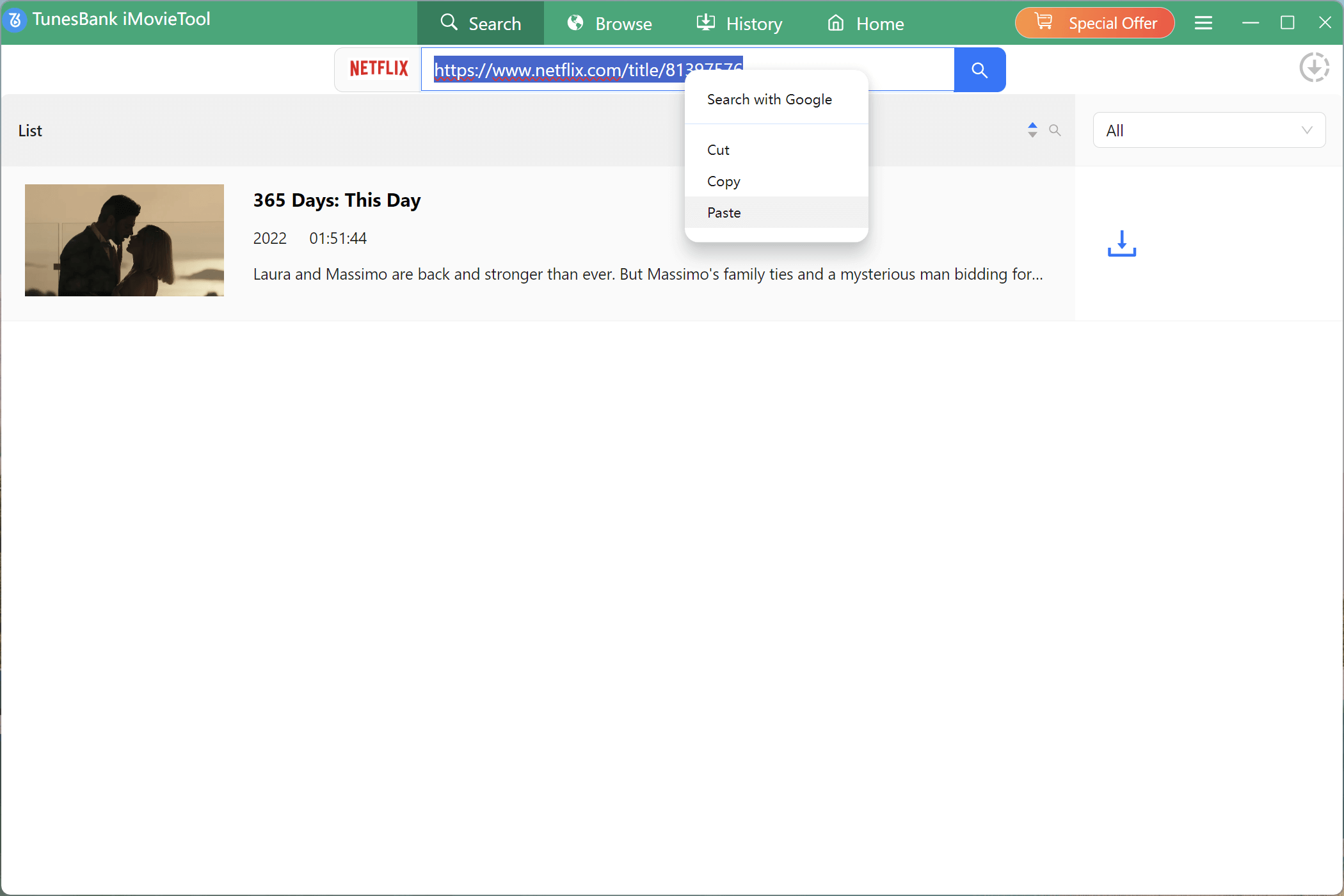
Way 2: Copy and paste the Netflix video URL into the search box.
Then, choose the video quality you want, from low to high.
Step 3. Set Output Preferences
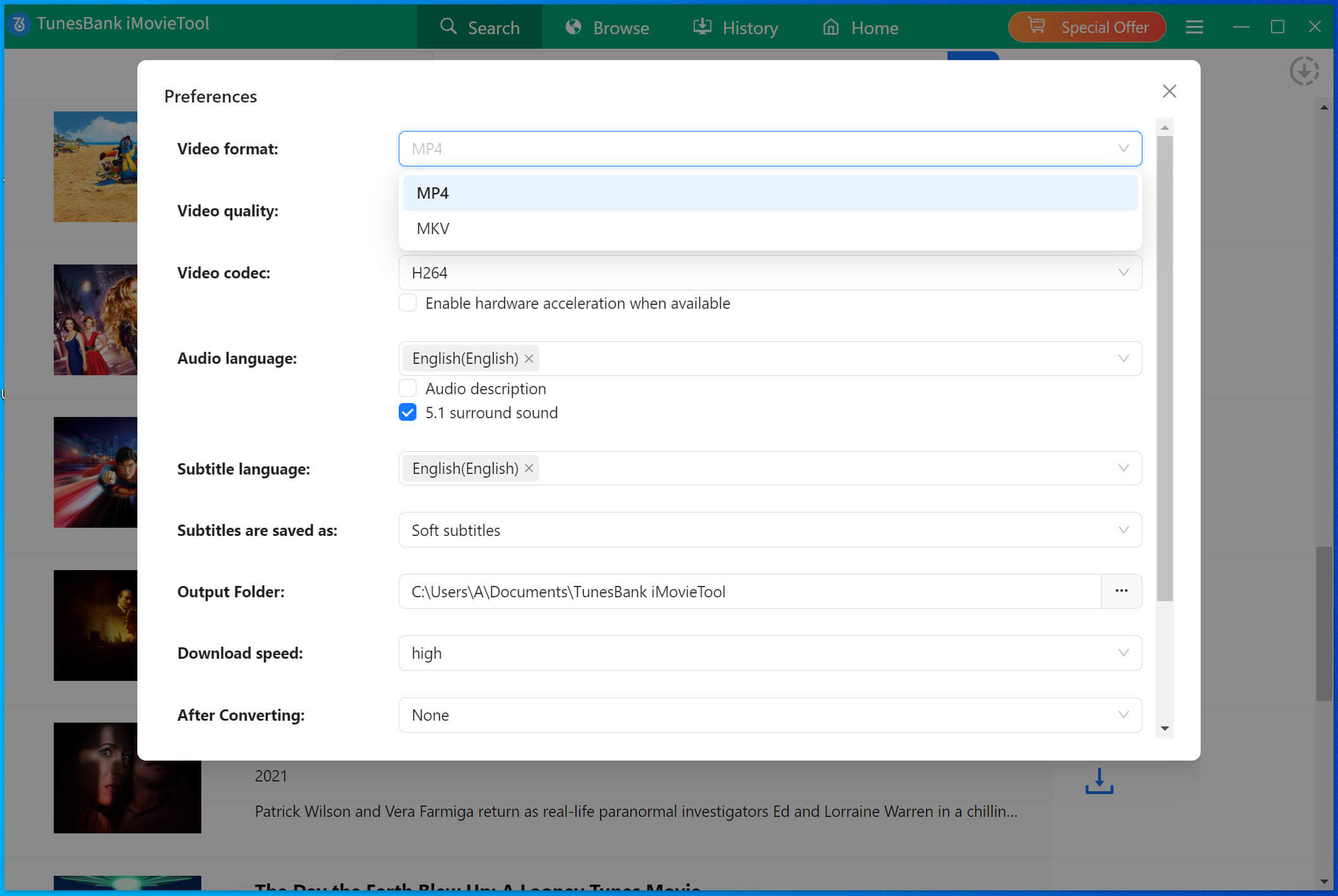
Click the Gear icon in the top-right corner to adjust output settings. You can choose the video format (MP4 or MKV), quality, and other options.
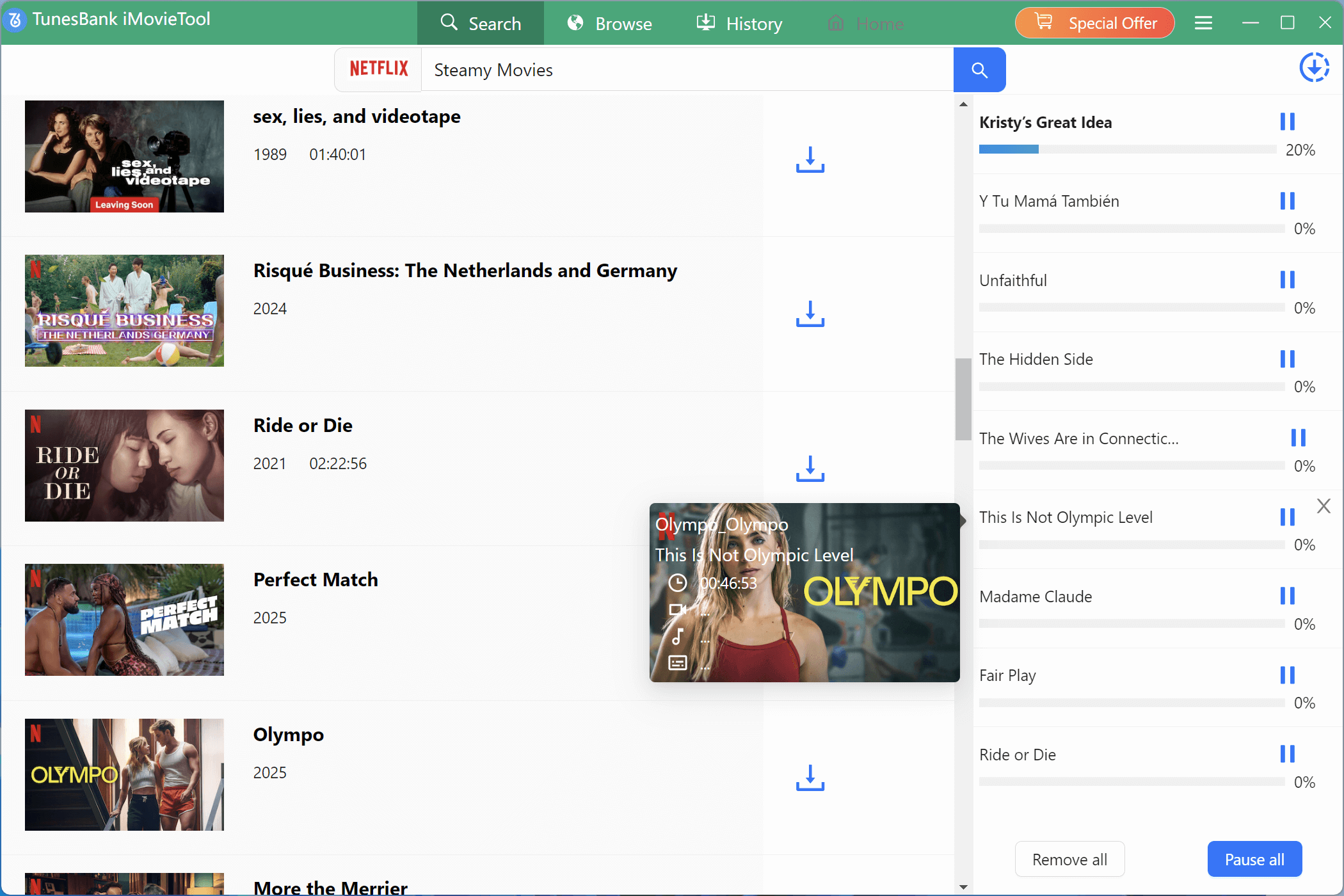
Step 4. Start to Download the Video
When your settings are ready, click Download. The program will save and convert the selected Netflix shows or movies to MP4 or MKV.
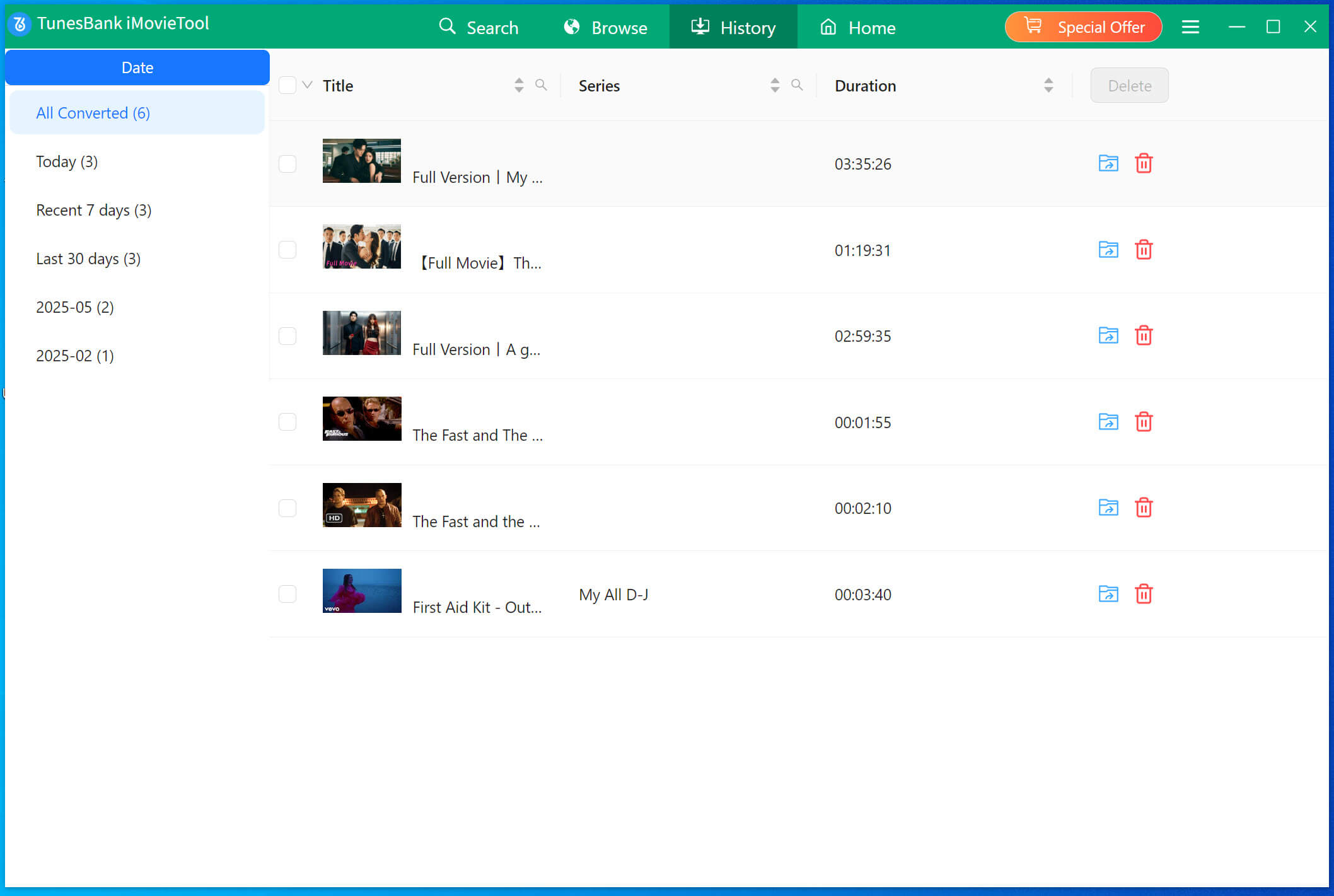
Step 5. Check Download History
After the download is complete, go to the History section to see all your saved videos.
How to Watch Downloaded Netflix Videos on Steam Deck
To play downloaded Netflix videos on Steam Deck, you can transfer them using a USB flash drive or micro SD card. You will also need VLC media player to watch the videos. Follow these steps:
Step 1. Copy the downloaded Netflix video files from your computer to a USB flash drive or micro SD card.
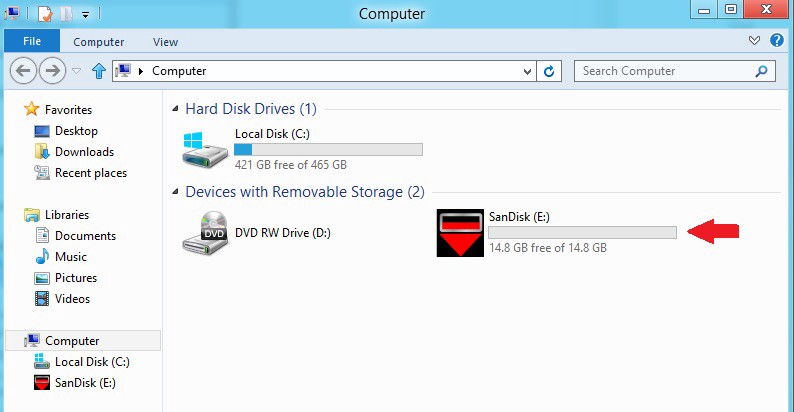
Step 2. Insert the USB or SD card into your Steam Deck and save the files to the Home screen.
Step 3. Click the blue bag icon at the bottom left to open the Discover app. Search for VLC media player and click Install.
Step 4. After installation, go to the Home screen, right-click the video you want, select Open with > VLC media player, and start watching Netflix on Steam Deck offline.
Conclusion
Although there is no official Netflix app for Steam Deck, you still have ways to watch Netflix on Steam Deck. To stream content online, you can use a browser like Chrome to access the Netflix web player. If you prefer to watch offline, 4kFinder Netflix Video Downloader is a great option. By downloading your favorite Netflix shows and movies, you can play Netflix on Steam Deck anytime and even enjoy them on other devices. With these methods, enjoying Netflix on Steam Deck is easy and flexible.