
 Download Netflix videos to MP4 or MKV format in 1080P Full HD resolution.
 English
 Arabic
 Chinese (Simplified)
 Chinese (Traditional)
 Croatian
 Czech
Czech Danish
 Dutch
Dutch Finnish
 French
 German
 Greek
Greek Hebrew
 Hindi
Hindi Indonesian
 Italian
 Japanese
 Korean
 Malay
Malay Norwegian
 Polish
 Portuguese
 Russian
 Slovenian
 Spanish
 Swedish
 Thai
Thai Turkish
 Ukrainian
 Vietnamese


Looking to download unlisted YouTube videos? In this guide, we’ll walk you through 5 easy and reliable ways to download unlisted videos from YouTube, so you can save your favorite hidden content for offline viewing. Keep reading to find the best option for your needs and start saving unlisted YouTube videos today.
Have you ever clicked on a direct YouTube link and found the video marked as unlisted? Unlike public videos, unlisted YouTube videos don’t appear in search results or on a channel’s main page, which makes them easy to lose track of if the link becomes invalid. That’s why many people look for ways to download unlisted YouTube videos as a safe backup. The good news is that it’s possible. In this guide, we’ll share 5 reliable methods to help you download unlisted YouTube videos, so you can keep these hidden gems saved and watch them anytime you like.

CONTENTS
- Way 1. Download Unlisted YouTube Videos with Professional Tool
- – iMovieTool YouTube Movie Downloader
- – 4kFinder Video Downloader
- Way 2. Download Unlisted YouTube Video via Online Tool
- Way 3. Download Unlisted YouTube Video with Extension
- Way 4. Download Unlisted YouTube Videos with YouTube Studio
- Way 5. Download Unlisted YouTube Videos with YouTube Premium
- How to Find Unlisted YouTube Videos
- Side-by-Side Comparison of 5 Methods
- FAQs on Unlisted YouTube Videos
Way 1. Download Unlisted YouTube Videos with Professional Tool
If you want high-quality downloads, batch saving, and an easy-to-use experience when dealing with unlisted YouTube videos, the best choice is to go with a professional downloader. Here, we’ll introduce 2 recommended tools for you.
– iMovieTool YouTube Movie Downloader
iMovieTool YouTube Movie Downloader is a top choice for Windows and Mac users who want to download unlisted YouTube videos. It is an all-in-one streaming video downloader that works with many popular sites, including YouTube, Netflix, Amazon Prime Video, Disney+, Facebook, Twitter, etc. You can save videos in full HD 1080p with Dolby Atmos 5.1 surround sound for a cinema-like experience.
Additionally, the built-in web browser makes it easy to search for videos by keywords, titles, or URLs, then you can download unlisted videos from YouTube as MP4 or MKV files. Before downloading, you can choose your preferred audio track and subtitle language. Once downloaded, the videos can be saved permanently on your computer, you can watch them offline, or transferred to other devices without limits.
👍 Great Features of of iMovieTool YouTube Movie Downloader
- Download movies and TV shows from YouTube Movies.
- Download YouTube movies and TV shows to MP4/MKV in 1080P.
- Keep audio tracks and subtitle in multilingual.
- 50X fast download speed in batches.
- Watch YouTube videos offline on any device.
- Compatible with Windows & Mac.
Tutorial: How to Download Unlisted YouTube Videos with iMovieTool
Step 1. Select YouTube and Log In
After installing iMovieTool YouTube Movie Downloader and open it on your computer. Choose YouTube as the service and log in with your YouTube account to access videos.
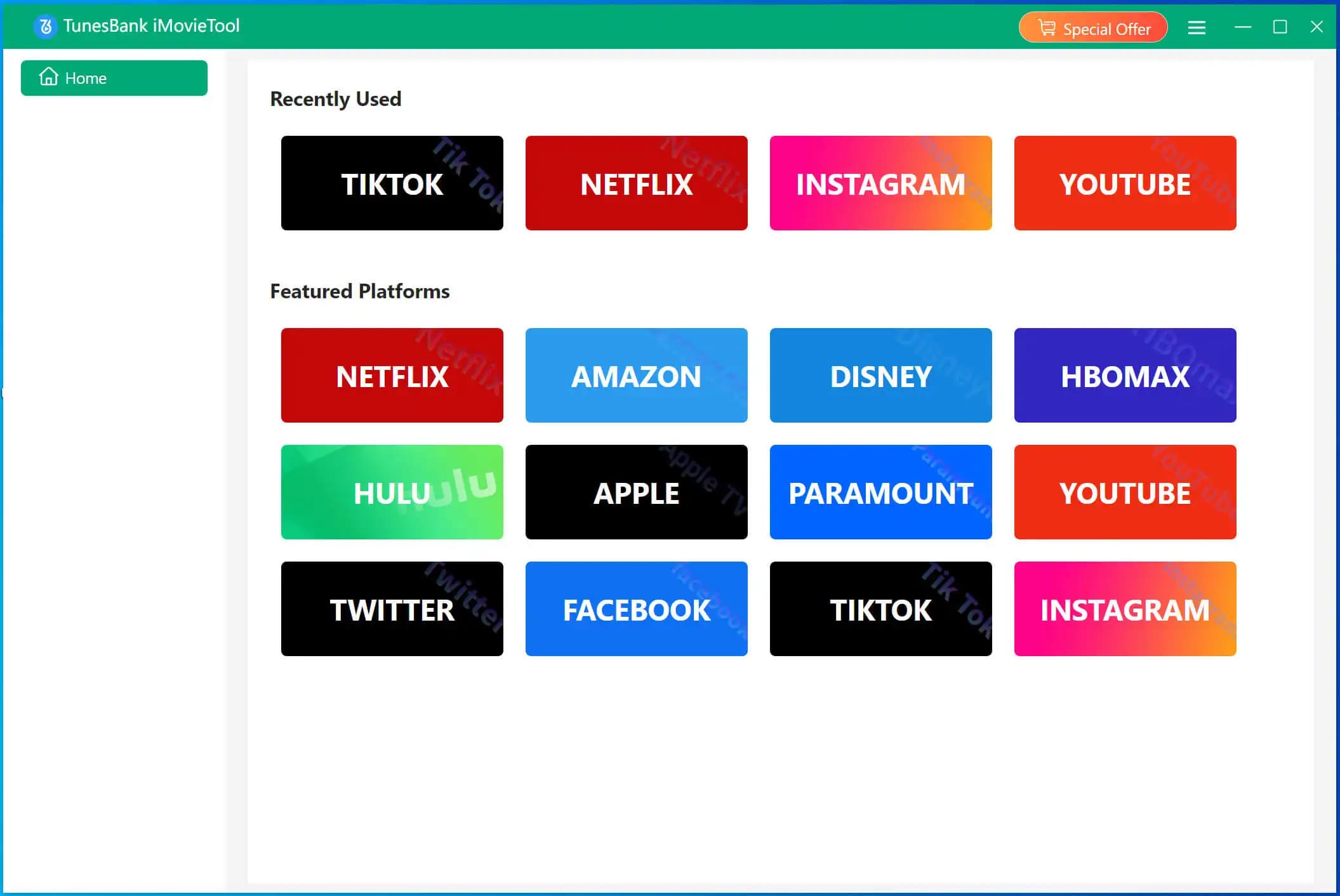
Once you log in, the main interface will appear.
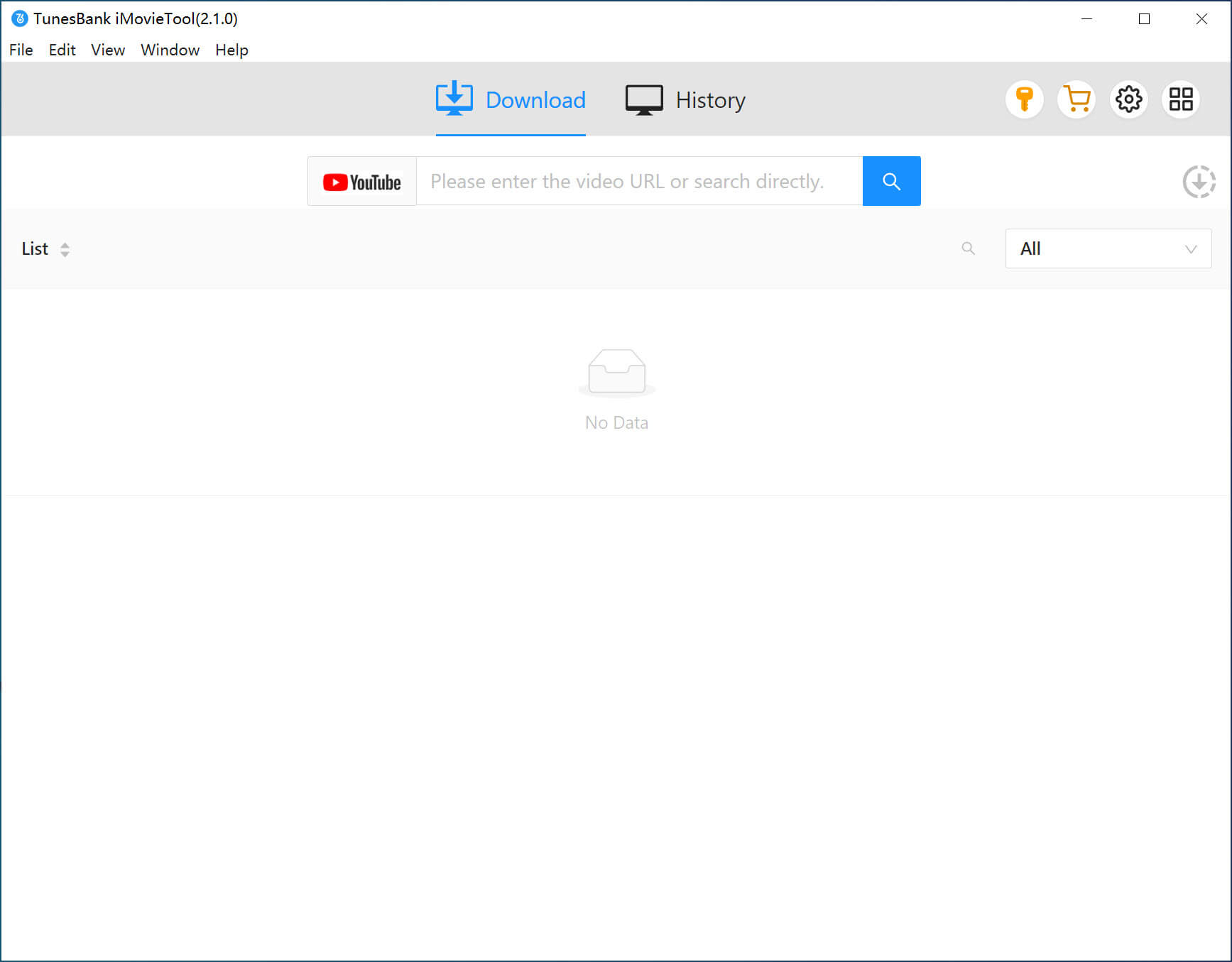
Step 2. Search for Unlisted YouTube Video
Search for the movies you want by typing the title in the search bar, or copy and paste the YouTube movie link and click “Search” to find it directly.
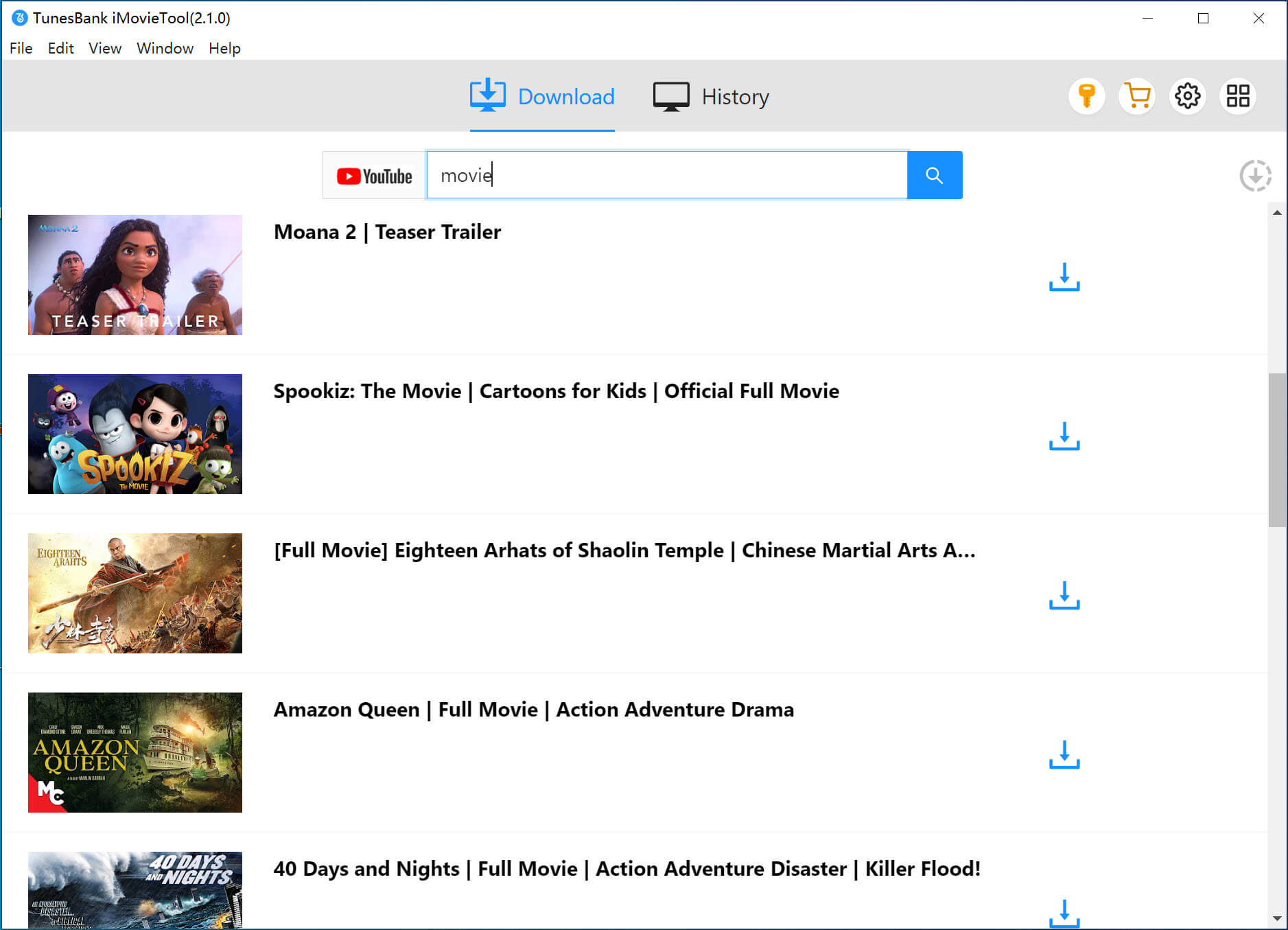
Step 3. Customize Video Settings
Click the “Gear” icon at the top right. You can choose MP4 or MKV format, adjust video quality, select audio and subtitle languages, and set the output folder.
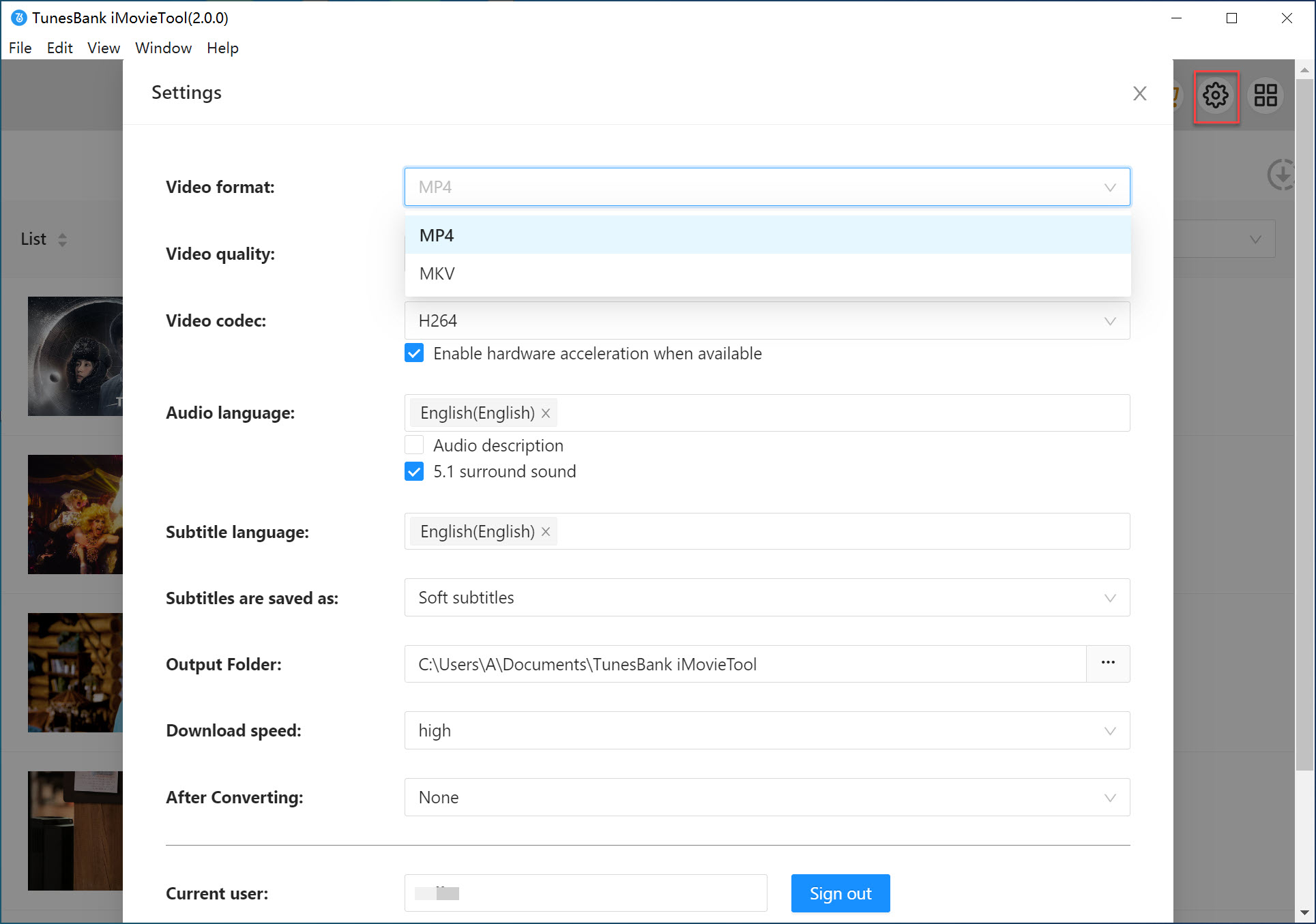
Step 4. Start to Download Unlisted YouTube Videos
Click the “Download” button to start. Once finished, the videos will be saved as MP4 or MKV files on your computer for offline viewing.
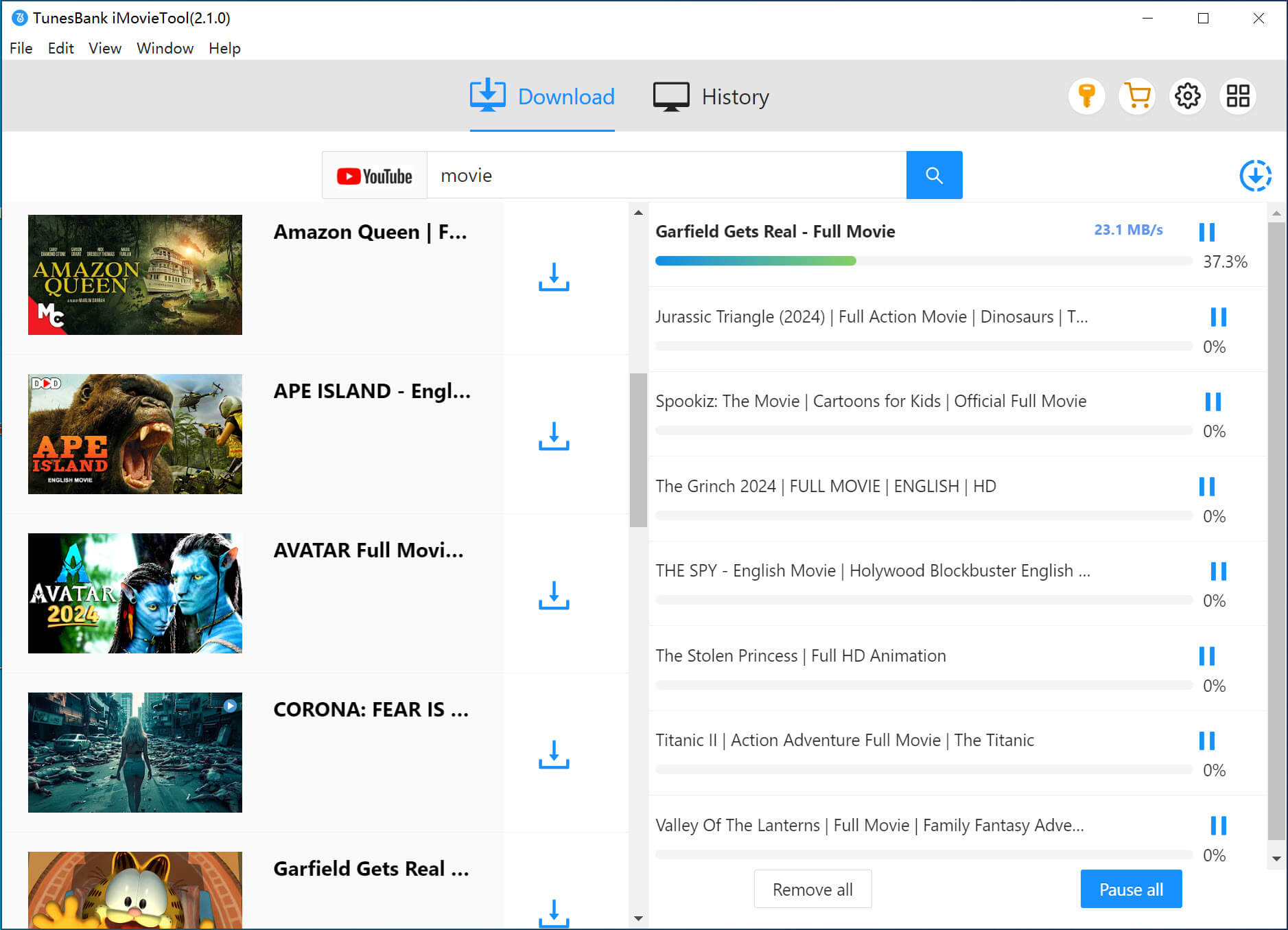
– 4kFinder Video Downloader
4kFinder Video Downloader is an easy-to-use tool that works with over 100 streaming sites, including YouTube, Vimeo, Facebook, Twitter, TikTok, and more. It’s perfect for YouTube users because it lets you download unlisted YouTube videos, private videos, playlists, and channels. You can download unlisted videos from YouTube in HD, 2K, 4K, or even 8K, and save them as MP4, MOV, or WEBM on your Windows or Mac computer. It also allows you to convert YouTube music videos to MP3 with high audio quality. Once saved, your unlisted YouTube videos can be kept forever and watched offline on any device.
Steps to Download Unlisted YouTube Videos with 4kFinder
Step 1. Open 4kFinder, paste the video URL into the blank field, and click “Analyze” to start.
Step 2. After analysis, choose the output format and resolution, such as HD, 2K, 4K, or 8K, in MP4, MP3, or M4A. You can also select multiple formats for batch downloading.
Step 3. Select MP4 and the resolution you want, then click “Download.” You can pause or resume anytime.
Step 4. Once the download is complete, the video will appear in the “Finished” list.
Step 5. Click “Open Folder” next to the video to find it on your computer and watch offline.
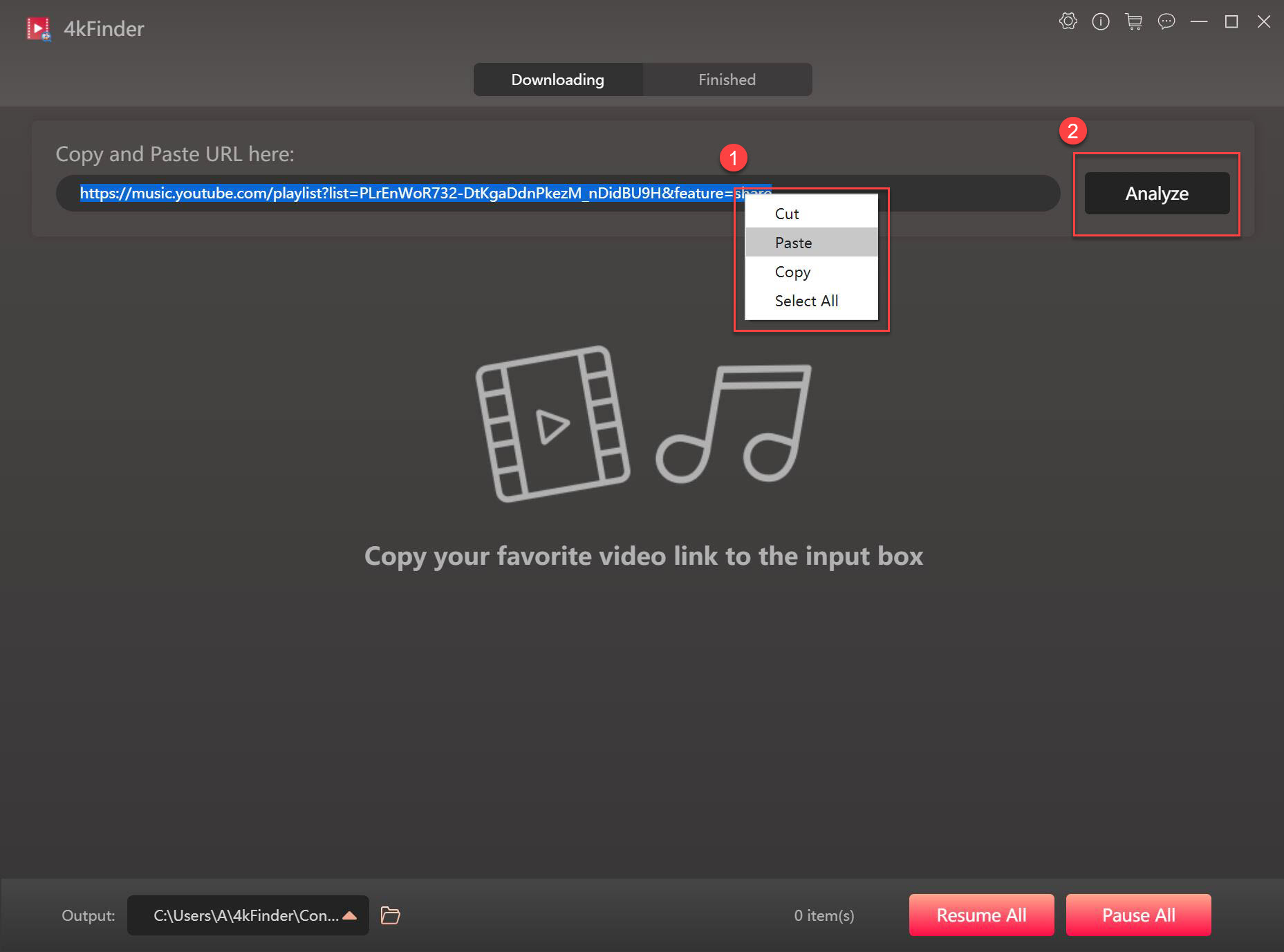
Way 2. Download Unlisted YouTube Video via Online Tool
If you want to download unlisted YouTube videos online without installing software, SSYouTube is a good choice. It lets you save videos in MP4 format on your device.
However, it only supports up to 1080p quality and doesn’t allow batch downloads, so you’ll need to download each video separately. If you need more features, tools like TuneFab may work better. But if you’re okay with the limits, here’s how to use SSYouTube:
Step 1. Paste the unlisted YouTube video link into SSYouTube, and it will analyze automatically.
Step 2. Wait for the download options to show up.
Step 3. Choose “Video,” select a format, and click “Download.”

Way 3. Download Unlisted YouTube Video with Extension
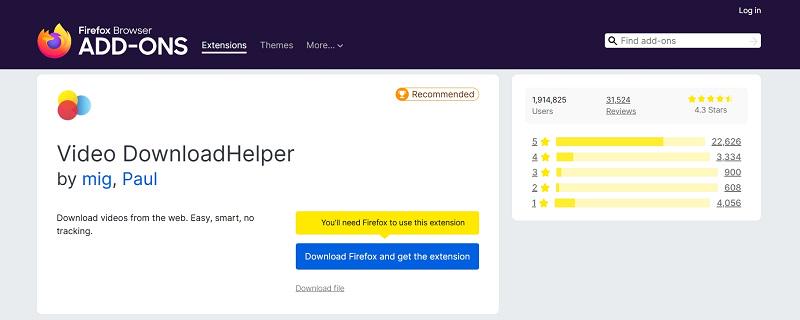
Video DownloadHelper is another good option to download unlisted YouTube videos online. This browser extension works with Chrome, Firefox, Safari, and Edge. It can automatically detect videos playing on the page and lets you save unlisted YouTube videos as MP4 or MKV files in up to 1080p quality.
Chrome does not allow extensions to download YouTube videos. To make sure it works, it’s better to use Video DownloadHelper on Firefox or Safari.
Here’s how to use it:
Step 1. Install the Video DownloadHelper extension in your browser and enable it.
Step 2. Play the unlisted YouTube video, and the extension will detect it.
Step 3. Choose the output option you prefer and click “Download.” That’s it — you can now download unlisted YouTube videos for offline viewing.
Way 4. Download Unlisted YouTube Videos with YouTube Studio
Wondering how to download unlisted YouTube videos that you uploaded yourself? It’s very easy! Even without the video link, you can do it directly from YouTube Studio with just a few clicks. The best part is that this method works on any device, whether you are using a browser, a desktop, or a mobile phone.
YouTube usually saves videos in MP4 format. While the quality may not always match the original, you can still download them in up to 720p or higher for a good HD experience. Here’s how you can do it:
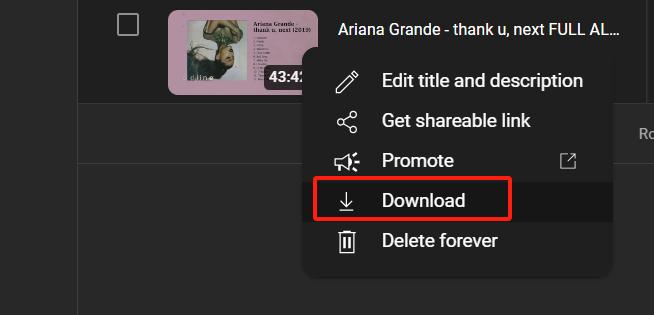
Step 1. Open YouTube Studio and find your unlisted video.
Step 2. Place your cursor on the video title, click the “Options” icon, and then select “Download” to save it to your computer.
Way 5. Download Unlisted YouTube Videos with YouTube Premium
Another easy way to download unlisted YouTube videos is by using YouTube Premium. With a Premium subscription, you can download YouTube content, including unlisted videos, directly on the YouTube website (desktop) or the YouTube app (mobile).
Keep in mind that downloaded videos can only be watched within YouTube for up to 29 days and cannot be moved to other devices or players.
How to download unlisted YouTube videos with YouTube Premium:
Step 1. Log in to your YouTube Premium account on your phone or computer.
Step 2. Open the unlisted YouTube video you want to save.
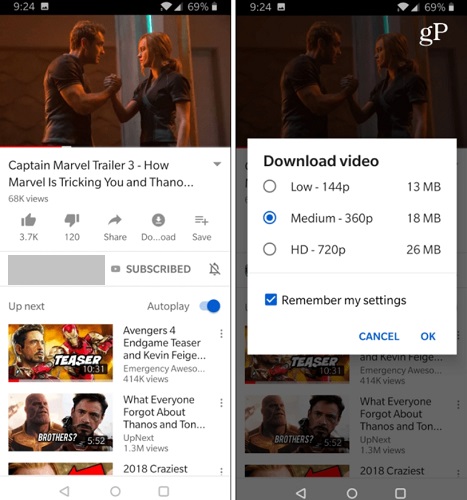
Step 3. Click the “Download” button below the video player.
Step 4. Choose your preferred video quality and click “OK.”
Step 5. Once finished, go to the “Downloads” section to view your saved videos.
How to Find Unlisted YouTube Videos
Usually, you need a video link to download an unlisted YouTube video. But what if you don’t have the link? No worries, this section shows you 3 easy methods to help.
1. Using YouTube Studio
If you want to download unlisted YouTube videos that you uploaded, YouTube Studio is the best place. It lets you view and manage all your uploads, including unlisted ones.
Step 1. Log in to your YouTube account.
Step 2. Click your profile picture and select “YouTube Studio.”
Step 3. Go to the “Content” section, where you’ll see your unlisted videos.
2. Using Google Search
Want to find unlisted YouTube videos uploaded by others? It’s a bit tricky, but you can use Google Search to locate them without a link.
Step 1. Open Google and type site:youtube.com intext:unlisted “Video Keywords” in the search bar.
Step 2. Press Enter, and Google will display all relevant results. This way, you can quickly find the unlisted YouTube videos you’re looking for.
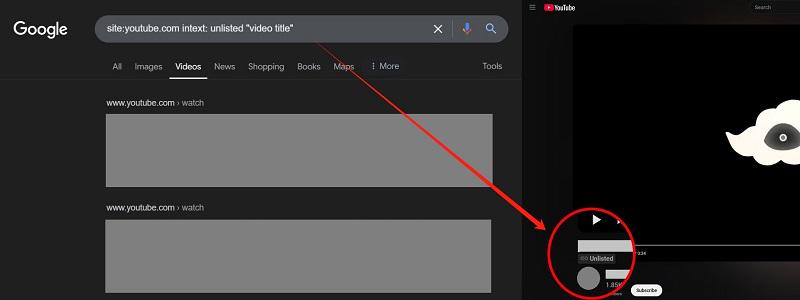
This method won’t work for videos that were uploaded as “unlisted” from the start, because Google cannot index them. Only videos that were once public and later set to “unlisted” can be found using this search.
3. Using the Unlisted YouTube Video Website
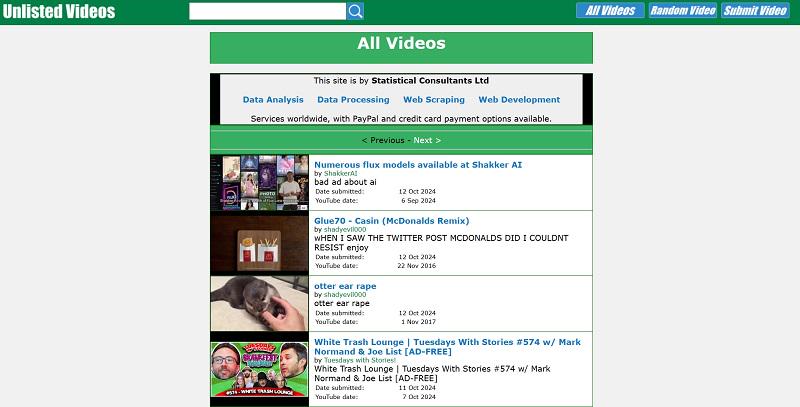
The Unlisted Videos website offers an archive where you can find unlisted YouTube videos. Keep in mind that ads on the site can be a bit distracting.
Step 1. Go to the official Unlisted Videos website.
Step 2. Type a video keyword in the search bar and click search. You can also explore more videos by clicking “All Videos” or “Random Video.”
Step 3. Open the video you want to watch. You can stream it directly or click “Watch on YouTube” to get the video link.
Side-by-Side Comparison of 5 Methods
After looking at 5 effective ways to download unlisted YouTube videos, you might still be unsure which method is best. To help, here’s an overview that lets you compare them easily across different features.
| iMovieTool YouTube Movie Downloader | 4kFinder Video Downloader | SSYouTube | Video DownloadHelper | YouTube Studio | YouTube Premium | |
|---|---|---|---|---|---|---|
| Supported Platform | Windows, Mac | Windows, Mac | Web | Firefox, Safari | Windows, Mac, iPhone, Android, (YouTube App) | Windows, Mac, iPhone, Android, (YouTube App) |
| Ease of Use | Yes | Yes | Yes | Yes | Yes | |
| Free to Use | Yes, Free Trial | Yes, Free Trial | Yes | Yes | Yes | No |
| Video Format | MP4, MKV | MP4, MP3, M4A | MP4 | MP4, MKV | MP4 | Proprietary encrypted format |
| Accelerated Speed | 50X | 6X | 1X | 1X | 1X | 1X |
| Batch Download | Yes | Yes | No | No | No | No |
| Permanent Use | Yes | Yes | Yes | Yes | No | No |
| Ad-free | Yes | Yes | Yes | Yes | Yes | Yes |
| No Account Login | Yes | Yes | Yes | Yes | No | No |
FAQs on Unlisted YouTube Videos
Q1. Are unlisted YouTube videos completely private?
No. Unlisted videos don’t appear in search results, on your channel, or in recommendations, but anyone with the link can still watch them. They’re hidden from the public, but not fully private.
Q2. What’s the difference between unlisted and private YouTube videos?
Both are hidden from public searches, but they work differently. Unlisted videos can be watched by anyone with the link, while private videos can only be seen by specific people you invite.
| Unlisted Videos | Private Videos | |
|---|---|---|
| Who Can See | Anyone with the link | Only up to 50 invited people |
| How to Share | Share via video link | Invite by email |
| YouTube Account Needed | Yes | Yes |
| Add to Public Playlists | Yes | No |
| Comments Allowed/td> | Yes | No |
| Can Embed on Websites | Yes | No |
| Privacy Level/td> | Somewhat private | Highly private |
You May Like:
Conclusion
In this article, we have shown you how to download unlisted YouTube videos and provided tips for finding these hidden gems. With the right tool, the process can be simple and straightforward.
Out of the 5 methods, iMovieTool YouTube Movie Downloader and 4kFinder Video Downloader stand out if you want a stable, high-quality, and flexible solution. They can batch download unlisted videos in up to 4K and also support private videos, playlists, channels, and more without limits. They are definitely worth trying, so download them today.