 Download Netflix videos to MP4 or MKV format in 1080P Full HD resolution.
 English
 Arabic
 Chinese (Simplified)
 Chinese (Traditional)
 Croatian
 Czech
Czech Danish
 Dutch
Dutch Finnish
 French
 German
 Greek
Greek Hebrew
 Hindi
Hindi Indonesian
 Italian
 Japanese
 Korean
 Malay
Malay Norwegian
 Polish
 Portuguese
 Russian
 Slovenian
 Spanish
 Swedish
 Thai
Thai Turkish
 Ukrainian
 Vietnamese


If you’re wondering how to get rid of ads on Netflix, you can’t miss this Review on Best Netflix Ad Blockers. Here you will explore four ways to block or bypass Netflix ads on computer and mobile, by upgrading to Netflix’s Ad-Free plan, using mobile and browser-based ad blockers or VPN, or Netflix downloader desktop app.
Netflix introduced a “binge ad-reward” feature exclusive to ad-tier users. After watching three consecutive episodes, users get the fourth episode completely ad-free.
While this innovation is a step forward in improving the user experience for Netflix ad-supported subscribers, it doesn’t eliminate ads altogether. If you want to completely get rid of ads on Netflix, it’s necessary to upgrade to an ad-free plan or using a Netflix ad blocker.
While you are immersed in excited movies or series on Netflix, it can be extremely frustrating watch the pop-up annoying ads as you can’t skip them. So, if you are a Netflix ad-supported user, you must wonder how to block ads with Netflix Standard With Ads plan.
In this article, we will explore the 4 best Netflix Ad blockers (including desktop software, mobile apps, and browser extensions), and also introduce an alternative way to watch Netflix without ads on any device via 4kFinder Netflix Video Downloader, rather than using Netflix Ad skippers. Scroll down and pick the method you like!
CONTENTS
How Long Are the Ads on Netflix Standard With Ads?
Netflix Standard With Ads plan ($7.99 per month) allows you to stream Netflix at a lower price than ad-free plans. According to its Support Page, you’ll see about 4 to 5 minutes of ads per hour of streaming.
Typically, the ads on Netflix Standard With Ads range between 15-30 seconds per ad break. Most shows begin with a pre-roll ad, followed by mid-roll ads that appear during natural breaks in the content. As mentioned earlier, once you’ve watched three episodes in a row, you’ll be able to enjoy ad-free streaming of the fourth episode.
These Netflix ads are not skippable, and they vary based on your location and the title being streamed. To turn off ads, you need to utilize an ad blocker for Netflix. Keep reading.
Way 1. Upgrade to Netflix Ad-Free Subscription
To get Netflix without ads, a simple solution is to upgrade to a Netflix ad-free plan. Both Netflix Standard and Premium plans do offer ad-free streaming experience.
| Netflix Plans | Standard With Ads | Standard | Premium |
| Price | $7.99 / month | $17.99 / month | $24.99 / month |
| Video Quality | 1080p Full HD | 1080p Full HD | 4K Ultra HD + HDR |
| Ad-free | No | Yes | Yes |
| Simultaneous Streams | 2 | 2 | 4 |
| Devices with Downloads | 2 | 2 | 6 |
If you’re currently subscribed to the “Standard With Ads” tier and want to get rid of ads on Netflix, you can consider upgrading to either Standard or Premium, which will completely remove all advertisements.
How to Upgrade to a Netflix Ad-Free Plan
Step 1. Go to netflix.com in browser or open Netflix app, and sign in to your account.
Step 2. Click your Profile icon in the top-right corner and choose “Account”.
Step 3. Under Plan Details, click “Change Plan”.
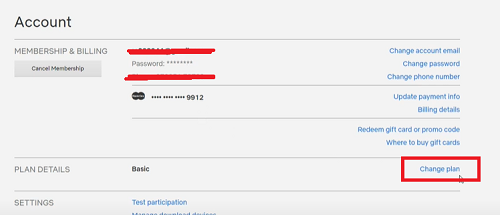
Step 4. Select Standard or Premium (the ad-free options).
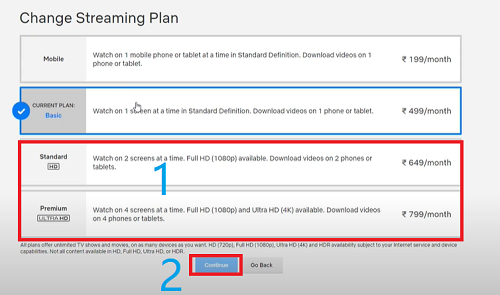
Step 5. Click “Continue” and confirm your selection, then payment.
Pros:
- 100% effective, no ads.
- Works on all devices.
- Safe, no third-party tools required.
- Better quality and more simultaneous streams (Premium).
Cons:
- More expensive than ad-supported plan.
- May not be ideal for budget users, you still pay monthly subscription.
Way 2. Block Netflix Ads with an Ad Blocker
“Is there a way to block ads with Netflix Ad-Supported plan?” Of course! There is no an official Netflix app for Mac users. If you are used to watch content on Netflix web player, you can try to use an ad blockers for Netflix. What is an ad blocker that blocks out Netflix ads? Keep reading to learn more.
Use Ad Blocker Extension
There are some extensions such as AdGuard, uBlock Origin, AdBlock Plus, and Ghostery that remove ads from the web-based Netflix web player. These are free, lightweight, and easy to use. They integrate with browsers like Chrome, Firefox, Edge, and Opera. For mobile users, you need to use a VPN to Once installed, it can block Netflix ads easily. Here we will take AdGuard as example to show you how to block ads on Netflix.
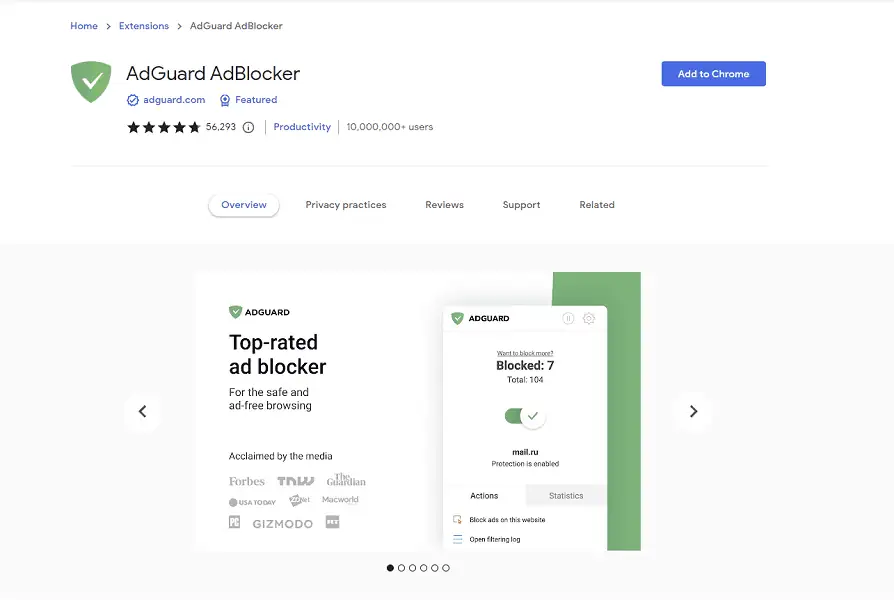
Step 1. Go to the Chrome Web Store, search for an Ad Blocker. For example, here we type “AdGuard” and press Enter. Click “Add to Chrome”.
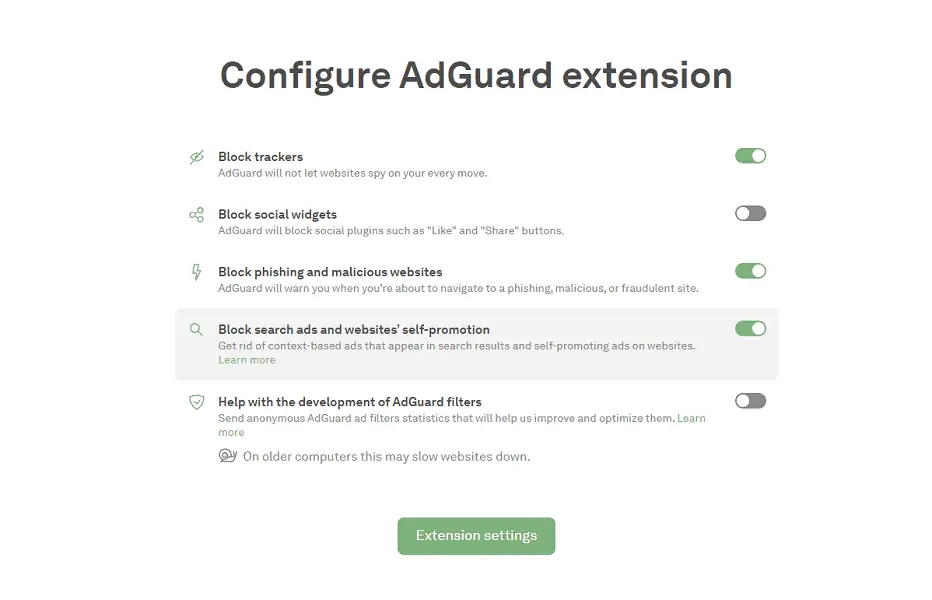
Step 2. After installation, scroll down to the “Configure AdGuard extension” in the welcome page. Configure the extension settings.
Step 3. Chrome will install the tool and display its icon in your browser’s toolbar.
Step 4. Visit Netflix in your browser and sign in your Netflix account. Select a title to play, and the extension will start working automatically, attempting to block ads!
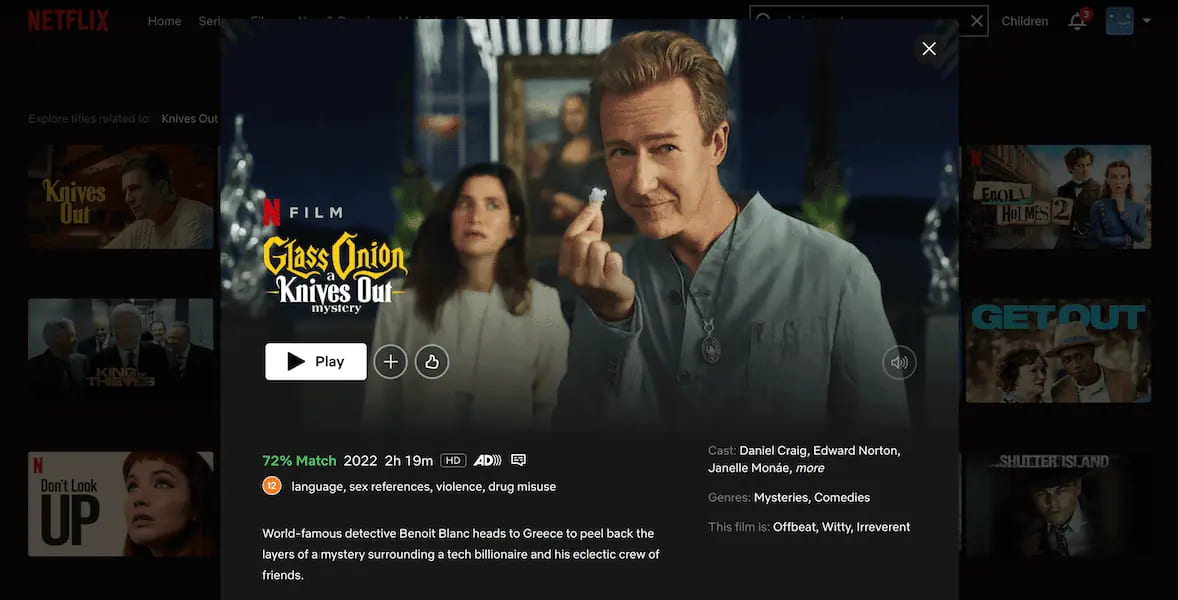
You can now watch Netflix ad-free in your browser!
👍 Pros:
- Lightweight and user-friendly.
- Allows customizable settings.
- Available on different browsers.
👎 Cons:
- May not block all ads on Netflix.
- Netflix will detect script interference, risk of account issues.
- Watch Netflix ad-free online, requires a stable network connection.
Use Ad Blocker App
If you prefer watching Netflix ad-free on a smartphone or tablet, you may also find a specialized mobile ad blocker app to help you block Netflix ads on iOS/Android. Typically, these mobile ad blockers set up a local VPN or DNS proxy on your device. It help block in-app ads, pop-ups, trackers, and even some video ad requests by filtering traffic before it reaches your device. But it may not block all Netflix ads due to encrypted streams. To completely remove ads from Netflix, you can turn to Way 3.
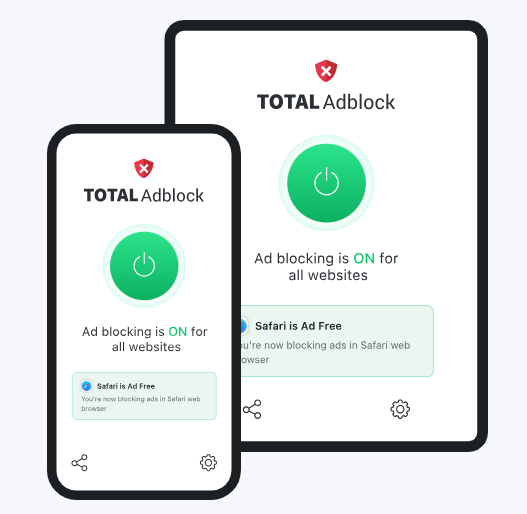
Here’s how to block Netflix ads with a Mobile Ad Blocker. AdGuard also released a mobile app for iOS and Android users. Here we will take it as an example.
Step 1. Download AdGuard to your device from Google Play Store or App Store.
Step 2. Install and launch the AdGuard app. Grant permissions to allow VPN or DNS filtering.
Step 3. Enable content blocking for apps and browsers.
Step 4. Configure Netflix filters, if available, or enable generic streaming filters.
Step 5. Now, start playing a video in Netflix web browser or Netflix app, and you will have an ad-free streaming experience on your device!
👍 Pros:
- No root/jailbreak needed.
- Works across apps and browsers.
👎 Cons:
- Often fails, can’t block all Netflix ads.
- Can conflict with VPN services.
- Some features are limited on iOS.
Way 3. Watch Netflix Without Ads via Desktop Tool (Best)
The aforementioned ad-blocking browser extensions and apps can indeed help you stop ads on Netflix web player or app. However, what if you not only wish to watch Netflix without Ads bust also download Netflix videos with Ad-Supported plan? In this case, the powerful third-party tool – 4kFinder Netflix Video Downloader will offer you an even better solution.
4kFinder Netflix Video Downloader is not only a lightweight Netflix Ad Blocker but also a dedicated Netflix downloader. It supports all tiers of Netflix plans, including Netflix ad-supported and ad-free. Well designed for Mac and Windows, 4kFinder Netflix Video Downloader boasts a professional built-in web browser, which helps you block Netflix ads without a Premium subscription and browse and search for any video title online.
As for Netflix video downloading, it can remove DRM protection applied to Netflix shows, movies, documentaries and Originals, and download them to local MP4 or MKV files. Plus, the software retain the original video quality of Netflix videos in FHD 1080P. What’s more, it supports batch downloads, and the download speed can be boosted to 50X faster, saving you lot of time! After which, you could save downloaded Netflix videos permanently and enjoy ad-free offline playback anywhere and anytime, even if you cancel your Netflix subscription!
Main Features of 4kFinder Netflix Video Downloader:
- Supports all Netflix plans, including the Standard With Ads plan.
- Download Netflix videos in MP4/MKV format with HD quality (up to 1080p).
- Download Netflix movies, shows to computer without Netflix app.
- Preserves multi-language audio tracks and subtitles for Netflix videos.
- Allows batch downloads and fast download speed (up to 50X).
- Keeps metadata info (title, season, episode, etc.) for better file organization.
- Save Netflix videos locally and permanently, no ads interruption.
How to Remove Netflix Ads and Download Netflix Videos to MP4?
Step 1. Launch 4kFinder Netflix Video Downloader
Download and install 4kFinder Netflix Video Downloader on your Windows PC, laptop, iMac or MacBook. Then launch 4kFinder program and log in to your Netflix account (ad-free or ad-supported).
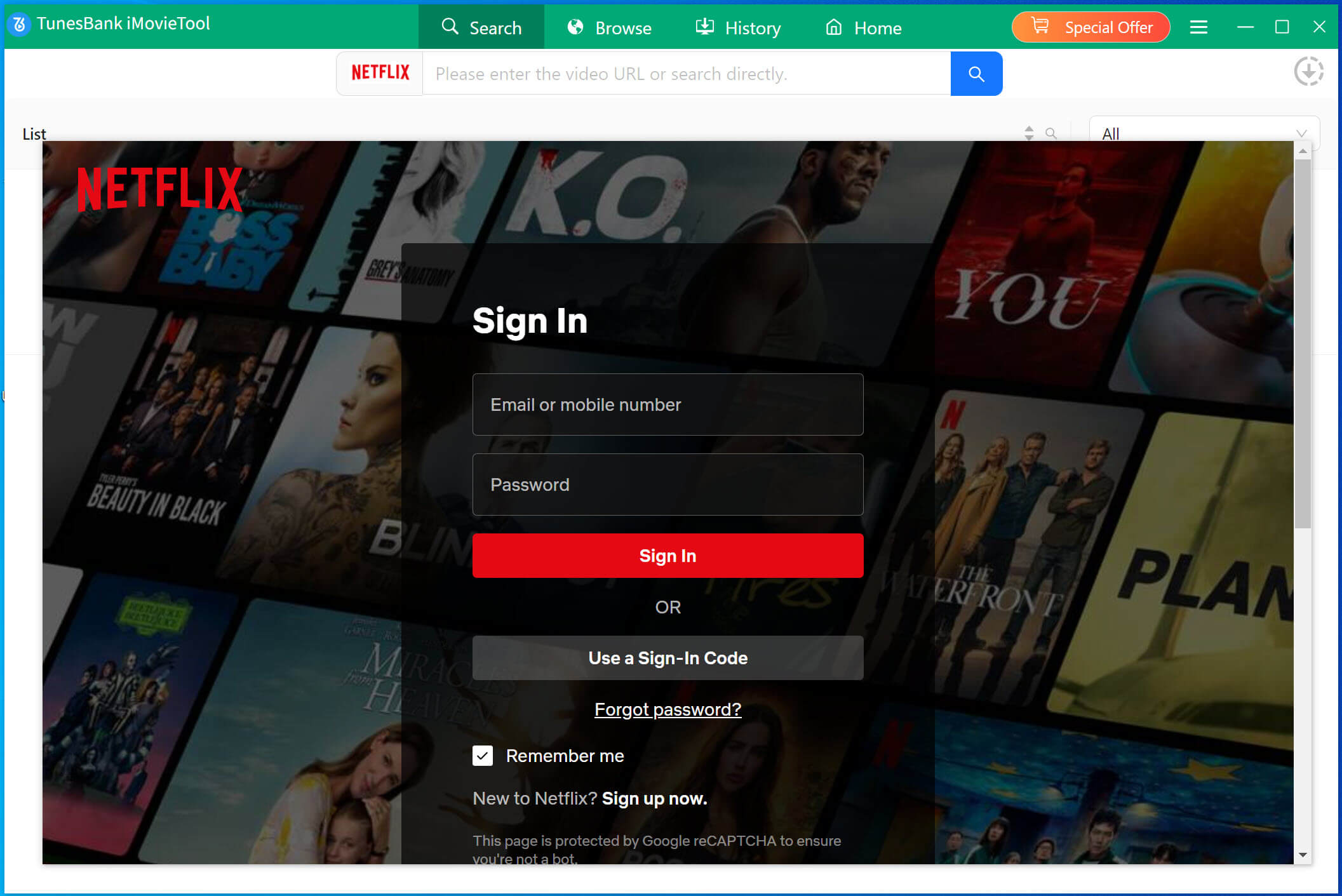
Don’t worry, your login info is used solely for access purposes.
Step 2. Search for the Netflix Video You Want
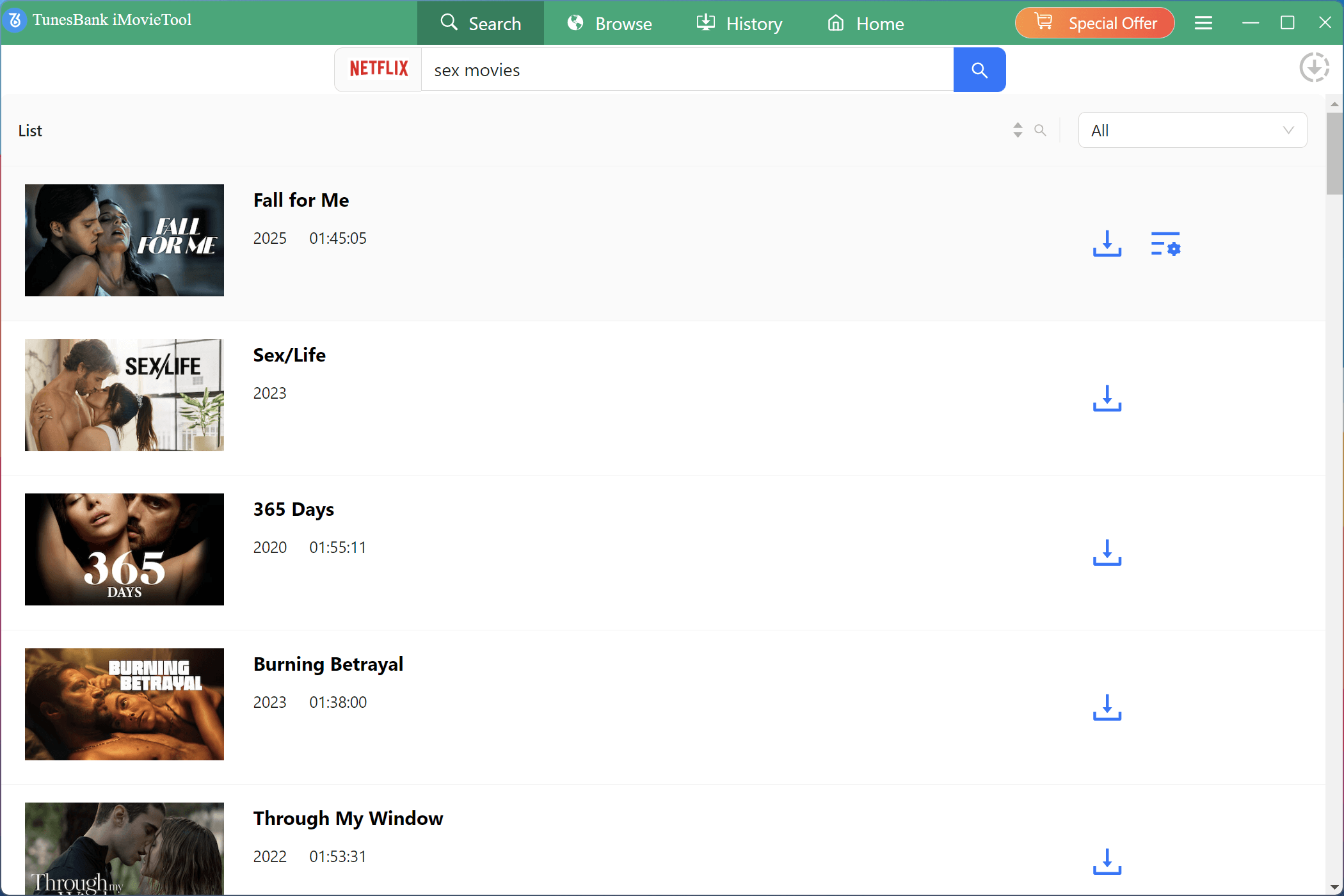
Enter the title of the movie or show in the built-in search bar, or paste the URL from the Netflix web player or app.
Step 3. Customize Output Settings
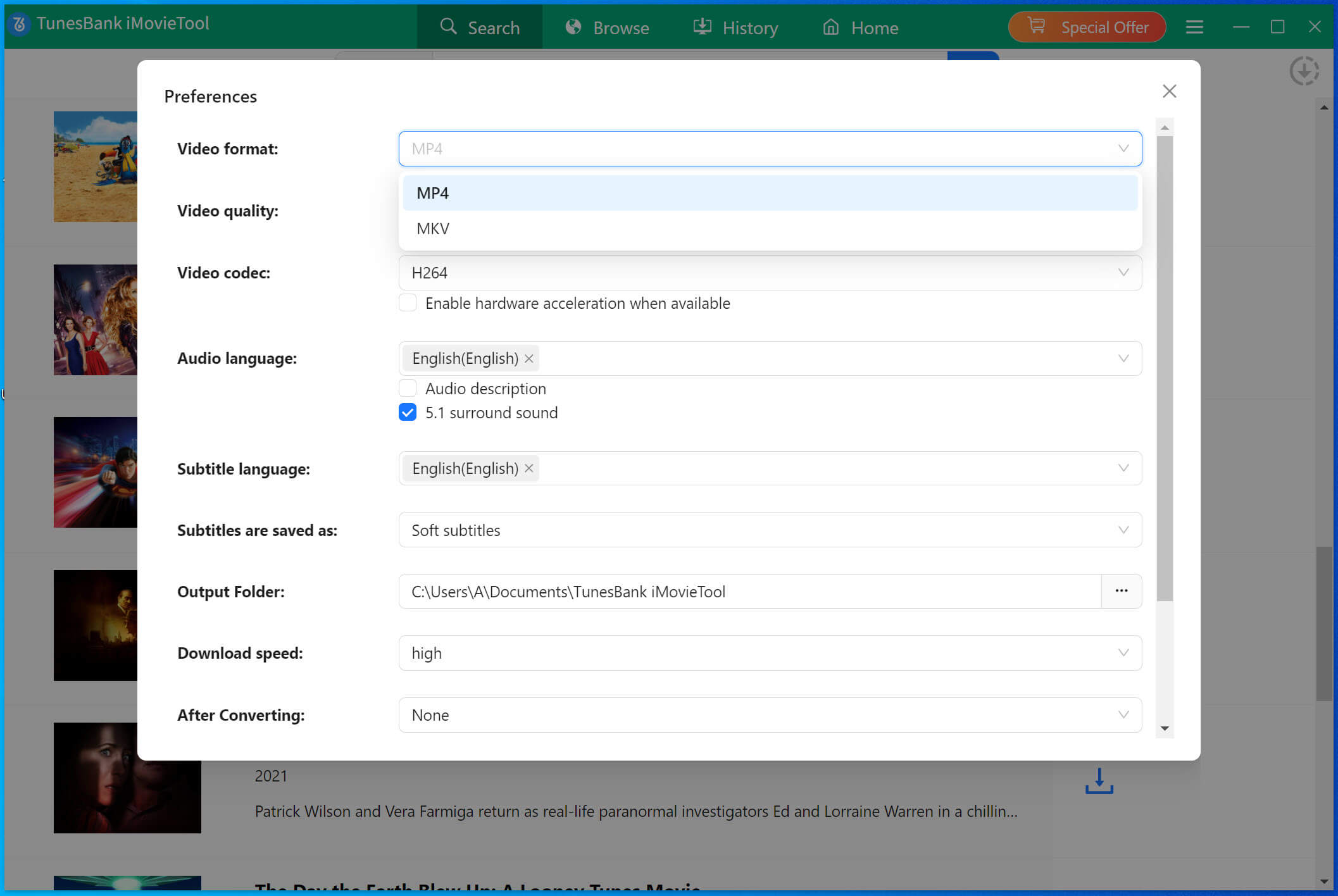
Before downloading, hit on the “Gear” icon to choose video format (MP4 or MKV), video quality (up to 1080p), audio language, and subtitle preferences.
Step 4. Download Netflix Videos Without Ads
Click on the “Download” button to let the tool help you download videos from Netflix web browser while removing the annoying ads.
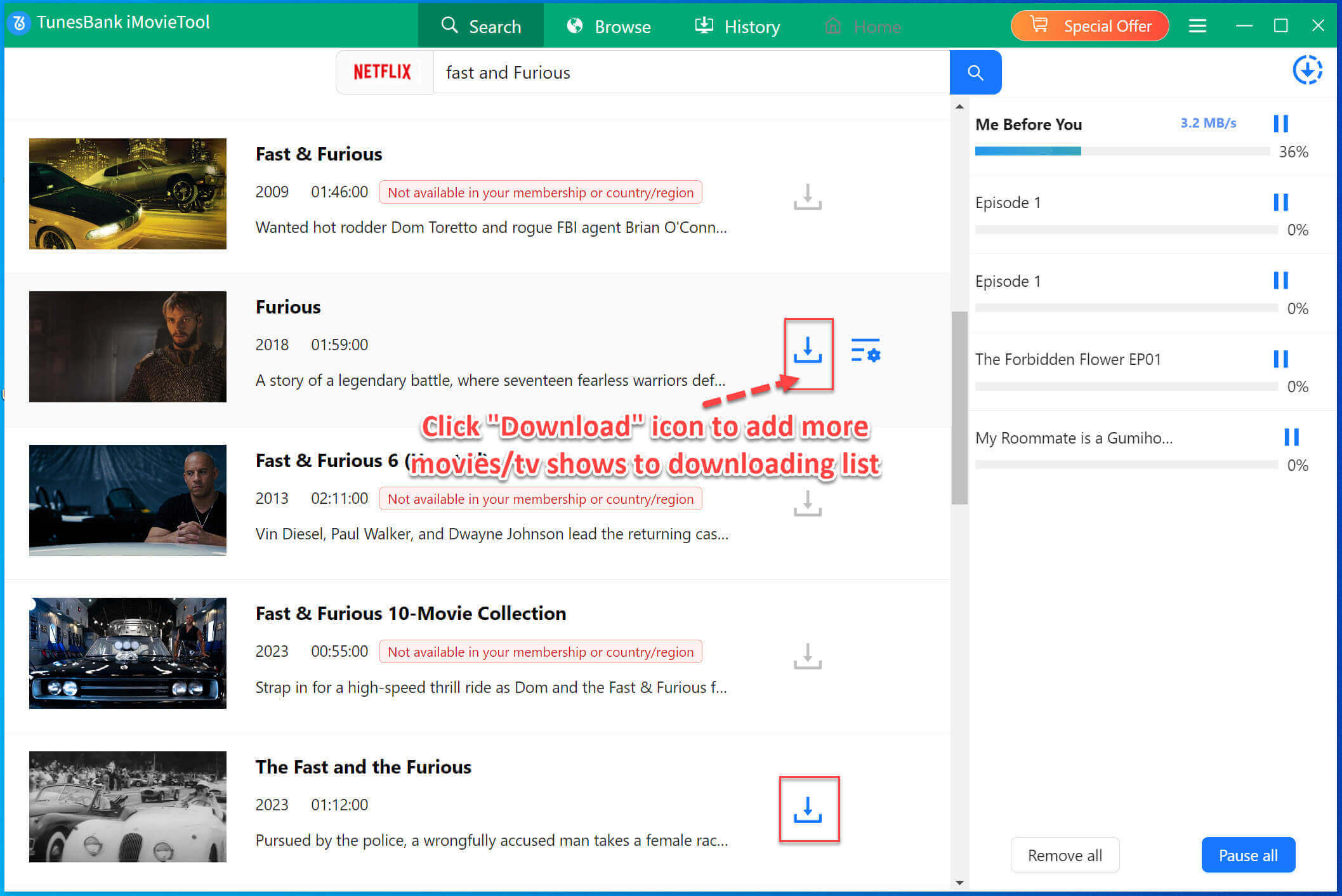
Step 5. Get Ad-Free Netflix Videos Offline
Once finished, the videos will be saved locally without ads. Go to “History” section, and click on the “blue folder” icon to locate the output folder.
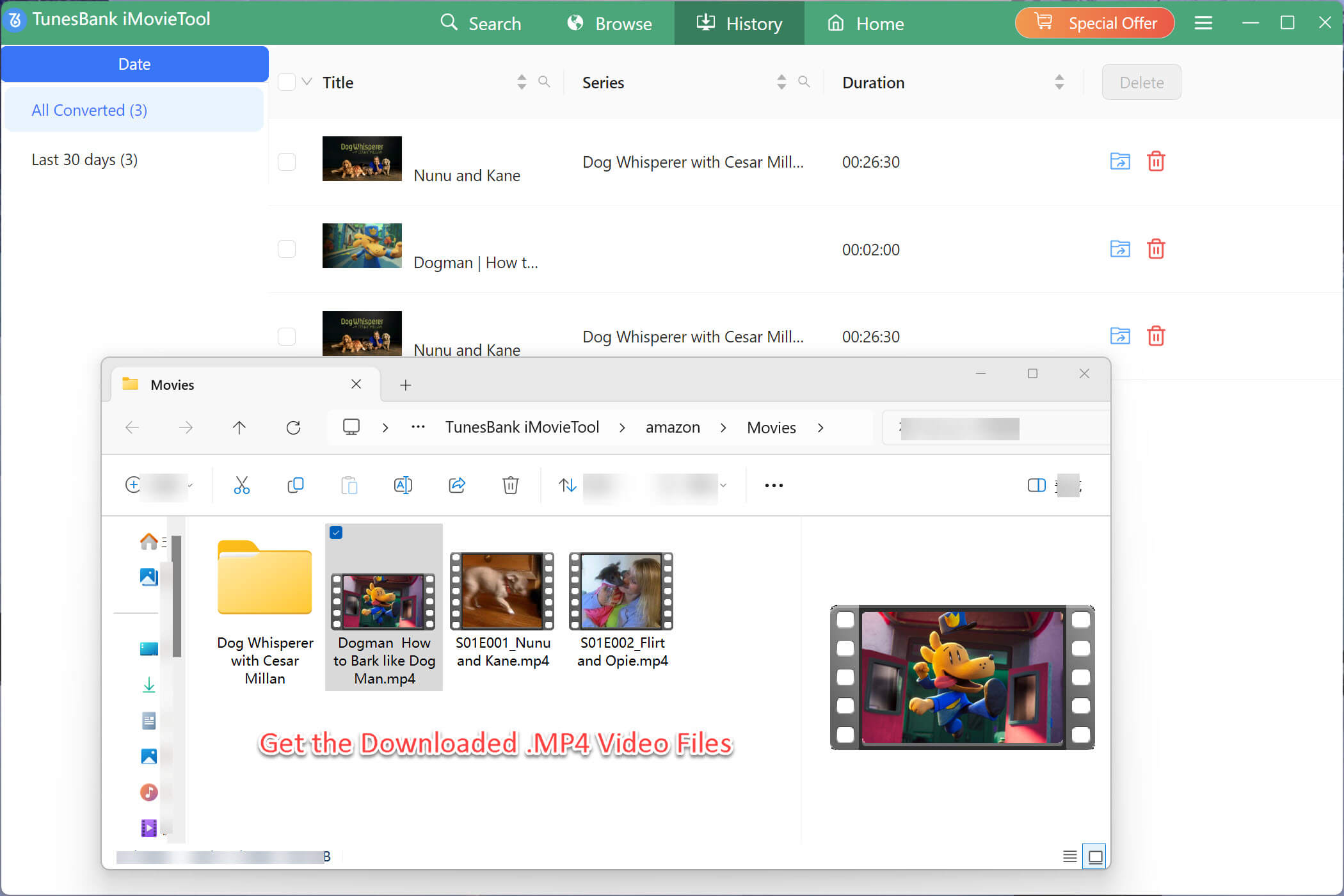
You can now now move your ad-free Netflix videos to a USB drive, external drive, phone, tablet, or even burn them to a DVD – enjoy Netflix without ads anytime.
👍 Pros:
- Works with all Netflix plans, even Standard With Ads.
- Provides true ad-free experience regardless of plan type.
- Offers high customization, including formats and subtitles.
- Allows you to watch Netflix offline on any device.
- Saves Netflix downloads forever, no expiration.
👎 Cons:
- It’s a paid software, the free trial only offers limited functions.
- Requires a computer (Windows or Mac); not suitable for mobile-only users.
Way 4. Block Netflix Ads Using a VPN
Netflix is available in over 190 countries, attracted over 301 million global subscribers. The final method to block Netflix ads is by using a VPN (Virtual Private Network). While a VPN is commonly used to change your IP address, you can access Netflix content without geo-restrictions. Currently, Netflix does not offer ad-supported plans but only Netflix Ad-Free plans in some countries or regions. This means you can skip Netflix ads by changing to another country with a VPN.
Top picks for Netflix ad blockers include ExpressVPN, NordVPN, and Surfshark. Make sure your VPN service offers fast speeds (at least higher than 3Mbps,) otherwise, you won’t be able to stream Netflix ad-free in HD.
How to Stop Netflix Ads Using a VPN Service
Step 1. Download and install the VPN software/app on your computer or mobile device. Choose a subscription plan based on your needs.
Step 2. Launch the VPN and select a server in a country where Netflix’s ad-supported tier isn’t available.
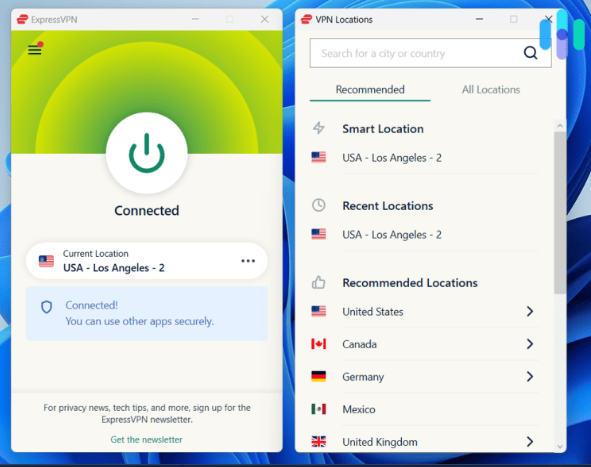
Step 3. Once connected, open Netflix on your Chrome browser or app. You can now access ad-free Netflix video content of the site.
👍 Pros:
- Easy to operate.
- Work for some regions.
- May reduce some ads while streaming on Netflix.
👎 Cons:
- Unreliable long-term.
- Netflix blocks most VPNs.
- Not free, most VPN service requires a subscription.
Compared to upgrading to Netflix Ad-Free plan or purchasing the 4kFinder Netflix Video Downloader, subscribing to a VPN service is not cost-effective, and the Internet speed will affect the Netflix video quality. To get the best ad-free viewing experience of Netflix, I strongly suggest that you try the 4kFinder Netflix Video Downloader.
FAQs About Blocking Netflix Ads
How do I get rid of ads on Netflix?
Above, we’ve introduced four methods to help you block Netflix ads, including upgrading to ad-free plan, using an ad blocker for Netflix, or Netflix video downloader, or even a VPN service. You can turn to above section for more details.
How much does Netflix cost without ads?
Netflix mainly relies on subscription fees as its primary source of revenue. The Netflix ad-free tiers include Standard and Premium. Currently, the Netflix Standard cost $17.99 / month, while Premium costs $24.99 / month.
Is ad-free Netflix worth it?
It depends on individual budget, viewing habits and preferences and more. For most users, the ad-free Netflix experience is worth the extra cost. It offers uninterrupted streaming, ad-free playback, offline viewing, and higher video resolution.
Why am I getting ads on Netflix when I pay for no ads?
First, check your subscription tier – you might choose the “Standard With Ads” by mistake. Second, check your shared accounts, if others on the account using the ad-supported tier. Then, check the VPN/region settings. If none of these apply, contact Netflix Support to resolve the issue.
Final Words
Watching on Netflix with ads interruption can be frustrating. In short, if you mind the expensive subscription fee, and desire to get rid of Netflix ads, there are multiple methods to block ads on Netflix: using a Netflix ad blockers, connecting to a VPN service, or even using a third-party Netflix downloader. For a smooth ad-free offline viewing experience, the best and most effective way is using 4kFinder Netflix Video Downloader to get the Netflix videos offline and locally. It empowers you to download unlimited HD Netflix shows and movies to computer as MP4/MKV files, thus you can watch Netflix offline without ads and buffering issues! Download it for free and have a try right now!