 Download Netflix videos to MP4 or MKV format in 1080P Full HD resolution.
 English
 Arabic
 Chinese (Simplified)
 Chinese (Traditional)
 Croatian
 Czech
Czech Danish
 Dutch
Dutch Finnish
 French
 German
 Greek
Greek Hebrew
 Hindi
Hindi Indonesian
 Italian
 Japanese
 Korean
 Malay
Malay Norwegian
 Polish
 Portuguese
 Russian
 Slovenian
 Spanish
 Swedish
 Thai
Thai Turkish
 Ukrainian
 Vietnamese
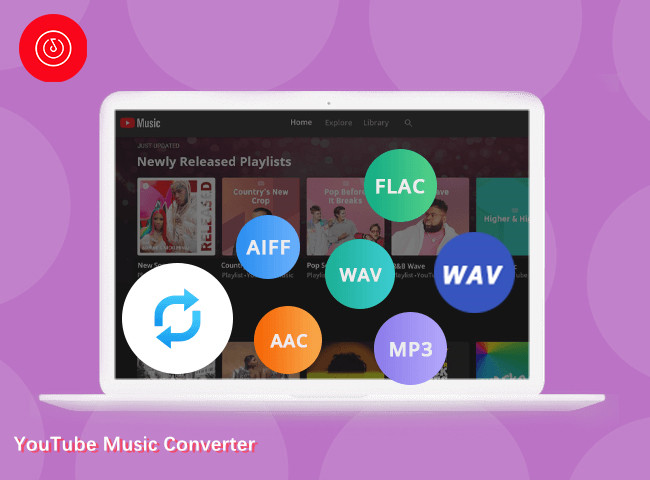
Want to watch Netflix on Nintendo Switch? This guide shows you two ways. One is to download Netflix on Nintendo Switch by saving movies first and playing them offline. The other is to install Android OS on your Switch, which lets you install the Netflix app and play Netflix on Nintendo Switch directly.
These days, the Nintendo Switch isn’t just for gaming. With some streaming apps available, it can also serve as a handy device for watching movies and anime. However, while YouTube works on the console, other popular platforms like Netflix on Nintendo Switch are not officially supported. In fact, there’s no dedicated Netflix app for the system.
In this guide, we will provide 2 ways to watch Netflix on Nintendo Switch for you. One method is to download Netflix on Nintendo Switch by saving movies first and then playing them offline on your console. Another option is to install Android OS on your Switch, which allows you to install the Netflix app and directly play Netflix on Nintendo Switch. Check out the full guide below to learn both methods and enjoy your favorite Netflix shows on the go.
CONTENTS
Part 1. Can You Download Netflix on Nintendo Switch?
Unfortunately, Netflix on Nintendo Switch is not supported on any model. In the past, things were different. Before January 2019, the Netflix app could be installed on Nintendo Wii through the eShop. It was also compatible with Wii U, New Nintendo 3DS, 3DS XL, and Nintendo 2DS.
Now Netflix has removed support, so there is no Netflix app available for installation on any Nintendo Switch system. This means you cannot directly install or download Netflix on Nintendo Switch. Even if you have a Netflix Premium plan that allows downloading videos for offline viewing, those downloads are protected by DRM and cannot be transferred to other devices, including the Switch.
Part 2. How to Download Netflix to MP4 and Watch them on Nintendo Switch [Best]
If you still want to watch Netflix on Nintendo Switch, one solution is to download Netflix on Nintendo Switch by saving the shows and movies as common video files outside the Netflix app. This way, you can easily import them to your Switch and play Netflix on Nintendo Switch without limits. The only challenge is that Netflix videos come with DRM protection, which needs to be removed first.
A reliable way to do this is by using 4kFinder Netflix Video Downloader. This tool comes with a built-in search engine that lets you look up and download any Netflix video directly as MP4 or MKV files. It supports up to HD 1080p quality and preserves multiple audio tracks and subtitles in different languages, ensuring the same high-quality playback experience as the original. Once you get DRM-free Netflix downloads, you can transfer them to your Nintendo Switch or any other device and enjoy offline viewing without needing the Netflix app.
👍Key Features of 4kFinder Netflix Video Downloader
- Download Netflix to MP4/MKV in HD 1080P.
- Keep original audio and subtitles in multiple languages.
- Provide 50X fast download speed in batches.
- Download Netflix on Nintendo Switch for offline playing.
- Watch Netflix Offline On Any Device & Player.
- Compatible with Windows & Mac.
Guide: How to Download Netflix to MP4
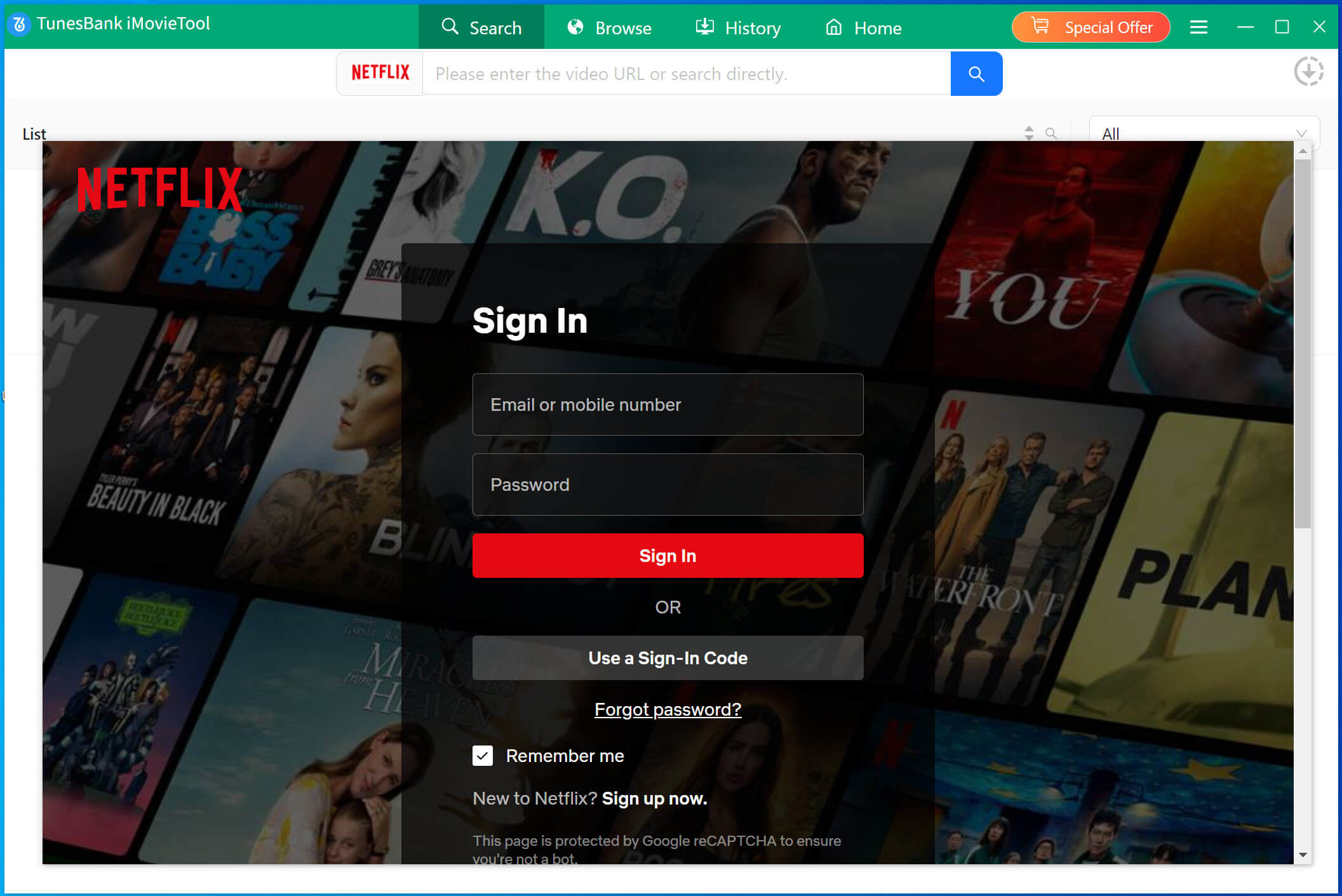
Step 1. Select Netflix and Sign In
Download, install, and open 4kFinder Video Downloader on your computer, then sign in with your Netflix account.
Step 2. Find the Video You Want
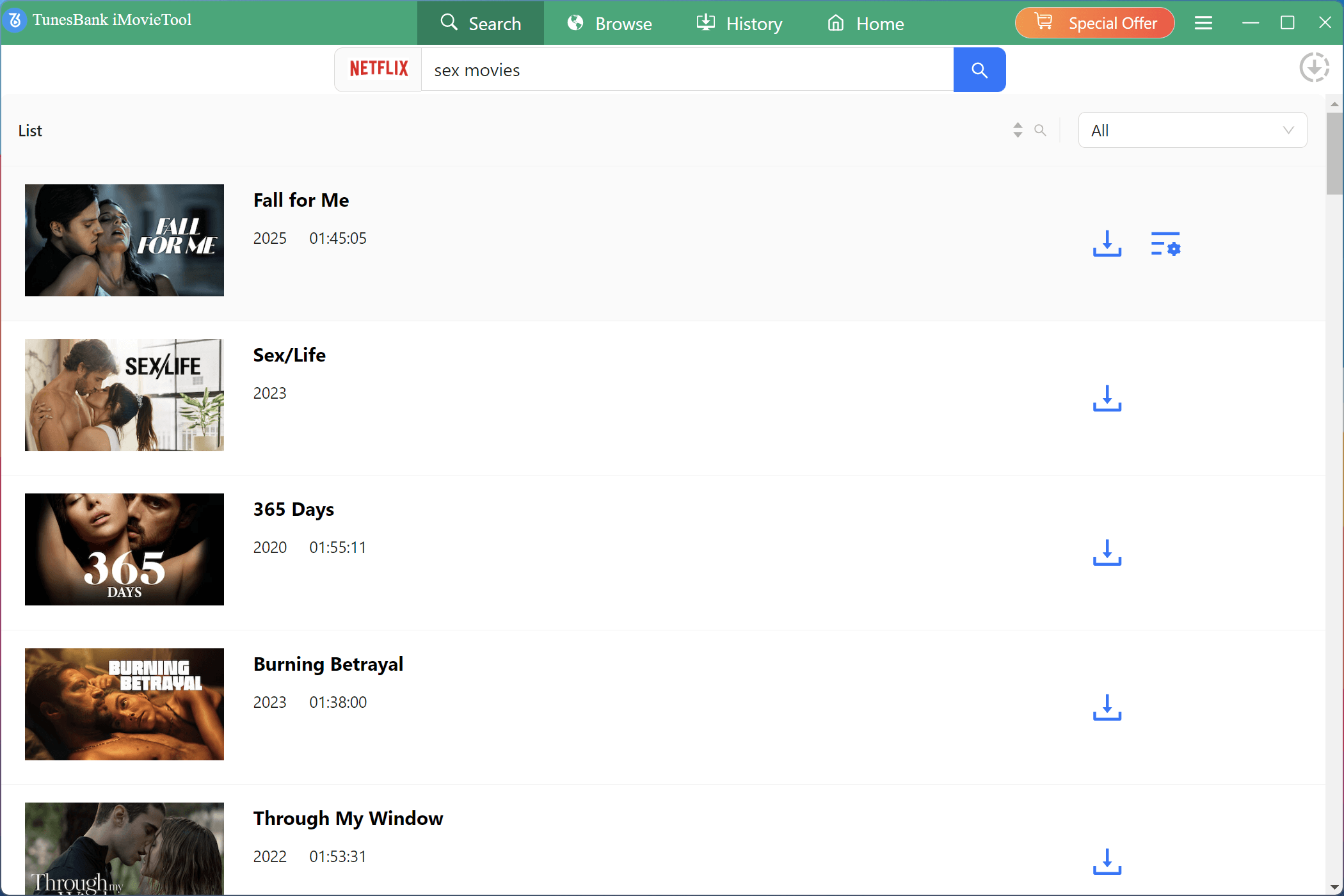
Search for movies or TV shows directly in the downloader, and it will display results for you.
Alternatively, copy the video link from the Netflix web player in your browser, paste it into the search bar, and click Search.
Step 3. Adjust Output Settings
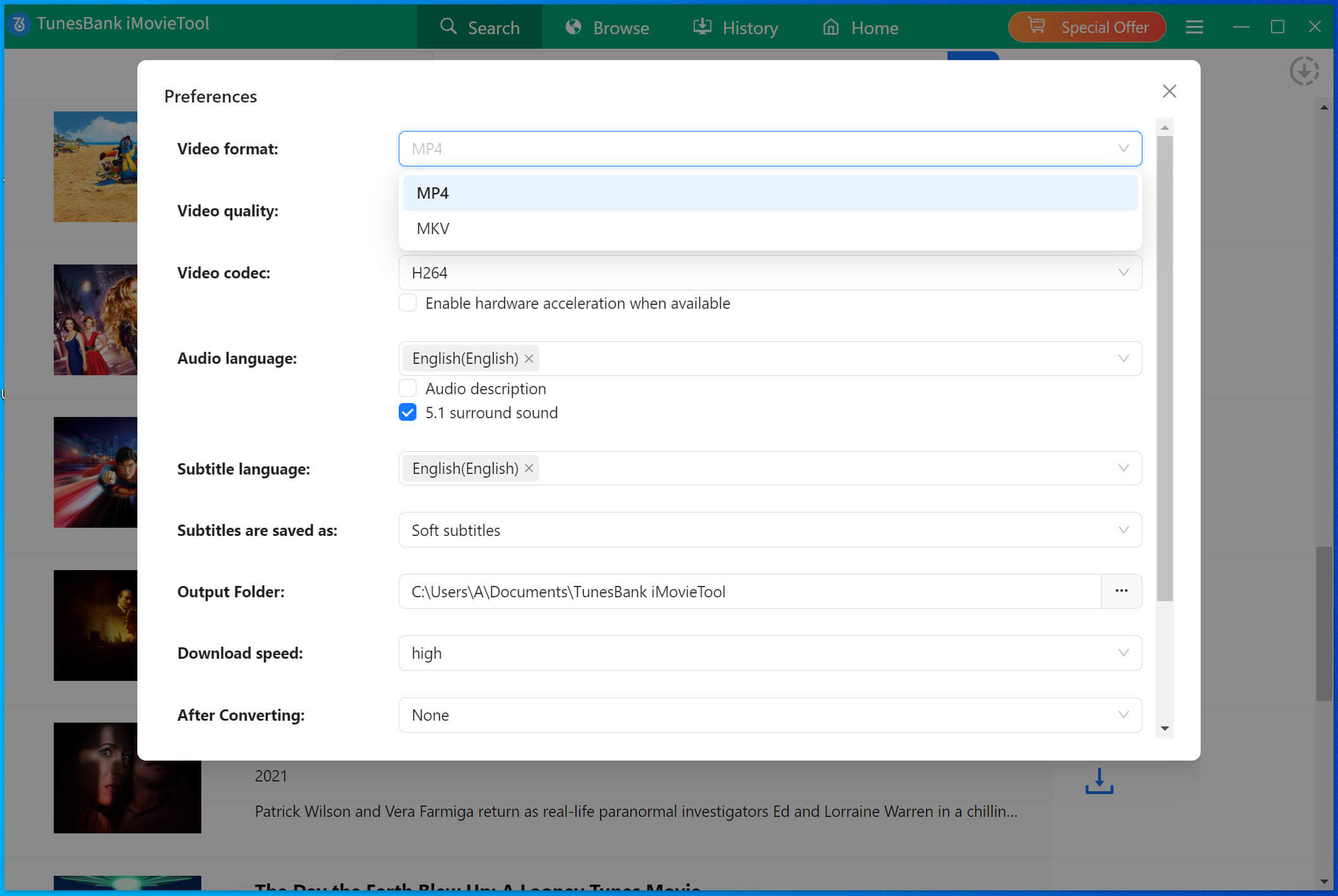
Click the gear icon in the top-right corner to open the settings. Choose MP4 or MKV as the output format, and set your preferred audio tracks, subtitles, video codec, and output folder.
Step 4. Download Netflix Videos
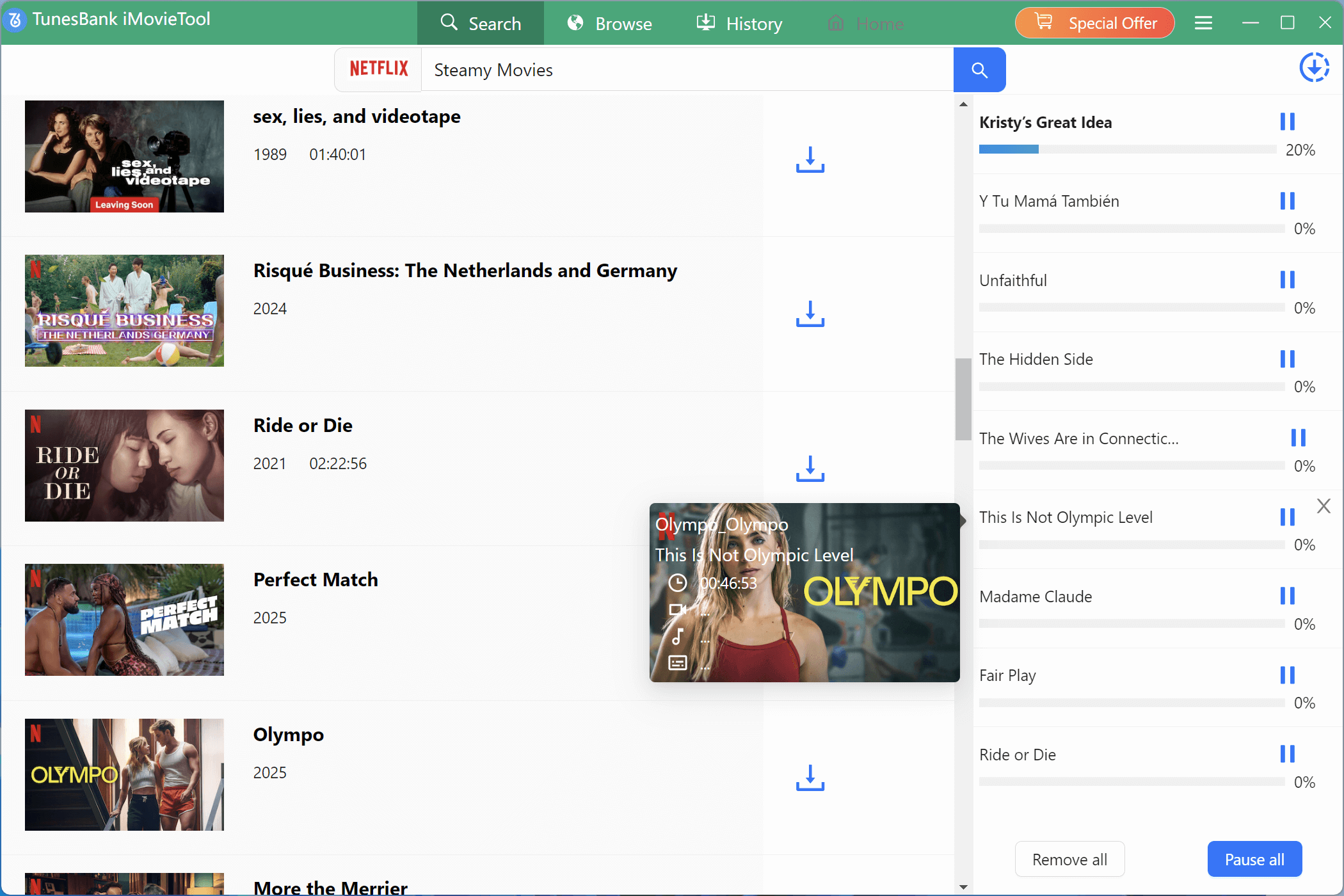
Click the Download button to begin downloading Netflix on your computer, please wait until the process finishes.
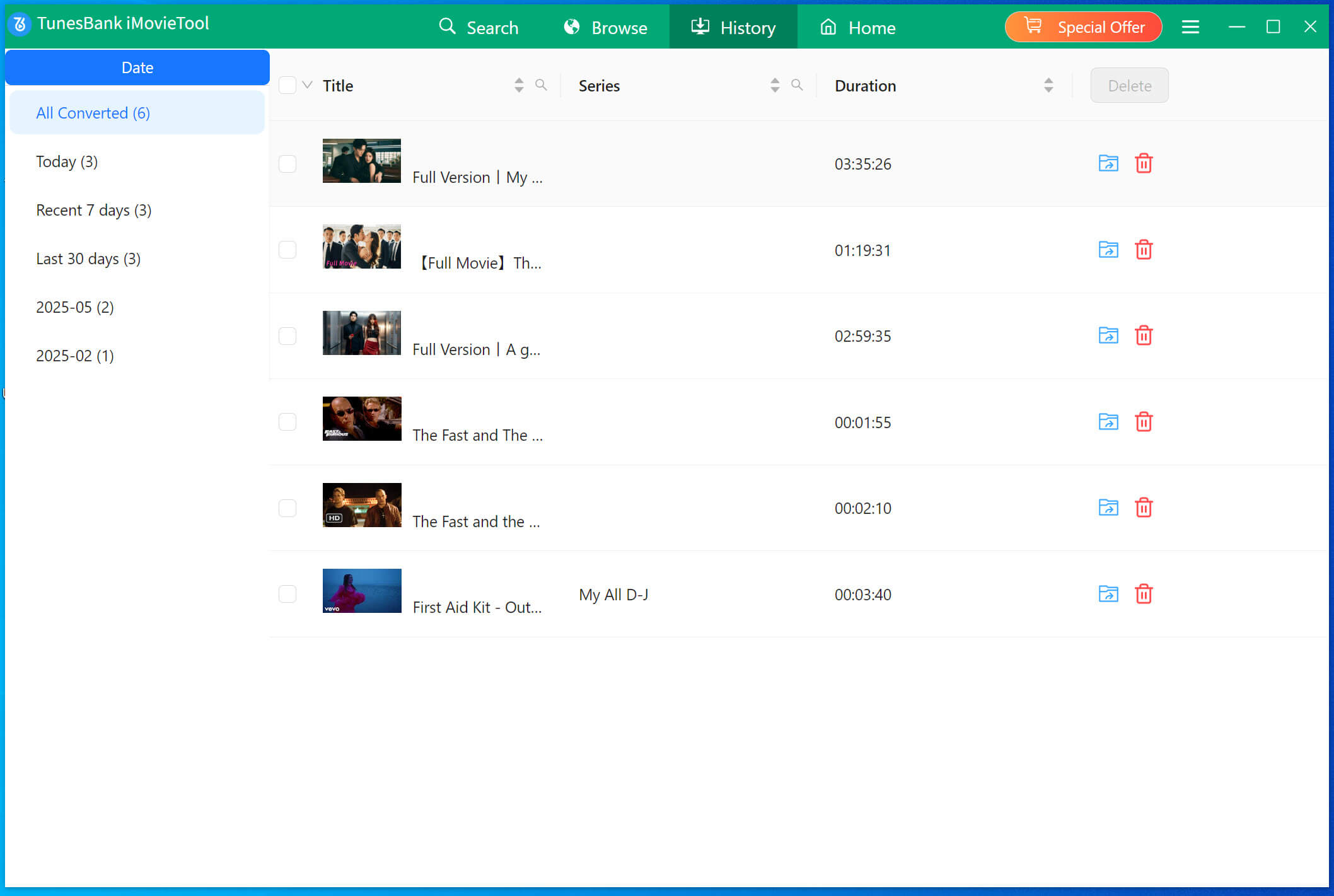
Check the History tab or click Open output folder to find your saved MP4/MKV videos.
Step 5. Transfer to Nintendo Switch
Since the Switch cannot directly play media files from USB or SD card, upload your downloaded MP4 videos to your YouTube channel first. Then, open YouTube on your Nintendo Switch to enjoy your favorite Netflix movies offline.
Part 3. Watch Netflix on Nintendo Switch using Android OS
Even though you cannot directly install the Netflix app on Nintendo Switch, some users have found another method. By installing the Android system on the console, you can access the Google Play Store and then download the Netflix app. This makes it possible to watch Netflix on Nintendo Switch through Android.
However, this method requires preparation, since your device needs to meet certain requirements and you’ll also need a few tools:
- A microSD card with at least 16GB of space
- A USB-C cable
- A Nintendo Switch that supports patching
Once you have prepared everything, you can start installing the Android system on your Nintendo Switch to get the Netflix app. Detailed guides are available on the XDA Developers Forum or in the steps below:
Step 1. Prepare your Switch and SD card
Use a microSD card (16GB+) and a patchable Nintendo Switch. Insert the SD card into your computer.
Step 2. Set up Hekate bootloader
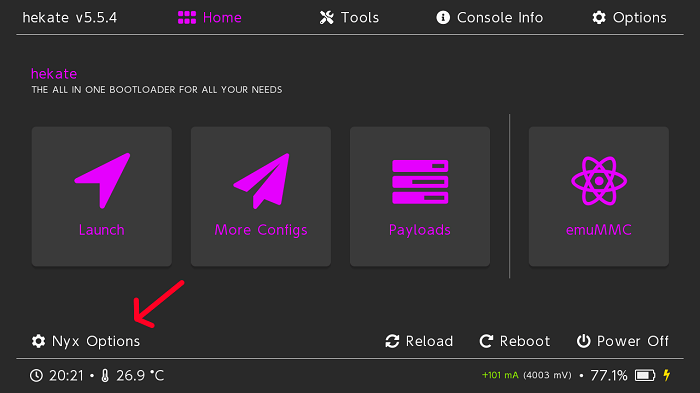
Download Hekate, unzip it, and move the files to the root of your SD card. Boot your Switch into HOS and pair the Joy-Cons.
Step 3. Enter RCM mode
Insert the RCM jig, connect the Switch to your computer, power it off, then hold Volume+ and Power to load the Hekate payload.
Step 4. Flash Android OS
Use Hekate to allocate space for Android on the SD card and install LineageOS. Add MindTheGapps and other required files to the SD card.
Step 5. Install Android and Netflix
Boot into Android, complete the installation, and access the Google Play Store to download the Netflix app.
Step 6. Reboot and enjoy carefully
After setup, boot Android or return to stock firmware as needed. Note that Netflix may not fully support streaming on Switch, and your account could be restricted.
Part 4. FAQs About Watching Netflix on Nintendo Switch
Q1. Why Is Netflix Not Available on Nintendo Switch?
Since December 2020, Netflix has not been available on any Nintendo Switch model, which has caused a lot of discussion online. Some possible reasons include:
- Netflix may be waiting for permission or a partnership to bring the app back to Switch.
- Nintendo may have asked for terms, like lowering fees for premium services, that Netflix couldn’t meet.
- Netflix might feel that streaming on a small console screen is less useful than on tablets or laptops.
The exact reason is not confirmed, but the fact is clear: Netflix is not supported on Nintendo Switch. If you want to watch Netflix on Switch, the only option now is to download videos offline and transfer them using tools like 4kFinder Netflix Video Downloader. Check Part 2 to learn how.
Q2. When Will Netflix Come to Nintendo Switch?
Netflix has not announced any plans to return to Switch. However, since other streaming services like YouTube and Hulu are already available, it’s possible that Netflix may support Switch again in the future. Fingers crossed for a comeback!
Conclusion
Even though you can’t install the Netflix app directly on Nintendo Switch, you can still watch Netflix on Switch using 4kFinder Netflix Video Downloader. This tool lets you download Netflix on Switch as regular video files, which you can then transfer to your YouTube channel on the console and play Netflix on Switch offline. Follow the guide above to try it out!