 Download Netflix videos to MP4 or MKV format in 1080P Full HD resolution.
 English
 Arabic
 Chinese (Simplified)
 Chinese (Traditional)
 Croatian
 Czech
Czech Danish
 Dutch
Dutch Finnish
 French
 German
 Greek
Greek Hebrew
 Hindi
Hindi Indonesian
 Italian
 Japanese
 Korean
 Malay
Malay Norwegian
 Polish
 Portuguese
 Russian
 Slovenian
 Spanish
 Swedish
 Thai
Thai Turkish
 Ukrainian
 Vietnamese

Want to download YouTube Music to iPhone? This guide shows you 3 simple ways to save songs, albums, and playlists for offline listening. We’ll explain the official method with YouTube Music Premium, plus other options if you don’t have a subscription. With these methods, you can enjoy YouTube Music on your iPhone anytime, online or offline.
YouTube Music Premium members can enjoy exclusive benefits like offline listening directly in the YouTube Music app. With a Premium account, you’re able to download music from YouTube Music to iPhone and keep listening for up to 30 days without needing an internet connection. This makes it easy to listen to YouTube Music on iPhone anytime, even when you’re offline.
That said, music downloaded through the official app is encrypted with DRM protection. In other words, while the songs are stored on your iPhone, they can’t be freely transferred or played outside the YouTube Music app or platform. Besides the official subscription service, there are also alternative ways to download music from YouTube Music to iPhone and enjoy your tracks offline. Below, we’ll explore both the Premium method and other solutions so you can keep your favorite songs on your device with ease.
CONTENTS
Method 1. How to Download Music from YouTube to iPhone Officially
With a YouTube Music Premium subscription, you get the special ability to download YouTube Music to iPhone for offline listening. This feature is especially useful when you want to enjoy your favorite tracks without relying on an internet connection. Before showing you the exact steps, let’s quickly look at the pros and cons of using this official method.
How to Download YouTube Music to iPhone with Premium
Step 1. If you’re not subscribed yet, go to the YouTube Premium sign-up page and pick a plan that works for you. This membership includes offline listening and other benefits.
Step 2. Open the YouTube app on your iPhone and sign in with your Google account linked to Premium.
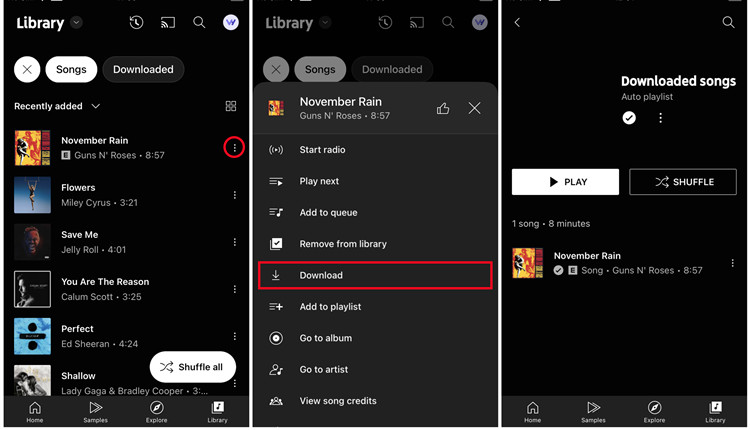
Step 3. Tap the Library tab.
Step 4. Go to the Playlists/Songs/Albums tab and find the music you want to save. You can also use the Explore tab to search for songs.
Step 5. Choose the song, playlist, or album you want to download.
Step 6. Tap the More option (three dots).
Step 7. Select Download. Once finished, your music will be available offline.
How to Find YouTube Music Downloads on iPhone
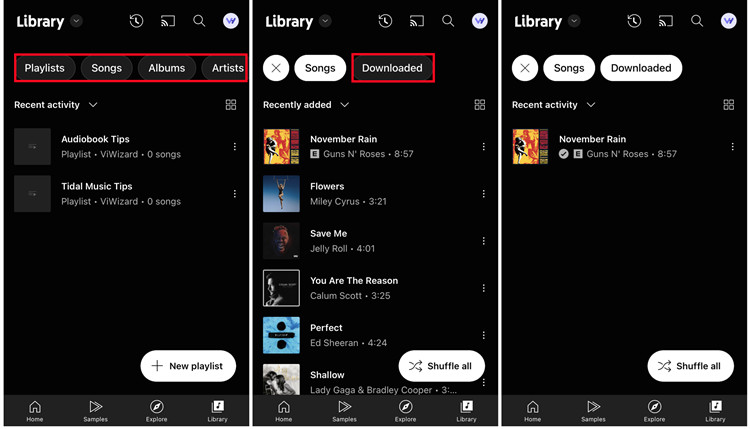
Step 1. Tap the Library tab.
Step 2. Go to the Playlists/Songs/Albums section.
Step 3. Select Downloaded to see all the tracks you’ve saved for offline listening.
Method 2. How to Download Music from YouTube to iPhone without Premium [Hot]
With a YouTube Music Premium membership, you can download music from YouTube Music to iPhone and listen to your favorite songs, albums, or playlists offline. Keep in mind, though, that this offline access is tied to your subscription. Once your Premium plan ends, the downloaded songs will no longer play on your iPhone. In addition, the files are encrypted and locked within the YouTube Music app, meaning they can’t be used in other apps or transferred to different devices.
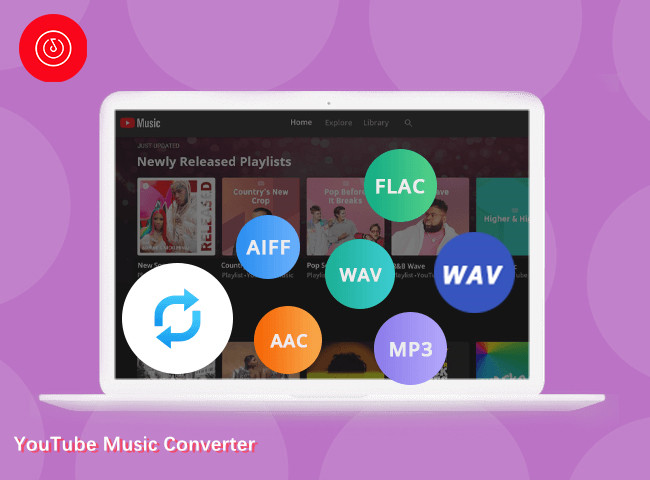
If you’d like to keep listening to YouTube Music on iPhone even after canceling your subscription, a tool like 4kFinder YouTube Music Converter provides the perfect solution. This program works for both Premium and Free users, allowing you to download entire playlists, albums, or songs to your computer and convert them into common formats such as MP3, M4A, AAC, WAV, FLAC, or AIFF. With the original sound quality retained, you can easily transfer the downloaded tracks to your iPhone and enjoy them without restrictions.
Key Features of 4kFinder YouTube Music Converter
- Download YouTube Music with free or premium account.
- Download YouTube Music songs/albums/playlists.
- Break DRM protection from YouTube Music.
- Converts YouTube Music to MP3, M4A, WAV, FLAC, AAC, AIFF.
- Keep original audio quality and ID3 tags after conversion.
- Support batch conversion and up to 16x conversion speed.
- Built-in YouTube Music web player, no need to install extra apps.
- Easily transfer YouTube Music to iPhone, iPod, iPad, USB drive, etc.
Detailed Steps to Download YouTube Music to iPhone
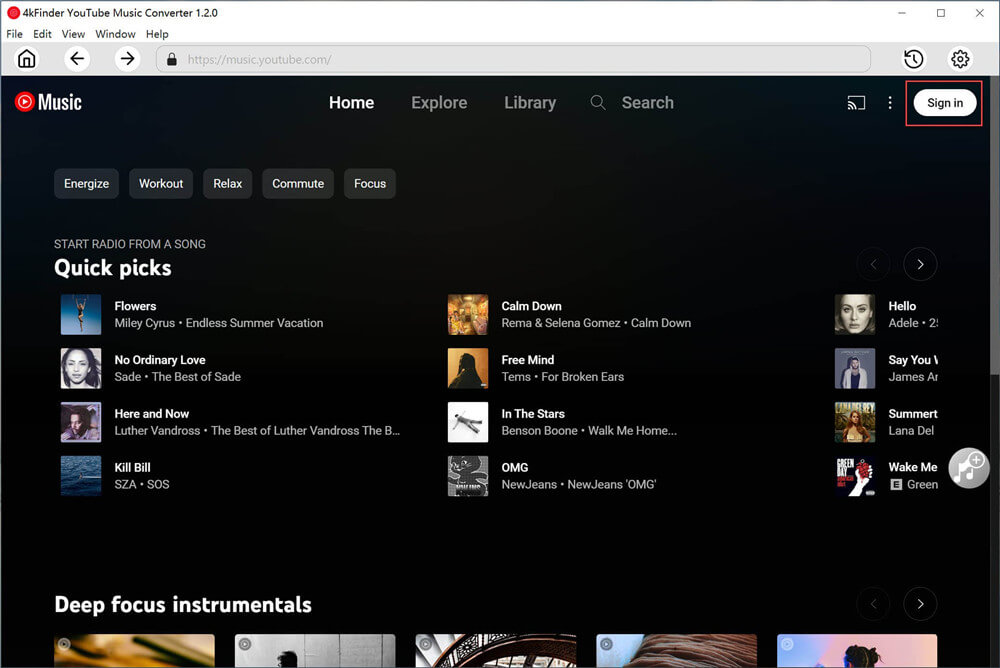
Step 1. Run 4kFinder YouTube Music Converter
To get started, ensure that you download, install, and open the most up-to-date version of 4kFinder YouTube Music Converter on your computer. Once launched, you will need to log in your YouTube Music account.
Step 2. Set Output Format
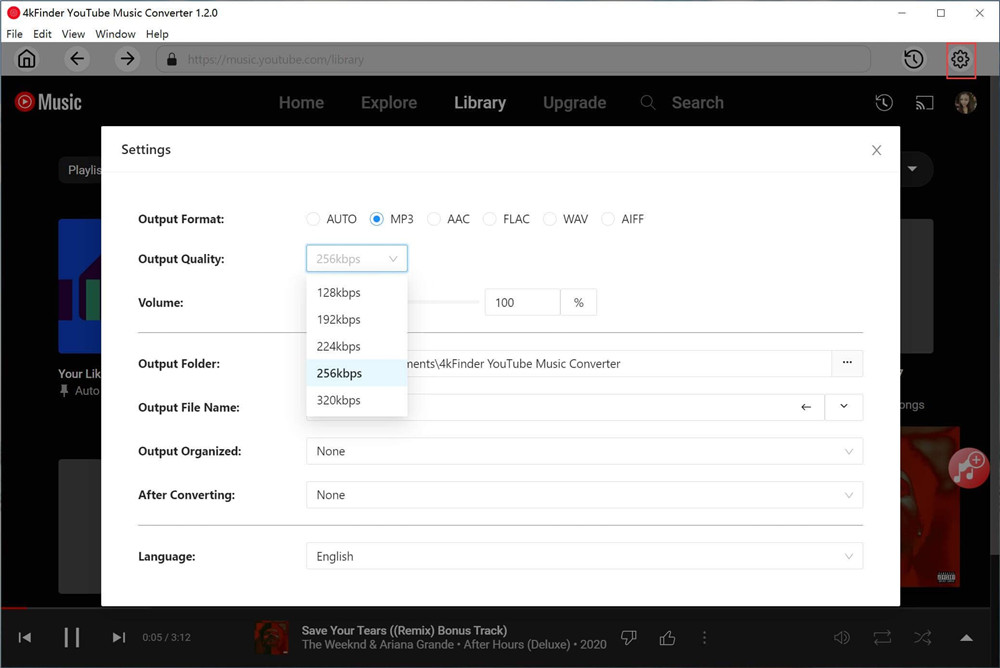
Navigate to the top-right corner of the menu bar and click on the “Settings” icon. From there, you can customize the output parameters according to your preferences. You can choose the desired audio format for your iPhone, such as MP3, M4A, AAC, WAV, FLAC, AIFF.
Step 3. Select YouTube Music Playlist/Album
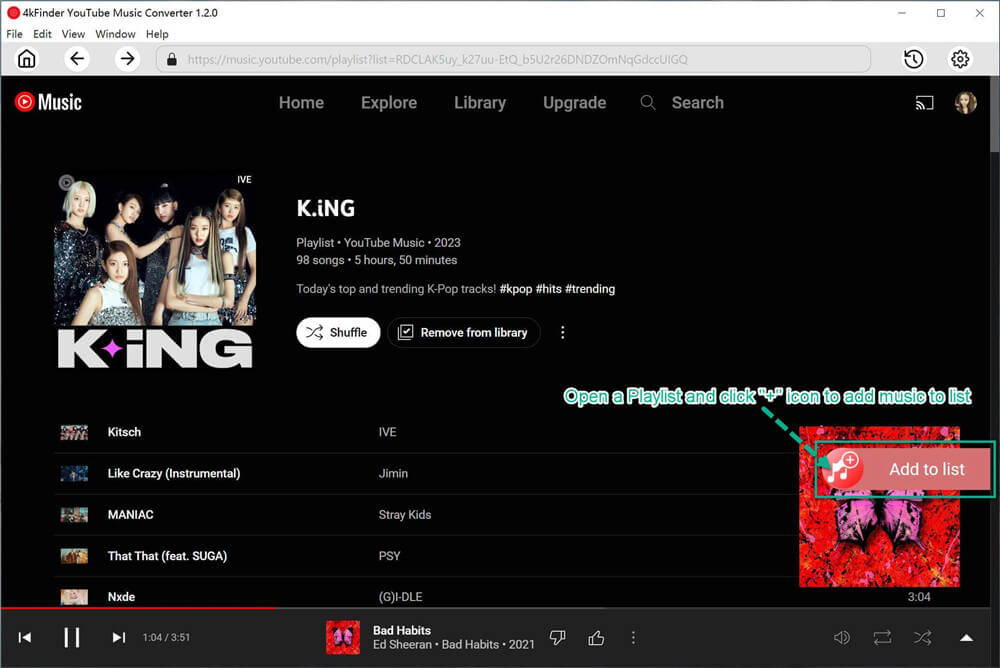
Choose the playlist/album that you wish to download. Once you are on the playlist detail page, simply click on the “+” button to include all the songs from the playlist into the conversion list.
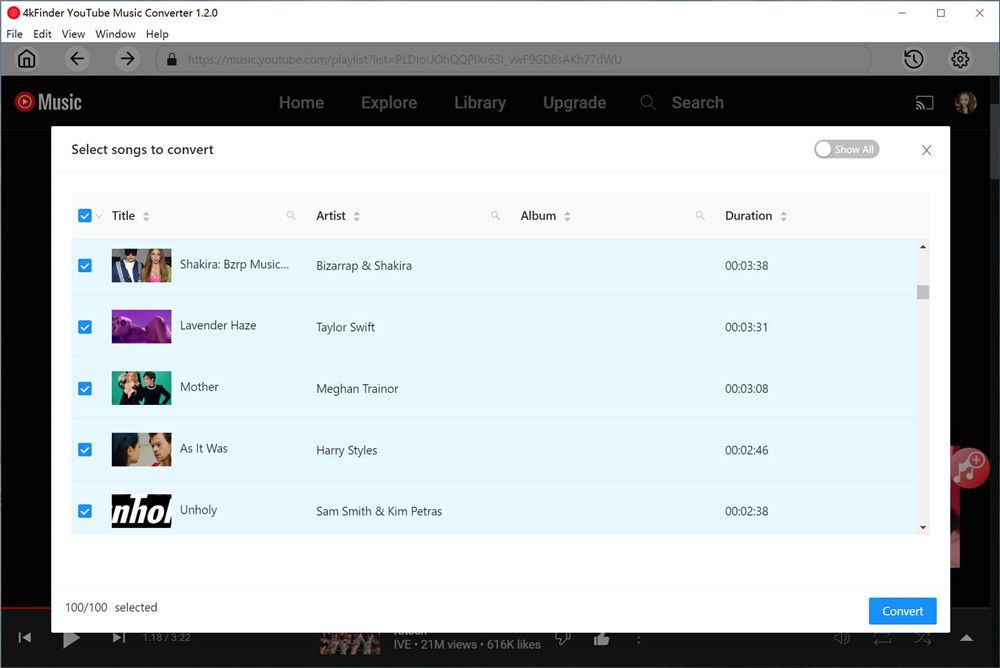
After the playlist or album has finished loading, you will find that all of the songs are initially selected for you. To exclude the ones you don’t require, simply deselect them.
Step 4. Start to Download YouTube Music
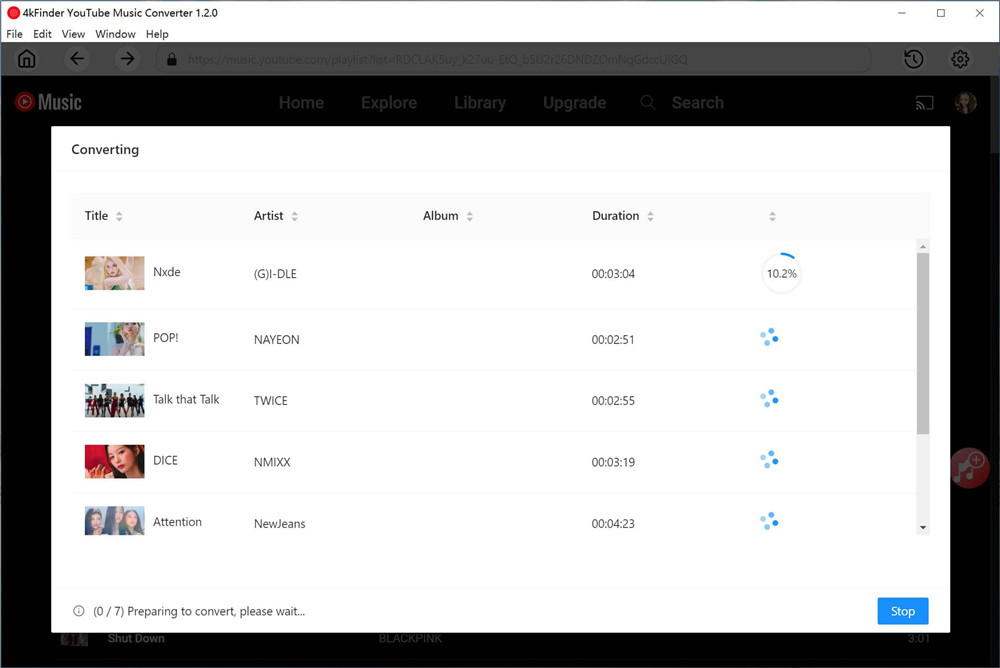
Once you have completed all the settings, you will be required to click the “Convert” button in order to initiate the downloading process for YouTube Music.
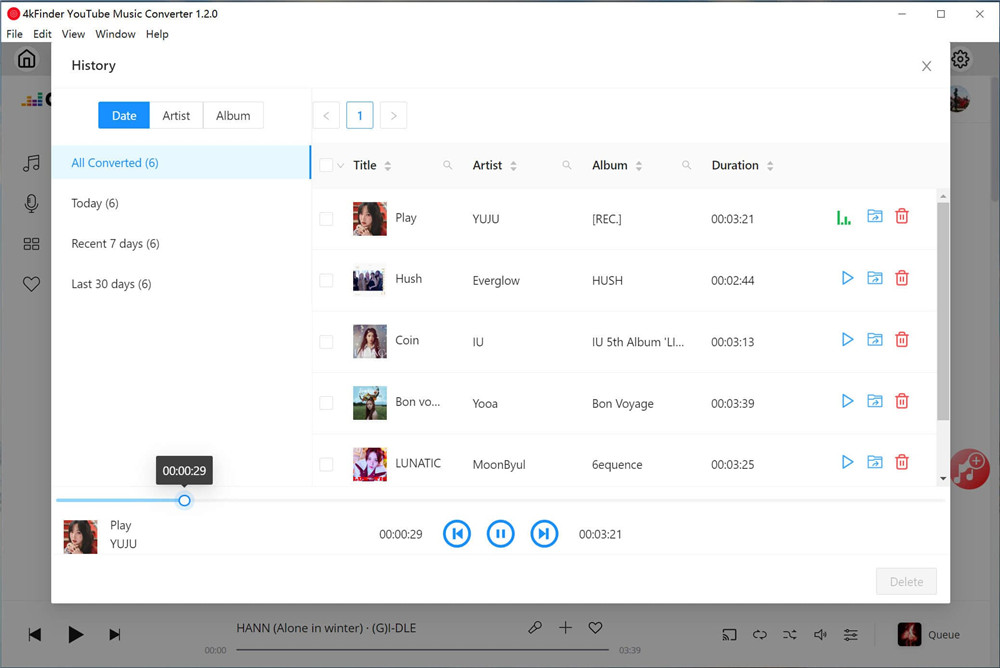
After the download process is finished, you can easily access your downloaded YouTube Music by selecting the History icon.
Step 5. Sync YouTube Music to iPhone
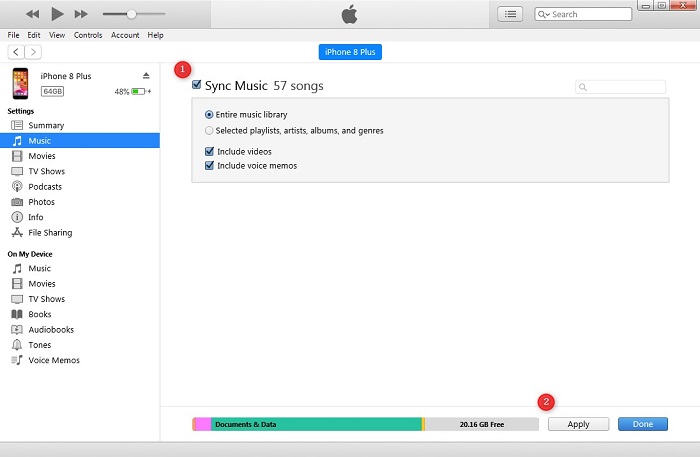
Once you have obtained the downloaded YouTube Music songs, initiate iTunes and access the “File” menu. Select “Add File to Library” to import the YouTube Music songs into iTunes. Subsequently, establish a connection between your computer and iPhone, and choose the “Music” section from the sidebar within iTunes. Enable the “Sync Music” option to handpick the YouTube Music songs you desire to synchronize, then click “Apply”. As a result, you will discover the downloaded YouTube Music songs readily available on your iPhone.
Part 3. How to Download Music from YouTube to iPhone via Online Tool
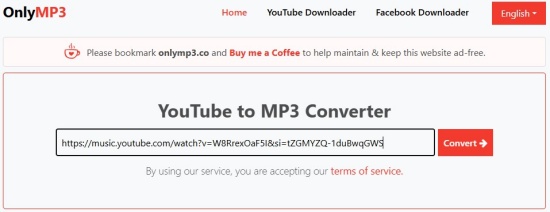
If you prefer not to spend money or install extra software, you can use free online tools to download music from YouTube Music to iPhone. One of the simplest options is the OnlyMP3 website. Here’s how it works:
Step 1. Open the YouTube Music web player, log in, and copy the link of the song, album, or playlist you want to download.
Step 2. Go to the OnlyMP3 official website.
Step 3. Paste the copied link into the search box and click Convert.
Step 4. When the conversion is done, click Download to save the file on your computer.
Step 5. Connect your iPhone to your computer and transfer the downloaded music so you can enjoy YouTube Music on iPhone offline without the app.
Part 4. FAQs about Downloading YouTube Music to iPhone
Q1. Can I download music from YouTube Music to my iPhone?
Yes. With a YouTube Music Premium subscription, you can download songs for offline listening on your iPhone and enjoy them without internet.
Q2. How do I download music from YouTube Music to iPhone?
Subscribe to YouTube Music Premium, open the app, go to Library, and choose Songs, Playlists, or Albums to download for offline use. You can also try alternative methods to save music directly to your iPhone’s library.
Q3. Can I download YouTube Music without Premium?
Yes. Even without a subscription, you can use 4kFinder YouTube Music Converter to download music from YouTube Music.
Q4. Are there alternatives to downloading YouTube Music on iPhone?
Yes. 4kFinder YouTube Music Converter lets both free and Premium users download YouTube Music to iPhone and other devices.
Q5. Can I listen to YouTube Music on iPhone without the app?
Yes. You can use a web browser, but for the best offline experience, use 4kFinder YouTube Music Converter to save tracks directly to your iPhone’s music library.
Conclusion
In this guide, we’ve shared 3 effective ways to download music from YouTube to iPhone, including the official method, 4kFinder YouTube Music Converter, and an online tool. The good news is, whether you have YouTube Premium or not, 4kFinder YouTube Music Converter lets you save any songs, playlists, or albums from YouTube Music with ease. Give it a try and enjoy your music anytime!

One Reply to “How to Download Music From YouTube Music to iPhone”
Comments are closed.