 Download Netflix videos to MP4 or MKV format in 1080P Full HD resolution.
 English
 Arabic
 Chinese (Simplified)
 Chinese (Traditional)
 Croatian
 Czech
Czech Danish
 Dutch
Dutch Finnish
 French
 German
 Greek
Greek Hebrew
 Hindi
Hindi Indonesian
 Italian
 Japanese
 Korean
 Malay
Malay Norwegian
 Polish
 Portuguese
 Russian
 Slovenian
 Spanish
 Swedish
 Thai
Thai Turkish
 Ukrainian
 Vietnamese
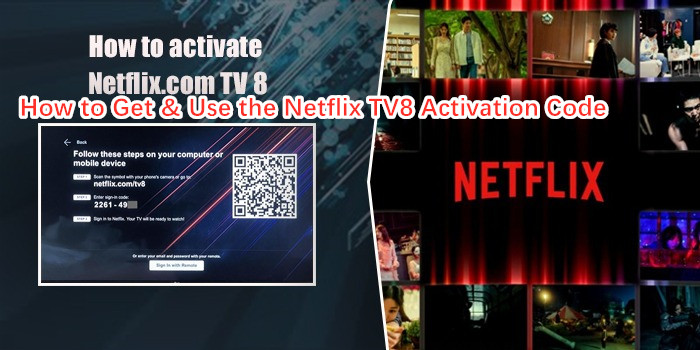
“When I login my Netflix account on my Samsung TV, I got a code in 8-digit, how to use Netflix TV8 activation code to link my smart TV to Netflix account?” — From a Netflix User
Open the link https://www.netflix.com/tv8 on browser from your phone or laptop, it directs you to the “TV Shows” section on Netflix, you need to enter the Netflix TV8 activation code (8-digit code) to allow authorize your Netflix account for streaming on Netflix supported devices, such as Apple TV, Samsung TV, Roku, Amazon Fire TV/ Firestick , PS5/PS4/PS3/PS2/PSP, Xbox, and other brands of smart Android TV.
CONTENTS
What is Netflix TV8 Activation Code?
If you don’t know what is Netflix TV8 activation code, this part will tell you everything about Netflix TV8 activation code and how to get the Netflix TV8 activation code to links your device to your Netflix account.
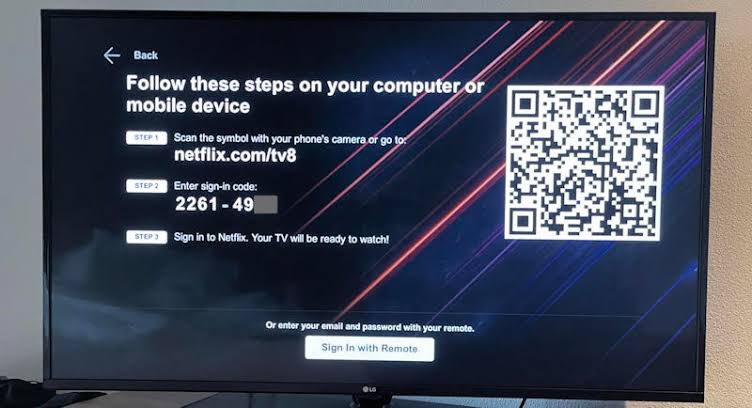
The Netflix TV8 Activation Code is typically a 8-digit code that appears on your TV screen when you try to activate the Netflix app on a TV8 device (often a smart TV or streaming device). This code links your streaming device (such as smart TV, Xbox, PSP and other streaming device) to your Netflix account. After entering the correct Netflix TV8 activation code in your streaming device, you can streaming variety of Netflix on your smart TV, including TV shows, movies, dramas, TV series, comedies, documentaries, and reality items.
How to Get & Use Netflix TV8 Activation Code?
To activate Netflix on your smart TV using an activation code from netflix.com/tv8, follow these steps:
Part 1. Get Netflix TV8 Activation Code from Your TV
Step 1. Open Netflix on Your TV
Launch the Netflix app on your smart TV(Apple TV, Android TV, etc.), streaming device (Roku, Fire Stick, etc.), or gaming console(PS4, Xbox, etc.).
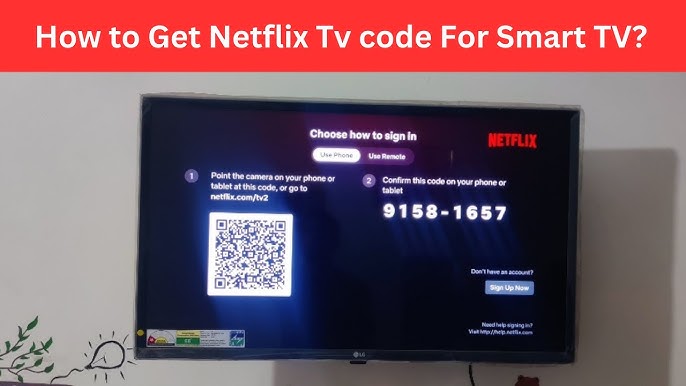
Ste 2. Get the Activation Code
Please login your Netflix account, the TV’s a screen will display an activation code (e.g., “XYZ12345”) for you, please keep this code visible.
Part 2. Activate Netflix on Your TV via TV8 Activation Code
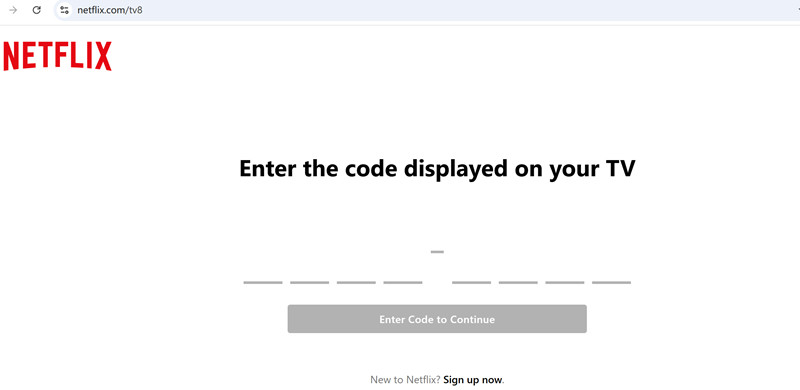
Step 1. Visit [netflix.com/tv8](https://www.netflix.com/tv8) on a computer or phone
Grab your smartphone, tablet, or computer/laptop, go to [netflix.com/tv8](https://www.netflix.com/tv8).
Step 2. Sign in to your Netflix Account
Sign in to your Netflix account (or create one if needed).
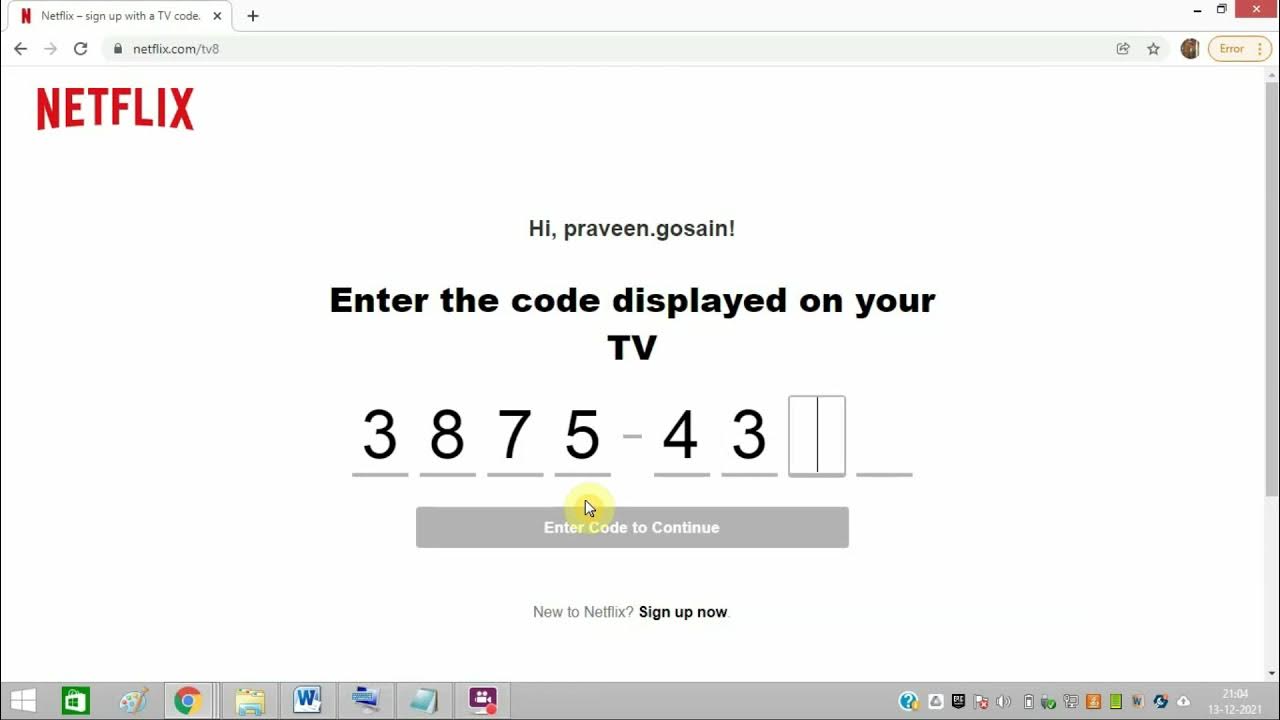
Step 3. Enter the Activation Code
Type in the Netflix TV8 activation code shown on your TV.
Step 4. Complete Activation
Click “Activate” or “Continue”. Please wait for few seconds, your smart TV should automatically refresh and log you into Netflix account on your TV successfully. Now, you can streaming your favorite shows and movies on TV! Enjoy your favorite Netflix contents on big-screen TV!
Download Netflix Movies for Offline Watch on Any Devices
If you failed to use tv8 activation code for linking your streaming devices with Netflix account, you can download movies from Netflix to computer and transfer Netflix downloads to SD Card or USB drive for playing on other devices. However, Netflix has removed the download option from its Windows app, and Netflix hasn’t offer the Netflix app for macOS, this means users can no longer download Netflix content on Windows or Mac computer for offline viewing. Don’t worry, today we will teach you how to download Netflix on your computer for viewing offline, you can also transfer Netflix downloads to USB drive for viewing offline on smart TVs, Netflix unsupported streaming device (MP4 player, car stereo, Macbook, etc.), or gaming console, etc.
4kFinder Netflix Video Downloader is a powerful tool that helps you download Netflix movies and series as MP4 and MKV files, so that you can watch Netflix movies & TV shows on computer offline. What’s more, you can also transfer those Netflix downloads to any devices for playing anytime, anywhere. No expiration. No Netflix app required.
4kFinder Netflix Video Downloader embeds the built-in Netflix web browser, so that boost download efficiency. Just login your Netflix account, you can download 1080p Netflix videos with fast download speeds, the multilingual audio tracks and subtitles will be kept, so that brings you cinema-like playback experience.
Main Features & Benefits of 4kFinder Netflix Video Downloader:
- Built-in Netflix web browser, no Netflix app need.
- Download movies, TV shows, and original series from Netflix directly.
- Download Netflix videos on Macbook and Windows 11/10/8.2/7.
- Convert Netflix to MP4 or MKV with 1080p/4k quality.
- Download Netflix TV series with all Seasons with 1-click.
- Batch download Netflix videos at up to 50X fast speed.
- Keep audio tracks and subtitle in multi-language.
- Bypass Netflix DRM protect to playing on any devices offline.
- Make your Netflix downloads never expire.
Quick Guide to Download Netflix Movies to Windows/Mac Computer
Step 1. Launch 4kFinder and Sign in Netflix Account
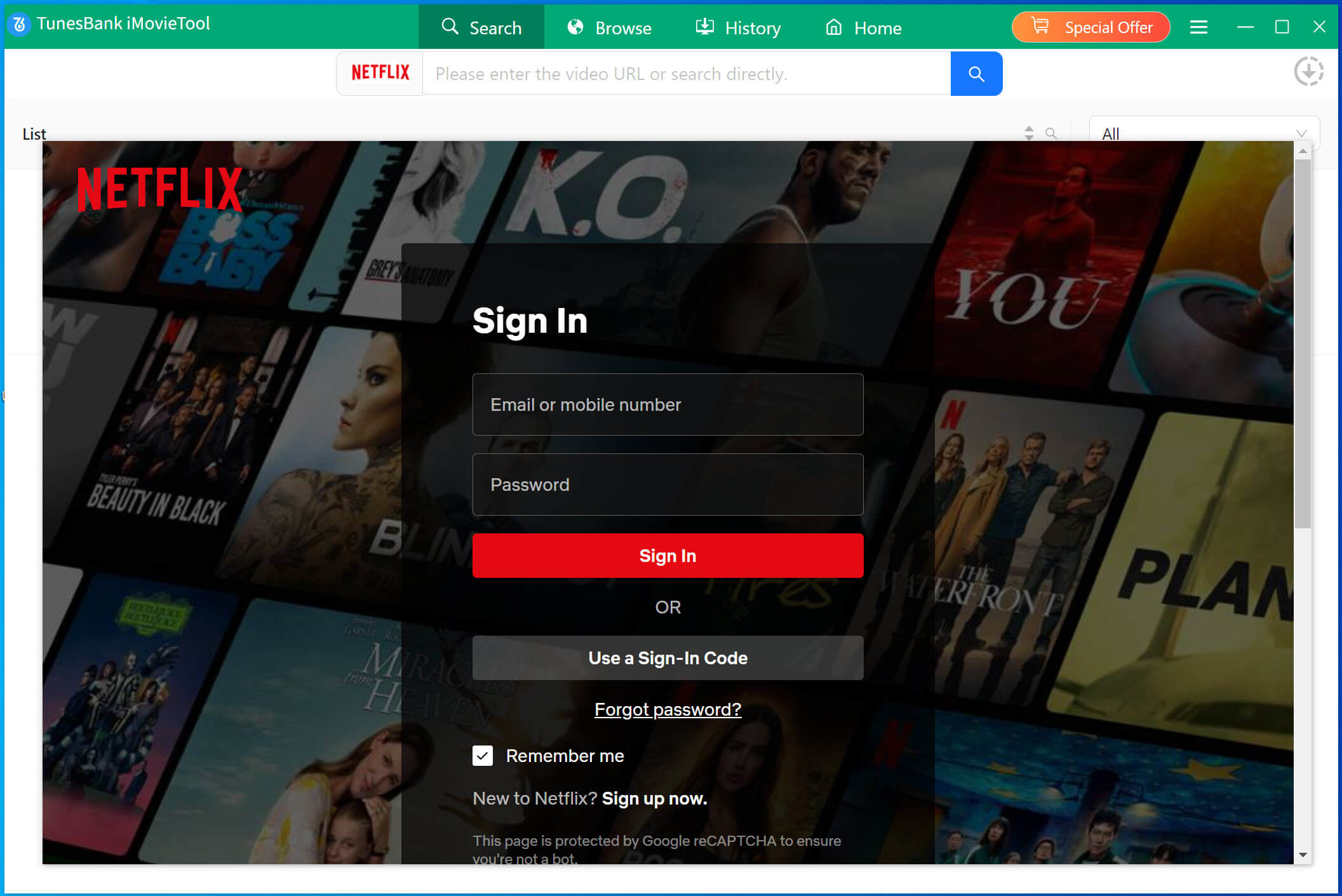
Launch 4kFinder Netflix Video Downloader and click “Sign in” button to log in to your Netflix account.
Step 2. Search Netflix Movies to Download
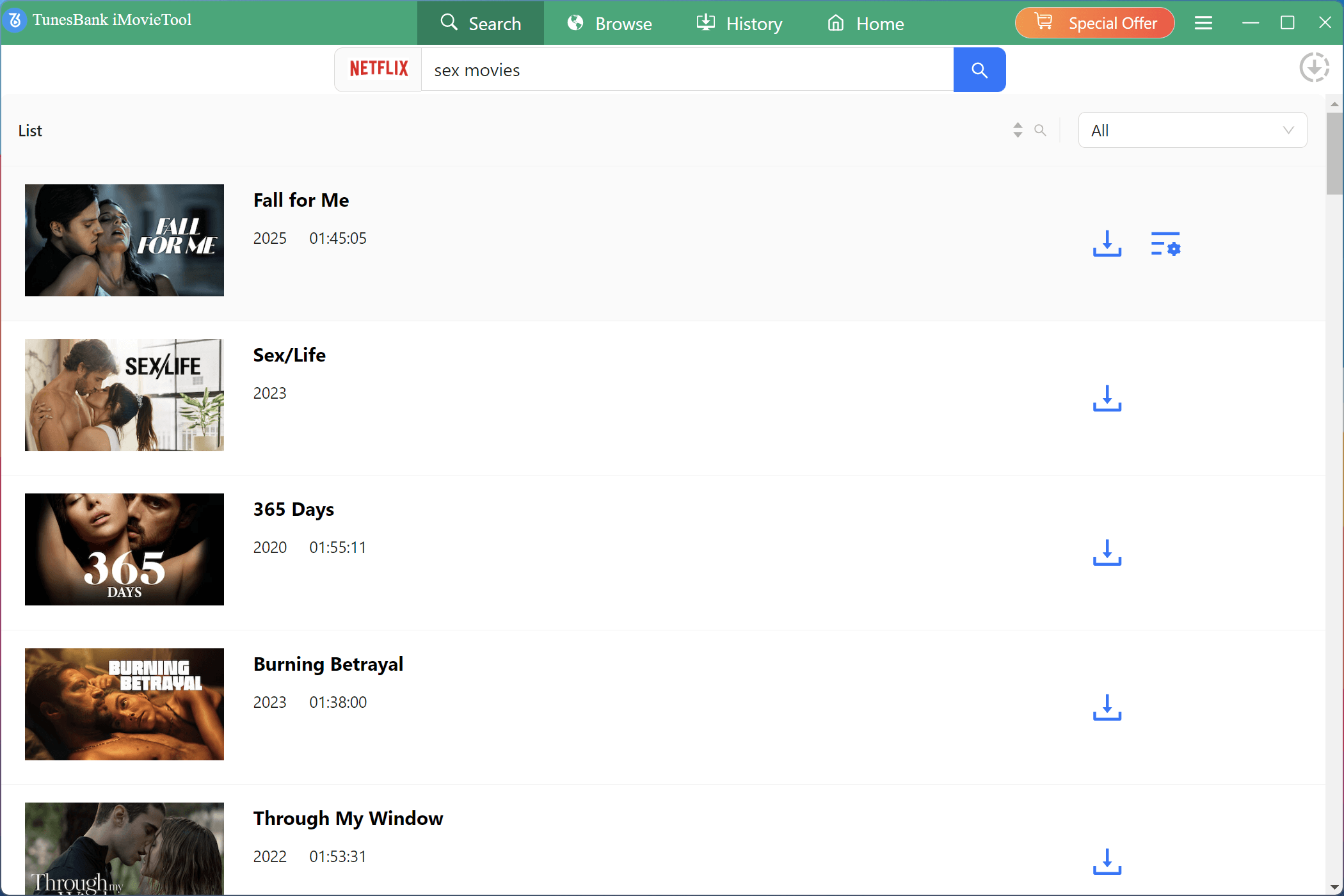
There are two ways to find the Netflix videos in the software.
Method 1. Search Video Directly – There is a built-in Netflix web browser in the software, you can directly search the videos you want to download.
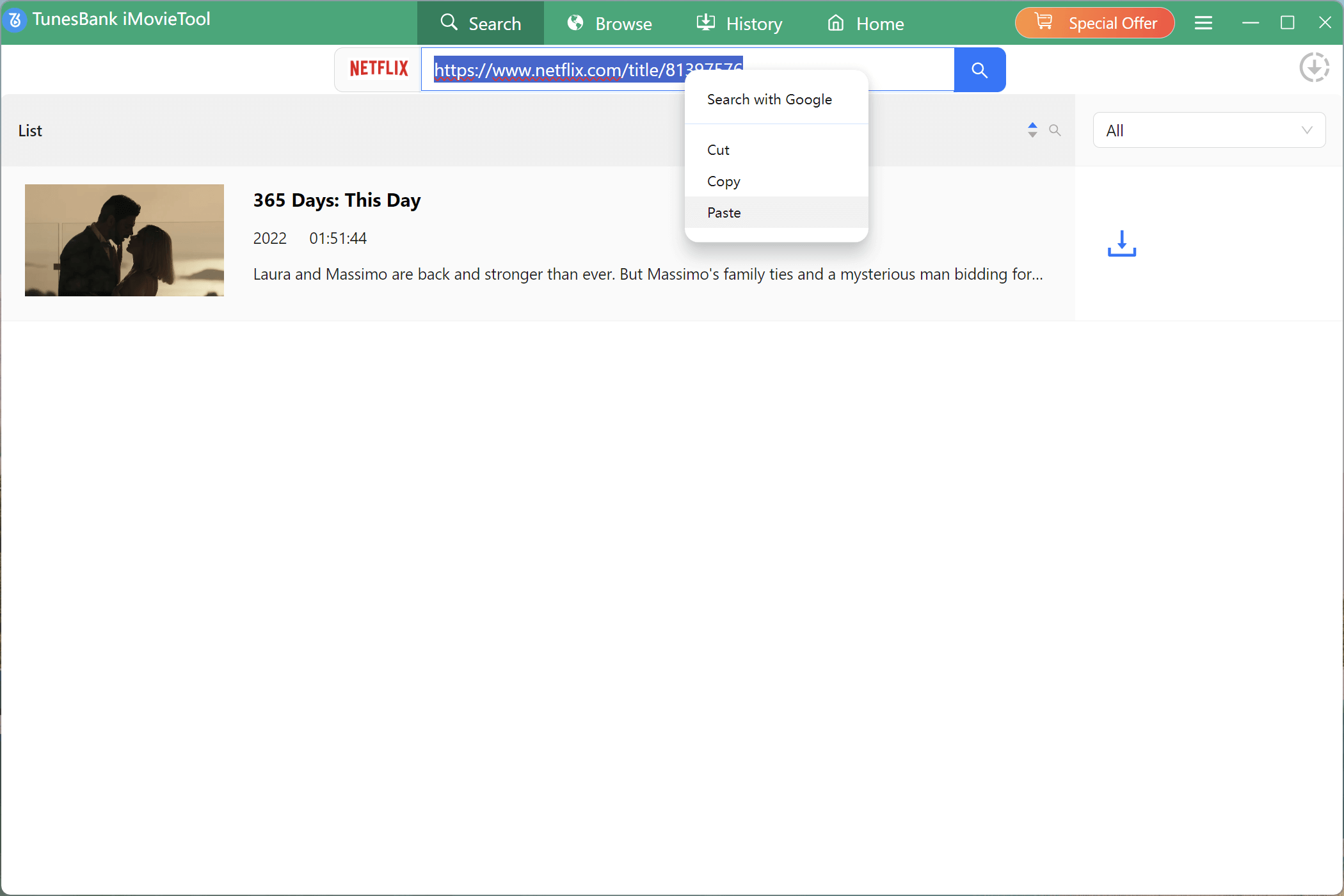
Method 2. Copy and Paste Video Link – If you want to find the movie you want to download quickly and accurately, you can first go to the browser and open the Netflix website https://www.netflix.com, find the video you want to download and copy the video link, then go back to 4kFinder, and paste the copied Netflix video link into the search box to search for the video you want to download quickly.
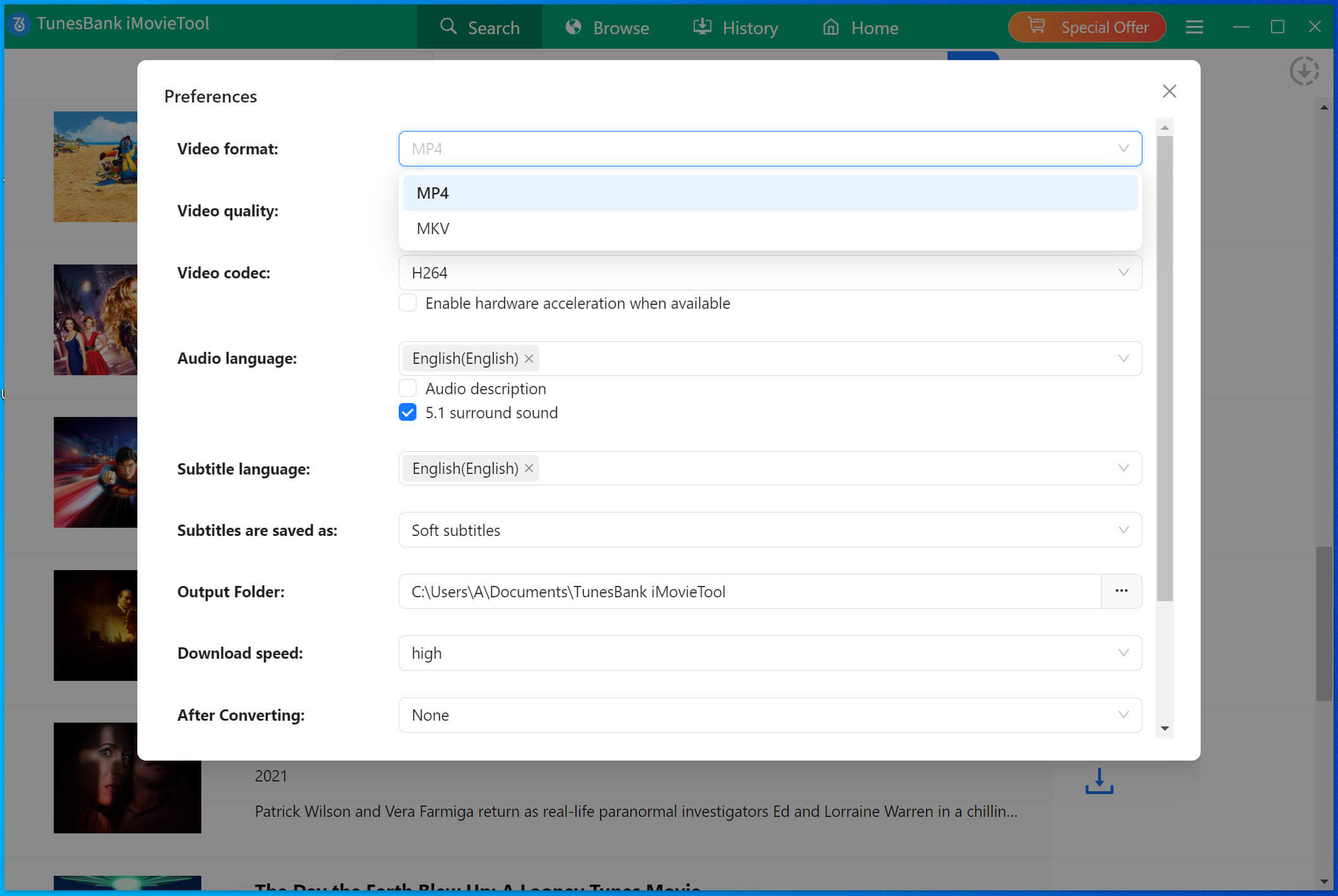
Step 3. Select MP4 Format
Click the “Setting” icon to select the video output format (MP4/MKV), video quality (High, Medium, Low), output path, the language of the audio tracks and subtitles and so on.
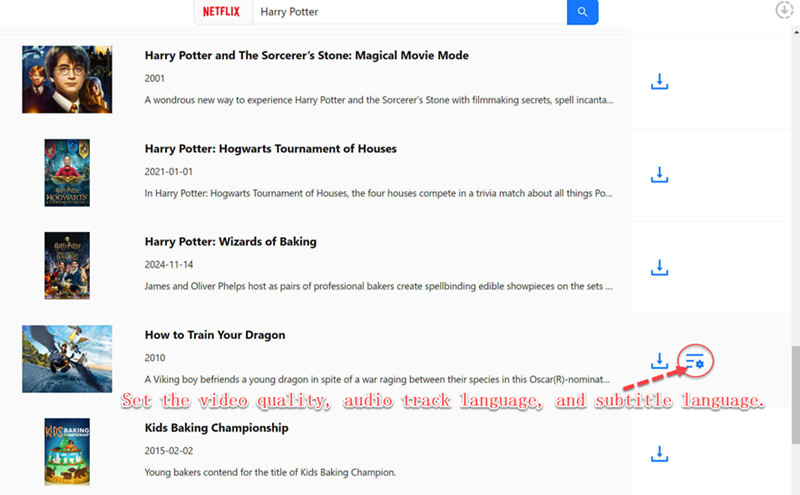
Advanced Downloading Settings(Options): When you move the mouse over each video item, you will see a “Settings” icon appear in the video isolate, click it to open the advanced settings window. Here, you can set the video quality(up to 1080p), audio track language, and subtitle language.
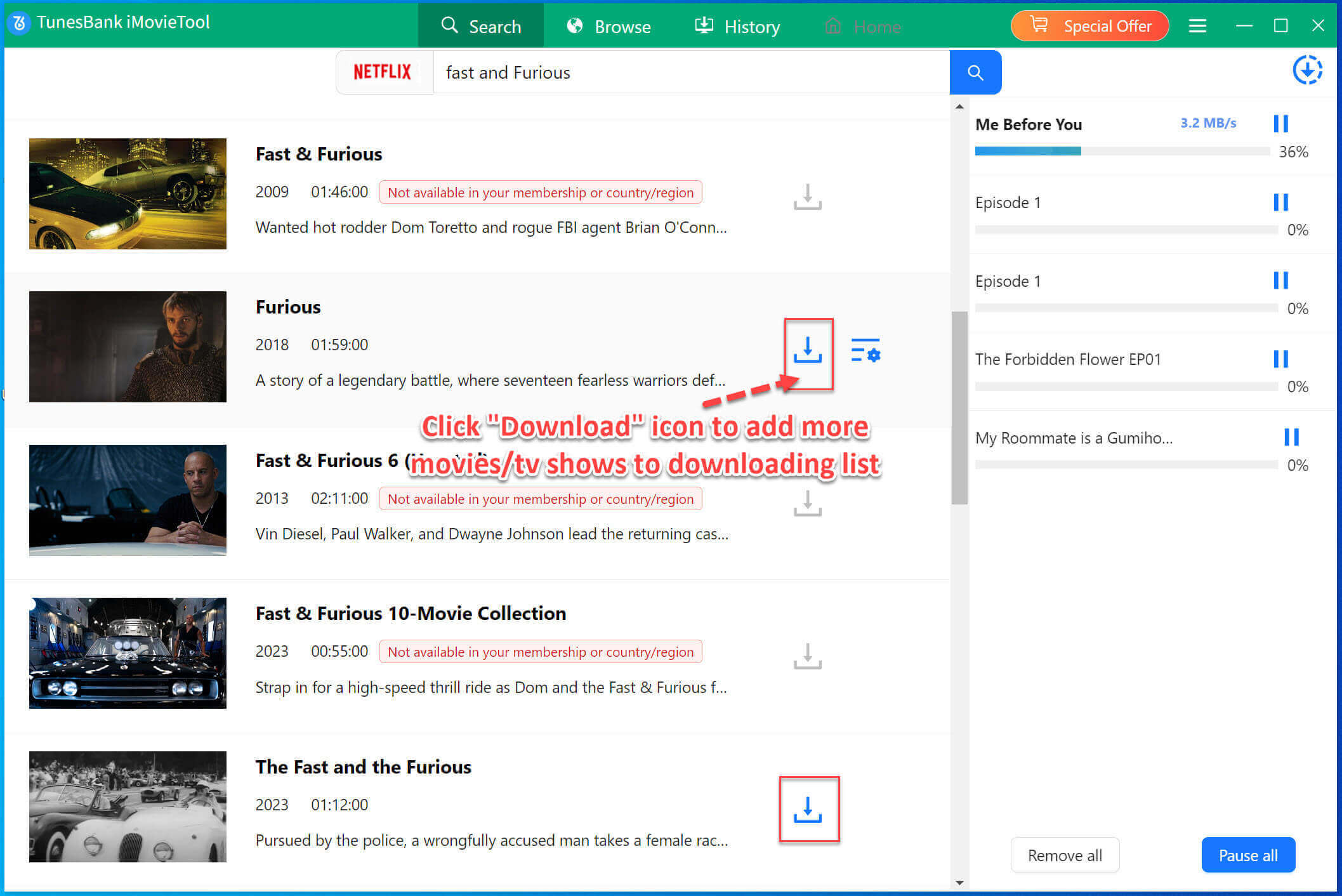
Step 5. Start Download Netflix Movies/TV Shows
After setting finished, go back to the video searching result details page, and you will see the “Download” icon, just clicking “Download” button to start downloading the video instantly.
Step 6. View Downloaded History
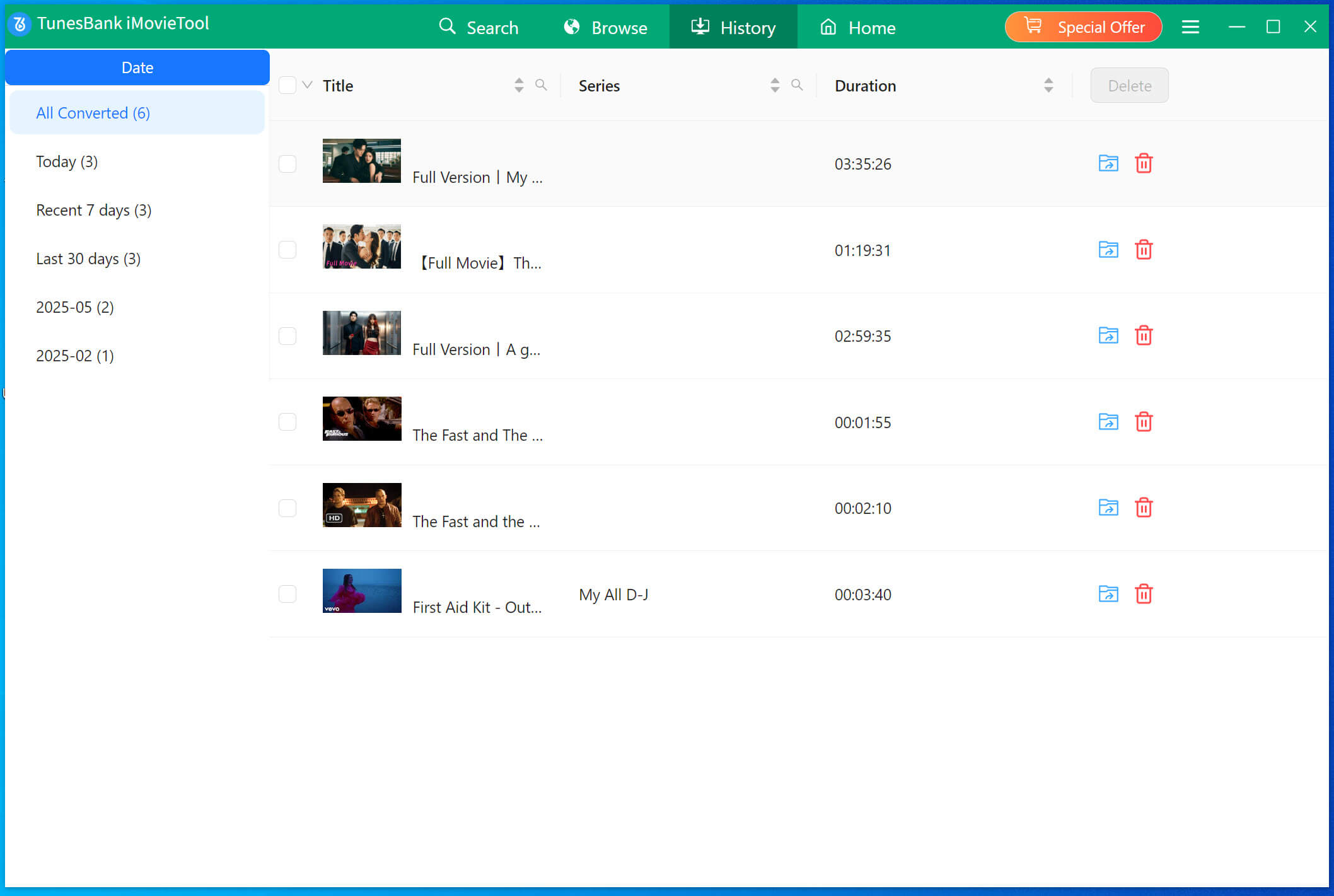
Once the download is finished, you can view the downloaded Netflix video by clicking “History” section, and then click the “Blue Folder” icon to open the output MP4 Netflix video files.
Step 7. Play MP4 Netflix Videos Offline
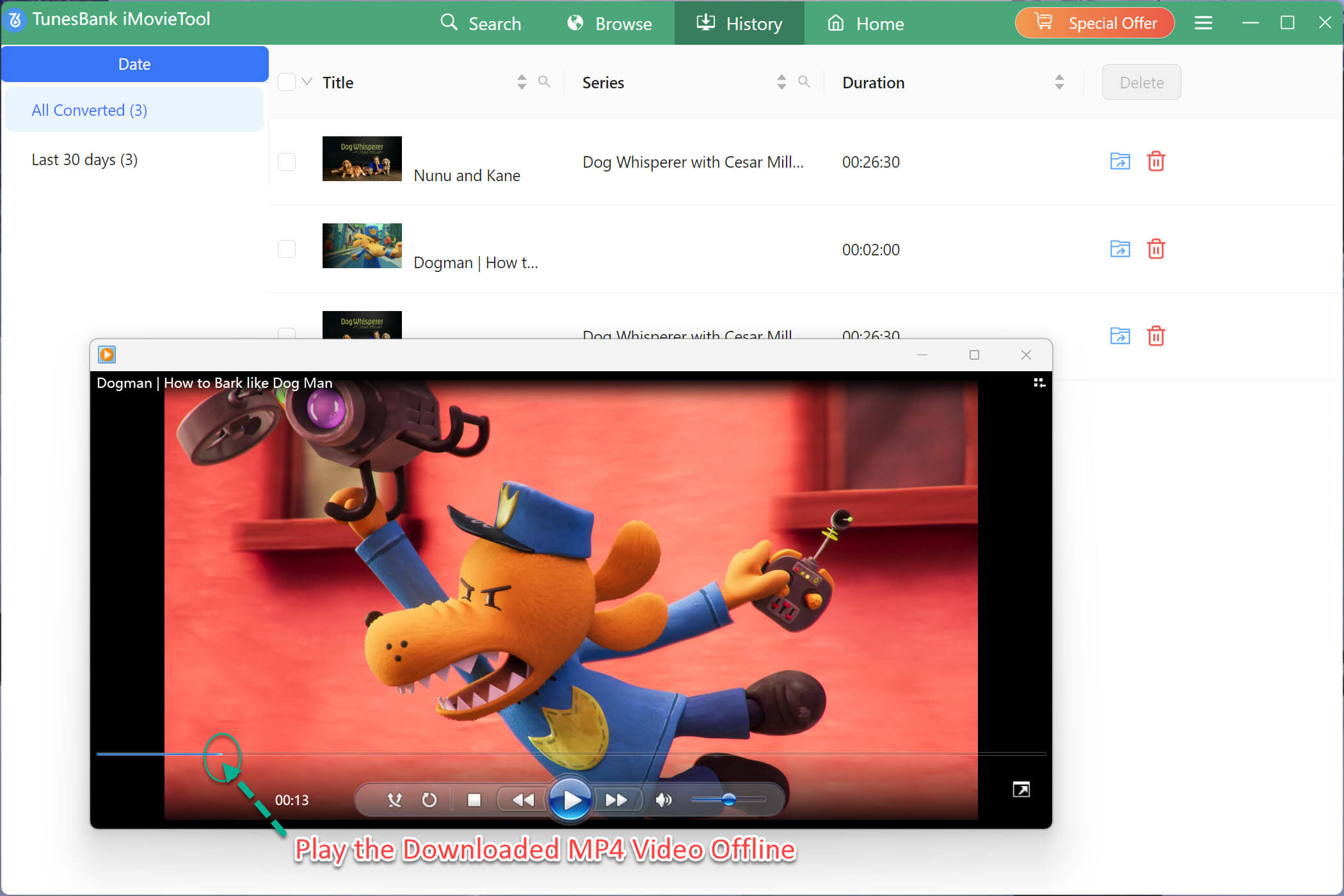
Now, you can watch the video offline on your computer/laptop, or even transfer it to smartphone, Android tablet, iPad, USB drive or SD card.
FAQ about Using Netflix.com/tv8 Activation Code:
Can I Watch Movies on TV/Phone/Computer Offline without Netflix App?
Of course Yes. As the detail Netflix downloading tutorial above that we have introduced, you can save Netflix to MP4 or MKV format by using third-party tool, therefore, keep Netflix movies/shows downloads forever, you can watch Netflix movies/TV shows on non-smart TV, smart TV, mobile phone, Android tablet, etc. Without using the Netflix app.
The Netflix.com/tv8 Activation Code Not Working?
– Make sure the code is entered correctly.
– The code expires after a few minutes—generate a new one if needed.
– Restart the Netflix app on your TV and try again.
My TV Can’t Connect with the Internet
Ensure your TV is connected to the internet.
Check for Netflix app updates.
Can I activate Netflix on multiple devices?
Of course, you can activate your Netflix account with multiple devices by entering the netflix.com/tv8 code. But, how many devices available for streaming simultaneously depends on what’s your Netflix subscription plan. You can have the Netflix app installed on numerous devices, but the number of simultaneous streams is limited by your plan. For example, the Basic plan allows one stream, Standard allows two, and Premium allows four.
How to do if the Netflix tv8 activation expires?
If the netflix.com/tv8 activation code expires, you need to restart the activation process. Please sign out of Netflix account on the device, and relogin your account again, and potentially entering a new activation code if required. The specific steps may vary slightly depending on the device, but generally involve accessing the Netflix app, navigating to settings or account options, and finding the activation or sign-in process. After log into Netflix app on smartphone or computer, then return to netflix.com/tv8 and input the updated Netflix tv8 activation code.
Netflix tv8 Activation Code still Stuck in Activate Failed?
Visit Netflix Help Center or contact Netflix Support.
Conclusion
To sum up, you have learned the way to get and use Netflix tv8 activation code to linking with your Netflix account for streaming on your smart TV, just get the Netflix tv8 activation code from TV screen, and then entering the activation code at netflix.com/tv8 on browser from your smartphone(iPhone/iPad/Android) or computer, you can quickly link your Netflix account with your streaming device. But, if you failed to use your Netflix.com/tv8 activation code for linking with your smart TVs or other devices, you can download Netflix videos to MP4 in 1080p/4k via 4kFinder Netflix Video Downloader, and then transfer the downloaded MP4/MKV Netflix videos to a USB flash drive or SD card, so that you’re able to play Netflix movies/TV series on smart TV offline via USB drive or SD Card inserted.