 Download Netflix videos to MP4 or MKV format in 1080P Full HD resolution.
 English
 Arabic
 Chinese (Simplified)
 Chinese (Traditional)
 Croatian
 Czech
Czech Danish
 Dutch
Dutch Finnish
 French
 German
 Greek
Greek Hebrew
 Hindi
Hindi Indonesian
 Italian
 Japanese
 Korean
 Malay
Malay Norwegian
 Polish
 Portuguese
 Russian
 Slovenian
 Spanish
 Swedish
 Thai
Thai Turkish
 Ukrainian
 Vietnamese

Having trouble with YouTube Music shuffle not working? Do not worry. This guide shares effective tips and solutions to help you fix the problem quickly. We will also show you the best way to play YouTube Music in shuffle mode offline on any device.
YouTube Music is a widely used music streaming service with millions of songs and easy playlist creation. One of its most loved features is shuffle, which lets users play songs in a random order. However, many users experience the YouTube Music shuffle not working problem, where tracks keep playing in the same order. In this article, we will show you how to fix YouTube Music shuffle not working issue with practical and effective solutions.

CONTENTS
Part 1. Can You Shuffle the Entire YouTube Music Playlist
YouTube Music allows you to shuffle a full playlist so songs play in a random order. A few years ago, YouTube changed the layout and removed the big Shuffle button under playlists, but the shuffle feature is still available and works normally.
On the YouTube Music mobile app, open a playlist, tap the three dots, and select Shuffle play. You can also start any song, open the Now Playing screen, and tap the Shuffle icon below the album cover. On the YouTube Music web player, open a playlist, click the three dots, and choose Shuffle play.
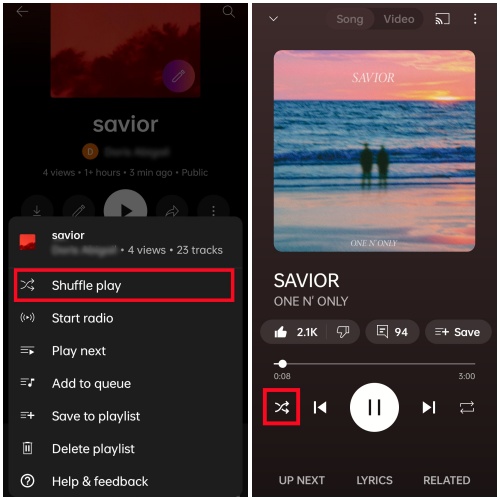
However, some users may face problems, such as shuffle not being truly random or shuffle not working at all, with songs playing in order. If you run into these issues, the next section will share simple and effective ways to fix them.
Part 2. Fix the YouTube Music Shuffle Not Working Issue (Officially)
While YouTube Music suggests basic solutions like reinstalling the app, updating it, or signing out and back in, these do not always solve the shuffle problem. Below are more effective ways to fix the shuffle issue and enjoy truly random playback.
🛠Fix 1. Enable Dynamic Queue
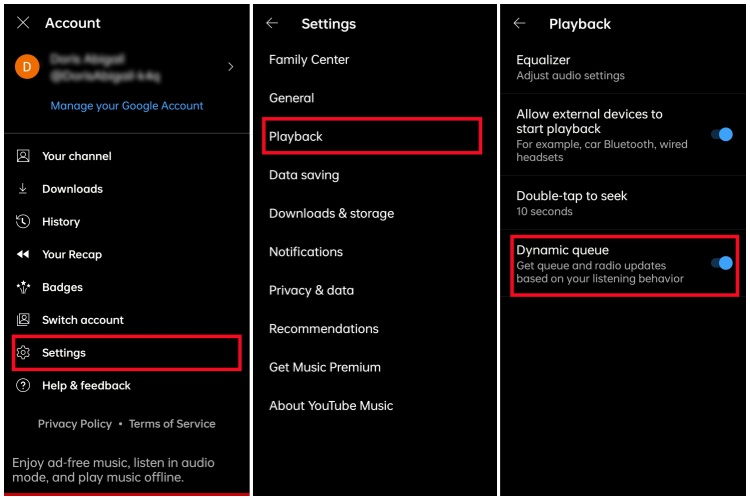
Dynamic Queue helps create more varied playback by adjusting the song order when shuffle is turned on. Each time you skip a track, the queue updates automatically.
Step 1. Open YouTube Music on your phone or visit the YouTube Music web player on your computer.
Step 2. Tap your profile picture and go to Settings, then select Playback.
Step 3. Find Dynamic Queue and turn it on.
Step 4. Restart your playlist and enable shuffle again.
🛠Fix 2. Play the Last Song in the Playlist
For large playlists, YouTube Music may only shuffle the songs that are already loaded, usually the first few dozen tracks. To fix this, scroll to the bottom of the queue so all songs load, then play the last song before turning on shuffle. This method works on the mobile app only. For the web player, try the fixes below.
🛠Fix 3. Refresh the Shuffled Playlist
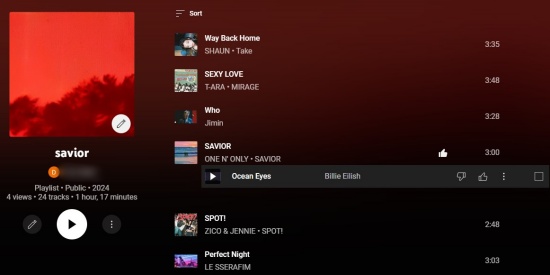
If shuffle works but still feels predictable, refreshing the playlist can help.
Step 1. On the mobile app, long press a song and drag it to change the order. On the web player, click and drag tracks to rearrange them.
Step 2. To remove songs, tap the three dots next to a track and choose Remove from playlist.
Step 3. Save the changes and turn shuffle on again.
🛠Fix 4. Clear the YouTube Music Cache
Clearing the cache can fix many common issues and improve shuffle performance.
For Android users, go to Settings, Apps, App Management, Storage, then tap Clear cache.
For iOS users, go to Settings, General, iPhone Storage, YouTube, then select Offload App.
🛠Fix 5. Use Voice Commands to Shuffle
If you use Google Assistant on a smart speaker, try shuffling with voice commands. Say “Hey Google, shuffle my playlist on YouTube Music.” This can bypass app related shuffle issues.
🛠Fix 6. Use an Online Playlist Randomizer
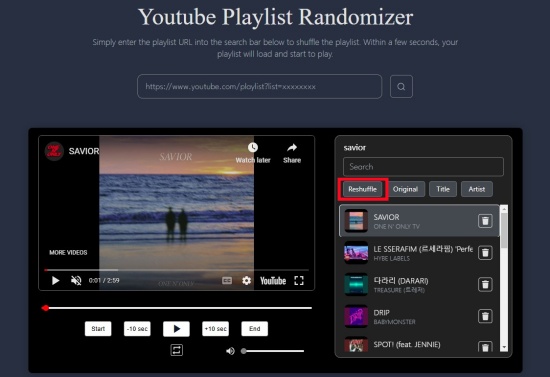
If you do not have a smart speaker, an online YouTube playlist randomizer can help create a truly random order on your computer.
Step 1. Copy the link to your YouTube Music playlist.
Step 2. Open a YouTube playlist randomizer website and paste the link into the search box.
Step 3. Wait for all songs to load and view the new random order.
Step 4. Click Reshuffle if you want a different order.
Online playlist randomizers also have some limits:
- They only work on computers.
- They need a strong and stable internet connection.
- Audio quality may drop due to transcoding.
- Large playlists can take a long time to load.
Part 3. Play YouTube Music Offline on Any Devices [Best]
We hope one of the methods above helps fix the YouTube Music shuffle not working issue. If YouTube Music shuffle not working is still affecting your listening experience, there is a reliable workaround that lets you play songs in a truly random order. You only need a trusted tool called 4kFinder YouTube Music Converter.
This tool lets you save YouTube Music songs or playlists to your computer first. After that, you can use the shuffle feature of any media player to play your music randomly without using the YouTube Music app or web player. It works for all users, and you do not need a YouTube Music Premium subscription.
Best Tool: 4kFinder YouTube Music Converter
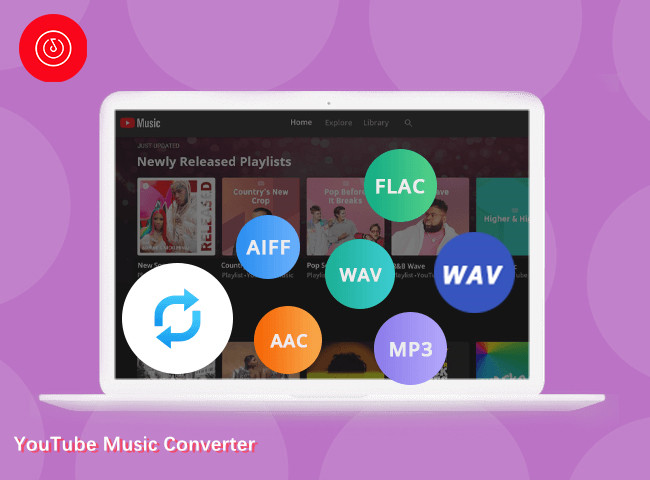
4kFinder YouTube Music Converter allows you to download YouTube Music tracks, playlists, and albums in batches. You can save YouTube Music as MP3, M4A, AAC, FLAC, WAV, or AIFF files for offline listening in just a few minutes, while keeping the original sound quality and song details. In addition, 4kFinder comes with a built in YouTube Music web player, allowing you to search, browse, download, and play music in one place. You do not need to install the YouTube Music app or any extra software, making it an effective way to fix YouTube Music shuffle not working issue once and for all.
👍Key Features of 4kFinder YouTube Music Converter
- Support both YouTube Music free and Premium accounts.
- Download songs/playlists/albums from YouTube Music.
- Convert YouTube Music to MP3, M4A, AAC, FLAC, WAV, AIFF.
- Keep original audio quality and ID3 tags info.
- Batch download YouTube Music at 16X faster speed.
- Keep YouTube Music songs forever for offline playback on any device.
- Fully compatible with Windows & Mac.
Guide: How to Download YouTube Music to Play Offline on Any Device
Step 1. Sign In to Your Music Account
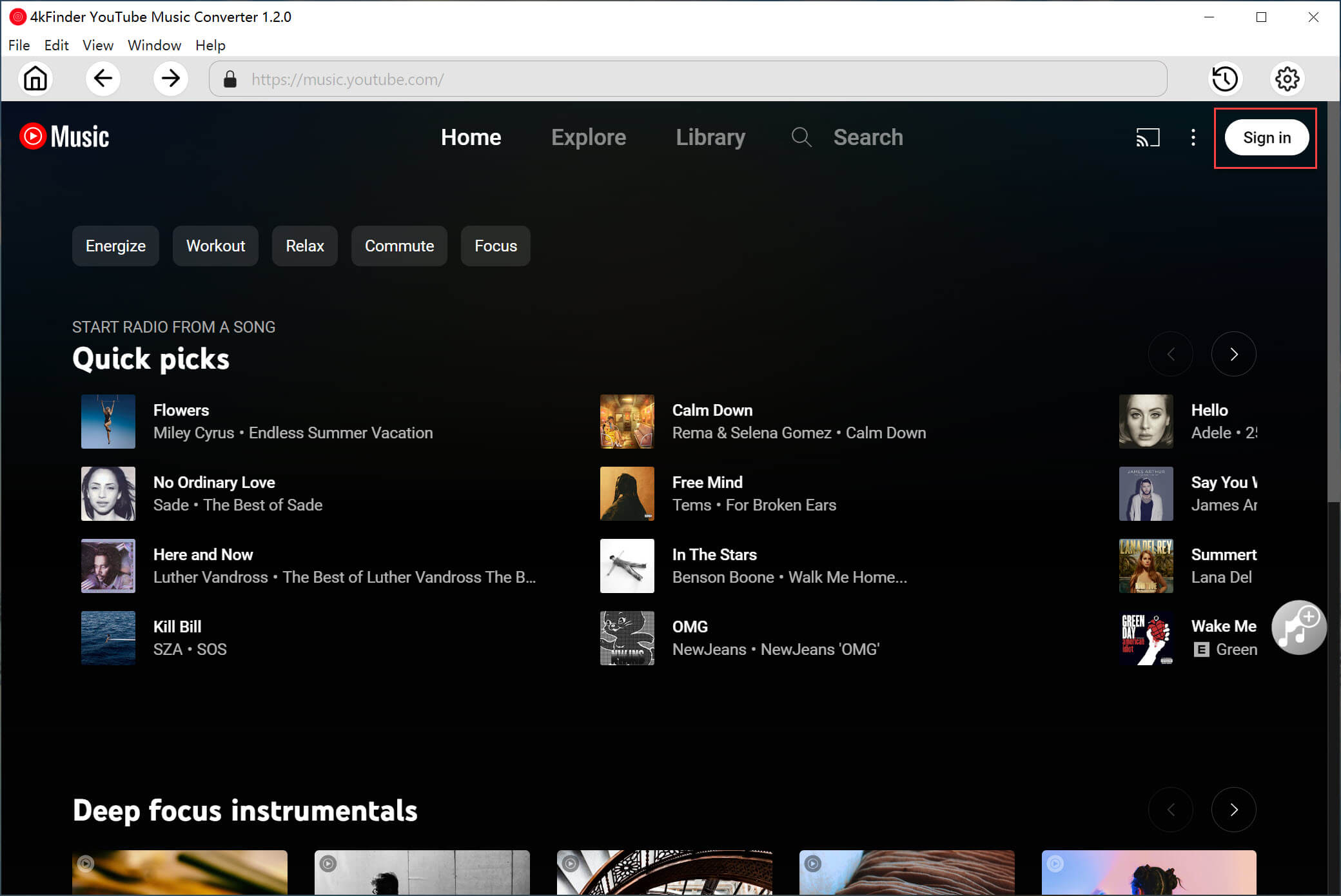
After installing 4kFinder YouTube Music Converter, open the program and click Sign In. Log in to your YouTube Music account, either Free or Premium.
Step 2. Select the Output Format
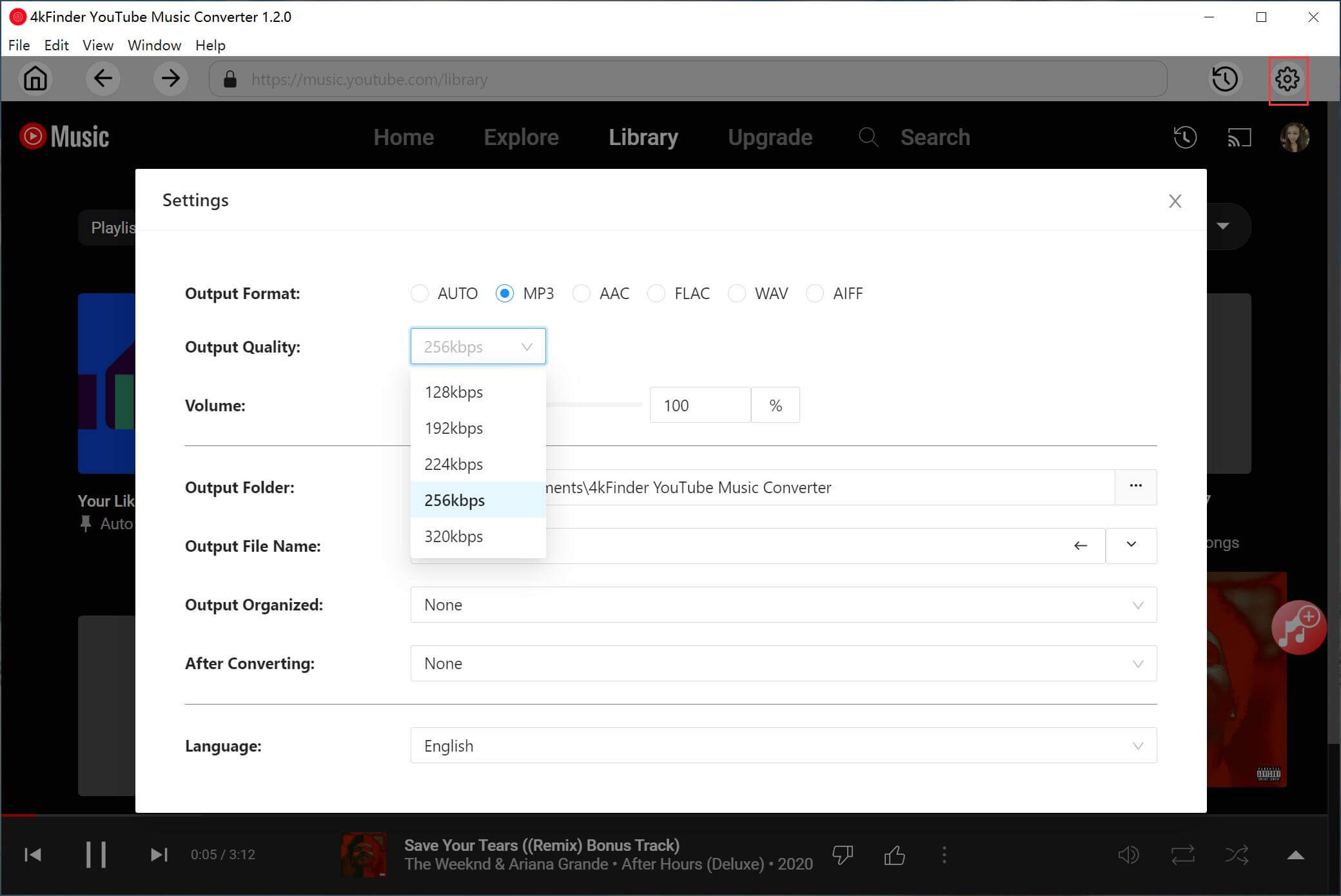
Click the Settings icon in the top corner to open the settings window. The default output format is AUTO M4A. You can change it to MP3, which works well on most devices.
Step 3. Add Songs, Albums, or Playlists
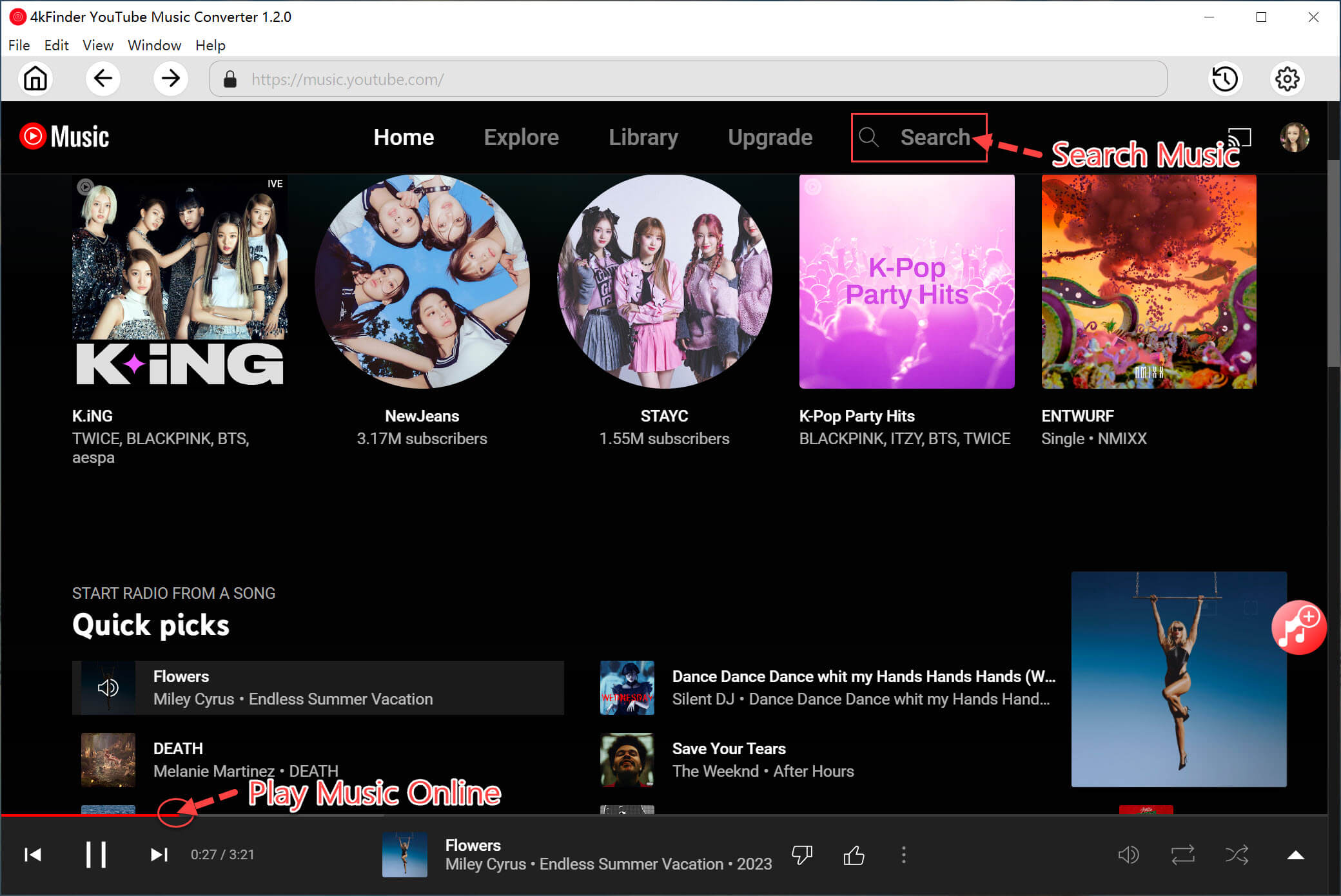
Using the built in YouTube Music web player, you can search for and play music directly inside the converter.
Open a song, album, or playlist, then click the red Add button to include it in the conversion list.
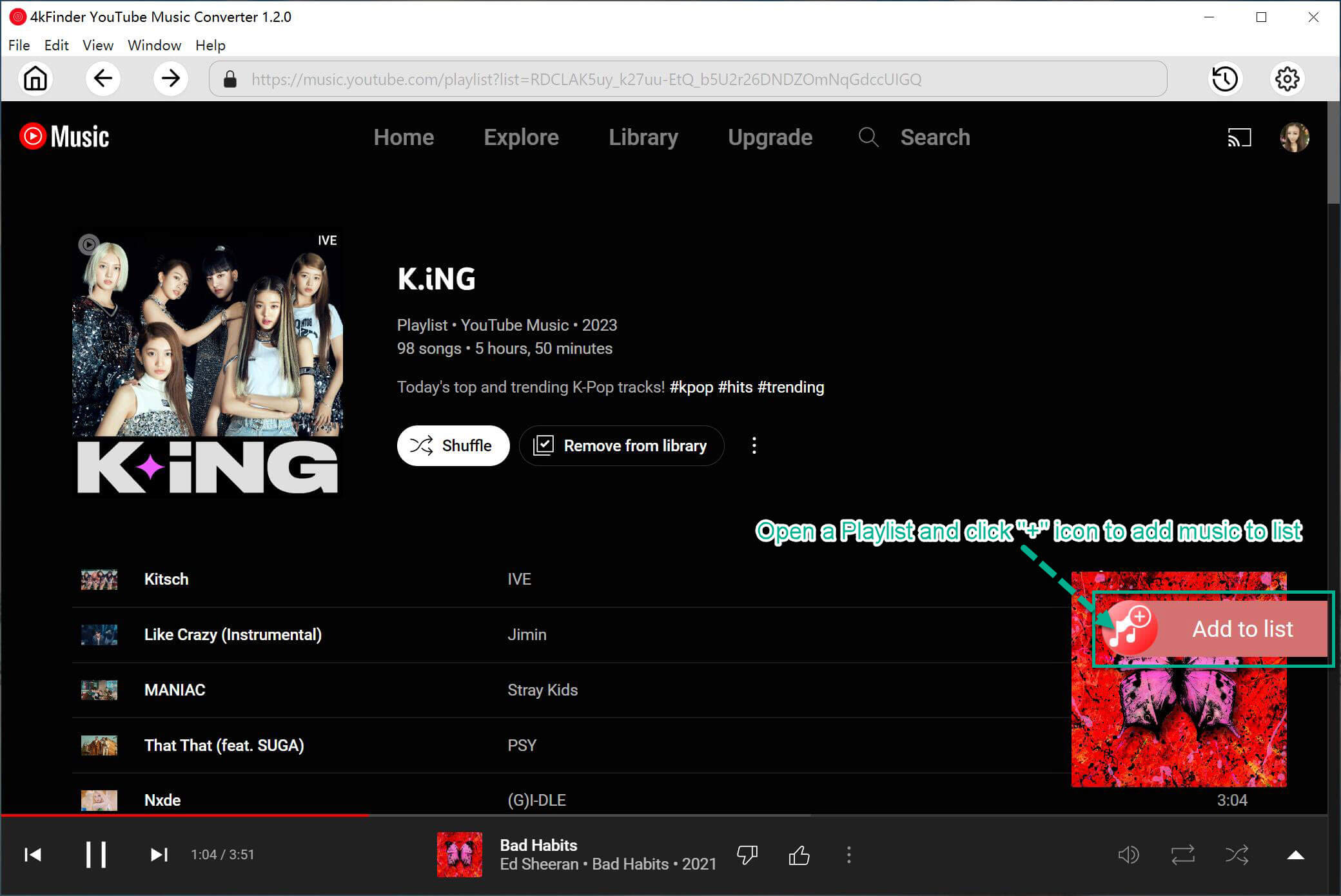
All tracks in the album or playlist will be added automatically. You can uncheck any songs you do not want.
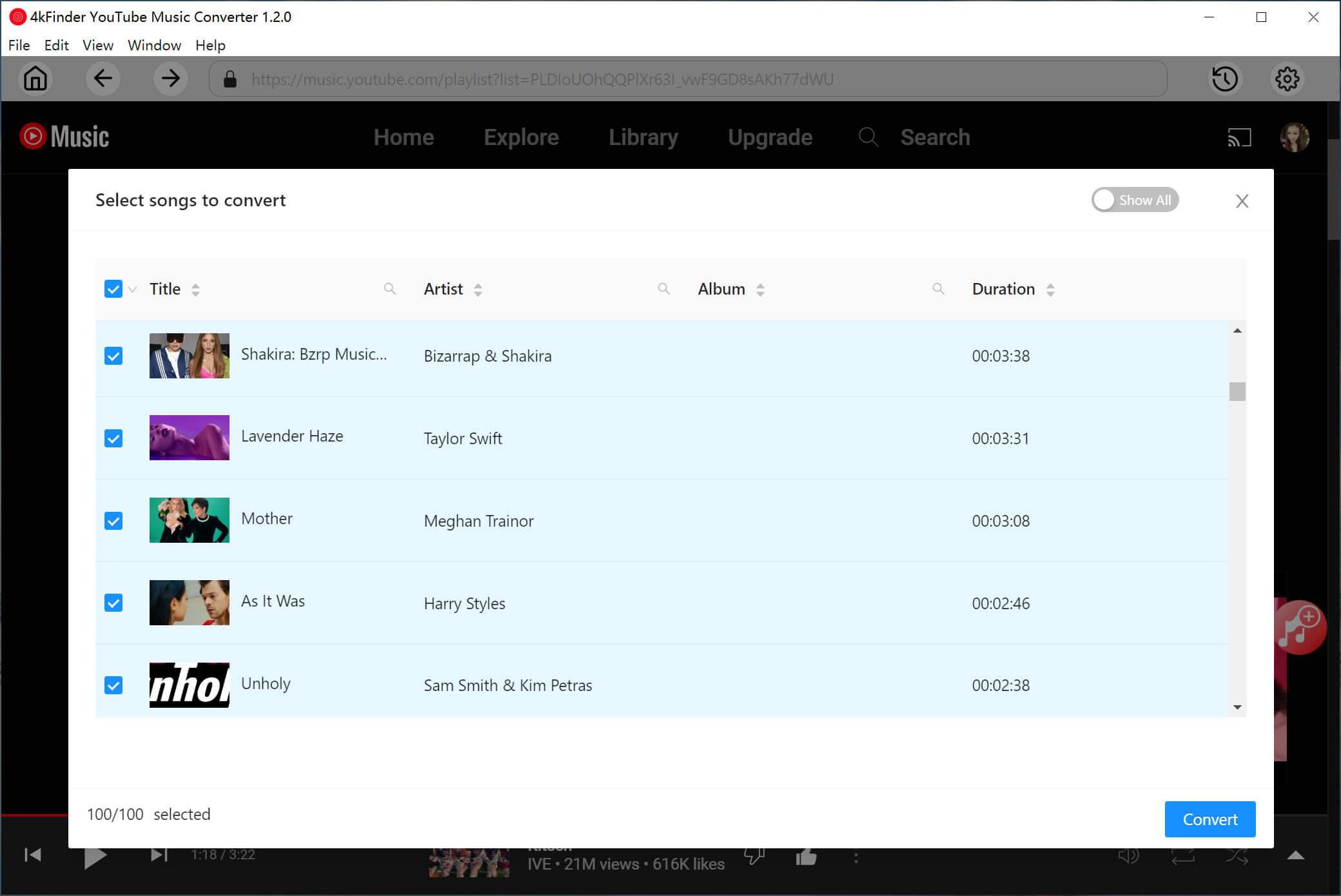
Step 4. Start to Convert YouTube Music Songs
After choosing your songs, click Convert to download them from the YouTube Music web player and save them in the format you selected.
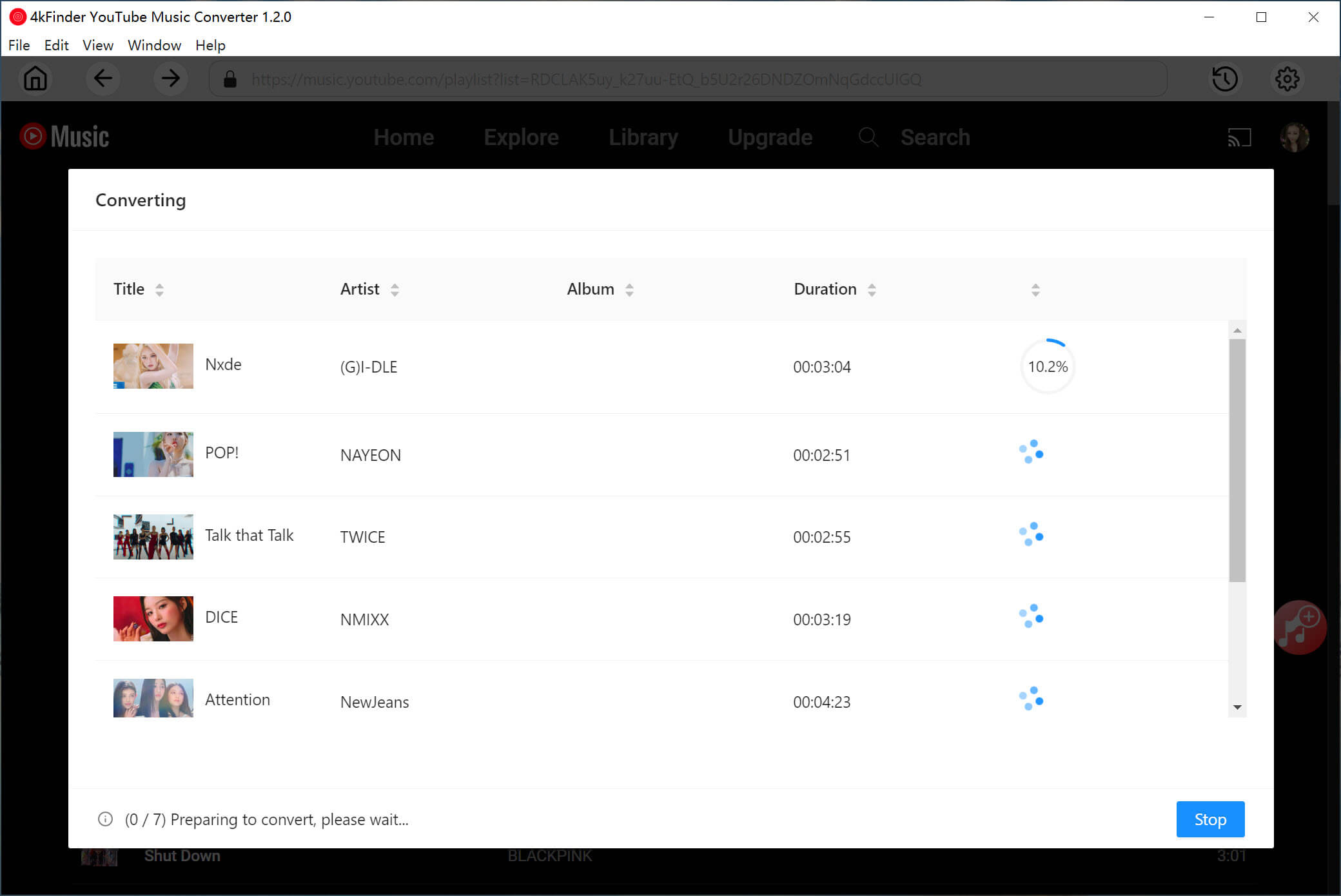
Step 5. Check the Converted Songs
When the conversion finishes, click History in the top corner. You can view your converted songs by date, artist, or album.
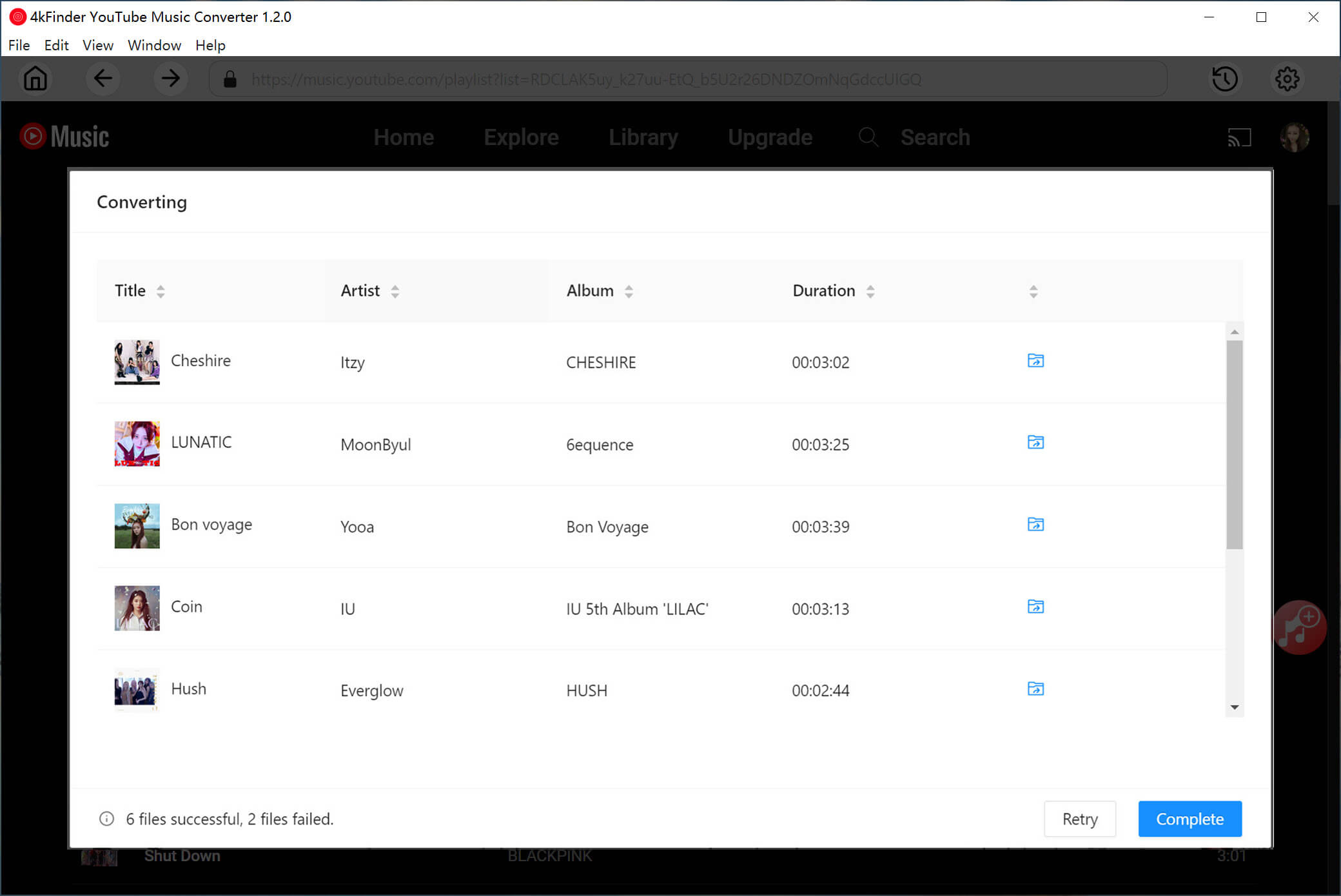
Step 6. Transfer the Downloaded Playlists to a Media Player for Shuffle Playback
To enjoy random playback, import the downloaded files into your computer’s media player and use its shuffle feature.
For Windows
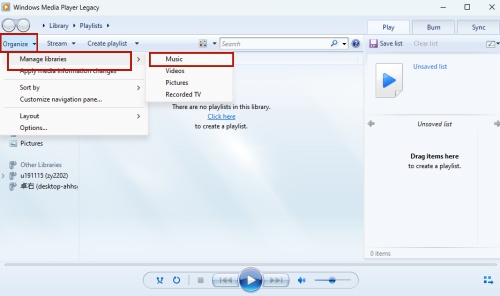
1. Open Windows Media Player.
2. Click Organize, then choose Manage Libraries and select Music.
3. Click Add and locate the folder with your downloaded YouTube Music playlists.
4. Once added, click the shuffle icon in the playback controls to play songs in random order.
For Mac
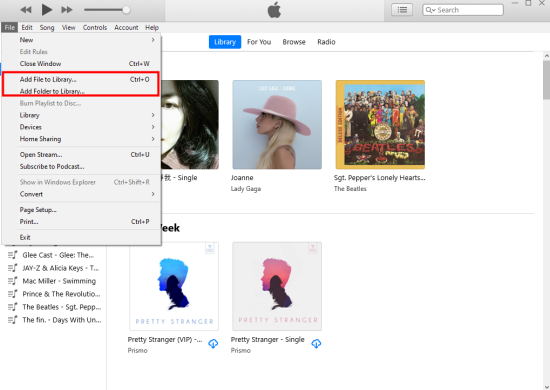
1. Open iTunes and click the File menu.
2. Choose Add File to Library or Add Folder to Library.
3. Find the folder where your converted YouTube Music files are saved and select it.
4. Click Open to import the files.
5. After importing, click the shuffle icon at the top to play your tracks randomly.
Besides offline shuffle playback, you can also transfer these downloaded music files to other devices such as MP3 players, for flexible listening anywhere.
Conclusion
The YouTube Music shuffle not working problem can be annoying, but in most cases it can be fixed with easy steps such as turning on Dynamic Queue, refreshing your playlist, or using voice commands. If you want stable shuffle playback offline, 4kFinder YouTube Music Converter is your best choice. With 4kFinder, you can fix YouTube Music shuffle not working issue and enjoy your playlists the way they should be played, random, smooth, and enjoyable.