
 Download Netflix videos to MP4 or MKV format in 1080P Full HD resolution.
 English
 Arabic
 Chinese (Simplified)
 Chinese (Traditional)
 Croatian
 Czech
Czech Danish
 Dutch
Dutch Finnish
 French
 German
 Greek
Greek Hebrew
 Hindi
Hindi Indonesian
 Italian
 Japanese
 Korean
 Malay
Malay Norwegian
 Polish
 Portuguese
 Russian
 Slovenian
 Spanish
 Swedish
 Thai
Thai Turkish
 Ukrainian
 Vietnamese



Want to save videos from YouTube? This guide will show you how to save videos from YouTube using SaveFrom.net step by step. We will also share an easy alternative tool that lets you download videos from YouTube and other sites, so you can watch them offline anytime.
Finding a reliable way to save videos from YouTube with SaveFrom.net can be challenging because YouTube often updates its features. If you are looking for an easy and safe method to download YouTube videos from SaveFrom.net, this guide is here to help. Whether you want to download tutorials, music videos, or entertainment clips, the right tool can make the process quick and simple.
In this guide, we will show you how to download YouTube from SaveFrom.net step by step. We will also introduce another reliable option called 4kFinder Video Downloader so you can choose the best way to save your favorite videos easily and safely.
CONTENTS
Part 1. Introduction to SaveFrom.net
SaveFrom.net is an easy-to-use online tool that lets you save videos from YouTube and other websites. It allows you to download videos quickly in different formats and resolutions without installing any software. You can easily save your favorite videos and watch them offline anytime, which is perfect for when you don’t have an internet connection.
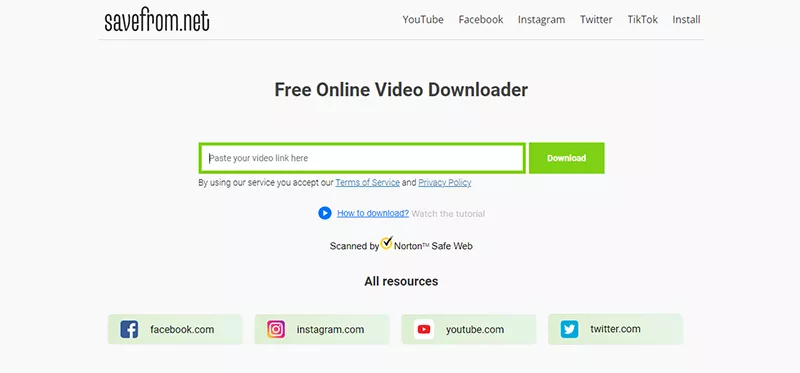
Using SaveFrom.net is simple. Just paste the video link into the box, and you’ll see the download options right away. It supports many sites like Facebook, Instagram, and TikTok. If you download videos often, you can use the SaveFrom.net Helper extension to add a download button directly to your browser. Because it’s fast and easy, SaveFrom.net is a favorite choice for downloading videos online.
Main Features of SaveFrom.net
- Download videos from YouTube, Facebook, Instagram, TikTok, and more
- Choose from several formats like MP4, WEBM, or MP3
- Select different video qualities such as 360p, 720p, or 1080p
- Use it directly in your browser without installing software
- Add the Helper extension for quicker and easier downloads
- Get one-click YouTube downloads with the helper tool
Part 2. Steps to Download YouTube Videos with SaveFrom.net
Using SaveFrom.net to download videos from YouTube is quick and easy. This online tool lets you save your favorite videos in various formats and qualities without installing any extra software.
How to Download Videos from YouTube with SaveFrom.net
Step 1. Go to YouTube and open the video you want to download. Copy the video link from the address bar.
Step 2. Visit the official SaveFrom.net website in your browser.
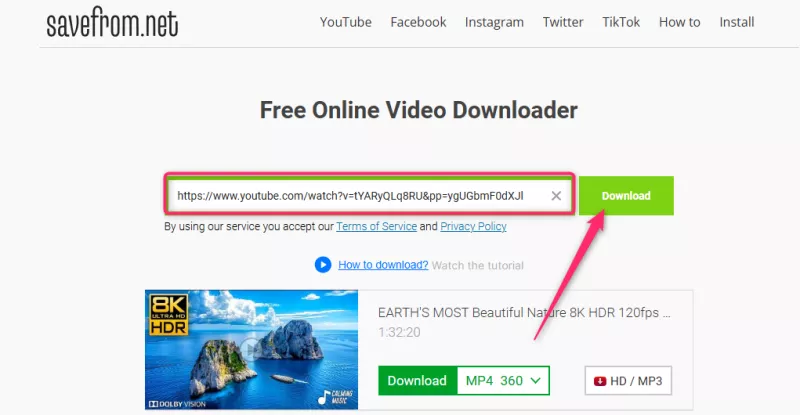
Step 3. Paste the copied YouTube link into the box on the site. SaveFrom.net will automatically detect the link and show the available download options.
Step 4. Choose your preferred format and quality, then click Download. The video will start saving to your device in just a few moments, depending on your internet speed and file size.
Part 3. How to Install the SaveFrom.net Helper
SaveFrom.net Helper is a browser extension that makes it easy to download videos. Instead of opening the SaveFrom.net website and pasting a video link, this tool adds a download button right in your browser. You can click it under YouTube videos or other supported sites to save them in the format and quality you want.
It works with popular browsers like Chrome, Firefox, and Edge, giving you a quick and smooth way to download videos without extra steps. It’s a great option for users who often save videos and want a faster way to do it.
How to Install and Use SaveFrom.net Helper
Step 1. Go to the official SaveFrom.net website and open the Helper section, or find it in your browser’s extension store. Download the version for your browser.
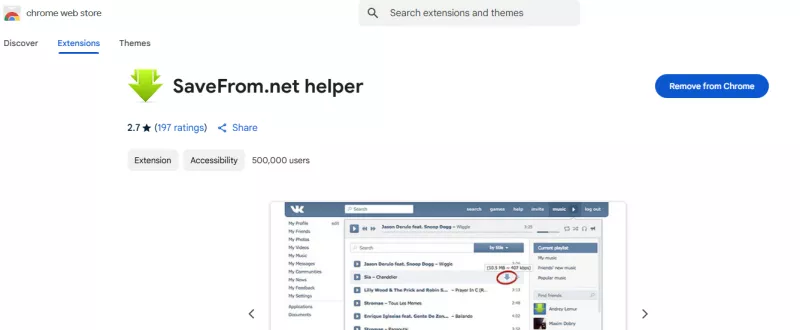
Step 2. Follow the instructions to install it. Chrome users may need a third-party extension manager, while Firefox users can install it directly.
Step 3. After installing, make sure the extension is turned on in your browser settings. Restart your browser if needed.
Step 4. Once it’s active, a green Download button will appear below YouTube videos and other sites.
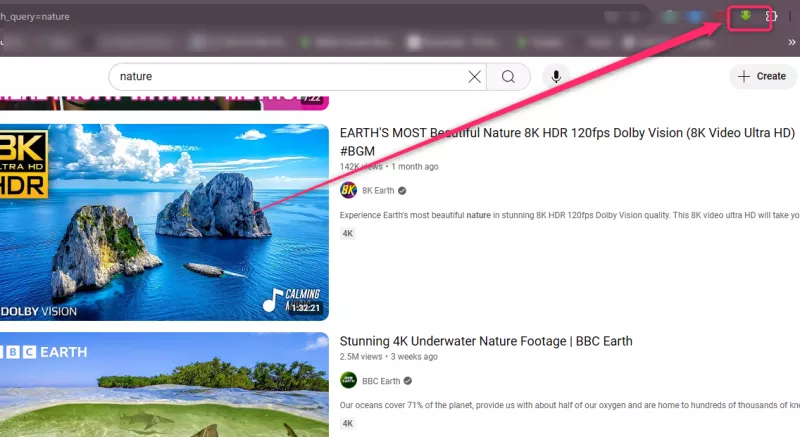
Step 5. Click the button, pick the format and resolution you want, and the video will start downloading automatically.
Part 4. Top Alternatives to SaveFrom.net [Hot]
If SaveFrom.net is not working or you need another option, 4kFinder Video Downloader is a great choice. This tool allows you to save videos from YouTube with SaveFrom.net and other sites quickly and easily. Unlike some downloaders that have restrictions or require extra software, 4kFinder offers a smooth and hassle-free experience.
4kFinder Video Downloader is a powerful desktop app that lets you download YouTube videos from SaveFrom.net and more than 1000 other platforms, including Vimeo, SoundCloud, and TikTok. It supports multiple formats such as MP4, MOV, and WebM, with resolutions from 720p up to 8K, making it ideal for high-quality offline viewing. With a simple and user-friendly interface, fast downloads, and a reliable 100% success rate, 4kFinder makes it easy to download Videos from YouTube, whether you want to save movies, music videos, live streams, full playlists, or entire channels. Just copy and paste the video URL, select your preferred format and resolution, and your content is ready for seamless offline access.
Key Features of 4kFinder Video Downloader
- Save online videos from YouTube and other popular sites
- Supports MP4, MOV, and WebM formats
- Support video quality from 720p up to 8K
- Enjoy unlimited downloads with up to 6X faster speed
- Watch downloaded videos offline on any device
- Compatible with both Windows and Mac
Guide: How to Download Video with 4kFinder
4kFinder YouTube Downloader works on both Mac and Windows. Follow these steps to save YouTube 4K videos on your PC. First, download and install the software on your computer.
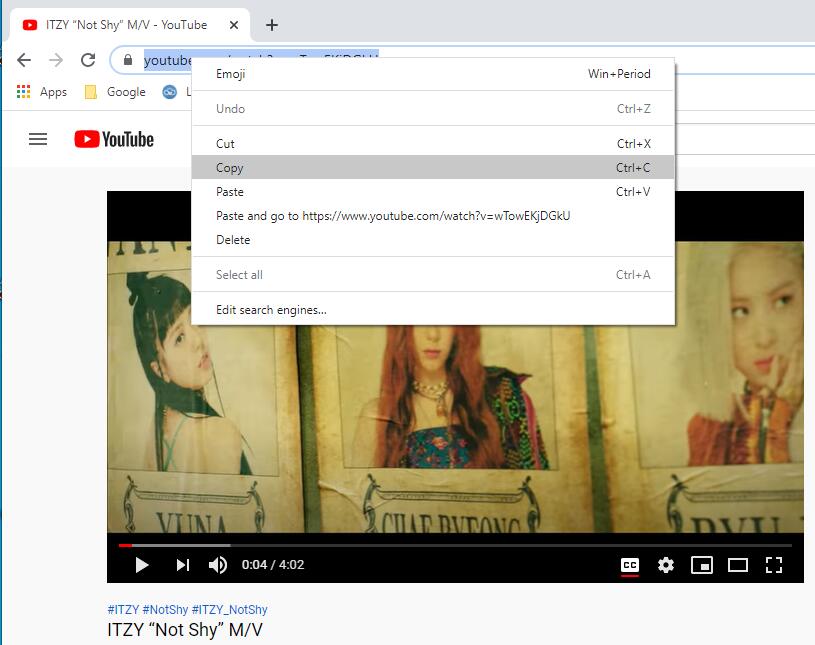
Step 1. Open the Program and Copy the YouTube Video Link
After installation, launch 4kFinder on your Windows computer. Go to YouTube and copy the URL of the video you want to download.
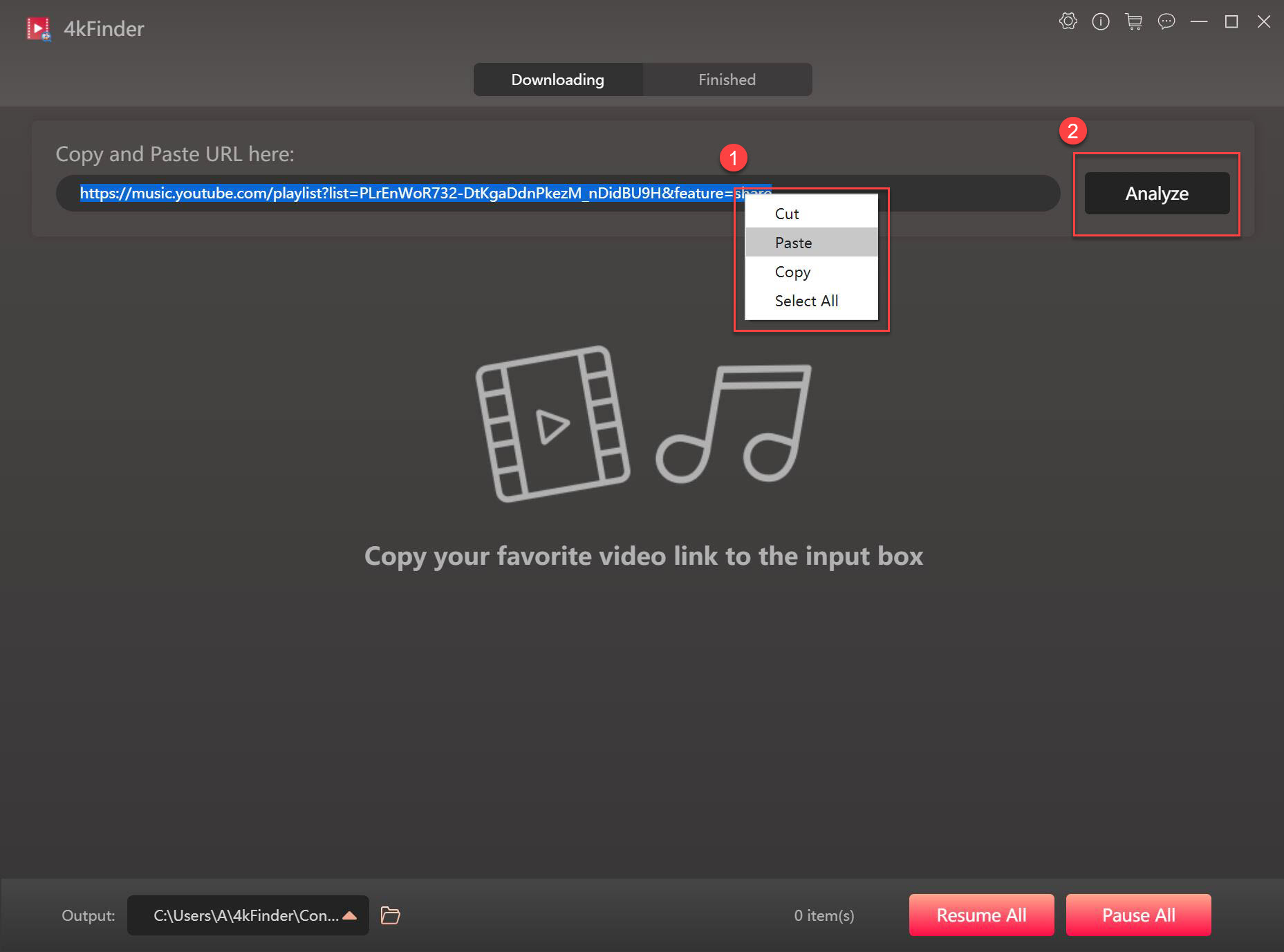
Step 2. Paste the Video URL into 4kFinder
Return to the program, paste the YouTube link into the input box, and click “Analyze” to fetch the video.
Step 3. Choose MP4 Format and Resolution
Once the program generates the download link, select MP4 and your desired resolution.
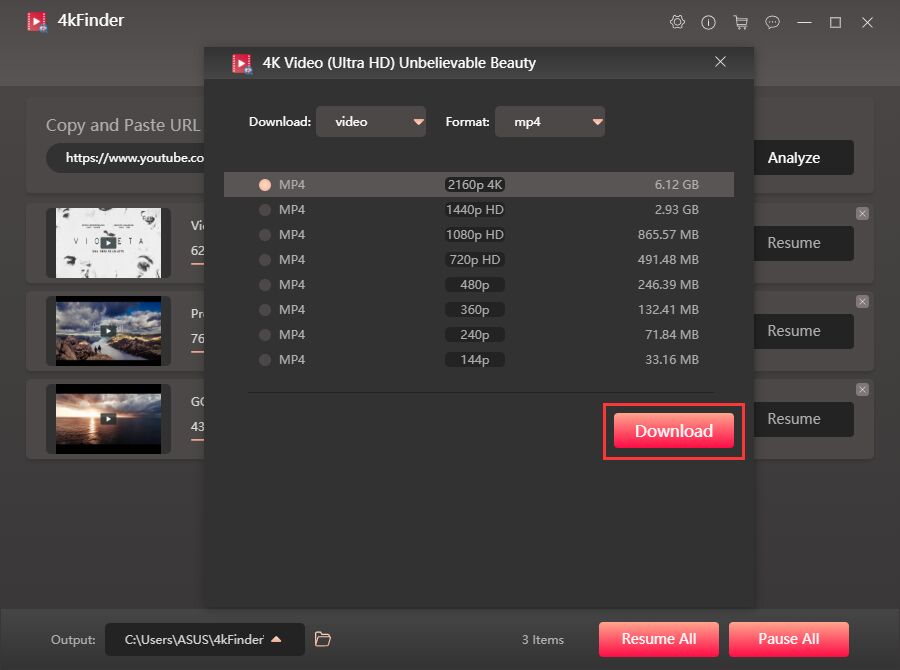
Step 4. Start to Download the Video
Click “Download” to save the YouTube video to your PC. You can repeat these steps with multiple URLs to download several videos at once.
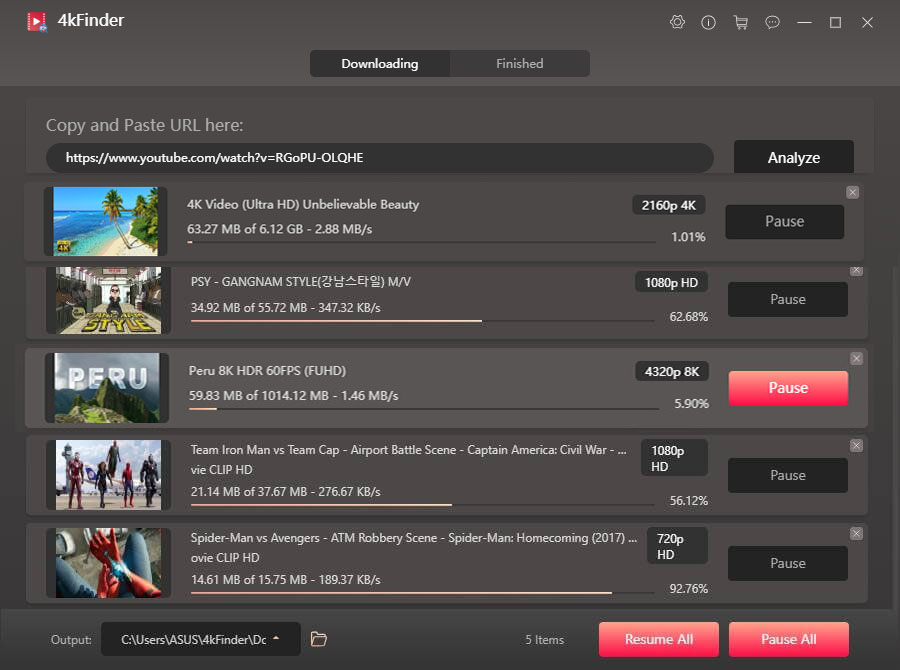
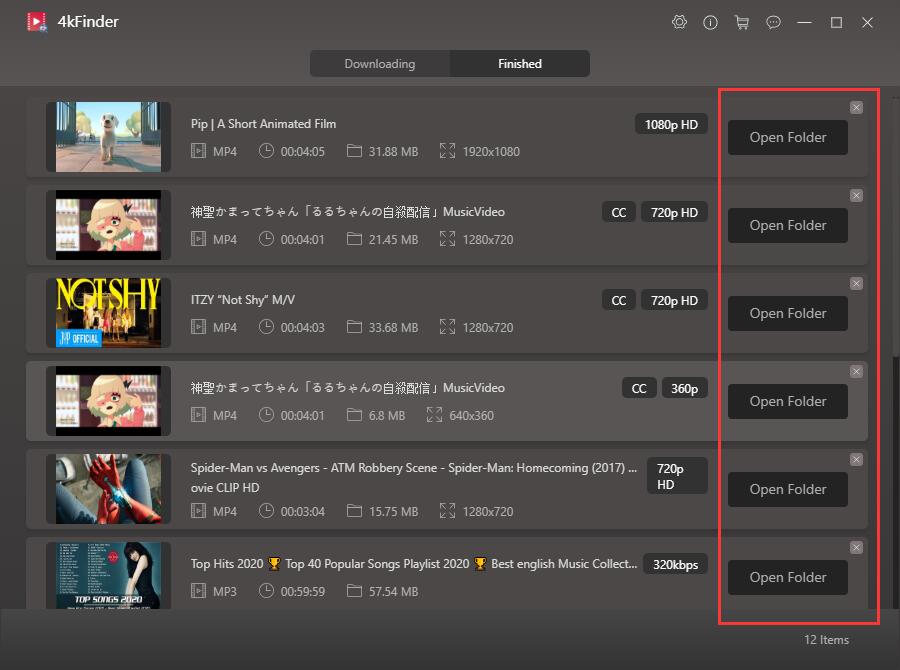
After the download is complete, go to the “Finished” section to find your videos. Now you can watch YouTube videos offline on any device.
Conclusion
That’s it! You’ve reached the end of our guide and can now save videos from YouTube with SaveFrom.net. If SaveFrom.net is not working or you want another option, 4kFinder Video Downloader makes it simple to download YouTube from SaveFrom.net and convert videos easily. No matter which tool you use, always follow the legal rules when downloading content.