 Download Netflix videos to MP4 or MKV format in 1080P Full HD resolution.
 English
 Arabic
 Chinese (Simplified)
 Chinese (Traditional)
 Croatian
 Czech
Czech Danish
 Dutch
Dutch Finnish
 French
 German
 Greek
Greek Hebrew
 Hindi
Hindi Indonesian
 Italian
 Japanese
 Korean
 Malay
Malay Norwegian
 Polish
 Portuguese
 Russian
 Slovenian
 Spanish
 Swedish
 Thai
Thai Turkish
 Ukrainian
 Vietnamese


Want to download Netflix shows on your Mac? In this article, we’ll walk you through 5 effective and easy ways to help you download Netflix shows and movies directly to your MacBook or iMac. Whether you’re using macOS for work, travel, or just relaxing at home, these methods will let you watch your favorite Netflix anytime, anywhere without limits.
Planning a trip or business travel? Long flights or bad weather can get boring fast. That’s why it’s a good idea to download some Netflix shows to your Mac before you go. But here’s the catch, Netflix doesn’t offer a direct download option for MacBook or iMac. You can stream from its website, but you can’t save videos for offline viewing.
No worries! This article will show you several easy ways to download Netflix shows on Mac. We’ll also introduce a powerful tool called 4kFinder Netflix Video Downloader to help you watch your favorite shows offline anytime, anywhere.
CONTENTS
- Part 1. Can You Download Netflix Shows on Mac?
- Part 2. Download Netflix Shows on Mac with Netflix Video Downloader [Best]
- Part 3. Download Netflix Shows on Mac with Netflix iOS App (Paid)
- Part 4. Download Netflix Shows on Mac with iOS App (Free)
- Part 5. Save Netflix Shows on Mac by Screen Recording
- Part 6. Download Netflix Shows on iPhone and Mirror It to Mac
- FAQs about Downloading Netflix Shows on Mac
Part 1. Can You Download Netflix Shows on Mac?
The short answer is no, Netflix doesn’t have an official app for Mac. While you can watch Netflix in a web browser, downloading videos directly to your Mac isn’t supported like it is on iPhone, iPad, or Apple TV. But don’t worry, there are a few handy ways you can still download and enjoy Netflix shows on your Mac offline:
- Try third-party Netflix video downloaders made for Mac.
- Use the iOS Netflix app on your Mac using a workaround.
- Record your screen while playing Netflix videos.
- Mirror your iPhone to your Mac and download through the phone.
In the next section, we’ll explain each of these methods in detail so you can pick the one that works best for you.
Part 2. Download Netflix Shows on Mac with Netflix Video Downloader [Best]
The easiest and most reliable way to download Netflix shows on a Mac is by using a dedicated Netflix video downloader. One great option is 4kFinder Netflix Video Downloader, it works as a perfect alternative to the missing Netflix app for Mac. Whether you’re using a MacBook or iMac running macOS X 10.11 or later, this tool lets you download any Netflix video with any type of subscription, even ad-supported plans.
4kFinder Netflix Video Downloader comes with a built-in Netflix browser, so you can log in to your Netflix account, search for movies or shows, and download them directly within the app. It’s fast and easy to use, even for beginners. The tool also supports batch downloads, which means you can download multiple episodes or even a full season at once, saving you time and effort.
Best of all, 4kFinder lets you download Netflix videos in MP4 or MKV format. Unlike the Netflix app that saves temporary files that expire, these downloaded videos are saved permanently on your Mac. You can keep them forever, watch them offline anytime, and transfer them to any device like your phone, tablet, USB drive, or even a smart TV.
👍 Features of 4kFinder Netflix Video Downloader
- Download shows/movies on Netflix on Mac/Windows.
- Download Netflix shows to MP4/MKV in 1080P.
- Keep multilingual audio track and subtitles.
- Download Netflix shows at 50x faster speed in batch.
- Built-in Netflix web browser, no need Netflix app.
- Watch Netflix offline on any device.
- Remove DRM from Netflix and keep it forever on Mac.
Guide: How to Download Netflix Shows to MP4 on Mac
Step 1. Open 4kFinder on Your Mac
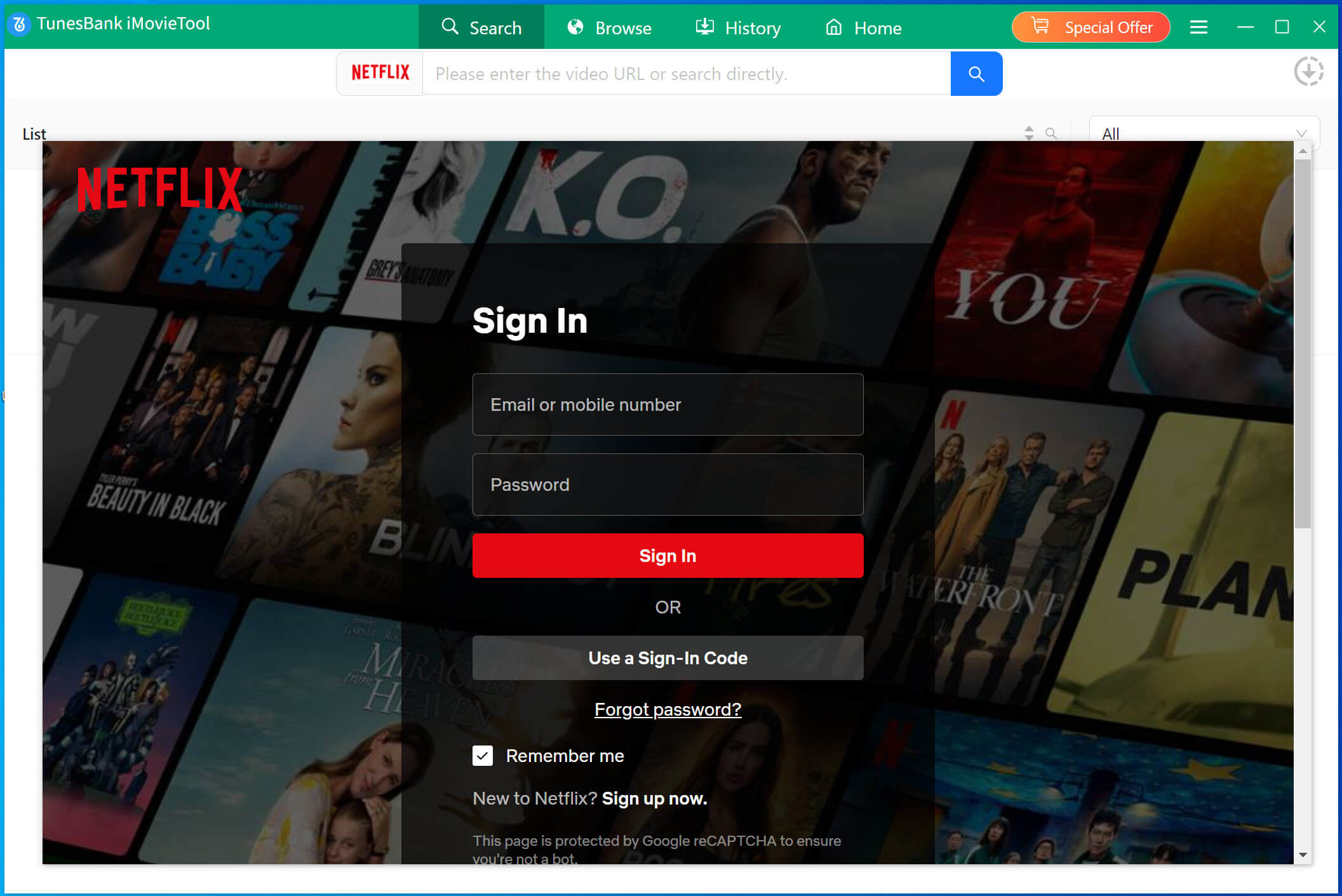
Launch 4kFinder Netflix Video Downloader on your Mac. The built-in Netflix web player will open automatically. Log in with your Netflix account to get started.
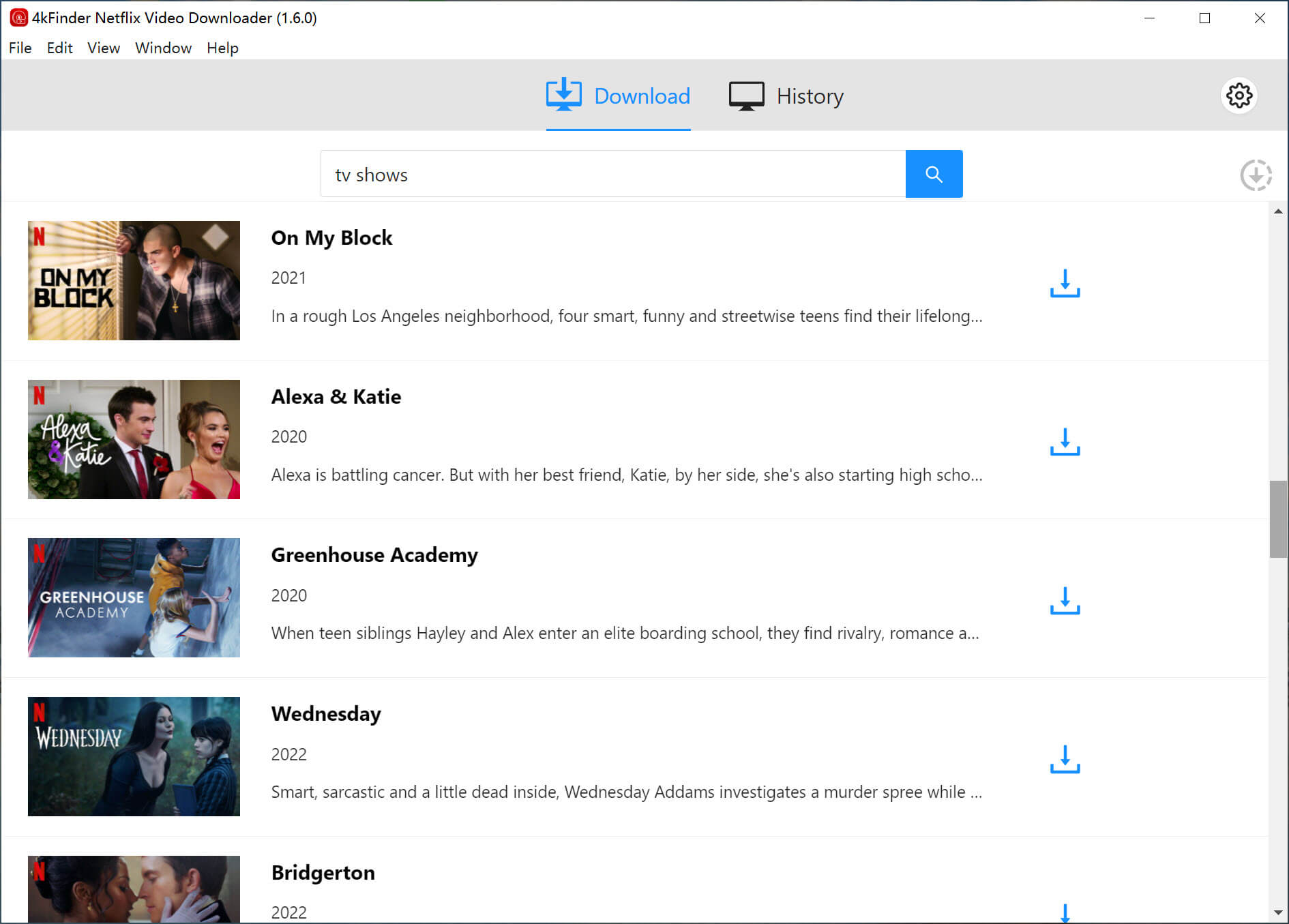
Step 2. Find the Netflix Show You Want
You can either search for a title by name directly in the search bar or paste the Netflix video link into the box.
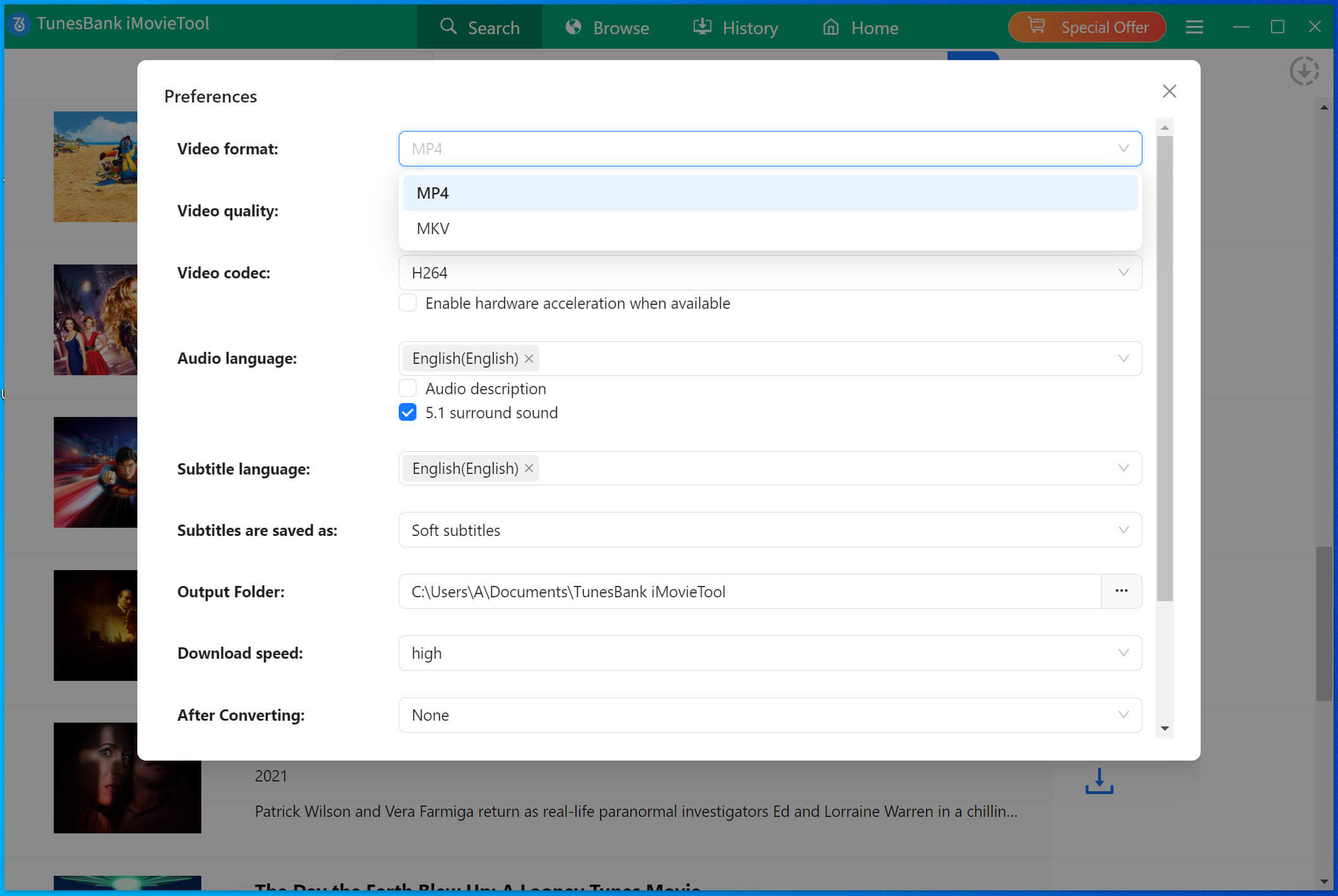
Step 3. Set the Output Format to MP4
Click the gear icon in the top right corner to choose your preferred settings. Make sure to select MP4 as the output format for wide compatibility.
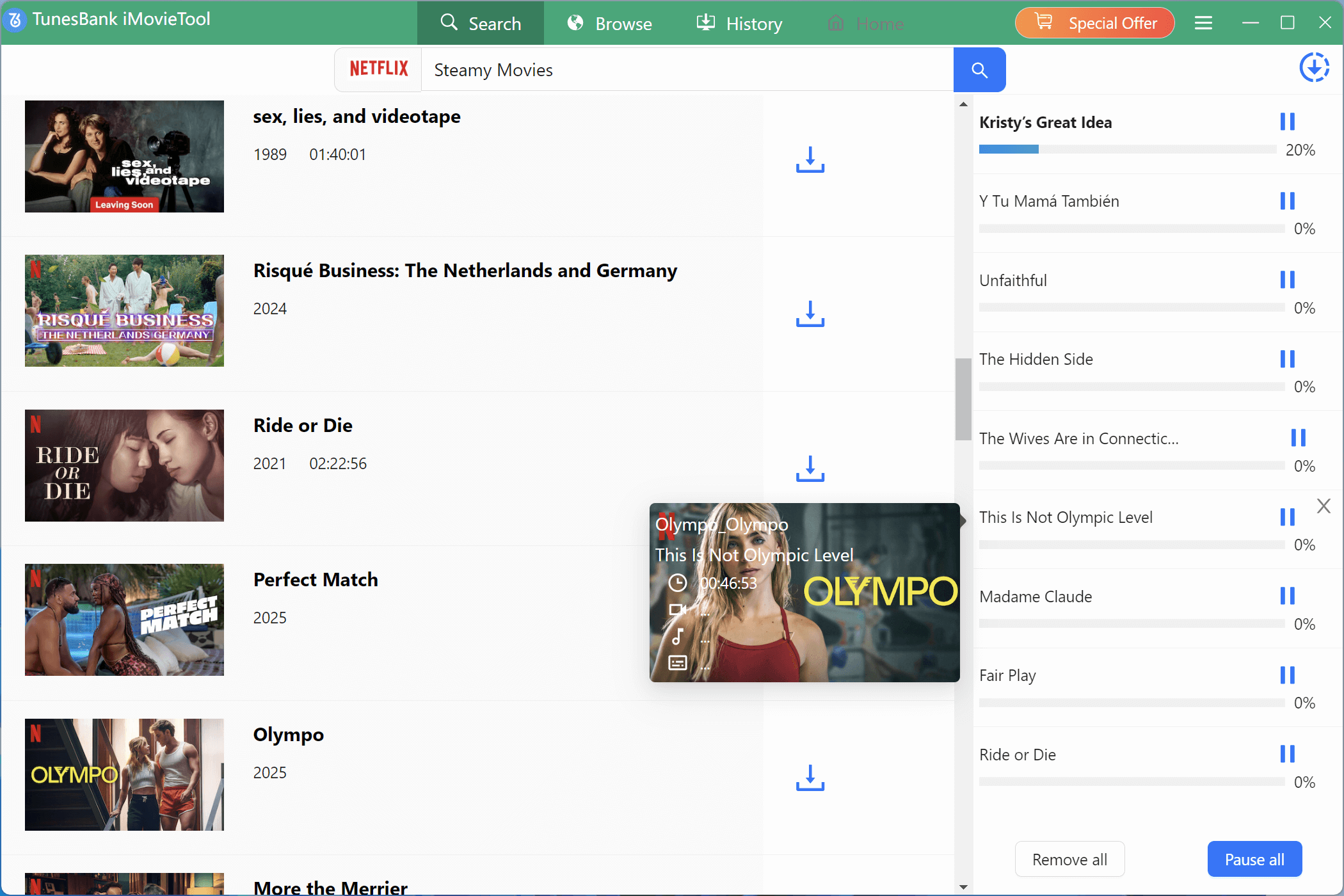
Step 4. Start Downloading the Show to MP4
After setting everything, click the Download button. The Netflix video will start downloading quickly in MP4 format.
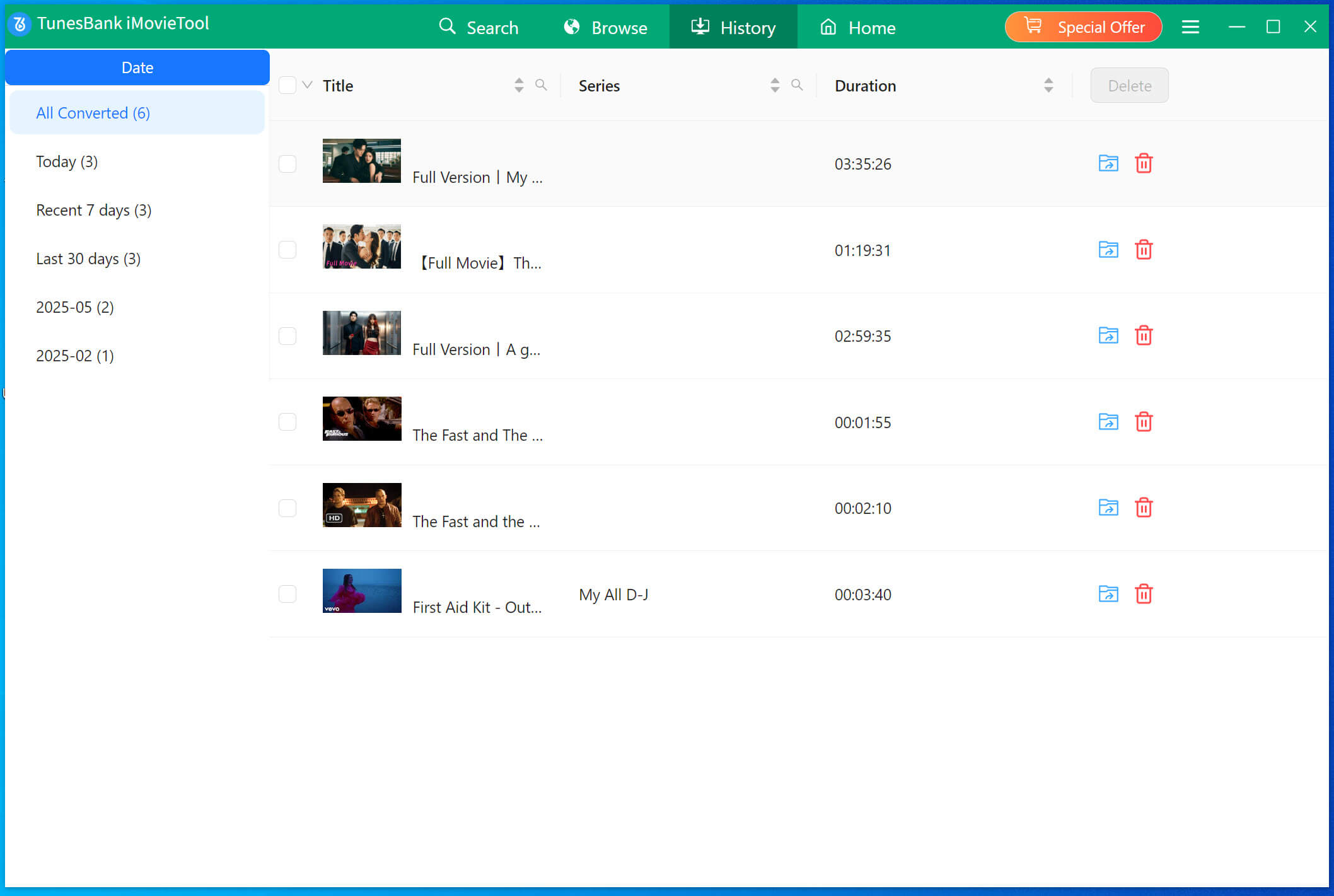
Step 5. Check Your Downloaded Videos
When the download is complete, go to the History section to view your downloaded videos. Click the blue Folder icon to locate them on your Mac’s local drive.
Now you can enjoy your downloaded Netflix shows offline anytime. You can also share them with friends or transfer them to other Apple devices using AirDrop, or back them up on a USB drive or external hard drive.
Tips: 4kFinder Netflix Video Downloader is for personal use only. Please follow local copyright laws and do not use the downloaded videos for commercial purposes.
Part 3. Download Netflix Shows on Mac with Netflix iOS App (Paid)
You can’t officially install the Netflix app on a MacBook or iMac, but there’s a way to run the iOS version of the app on your Mac as long as you’re using a Mac with an Apple Silicon chip (M1, M2, or M3). This is useful, especially since the Netflix Windows app stopped allowing downloads in July 2024.
Even with this method, Netflix’s download limits still apply. Your downloads might expire after some time.
Apple Silicon Macs can run iOS apps, but Netflix doesn’t allow direct installation. To work around this, you can use a tool called iMazing to move the Netflix app from your iPhone or iPad to your Mac.
What you need:
- An iPhone or iPad with iOS 17 or later and the Netflix app installed
- The iMazing app installed on your Mac
How to do it:
Step 1. Open iMazing on your Mac
Step 2. Connect your iPhone or iPad using a USB cable
Step 3. In iMazing, go to Apps > Manage Apps > Library
Step 4. Find the Netflix app, double-click it, then click Export .IPA
Step 5. Run the .IPA file to install Netflix on your Mac
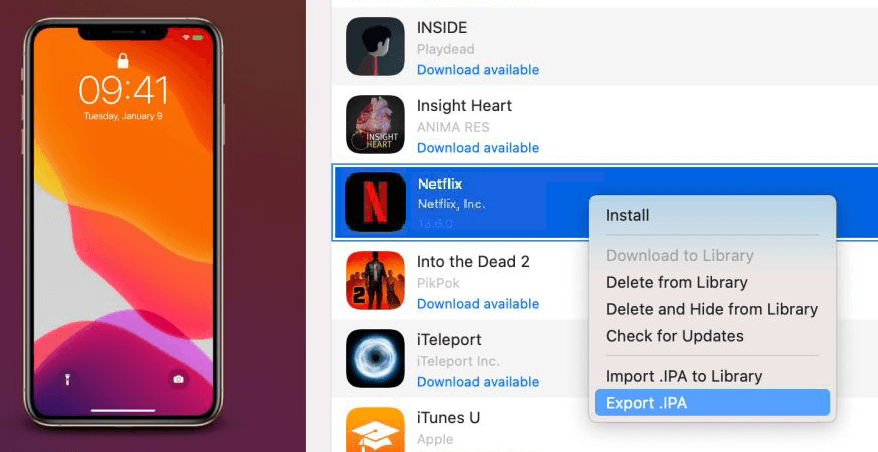
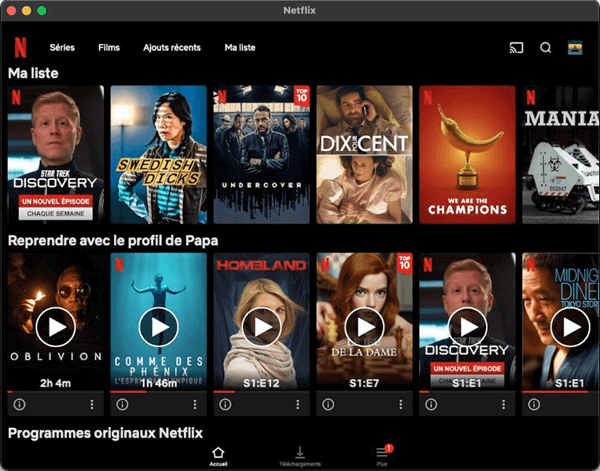
After that, open the Netflix app on your Mac, sign in, and you can download shows just like you would on your phone.
Part 4. Download Netflix Shows on Mac with iOS App (Free)
iMazing works well, but it requires a paid subscription. If you’re looking for a free option, try PlayCover. It works on Apple Silicon Macs with macOS 12.0 or later and lets you run the Netflix app in an iPad-like environment. This way, you can download and watch Netflix shows on your Mac just like you would on an iPad.
PlayCover also supports popular mobile games like League of Legends: Wild Rift and Genshin Impact, and even lets you use your keyboard for touch controls, making it easy and fun to play.
But because Netflix updates often, the app may crash or freeze at times. To avoid these issues, the easiest and most reliable way is still using 4kFinder to download Netflix videos.
Step 1: Go to https://playcover.io and click the Download button.
Step 2: Open the downloaded .dmg file and install PlayCover on your Mac.
Step 3: Launch PlayCover from your Applications folder.
Step 4: Visit https://decrypt.day, search for Netflix, and download the .ipa file.
Step 5: Drag the .ipa file into PlayCover to install the Netflix app.
Step 6: Open Netflix, log in, and start downloading shows to watch on your Mac.
Part 5. Save Netflix Shows on Mac by Screen Recording
There’s a simple and popular way to save Netflix shows on your Mac is using a screen recorder. This lets you save Netflix videos as MP4 files and watch them anytime on your MacBook or iMac. If you’ve tried this before and only got a black screen, don’t worry. Follow the steps I’ll share, and you’ll be able to record Netflix videos without any issues this time.
Tips: Keep in mind that recording Netflix on your Mac can take a lot of time and sometimes causes problems like black screens. It’s best to record only your favorite parts. If you want to save full Netflix video, using a strong tool like 4kFinder Netflix Video Downloader is a better choice. It can download Netflix shows on your Mac up to 50 times faster.
Step 1. Open Netflix in Chrome on your Mac (not Safari).
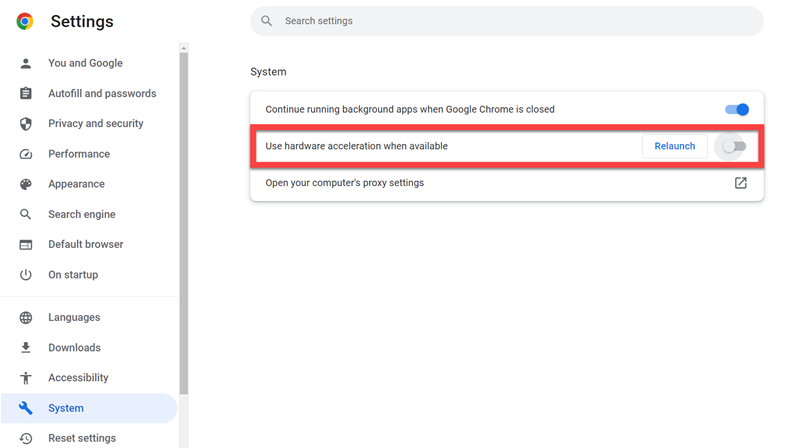
Step 2. Go to Chrome’s Settings, find the System section, and turn off Hardware Acceleration.
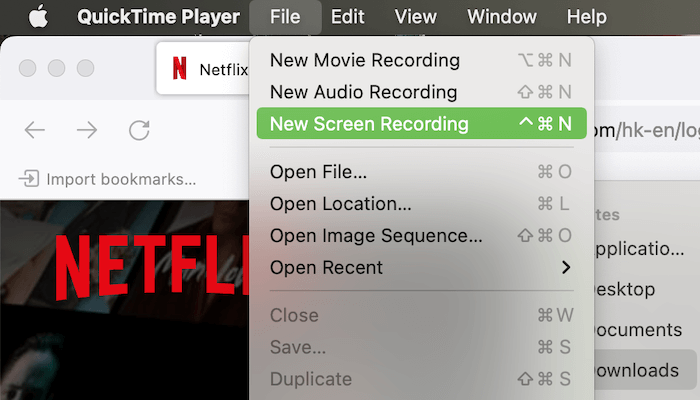
Step 3. Open QuickTime Player, choose New Screen Recording, then play your Netflix movie and start recording your screen. When you’re done, stop the recording and save the video to your Mac.
Part 6. Download Netflix Shows on iPhone and Mirror It to Mac
With macOS Sequoia and iOS 18, Apple added the iPhone Mirroring app. This lets you control your iPhone and use its apps right from your Mac even if your iPhone screen is off. It’s handy for downloading Netflix shows on your phone and watching them offline on your Mac.
To use iPhone Mirroring, make sure:
- Your Mac has Apple Silicon or an Intel T2 Security Chip.
- Both your iPhone and Mac are signed in with the same Apple ID.
- Bluetooth and Wi-Fi are turned on and both devices are close to each other.
If your Mac or iPhone doesn’t meet these requirements, you can try 4kFinder Netflix Video Downloader to download Netflix on your Mac to watch offline without any limits!
Step 1. Open the iPhone Mirroring app on your Mac.
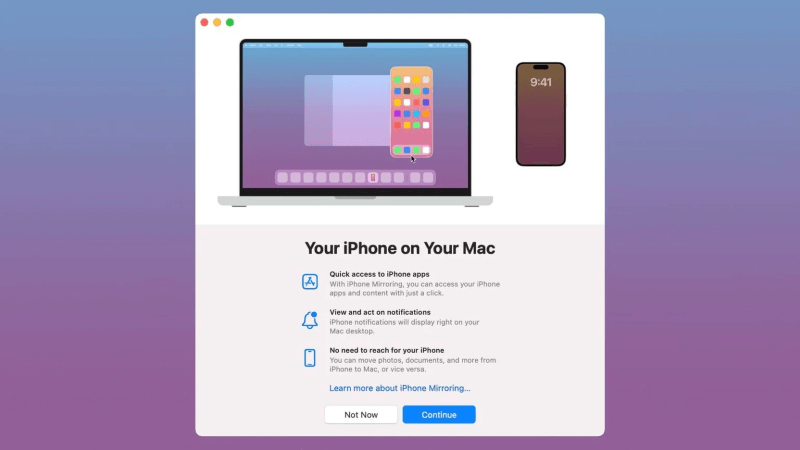
Step 2. Pick your iPhone and enter the passwords on both devices to connect.
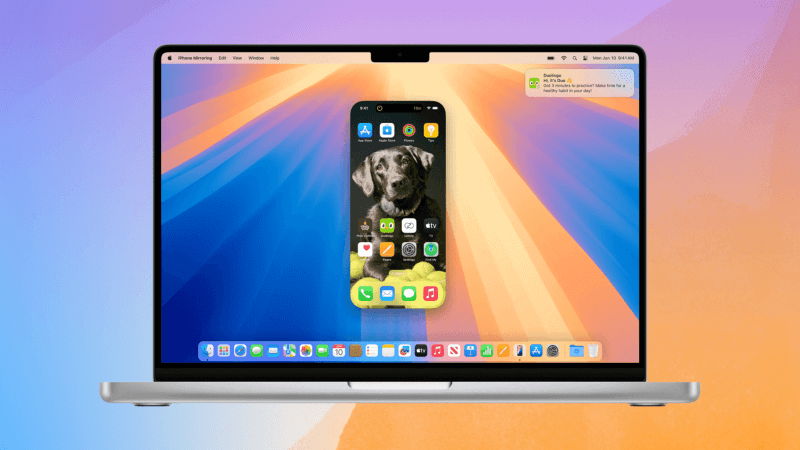
Step 3. When connected, your iPhone screen will show on your Mac. Open Netflix, download your shows, and watch offline.
FAQs about Downloading Netflix Shows on Mac
Q1. Why Doesn’t Netflix Have an App for Mac?
Netflix hasn’t made a Mac app because of limits with macOS, business choices, and strategy. They focus on apps for iPhone, iPad, and Apple TV instead. To watch Netflix on a Mac, you can use a web browser or try options like the iOS app or a virtual Windows desktop. Check Method 2 in the article for more.
Q2. Can I Watch Netflix on the Apple TV App on Mac?
No, you can’t watch Netflix through the Apple TV app on a Mac. Netflix isn’t part of Apple TV due to partnership limits. You’ll need to watch Netflix in a browser or use AirPlay from your iPhone/iPad to your Mac’s big screen.
Q3. Can I AirPlay Netflix from iPhone to Mac?
No, Netflix blocks AirPlay streaming to Mac. But with the new iPhone Mirroring app on macOS Sequoia and iOS 18, you can control your iPhone from your Mac and use the Netflix app on your phone to download shows and watch them on your Mac without AirPlay.
Conclusion
Now you know 5 ways to download Netflix shows on your Mac. The best choice is 4kFinder Netflix Video Downloader. It lets you download Netflix videos on MacBook or iMac, even if you have an ad-supported plan. Plus, the downloaded shows have no DRM and never expire. Click the download button below to try it for free and start saving Netflix shows on your Mac today!