 Download Netflix videos to MP4 or MKV format in 1080P Full HD resolution.
 English
 Arabic
 Chinese (Simplified)
 Chinese (Traditional)
 Croatian
 Czech
Czech Danish
 Dutch
Dutch Finnish
 French
 German
 Greek
Greek Hebrew
 Hindi
Hindi Indonesian
 Italian
 Japanese
 Korean
 Malay
Malay Norwegian
 Polish
 Portuguese
 Russian
 Slovenian
 Spanish
 Swedish
 Thai
Thai Turkish
 Ukrainian
 Vietnamese

Want to watch Netflix on Apple CarPlay? While Apple CarPlay doesn’t support video apps like Netflix by default, there are still ways to make it happen. In this easy-to-follow guide, we’ll walk you through several methods to watch Netflix on CarPlay, including both non-jailbreak and jailbreak methods, allowing you to enjoy your favorite shows while you’re in the car.
Apple CarPlay makes it simple to connect your iPhone to your car’s display, allowing you to use apps like Maps, Messages, and Apple Music while keeping your hands on the wheel. However, a common question among iPhone users is whether it’s possible to stream Netflix on Apple CarPlay. If you’re wondering the same thing, you’ve come to the right place. In this guide, we’ll introduce various ways to watch Netflix on Apple CarPlay with or without jailbreaking your iPhone, so you can watch your favorite shows right from your car.
CONTENTS
Part 1. Can You Watch Netflix on Apple CarPlay?
Before we get into the methods, let’s answer a common question: Can you watch Netflix on Apple CarPlay? Sadly, the official answer is no. Apple doesn’t allow video apps like Netflix on CarPlay because of safety reasons. They want drivers to stay focused and only use safe, essential apps.
However, if you want to keep your passengers entertained during the ride, it makes sense to look for a way to play Netflix in the car. The good news is, there are some workarounds you can try. Below, we’ll show you a few different ways to watch Netflix on Apple CarPlay, with or without jailbreaking.
Disclaimer:
Please use these methods safely. Never watch videos while driving. If you’re ready, let’s get started!
Part 2. Best Way to Watch Netflix on Apple CarPlay [For All Cars]
When it comes to watching videos with Apple CarPlay, it’s important to know that CarPlay doesn’t support video playback by default. That’s why most methods require extra apps or devices. But let’s face it, no one wants to deal with a black screen on their car display. That’s why we recommend using your car’s built-in system and playing Netflix videos from a USB drive. It’s a much safer, easier, and faster solution.
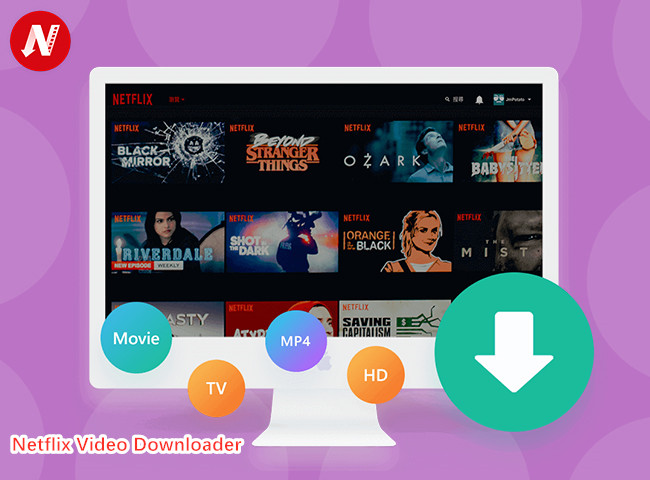
Here’s what to do: just download Netflix videos and save them to a USB drive. Then, plug the USB into your car’s port and start watching. To do this, the best tool is 4kFinder Netflix Video Downloader.
4kFinder Netflix Video Downloader is a powerful and easy-to-use tool that helps you download all kinds of content from Netflix, including movies, TV shows, documentaries, anime, and more. It gives you full control to save Netflix videos in MP4 or MKV format, which means you can watch them anytime on your car screen, smartphone, tablet, or computer without needing an internet connection.
The best part is that 4kFinder keeps the video quality high. You can download videos in Full HD 1080p, and enjoy rich Dolby Atmos 5.1 surround sound for a cinema-like experience. It also supports multiple audio tracks and subtitles, so you can choose your preferred language and enjoy Netflix content your way. Whether you’re on a road trip, camping, or just offline, 4kFinder makes it easy to take your Netflix library with you wherever you go.
👍 Key Features of 4kFinder Netflix Video Downloader
- Download Netflix movies, TV shows and original series in MP4/MKV.
- Support downloading Netflix video in HD 1080P.
- Keep audio tracks and subtitles in multiple languages.
- Batch download videos at 50X speed.
- Remove ads from Netflix.
- Watch Netflix on Apple CarPlay and other devices.
- Works on both Windows and Mac.
Guide: How to Download Netflix Video to Apple CarPlay
Click the “Download” button to download the latest version of 4kFinder Netflix Video Downloader and make your car trips more fun and entertaining.
Step 1. Open 4kFinder Netflix Video Downloader
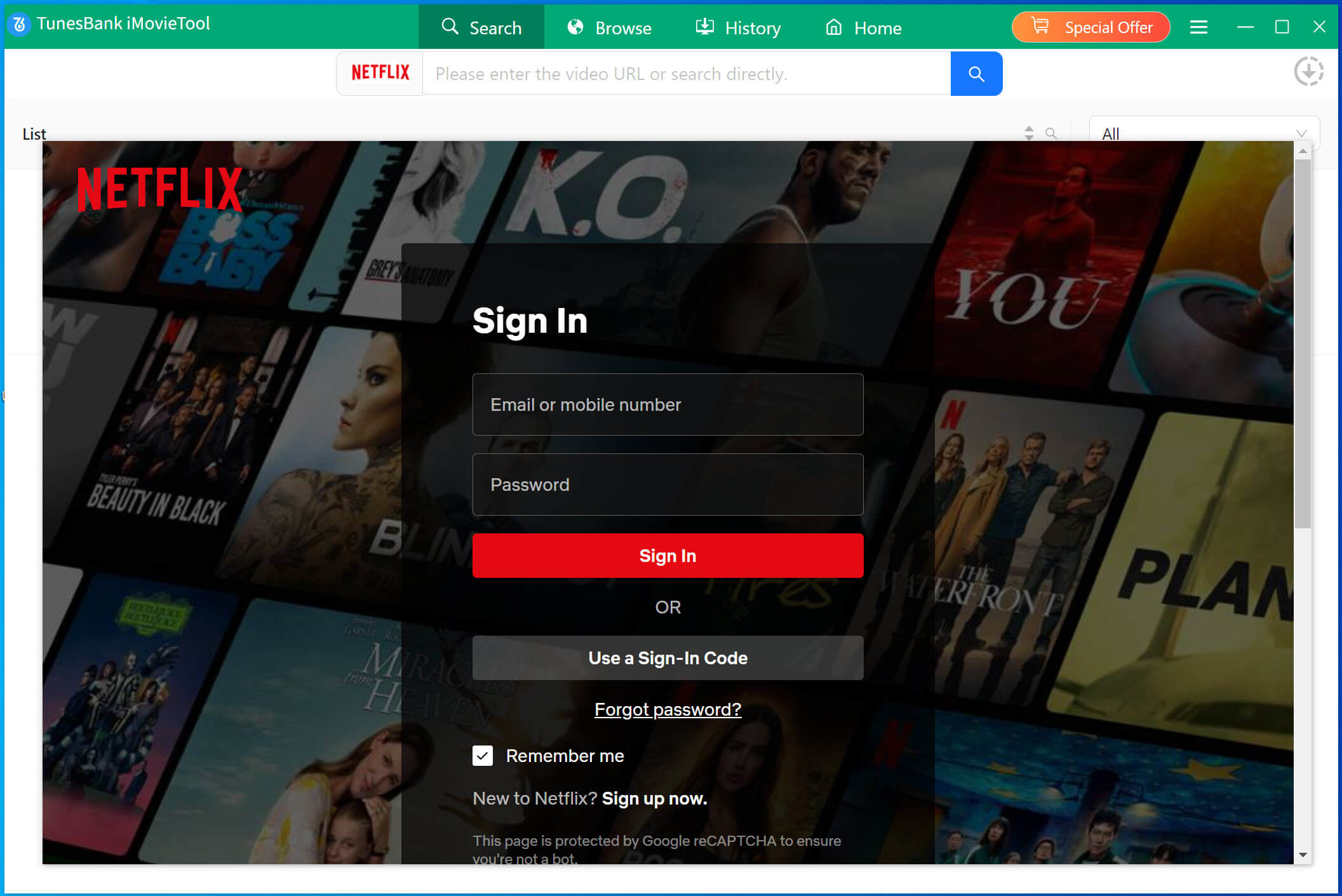
After installing the program, launch it on your computer. It will automatically open the built-in Netflix web player. Log in to your Netflix account to get started.
Step 2. Find Netflix Movie or Show
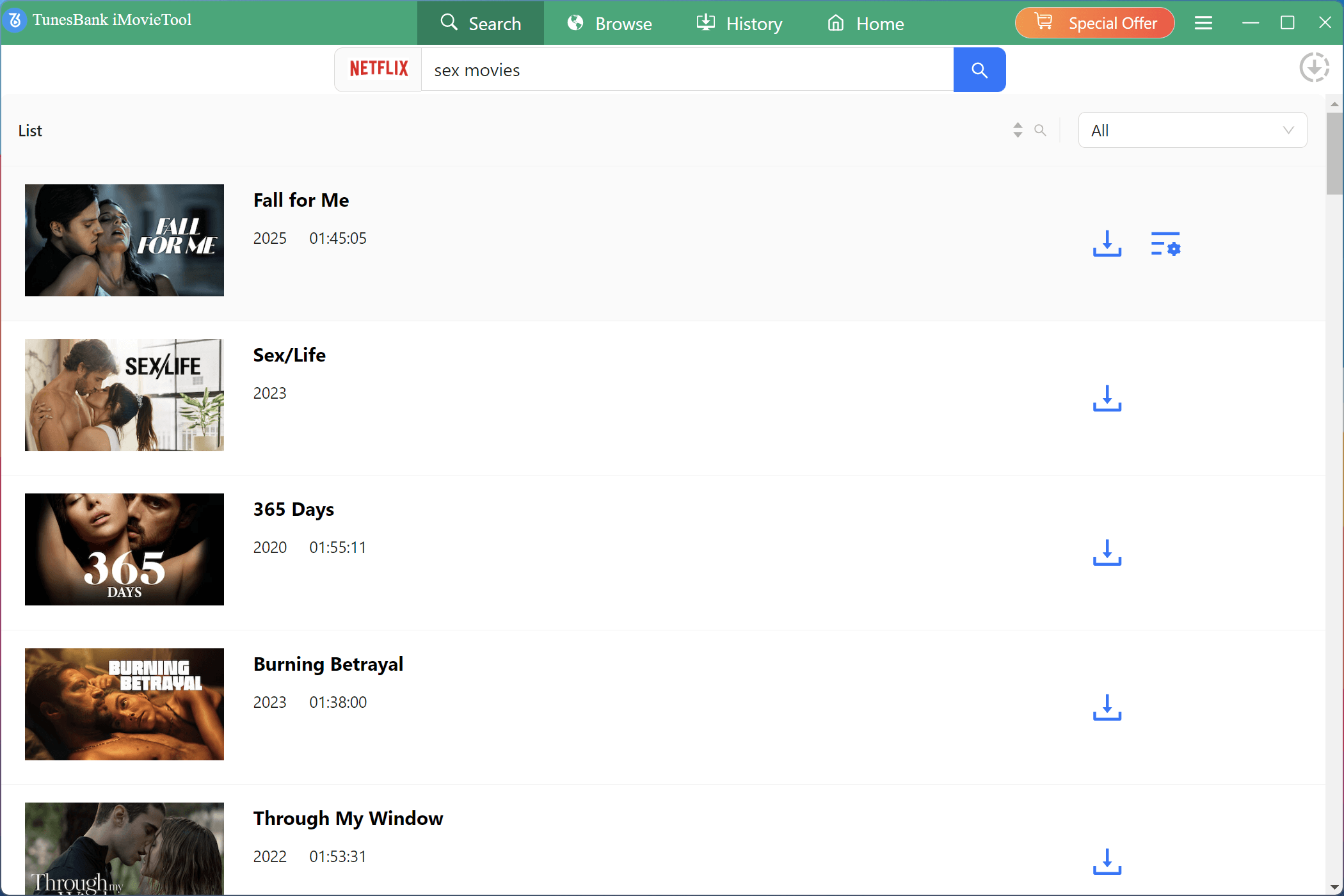
You can search for content in two ways, you can type the name of the movie or show directly in the search bar, or copy and paste the Netflix video link into the search box.
Step 3. Set Up Your Download Preferences
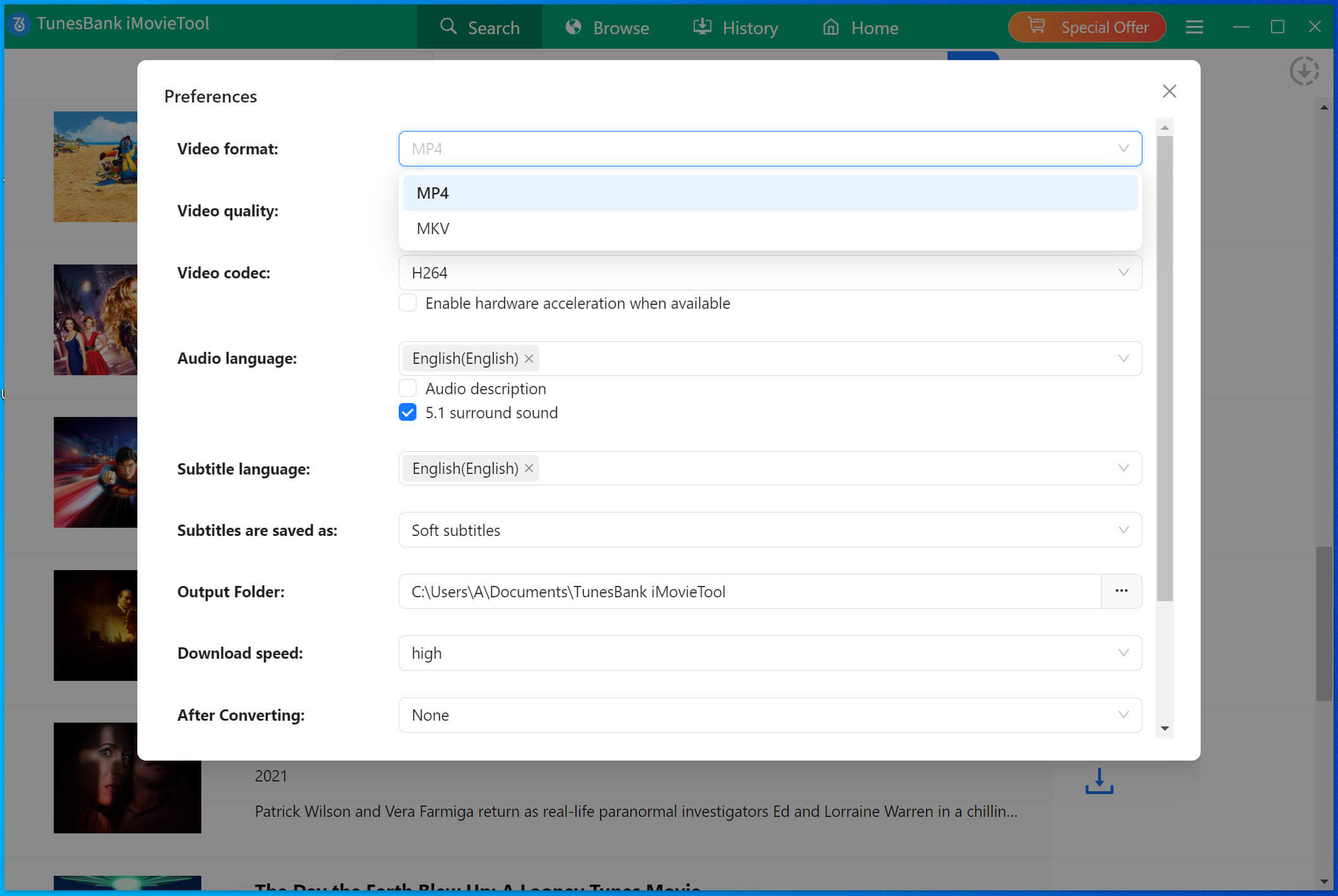
Click the gear icon in the top right corner to open the settings. Here, you can:
- Choose video format (MP4 or MKV)
- Select video quality (1080p)
- Pick subtitles and audio languages
Step 4. Start Downloading Netflix Video
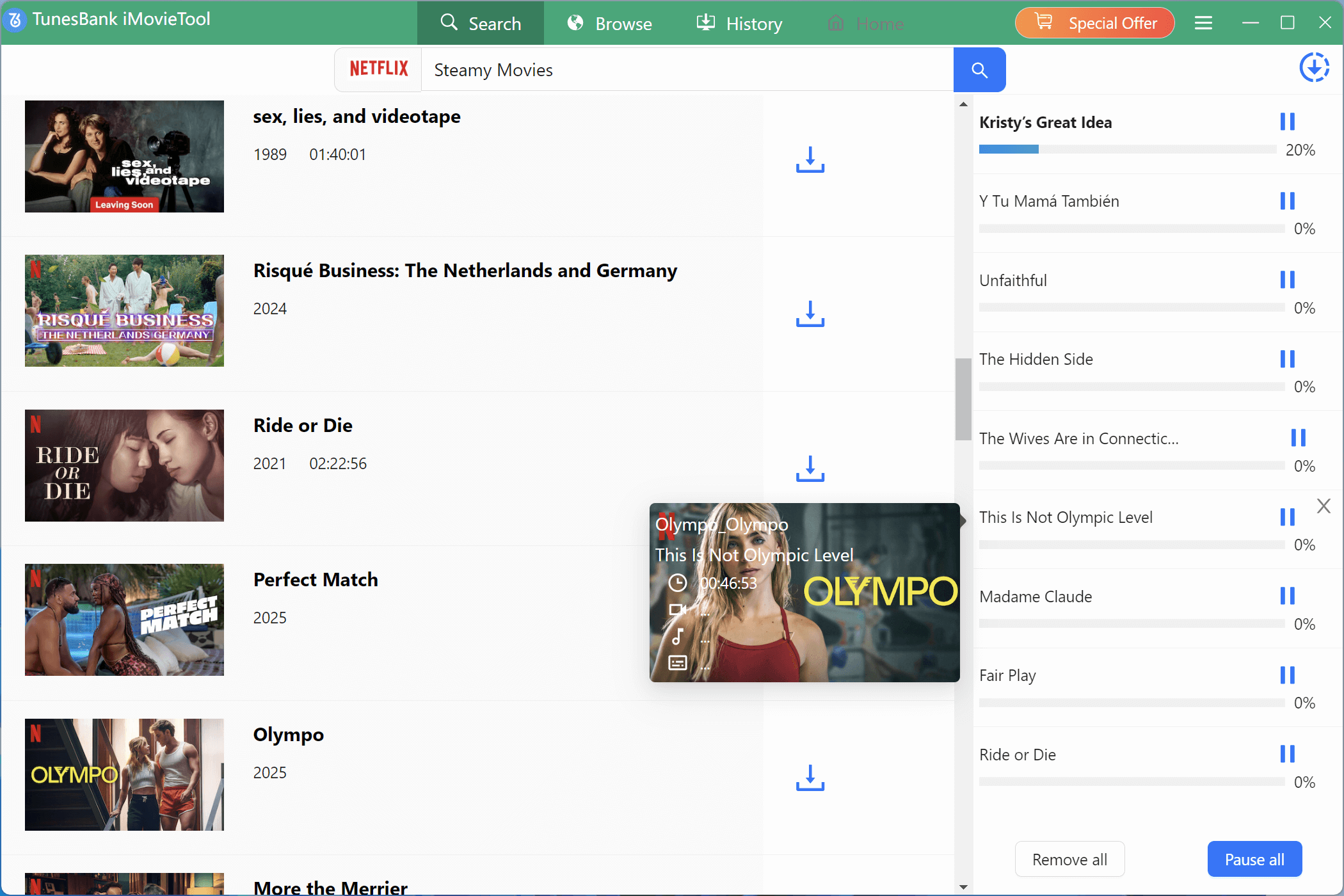
Once everything is set, click the Download button. 4kFinder will begin downloading and converting the Netflix video to your selected format. Just sit back and wait for it to finish.
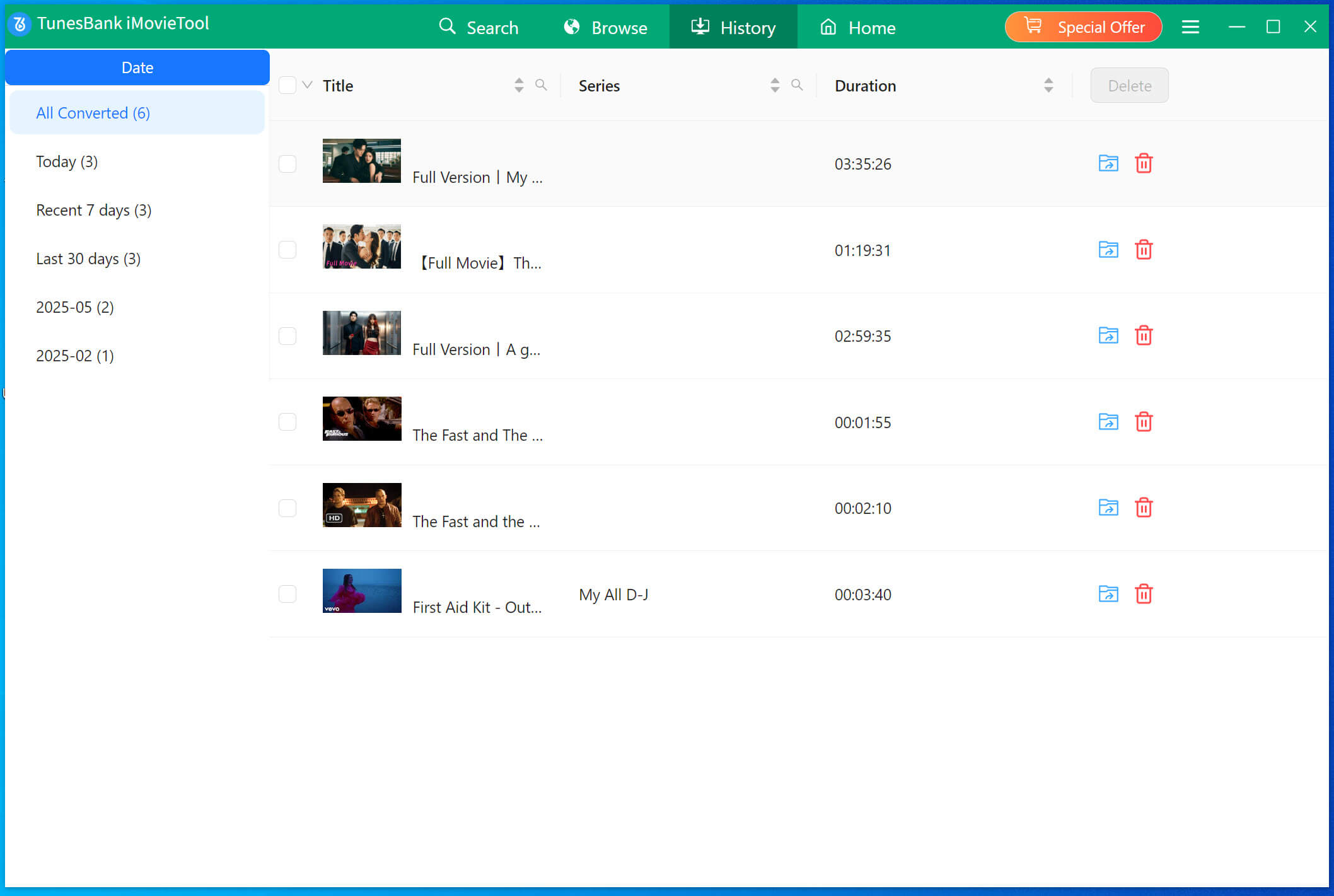
Step 5. Check Your Downloaded Videos
When the download is complete, go to the History tab to see all your downloaded videos.
Step 6. Play Netflix Videos in Your Car via USB
Simply plug your USB drive into your car’s USB port, which is usually located near the dashboard or center console. Then, use your car’s screen to open the Media or USB menu. Browse the files on the USB drive, find the downloaded MP4 videos, select the one you want to watch, and press play to enjoy Netflix movies or shows directly on your car screen.
Part 3. How to Watch Netflix on Apple CarPlay without Jailbreak
Apple CarPlay doesn’t allow video apps like Netflix by default, but there are ways to get around this. Most methods need you to jailbreak your iPhone, but if you don’t want to do that, there’s a good alternative. You can use a third-party app called CarBridge.
CarBridge lets you open apps that aren’t normally available on CarPlay. With it, you can mirror the Netflix app from your iPhone to your car screen. It’s a simple way to watch Netflix on CarPlay without jailbreaking. Just follow these three steps:
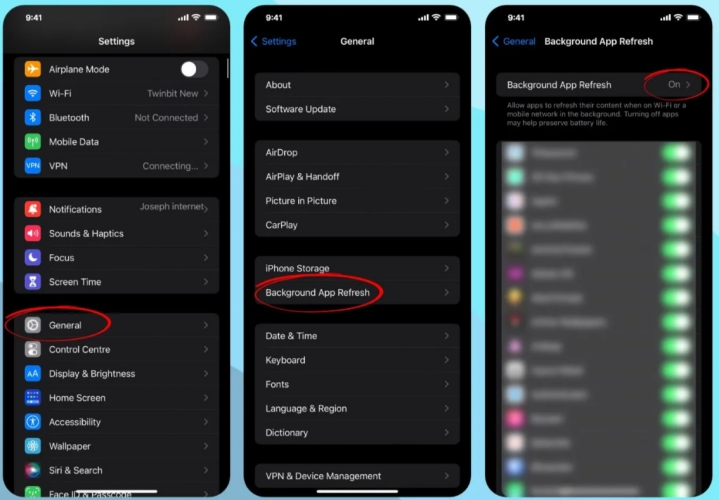
Step 1. Get Your iPhone Ready
- Open Settings and tap General
- Tap Background App Refresh, then tap it again
- Choose Wi-Fi and Mobile Data to turn it on
Step 2. Install CarBridge
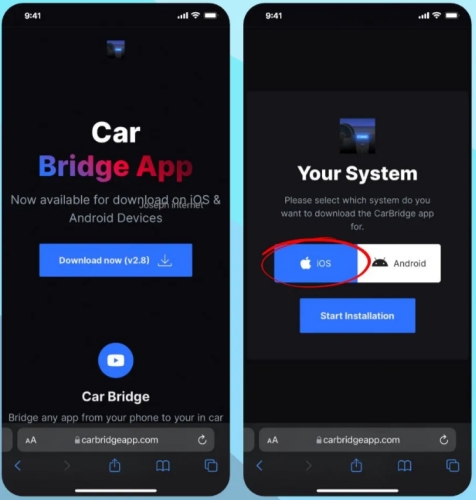
- Open Safari and go to the CarBridge download page
- Tap Download Now, pick iOS, and start installing
- Go to Settings, and tap the message to allow the app from the developer
- Tap Allow and wait for the installation to complete
Step 3. Watch Netflix Using CarBridge
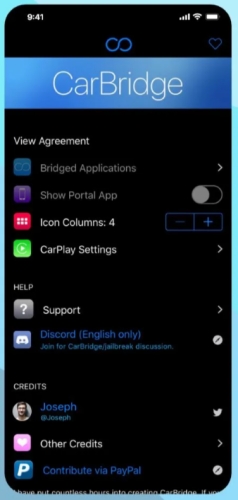
- Turn on Bluetooth and open the CarBridge app
- Connect your iPhone to your car
- Open Netflix and start playing a video on your car screen
That’s it! Now you can enjoy Netflix on Apple CarPlay.
✅Pros
- No need to jailbreak your iPhone
- Works smoothly with CarPlay
- Still works when your iPhone screen is off
- Full touchscreen support
❌Cons
- May have some sound and video delay
- Might not work with the newest iOS versions
- Setup can be a little tricky
- You may need to install extra apps
Part 4. How to Watch Netflix on Apple CarPlay with Jailbreak
Before trying jailbreak methods, you should know that jailbreaking can be risky. It’s a complicated process that might damage your iPhone or even void your car’s warranty. But if you’re okay with the risk, jailbreaking can give you more options to watch Netflix on Apple CarPlay. It removes Apple’s restrictions and lets you install apps that aren’t available in the App Store. One popular app you can use after jailbreaking is called ApowerMirror.
Method 1. Use ApowerMirror to Watch Netflix on Apple CarPlay
ApowerMirror is a screen mirroring app for iPhone and Android. It lets you mirror your phone’s screen to your car’s display, so you can control your iPhone directly from the car screen. This makes it possible to play Netflix while you’re in the car (for passenger use only). Follow these steps:
Step 1. Install ApowerMirror on your iPhone and your car system.
Step 2. Open the app on both devices.
Step 3. On your iPhone, tap LocalCast and wait for your car’s name to show up.
Step 4. Tap your car screen’s name, then tap Cast.
Step 5. Tap Start Broadcasting to begin mirroring.
Step 6. Open Netflix and play any video.
✅Pros
- Allows Netflix playback on Apple CarPlay
- High-quality video
- Full-screen support
- Simple and user-friendly
❌Cons
- Only works with Wi-Fi
- Needs a jailbroken iPhone
- Some features require payment
- May not work on the latest iOS
- No support for offline viewing
Method 2. Watch Netflix on Apple CarPlay Using LetsView
LetsView is a free screen mirroring app and a great alternative to ApowerMirror. It offers an easy way to mirror your iPhone screen to your car’s display. With LetsView, you can wirelessly connect your iPhone to your car and stream Netflix while on the road (for passengers only). Here’s how to use it:
Step 1. Download and install LetsView on both your iPhone and your car’s display system.
Step 2. Make sure both devices are connected to the same Wi-Fi network.
Step 3. Open LetsView on your iPhone and car screen.
Step 4. On your iPhone, select your car’s device from the list.
Step 5. Open the Netflix app on your phone and start watching your show or movie.

✅Pros
- Wireless setup
- Works with apps like Netflix
- Allows screen recording during mirroring
❌Cons
- Requires jailbreaking
- Only works with iOS 9 to iOS 16.5
- May have audio and video sync issues
- Some features may require payment
Part 5. FAQs About Apple CarPlay
Q1. What Is Apple CarPlay?
Apple CarPlay lets you use your iPhone on your car’s screen. It works with iPhones from iPhone 5 and later with iOS 7.1 or newer. You can get directions, make calls, send messages, and play music right from your car’s display. It’s easy to use and many car brands support it.
Q2. Do I Need to Install Apple CarPlay?
No, you don’t need to install anything. CarPlay is already built into your iPhone. Just connect your iPhone to a compatible car or stereo, and CarPlay will show up on the screen.
Q3. How Do I Turn on Apple CarPlay?
Put your car stereo in wireless or Bluetooth mode. On your iPhone, go to Settings > Wi-Fi and turn Wi-Fi on. Tap the CarPlay network and turn on Auto-Join. Then go to Settings > General > CarPlay and pick your car.
Q4. Why Won’t My iPhone Connect to CarPlay?
If CarPlay can’t find your iPhone, check if it’s blocked. Go to Settings > Screen Time > Content & Privacy Restrictions. If restrictions are on, tap Allowed Apps and make sure CarPlay is allowed. Also, go to Settings > General > CarPlay, tap your car, and choose Forget This Car. Then try again.
Conclusion
Today, people want everything to be easy and familiar. With Apple CarPlay, you can not only listen to music but also watch streaming videos like Netflix, especially when you’re camping. We’ve shared several ways to watch Netflix on CarPlay, so you can pick the best one for you. The easiest and most recommended way is to download Netflix videos using 4kFinder Netflix Video Downloader, then you can save them to a USB drive to watch offline on Apple CarPlay without internet.