 Download Netflix videos to MP4 or MKV format in 1080P Full HD resolution.
 English
 Arabic
 Chinese (Simplified)
 Chinese (Traditional)
 Croatian
 Czech
Czech Danish
 Dutch
Dutch Finnish
 French
 German
 Greek
Greek Hebrew
 Hindi
Hindi Indonesian
 Italian
 Japanese
 Korean
 Malay
Malay Norwegian
 Polish
 Portuguese
 Russian
 Slovenian
 Spanish
 Swedish
 Thai
Thai Turkish
 Ukrainian
 Vietnamese


Can you download series on Netflix? Of course! In this post, you will learn how to download Netflix shows iPhone, Android devices, Windows and Mac with simple steps for offline viewing anywhere, anytime.
With over 300 million subscribers worldwide, Netflix remains the world’s leading OTT streaming platform. Netflix series are indeed popular, offering a wide array of genres and origins, including Korean dramas, Thai dramas, European and American dramas, Hong Kong dramas, Taiwanese dramas, and Chinese films, etc. Although there is no official data on how many series are on Netflix, you can easily find your interested ones. While streaming Netflix series is excellent, but it requires a stable and fast network on your devices. To get a smooth streaming experience, the solution is simple: download Netflix series to watch offline.
Can you download series on Netflix? Absolutely. Netflix does offer download features to its paid subscribers. But it should be note that, Netflix removed the download feature from its Windows PC app in June 2024. Currently, users can only download Netflix shows using the mobile app for iOS, Android, and Fire tablet.
But what about desktop users? Don’t worry, there’s always a workaround! In this article, you’ll learn how to download a show from Netflix on mobile and how to download Netflix series on Windows PC or Mac using the best Netflix video downloader tool! You’ll be able to watch Netflix offline on any device without limits!
CONTENTS
How to Download Series on Netflix Mobile App
What if you’re planning a trip, commuting, or heading somewhere with poor internet access, downloading Netflix shows in advance is essential. But you cannot download Netflix videos from the web browser. The download options is only available on mobile devices. The Netflix mobile app is available on a wide range of devices, including Android phones and tablets, iPhones, iPads, Amazon Fire tablets, and Windows tablets.
We should point out that not all video tiles are available for download on Netflix. To save your time and effort, you can check for the “Available for Download” section in Netflix app, from where you can check all downloadable Netflix video titles.
-
Requirements for Downloading a Netflix Show:
✅ An active Netflix subscription
✅ A compatible smartphone or tablet (iOS or Android)
✅ The latest version of the Netflix app installed
Now, follow the step-by-step guide to learn how do you download Netflix Shows on Phone:
Step 1. Launch the Netflix App on your iPhone, iPad, or Android device, or Amazon Fire tablet.
Step 2. Sign in to your Netflix account, make sure your subscription is active.
Step 3. Find the TV show/series you want to download, and click the tile to enter the detailed page.
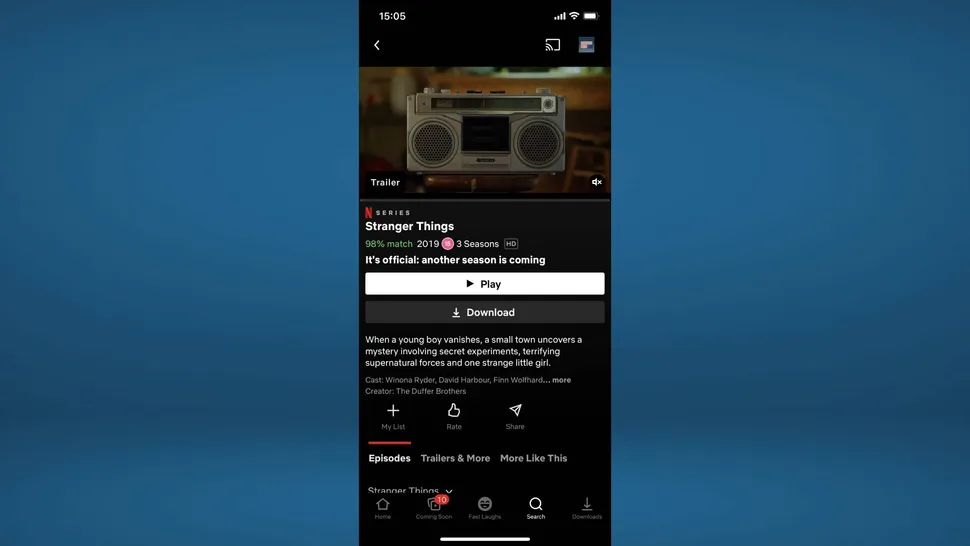
Step 4. Select the episodes you want to download. Tap the “Download” icon next to tie title.
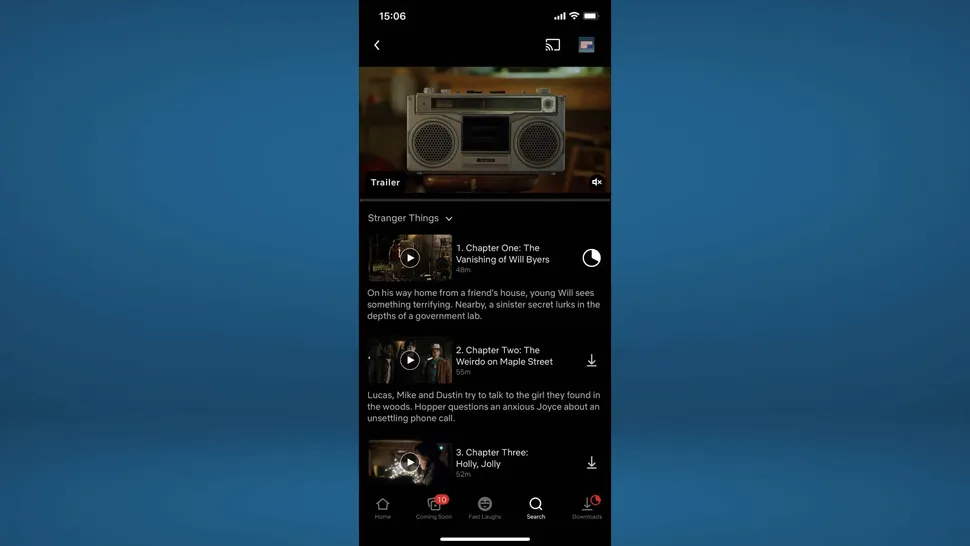
Step 5. After that, go to “Downloads” in the bottom menu to view your saved Netflix shows. You can watch Netflix shows offline on your phone!
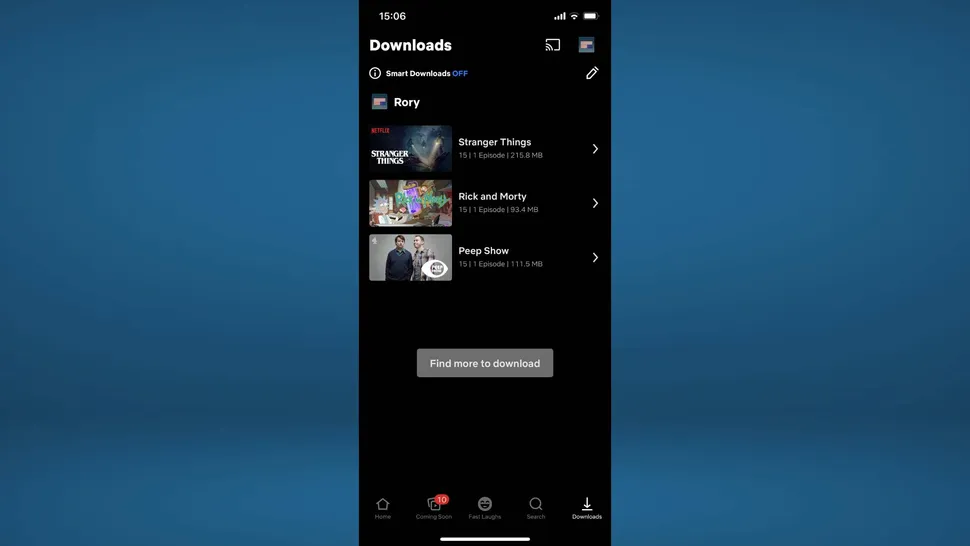
Notes: Netflix’s Download Limits:
● Not all Netflix content is available for download
● You can only download content on a limited number of devices (based on your plan).
● Downloads expire after 48 hours once playback starts or 30 days or 7 days of storage.
● You can only access your downloads within the Netflix mobile app.
Given these restrictions, it;s wiser for you to download Netflix series as MP4 that will never expire. Scroll down to get the best solution.
How to Download Netflix Series on Windows and Mac (MP4 Format)
Can you download series on Netflix on PC? That’s the question many Netflix Windows users are still asking in 2025. Of course! You can ask help from a third-party Netflix video downloader. Here we recommend using 4kFinder Netflix Video Downloader.
The program has embedded the Netflix web browser, allowing you to access its full video library by simple log-in. Additionally, 4kFinder enables you to browse and search for your desired TV shows, episodes within the program, and download unlimited Netflix shows to your computer without the Netflix app! Using it, you can download and save Netflix TV shows in MP4 or MKV format with original HD 1080p resolution, and enjoy a smooth and great offline playback! Better still, its download speed can be up to 50X faster than official Netflix app, and makes it easy to batch download entire series from Netflix with one click!
With the help of 4kFinder program, you can keep your Netflix downloads permanently on your PC/Mac, and watch Netflix shows, movies offline anytime, anywhere – whether it’s on your computer, phone, tablet, smart TV, game console, or even car screen! Give it a free try right now!
Key Features of 4kFinder Netflix Video Downloader:
- Download Netflix videos to PC/Mac from in-built web browser.
- Download Netflix TV shows, movies, Originals MP4 or MKV format.
- Support for Full HD (1080p) quality to save your Netflix videos.
- Preserve original subtitles and multi-language audio tracks.
- Able to batch download entire series from Netflix with one click.
- Compatible with Windows 11/10/8/7 and macOS, no Netflix app needed.
Simple Steps to Download Netflix Shows to PC/Mac
Now let’s dive into how to download Netflix shows on PC or Mac in MP4 files by using the 4kFinder Netflix Video Downloader.
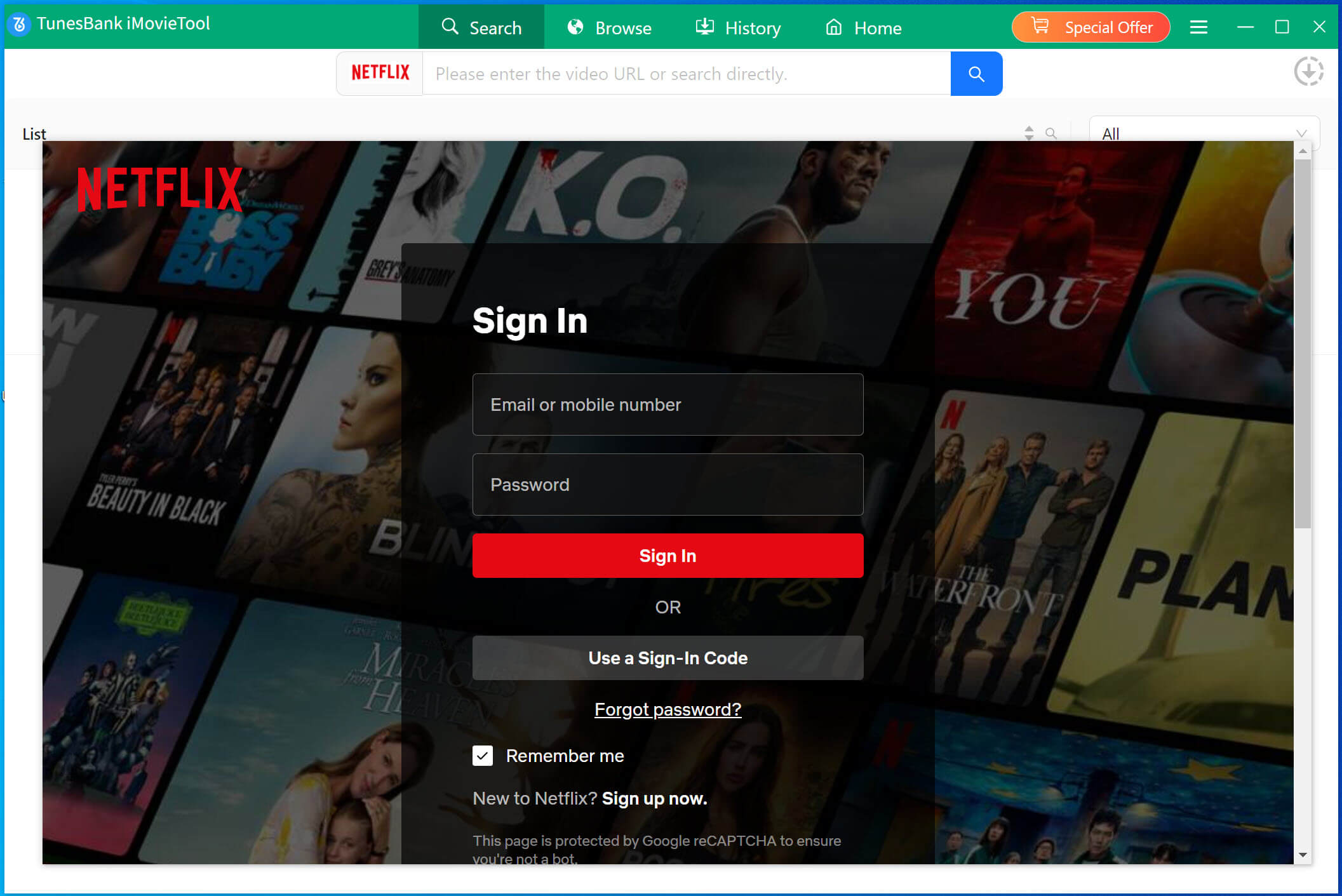
Step 1. Log Into Your Netflix Account
4kFinder Netflix Video Downloader supports both Windows OS and macOS, download the right version for your OS. Install and launch the program, log in to your Netflix account within the 4kFinder interface.
Step 2. Add Netflix Videos
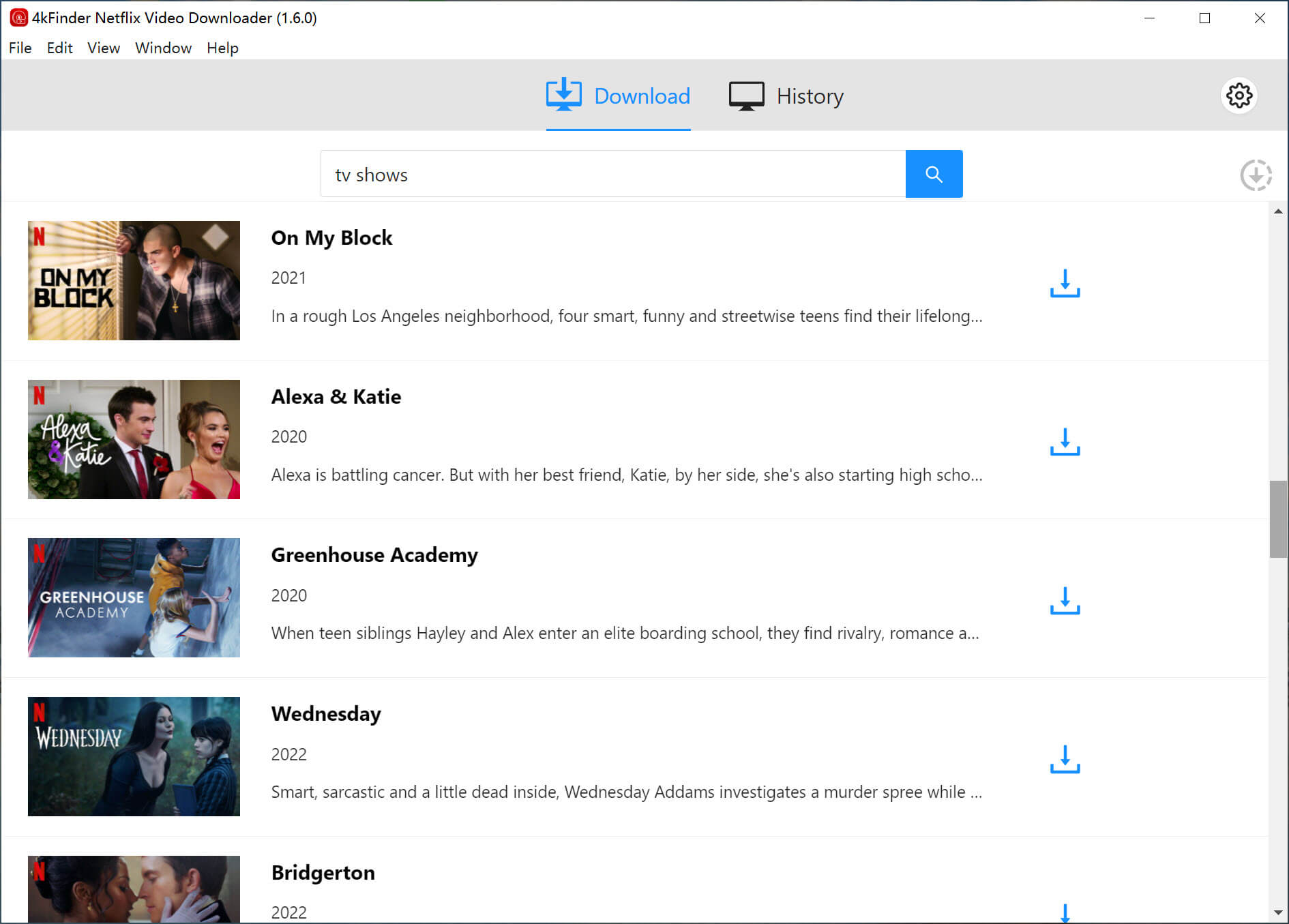
Then you will enter its built-in web browser. Use keywords to find a series in the search bar. Or copy & paste the URL from Netflix to 4kFinder.
Step 3. Define Output Settings
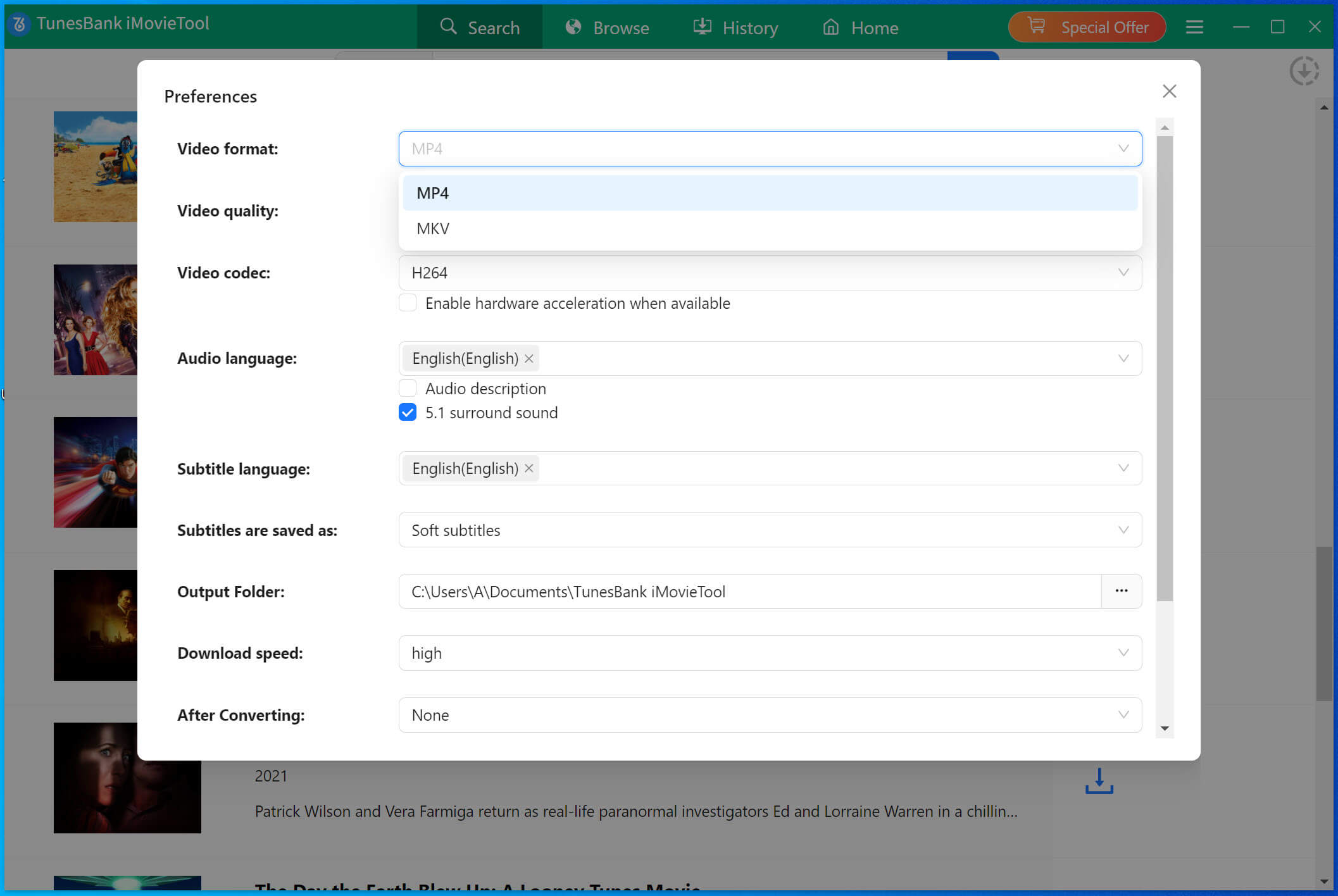
Before downloading series on Netflix, you need to customize the output settings for your added Netflix series. Click the “Gear” icon at the upper right corner of the interface. From where you are allowed to set the video format (MP4 is recommended), video codec, video quality (choose high), and audio language, subtitle language and more.
Step 4. Start Downloading Netflix Shows
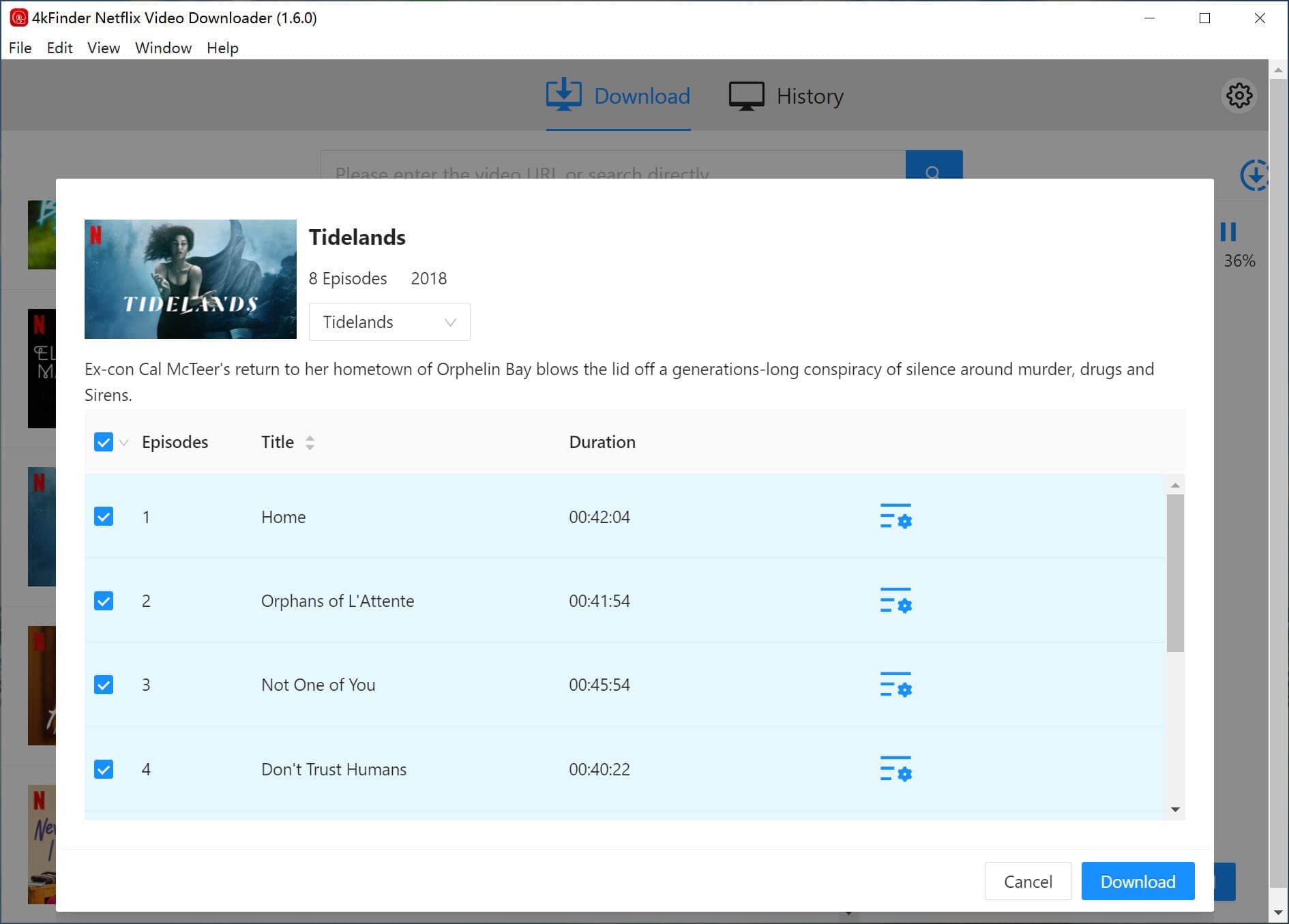
Click “Download” button next to the title, select your desired Netflix episodes/seasons you want to download. For “Advanced Settings”, please hit on the “Gear” icon.
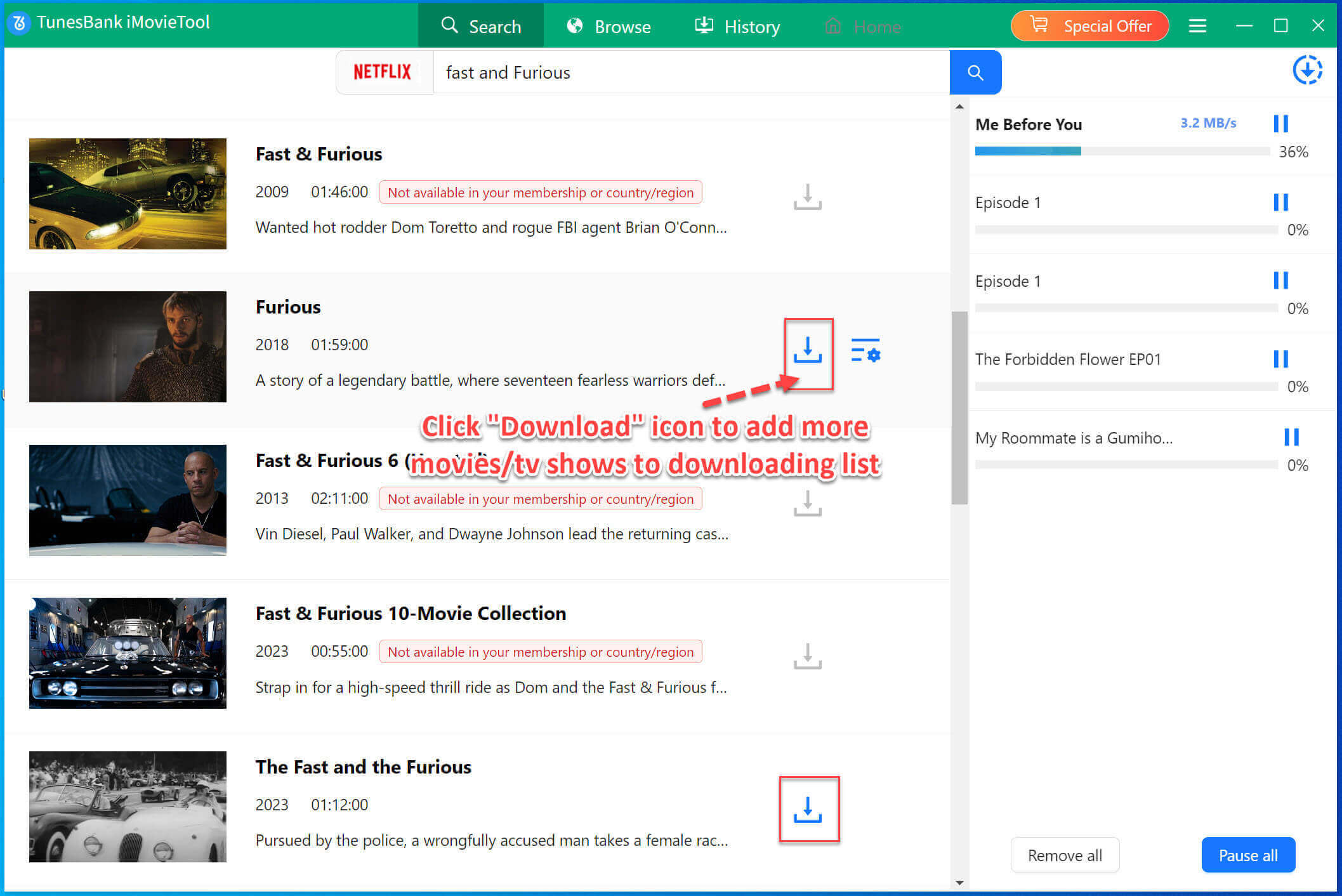
If ready, simply press on the “Download” button. During the process, you can add more URLs to the program for bulk downloads.
Step 5. Get Downloaded Netflix Shows
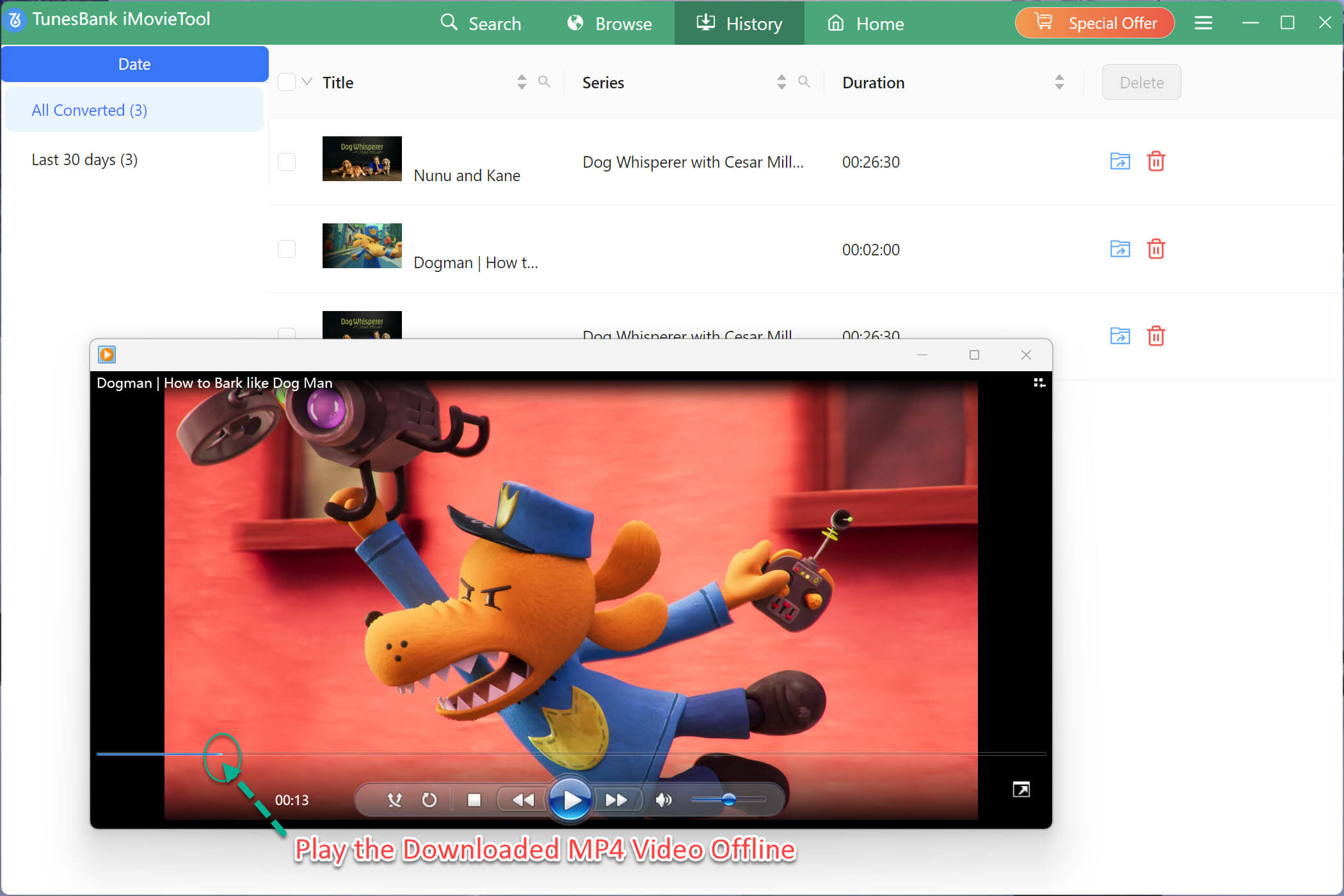
Once complete, your high-quality Netflix shows will be saved to your PC or Mac in MP4 format. Tap “History” tab, and click the “Blue Folder” icon to locate the output folder. And you can now watch those Netflix shows offline on your computer using other players!
FAQs About Netflix Series Download
Are there any Netflix Series that cannot be downloaded?
Yes. Some Netflix originals and licensed shows are not available for download due to licensing restrictions. If there’s no download icon, the content can’t be saved offline. Instead, you can only watch these content online with an Internet connection.
Is there a limit on how much I can download Series on Netflix?
Yes. When you download on Netflix app, you are limited to have 15 total downloads per device with an ad-supported plan. For Premium users, you can download up to 100 titles per device, depending on your plan. If you want to download unlimited series and movies from Netflix without limits, 4kFinder Netflix Video Downloader would be a good helper.
Can you download Netflix Shows without the App?
As we mentioned earlier, Netflix only lets you download video content on Netflix mobile app. If you want to download videos from Netflix web player/browser, consider using the Netflix App Alternative – 4kFinder Netflix Video Downloader. It allows you to download Netflix shows, movies and Originals directly via built-in web player.
How long can I keep downloaded Netflix Series?
Most downloads expire 30 days after download, some even last for 7 days. Once playback begins, you have 48 hours to finish watching. To keep your Netflix downloads forever, you can use 4kFinder Netflix Video Downloader. It can help you download and save Netflix videos as local MP4 or MKV files, no expiration!
Can I download Netflix Series to USB or SD card?
Normally, Netflix doesn’t allow to download any content to USB drive. For Android users, you can download and move Netflix series to internal SD card on your devices, but they will be removed/deleted after 7 or 30 days. To download and save Netflix series to USB drive and external SD card forever, you can use 4kFinder Netflix Video Downloader to download Netflix videos to MP4, you can then transfer them to any external storage device.
The Bottom Line
It is possible to directly download series on Netflix on your mobile devices if you have a subscription plans. But still, there are several limitations. Using 4kFinder Netflix Video Downloader enables you to download unlimited Netflix videos to your Mac/ Windows without the Netflix app. It delivers a convenient Netflix video download service to save Netflix video content in HD 1080p high quality. You can easily download Netflix TV shows, movies/documentaries/Originals to HD MP4/MKV in batches. Thus, you can watch your favorite Netflix shows, movies and more on any device offline, no restrictions!