
 Download Netflix videos to MP4 or MKV format in 1080P Full HD resolution.
 English
 Arabic
 Chinese (Simplified)
 Chinese (Traditional)
 Croatian
 Czech
Czech Danish
 Dutch
Dutch Finnish
 French
 German
 Greek
Greek Hebrew
 Hindi
Hindi Indonesian
 Italian
 Japanese
 Korean
 Malay
Malay Norwegian
 Polish
 Portuguese
 Russian
 Slovenian
 Spanish
 Swedish
 Thai
Thai Turkish
 Ukrainian
 Vietnamese


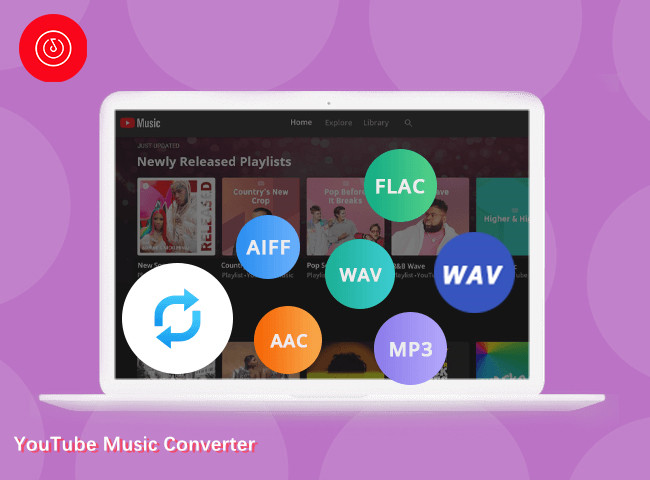
Looking to download YouTube Music playlists to your PC or Mac? This guide shows 3 easy methods to save playlists from YouTube Music to your computer, so you can listen to your favorite songs offline anytime.
YouTube is a popular platform for all kinds of videos, such as educational content, music videos, entertainment, and tutorials. Sometimes, you may want to download playlist from YouTube Music to watch offline, whether it’s for a long trip, study time, or to keep a personal collection of your favorite tracks.
Downloading each song or video one by one can be exhausting. Luckily, there are tools that let you download YouTube Music playlist to PC/Mac quickly and easily. In this guide, we’ll show three of the best methods to save entire YouTube Music playlists on your computer, so you can enjoy your favourite songs offline without restrictions.
CONTENTS
Part 1. Best Way to Download YouTube Music Playlist on PC/Mac [Hot]
YouTube Music, created by YouTube, is a music streaming service offering official songs, albums, and playlists, similar to Spotify. You can access playlists via the web player or the mobile app on Android and iOS. But if you want to download YouTube Music playlists as MP3 files for offline listening, 4kFinder YouTube Music Converter is the ideal tool.
4kFinder YouTube Music Converter lets you easily download YouTube Music playlists to PC or Mac and convert them to popular audio formats like MP3, M4A, AAC, WAV, FLAC, or AIFF. With fast speeds, you can quickly download playlists from YouTube Music, whether it’s songs, albums, or entire playlists. The software is easy to use. Just add the playlists, choose the format and quality, and start the download. After the download is complete, your music will be stored on your computer and ready to play offline anytime. You can listen on your PC, move it to your iPhone, or enjoy it on the go while traveling.
Main Features of 4kFinder YouTube Music Converter
- Support both YouTube Free and Premium accounts.
- Capable of downloading tracks, albums, and playlists from YouTube Music.
- Converts YouTube Music to lossless MP3, M4A, AAC, FLAC, WAV, and AIFF formats.
- Batch download at up to 16x faster speed.
- Preserves ID3 tags and metadata information.
- Enables permanent download of music from YouTube to your computer.
- Built-in YouTube Music web player, eliminating the need for extra app installations.
- Compatible both Windows and Mac operating systems.
To begin, you can download the free trial version and install it on your computer. Keep in mind that with the trial version, you can test its features by converting the first minute of up to three tracks.
Tutorial: How to Download YouTube Music Playlist to MP3 on PC
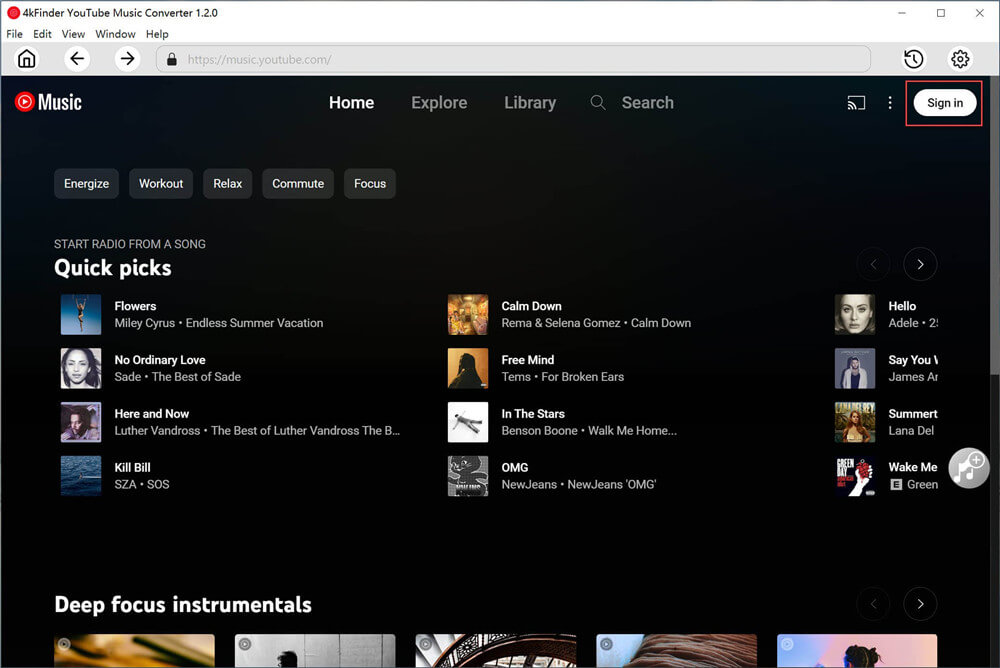
Step 1. Launch 4kFinder & Login your YouTube Account
After successfully installing the program on your computer, launch the 4kFinder YouTube Music Converter and click on the “SIGN IN” button. Next, log in to your YouTube Music account, whether it’s the Free or Premium version.
Step 2. Choose Output Format
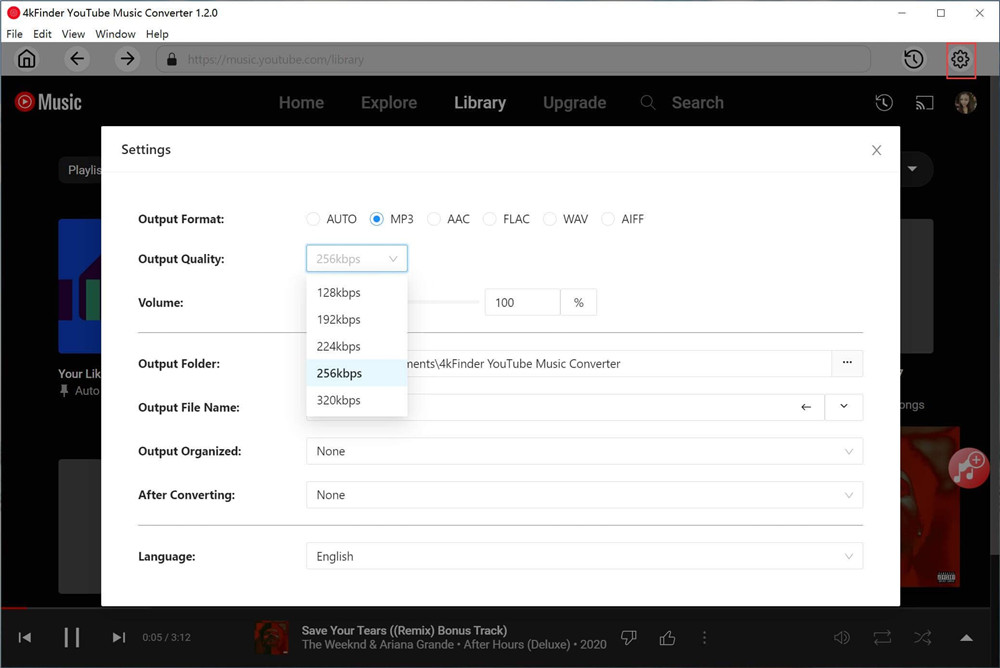
To customize the output format, access the “Settings” option located in the upper corner. A settings window will appear, offering a range of output format choices, including MP3, M4A, AAC, FLAC, WAV, and AIFF. Simply opt for the MP3 format from the list to continue.
Step 3. Add YouTube Music Playlists/Albums to List
The converter is integrated with a convenient YouTube Music Web Player, allowing you to effortlessly search, stream, and add songs directly within the platform.
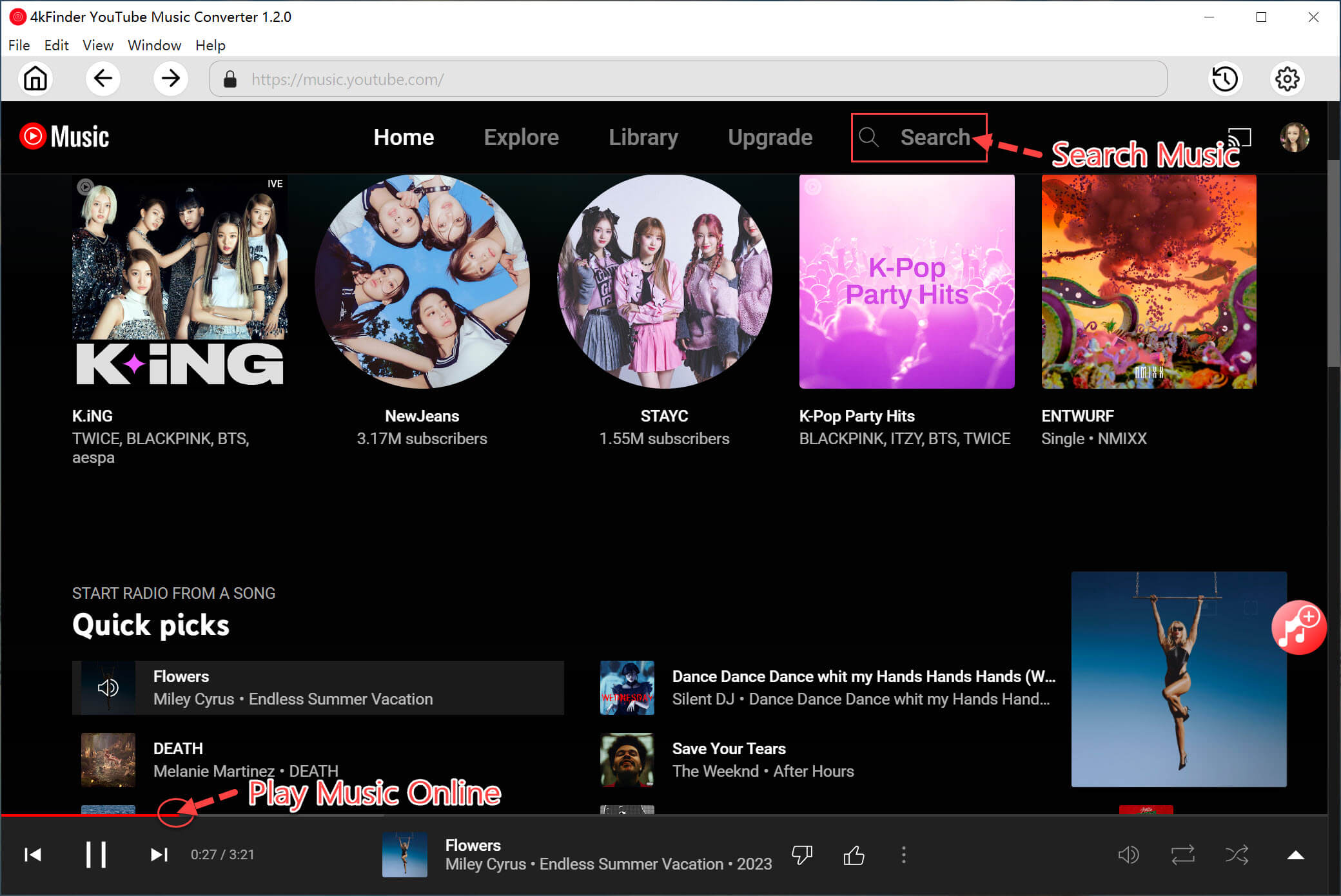
To add any song, album, or playlist in the converting list, just open it and click on the red “+” icon. This action will add the selected item(s) to the list, enabling you to convert them as desired.
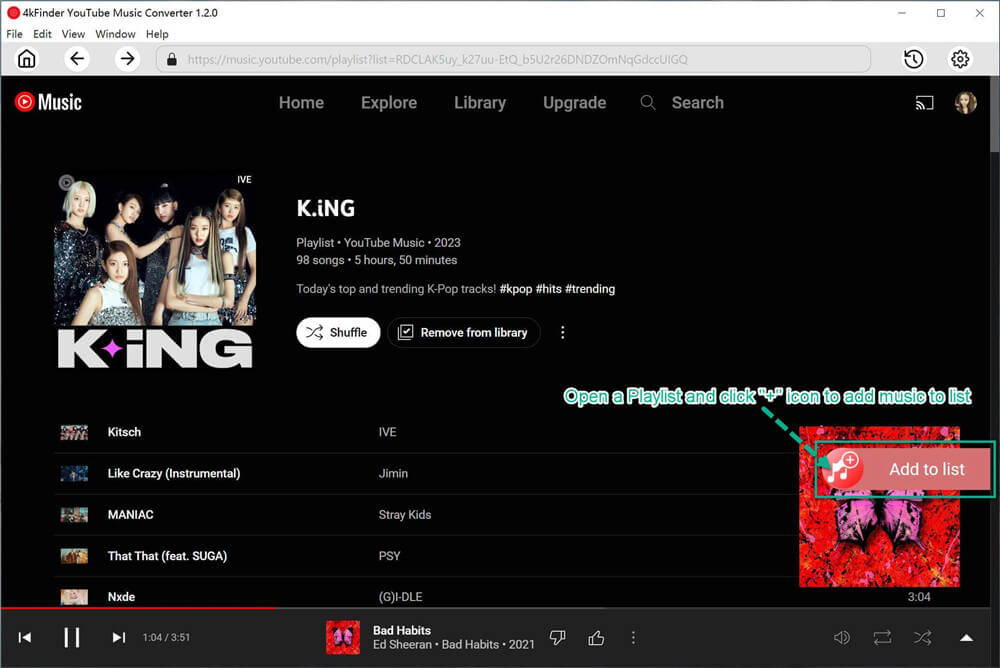
Step 4. Select YouTube Music Songs
The conversion panel will automatically load all the songs from the chosen album or playlist. You can simply deselect the songs you don’t wish to include in the conversion process.
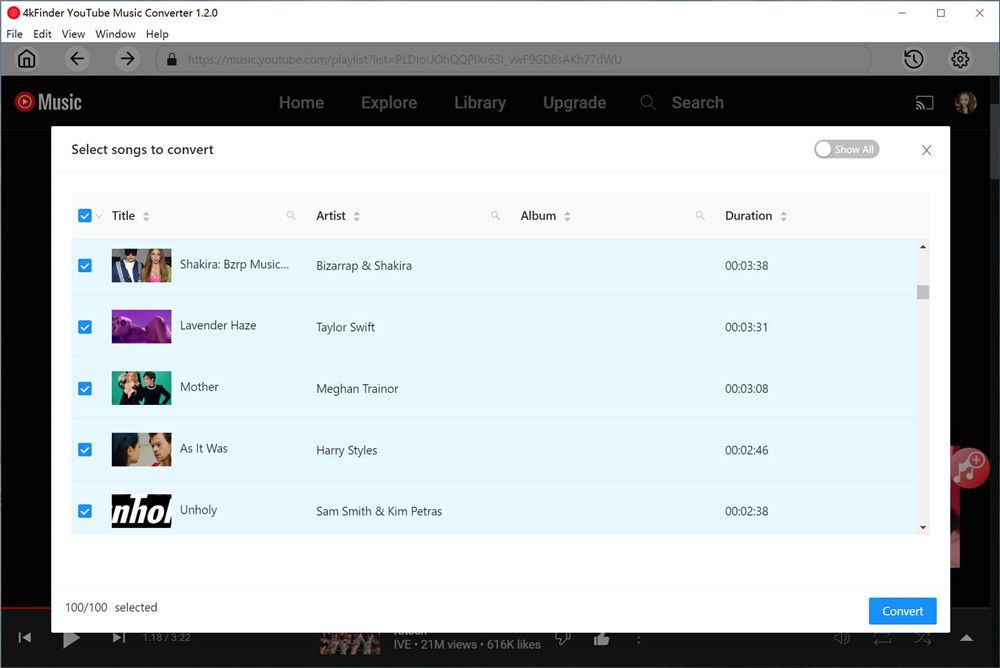
Step 5. Start to Download YouTube Music Playlist to MP3
After selecting the songs you want to convert, just click on the “Convert” button to initiate the download process, converting your chosen YouTube Music selections into MP3 format.
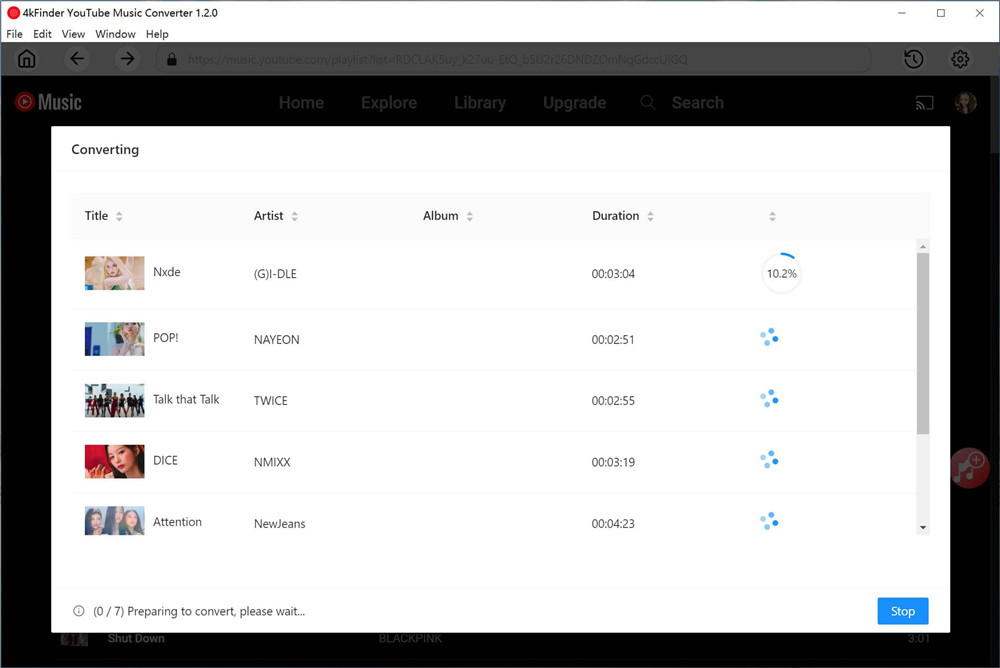
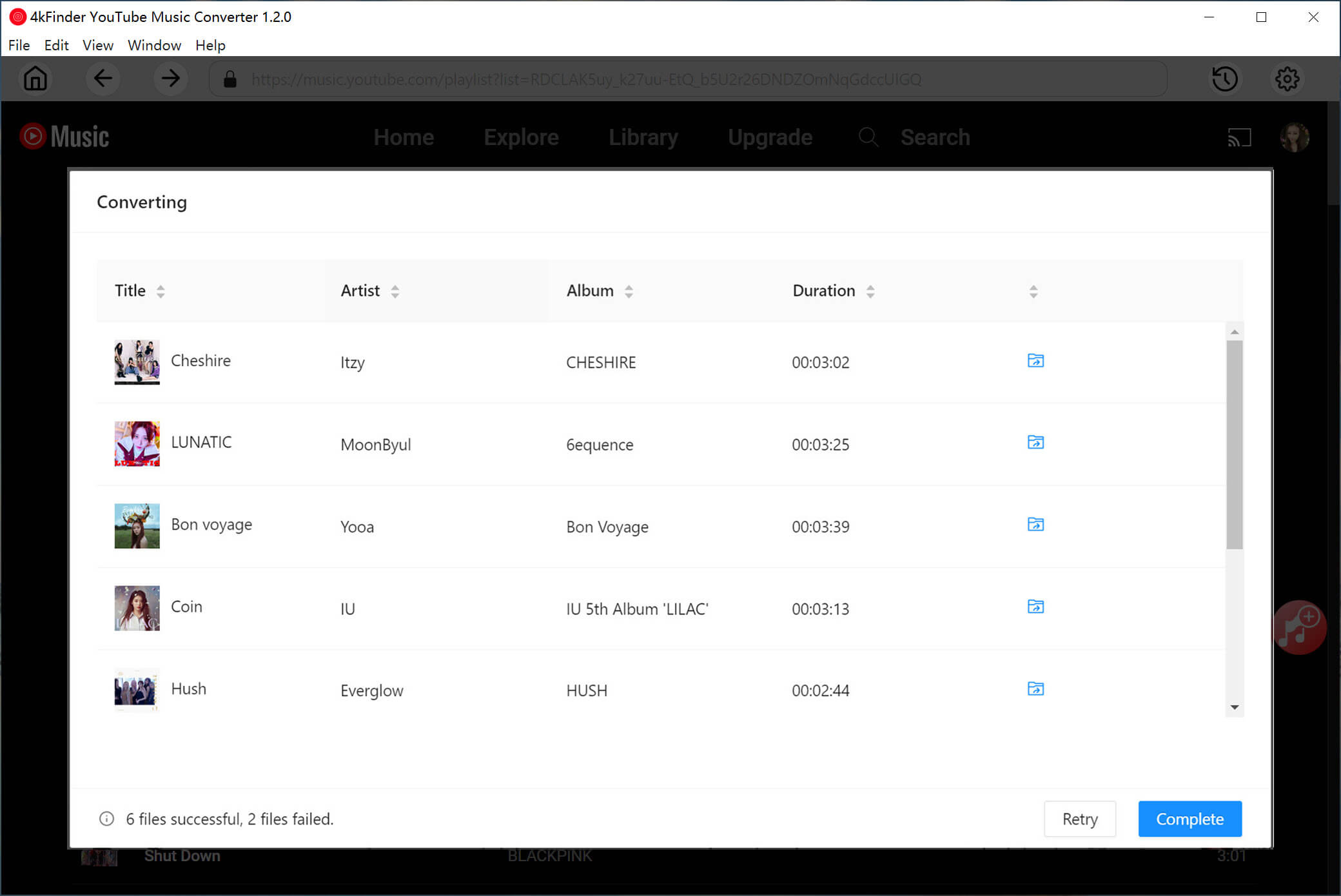
Step 6. View the Converted YouTube Music Songs
Once the conversion process is complete, you can access your converted YouTube songs by clicking on the “History” option. Additionally, you can use the blue folder icon to conveniently navigate to the output files containing your converted YouTube music.
Step 7. Play Music Offline with Built-in Music Player
You can easily access a built-in Music Player to enjoy your downloaded songs offline, eliminating the requirement for additional music players or the YouTube Music app.
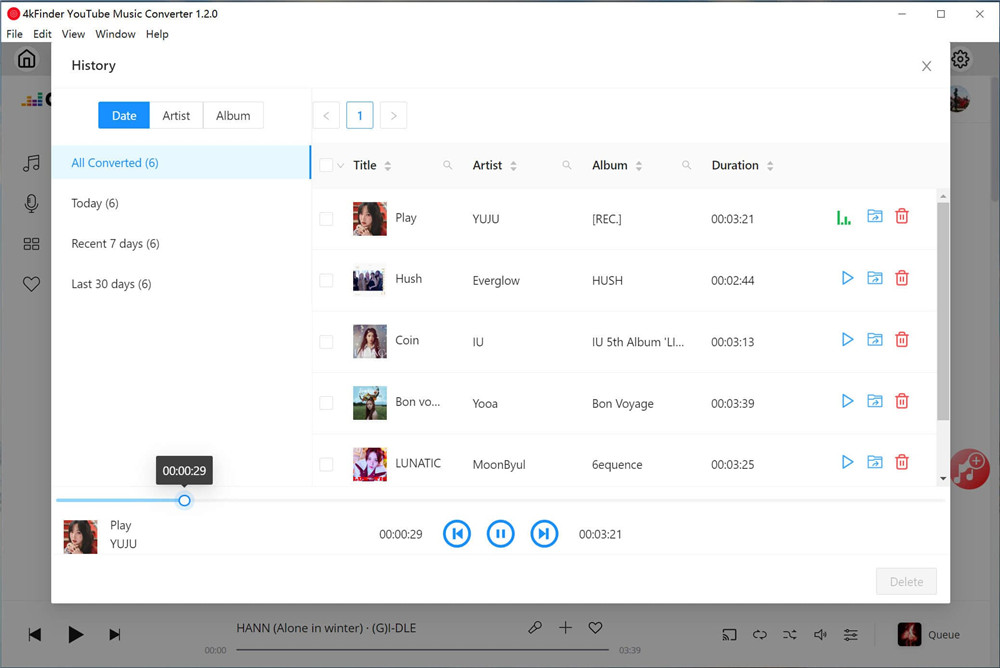
With your YouTube Music playlists now downloaded in MP3 format, you can enjoy them on various devices like Google Home, Apple Watch, iPhone, Android, or any other compatible device, giving you the freedom to listen wherever you please.
Part 2. Download YouTube Music Playlist with Online Tool
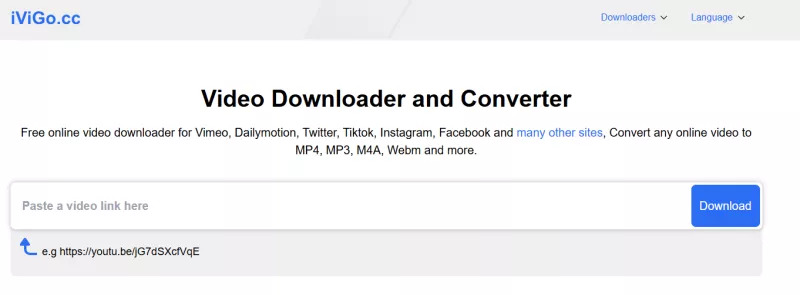
If you prefer not to install any software, an online YouTube playlist downloader is a convenient option. These web-based tools let you download a playlist from YouTube Music directly in your browser. iViGo.cc is a simple and effective online downloader that allows you to quickly save YouTube playlists as MP4 or MP3 files.
Steps to Download a YouTube Playlist Using iViGo.cc
Step 1. Open your browser and visit the iViGo.cc website.
Step 2. Go to YouTube in another tab, find the playlist you want, and copy its URL.
Step 3. Paste the playlist URL into the field on iViGo.cc.
Step 4. Click Download and wait for the process to finish.
Part 3. Download YouTube Music Playlist with Chrome Extension
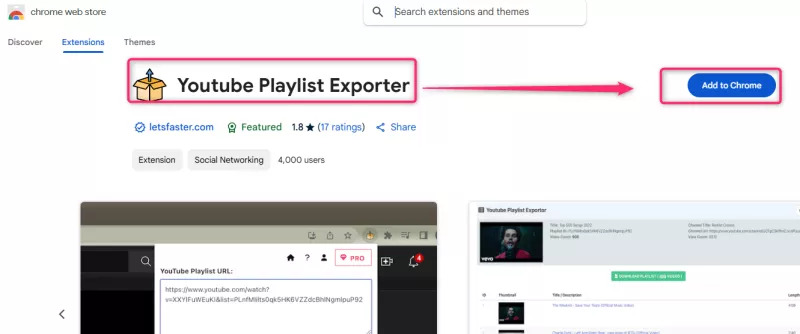
If you like working directly in your browser, a Chrome extension is an easy way to download YouTube Music playlists. With just a few clicks, you can save entire playlists without leaving Chrome. The YouTube Playlist Exporter extension lets you quickly download and export playlists. It works right in your browser, so you don’t need extra software. You can save videos in different formats and keep them for offline viewing, whether for learning, entertainment, or personal archives.
How to Download YouTube Playlists with the Chrome Extension
Step 1. Go to the Chrome Web Store and add YouTube Playlist Exporter to your browser.
Step 2. Open the playlist you want to download.
Step 3. Click the YouTube Playlist Exporter icon in your browser.
Step 4. Choose your preferred settings and format, then click Export to save the files to your computer.
Conclusion
That’s it! These are some of the best ways to download YouTube Music playlists. Whether you prefer dedicated software, an online downloader, or a Chrome extension, there’s a solution for every need. Among them, 4kFinder YouTube Music Converter stands out for full functionality and high-quality downloads. Each method allows you to download playlists from YouTube Music easily and conveniently, giving you the freedom to enjoy your favorite content anytime, anywhere. Pick the one that works best for you and start downloading today!