Professional
Years of study, skilled staff and guaranteed quality
 All-in-One Video Downloader

Guide Tips
Guide
Part 1: Trial Version Vs. Full Version Part 2: Installation & Register Part 3: Video Tutorial Part 4: Download Videos from Social Media SitesPart 1: Trial Version Vs. Full Version
About iMovieTool:
iMovieTool All-in-One Video Downloader not only can free download videos from social media sites like YouTube, TikTok, Facebook, Twitter/X, and Instagram, but also supports to download HD movies and TV shows/TV series from Netflix, YouTube, Amazon Prime, Disney+, HBO Max, Hulu, Paramount Plus, Apple TV+, and Paramount+.
Notice: 4kfinder is for personal use only, we not allows users to download copyright video.
Trial Version Vs. Full Version
Trial Version: iMovieTool trial version only allowed download the first 6 minutes of each video files from each social media sites and streaming video sties.
Full Version: iMovieTool full version allows you download as many videos as you like without limitations, one time payment, lifetime using and upgrades free.
You can buy All-in-One Social Media Downloader, which including YouTube Video Downloader, TikTok Video Downloader, Facebook Video Downloader, Twitter/X Video Downloader, and Instagram Video Downloader.
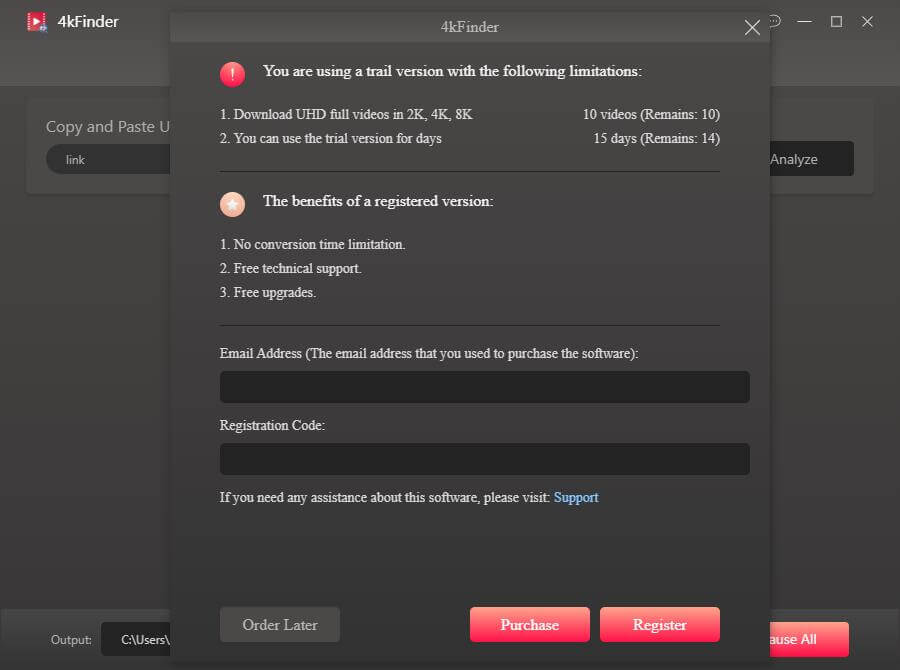
If you want to use iMovieTool full version, please buy the license code and activate the application to unlock the restrictions. You can purchase a license code from our Store, the activation code will be sent to your email automatically within minutes, then copy and paste your license code in the blank and click "Activate" button to register full version.
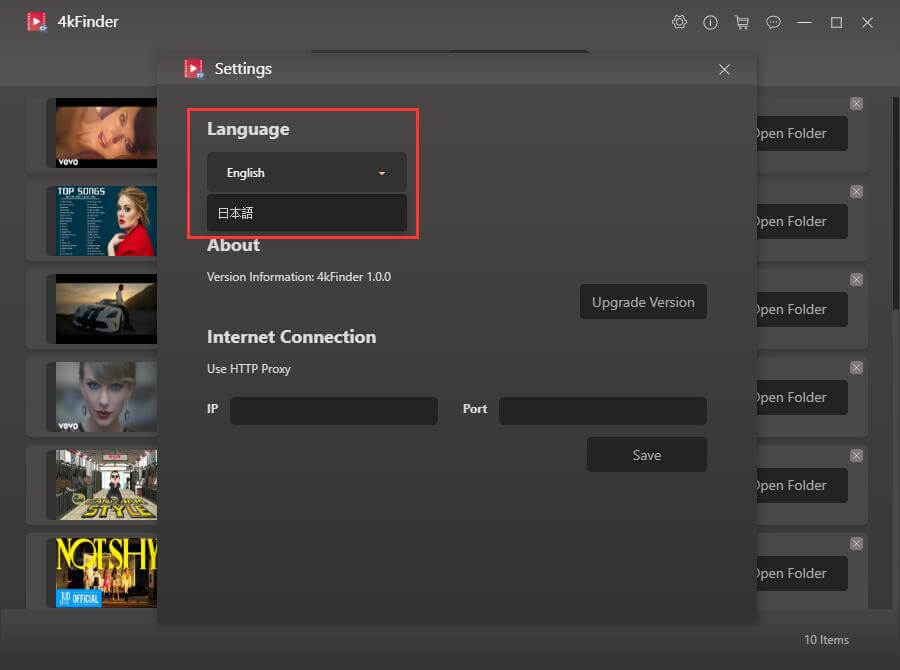
Currently, iMovieTool supports English, Deutsch(German), Españo(Spanish), Français(French), Italiano(Italian), 日本語(Japanese), čeština(Czech), Danish(Dansk), Melayu(Malay), Türkçe(Turkish), Bahasa Indonesian, 中文繁体(Traditional Chinese), 简体中文(Simplified Chinese), 한국인(Korean), Polish(Polski).
To change the language, click “Setting” icon to select a language. To better meet requirements of users from all over the world, we will released multilingual version of iMovieTool Video Downloader in the future.
Part 2: Installation & Register
Step 1. Install and Launch iMovieTool
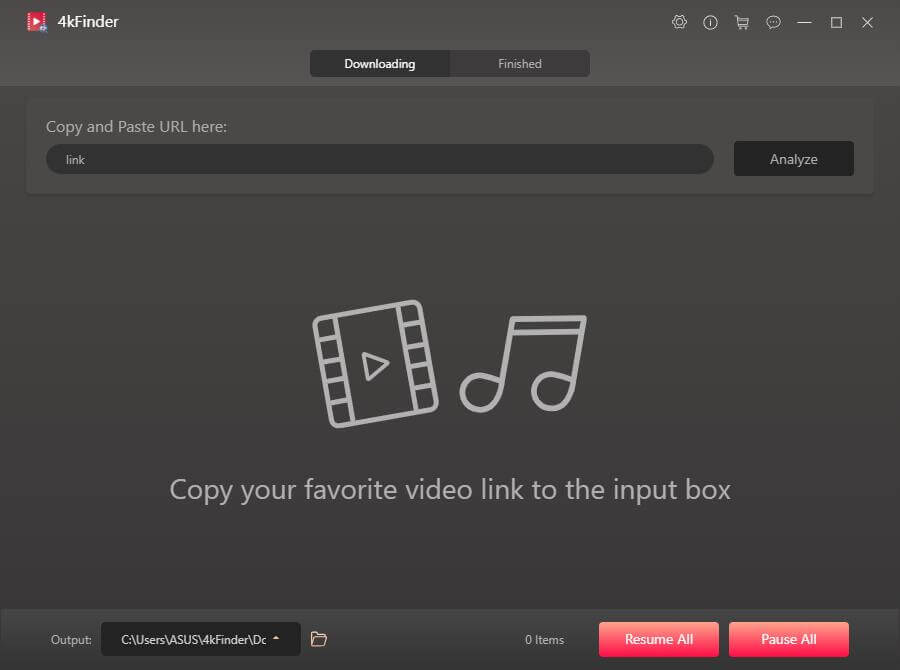
Click the above download button to free download iMovieTool Video Downloader, then install the software on your computer. After installation, launch the software and enter the homepage, you can see that the software supports to download videos from most popular OTT sites and social media sites.
Step 2. Register iMovieTool Video Downloader
At this point, you will see that the interface of the software is very simple. Click "Register" in the lower right corner, enter the "Email Address" you used to purchase the software, and the "Registration Code" you received in the email. Then click "Register".
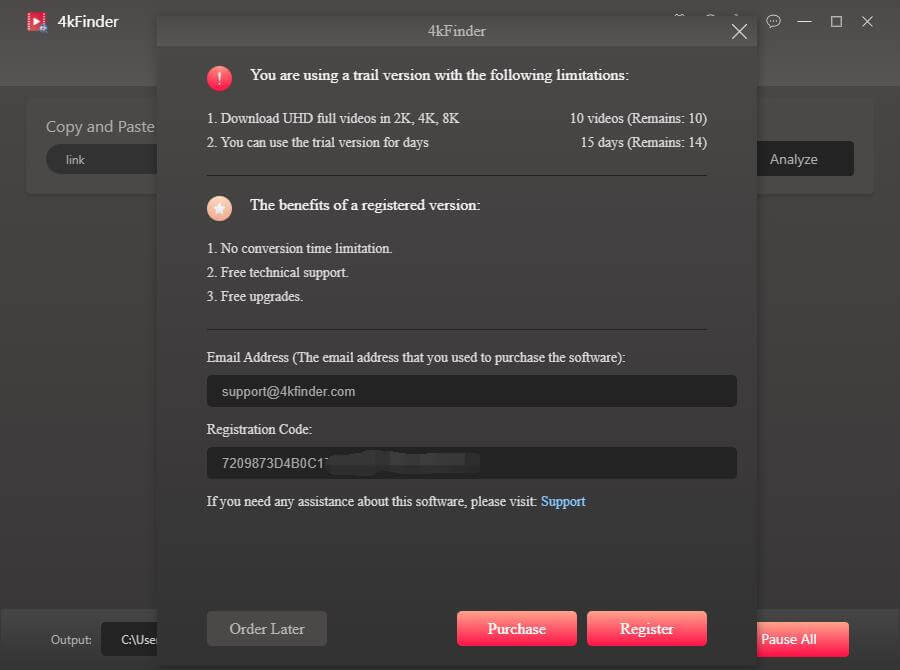
Congratulations, you have successfully registered! Now, you can batch download movies, music videos and other video contents for offline viewing.
Part 3: Video Tutorial
iMovieTool supports to download movies, music videos and more video contents from YouTube, here is the simple video guide about how to download HD movies from [YouTube Movies & TV] with iMovieTool.
Part 4: Download Videos from Social Media Sites
Download Online Videos for Free
iMovieTool Video Downloader is based on Windows and Mac versions, it can help you download 720p, 1080p HD, and even 4k videos from social media sites like YouTube, TikTok, Facebook, Twitter, and Instagram. Let’s follow the detailed guide on how to free download HD videos from YouTube, you can also use iMovieTool to download YouTube movies and TV shows to computer.
Step 1. Copy & Paste the Video URL to iMovieTool
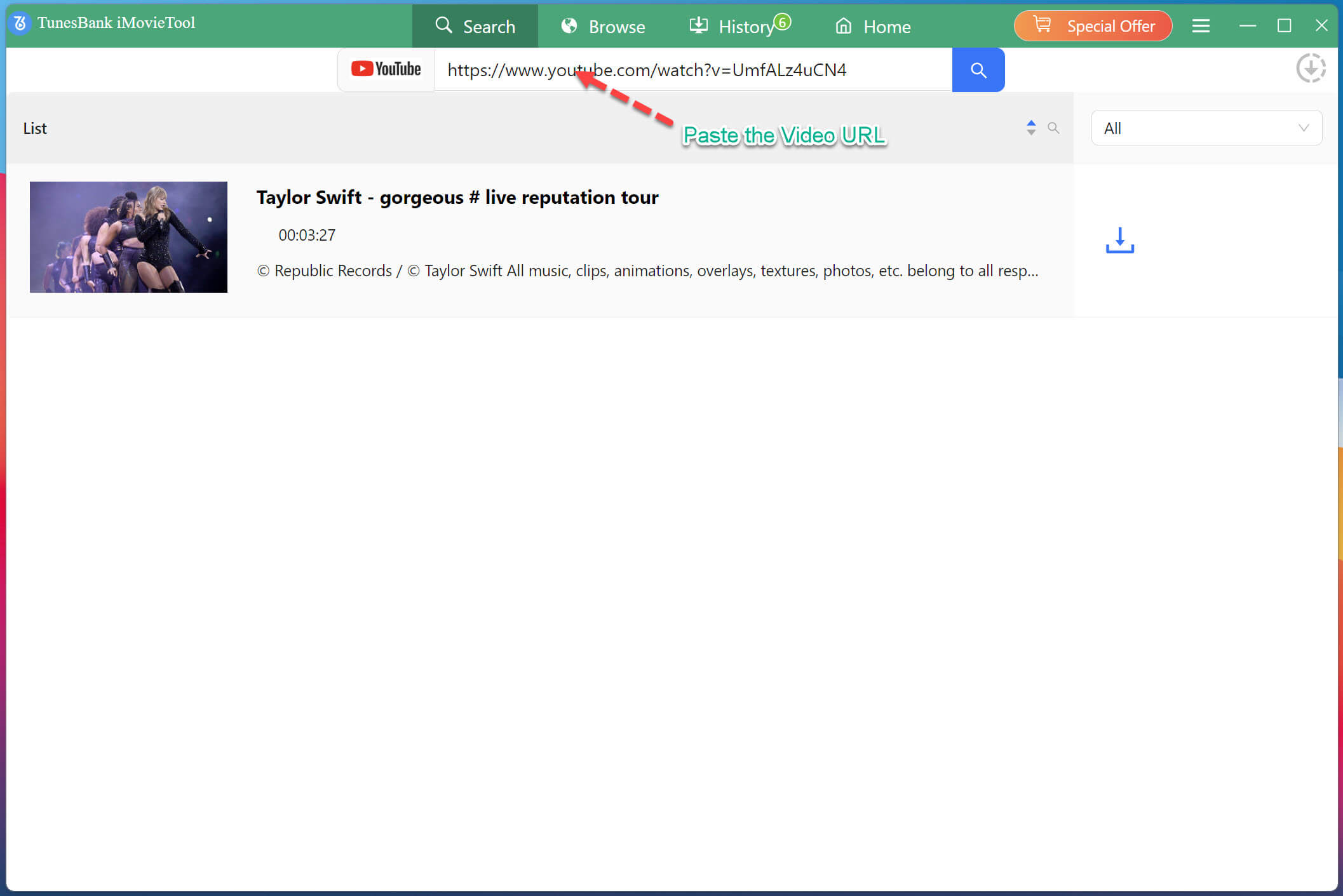
The program is activated, and you immediately get such a iMovieTool main page. To be clear, all you need to do is to directly copy and paste the link of the video into the blank column, and click "Search" button to start analyzing the video URL.
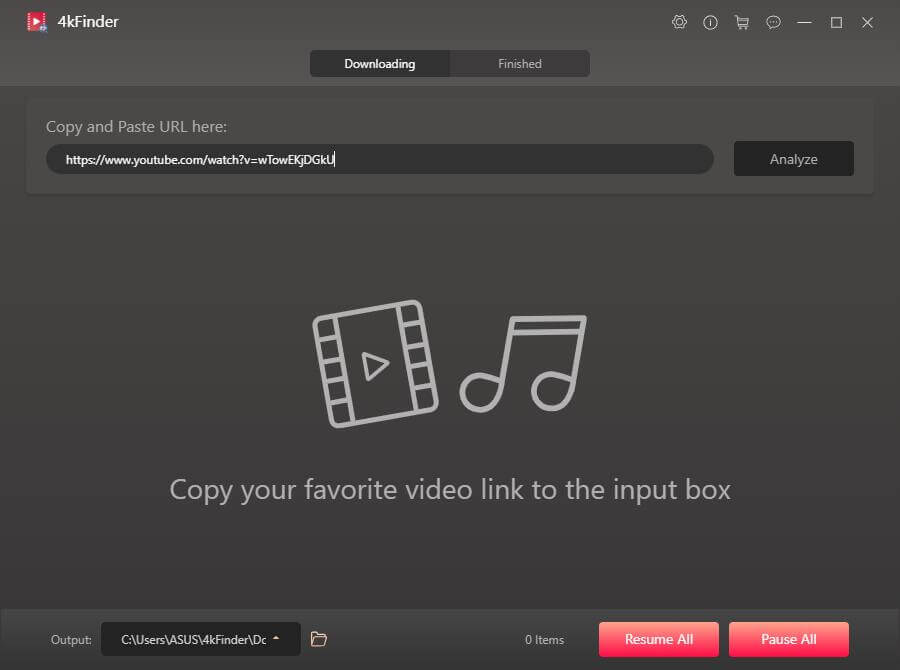
The software will help you find the video in few seconds.
Step 2. Search Movies/TV Shows Directly (Option)
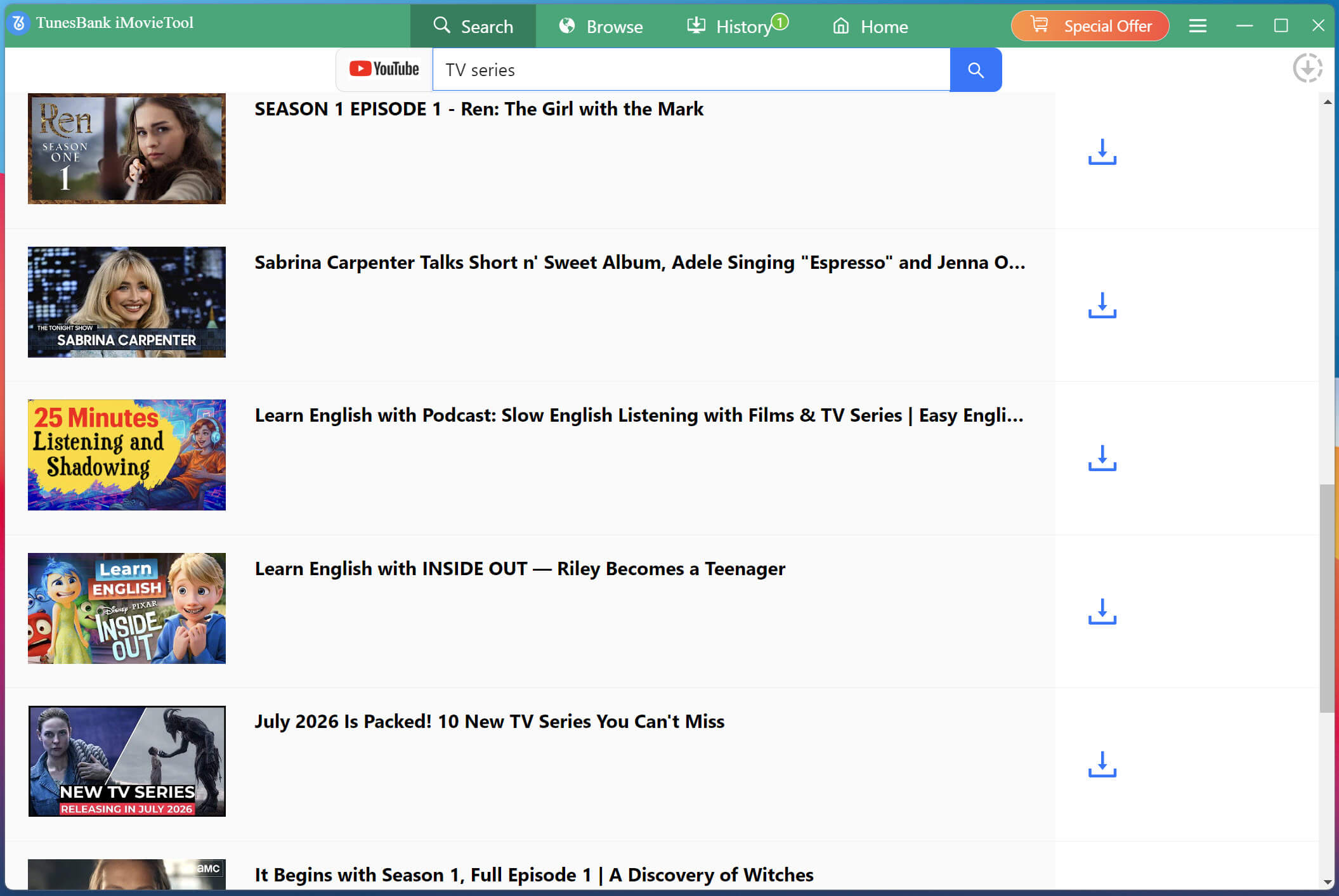
Of course, the software also provide powerful video searching function. You can directly search for the movies you want, and wait for the result to show up.
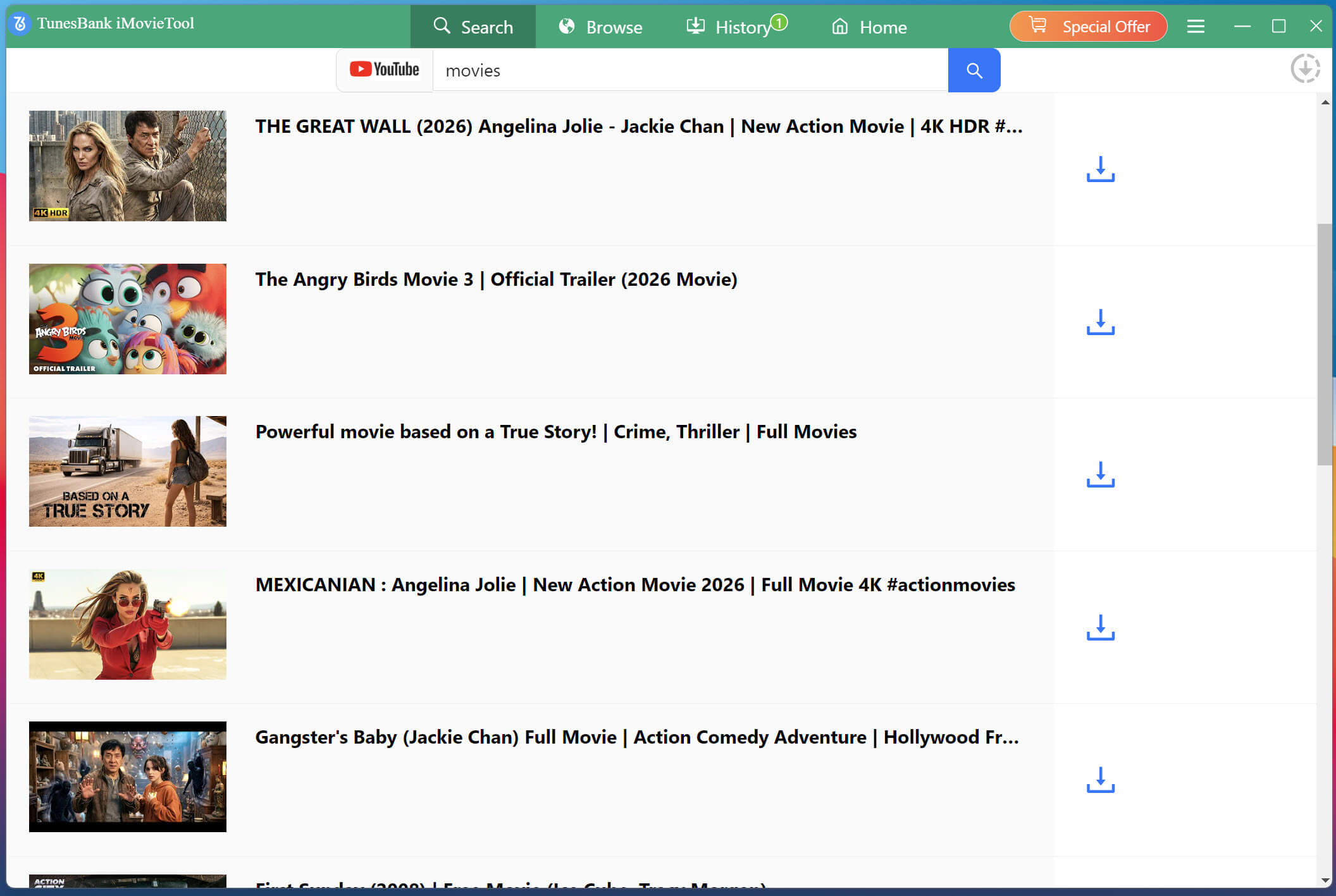
You can directly search for the movies or TV series you want, and wait for the result to show up.
Step 3. Tweak Output Settings
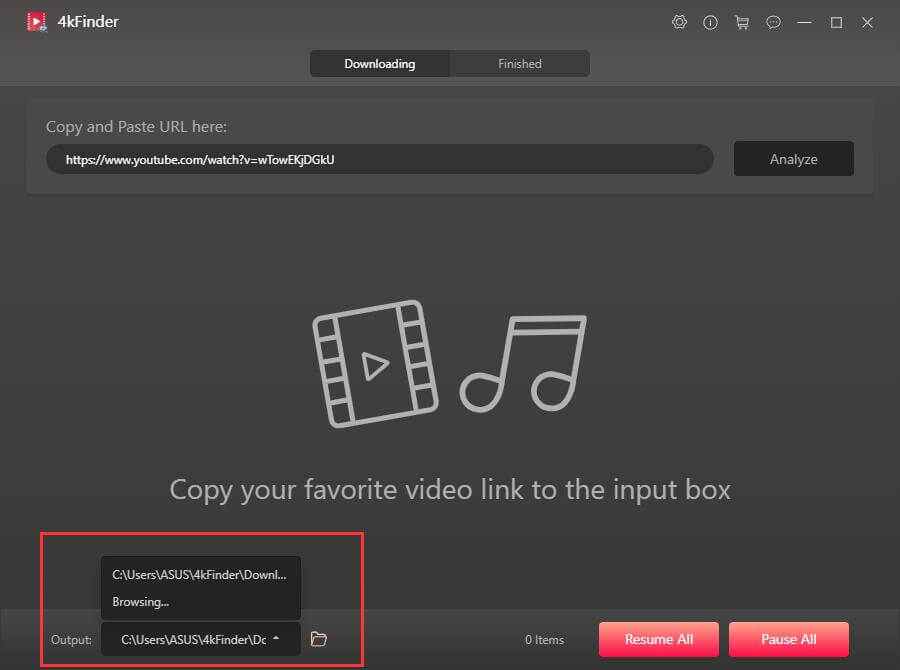
If you want to customize your downloads, you can click on the gear icon at the top right corner to access “Settings,” then choose different output formats (MP4, MKV), audio languages, subtitle output (embedded or saved as separate subtitle files), download location, and more.
Tips: You can change the output folder that you want before start downloading process.
Step 4. Download YouTube Videos/Movies to Computer
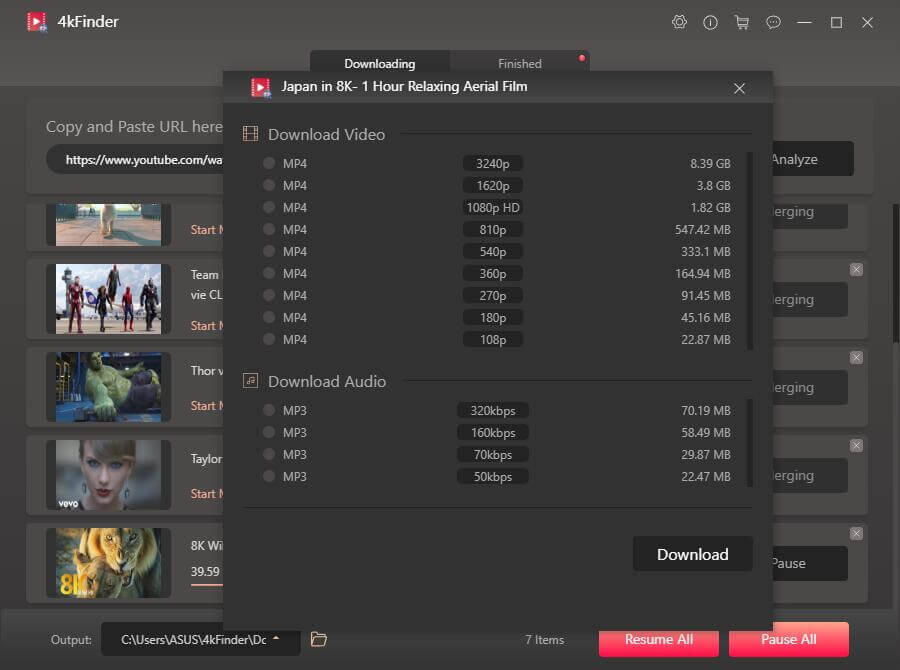
Just clicking the "Download" button, the program will immediately download the video to MP4. During the download, you can start or pause the download at will.
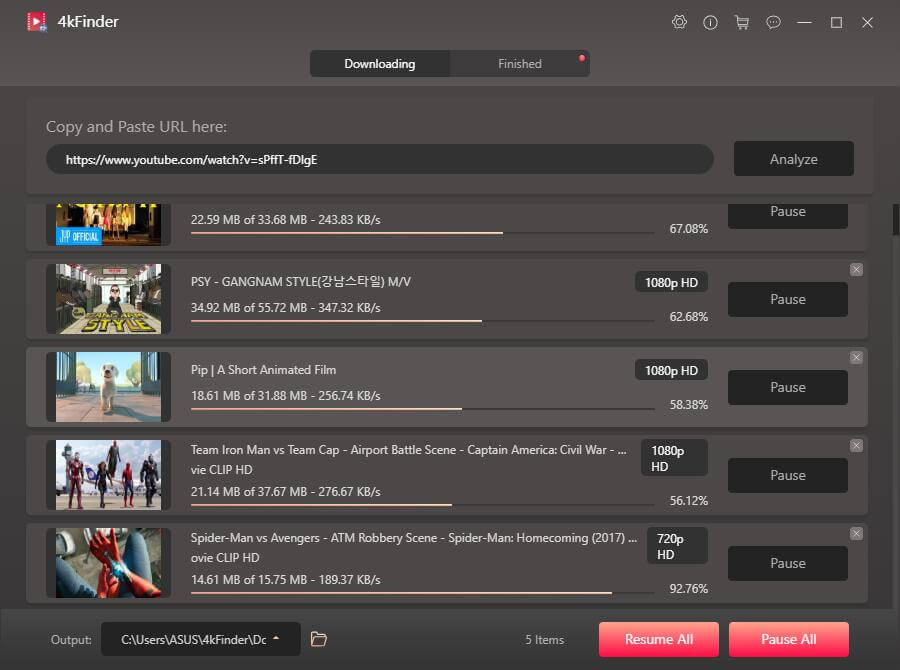
The software also provide “Browse Download Mode”, please clicking the “Browse” menu, a built-in browse in the software, you can view and add more videos into the downloading list. The full version does not limit the number of downloads.
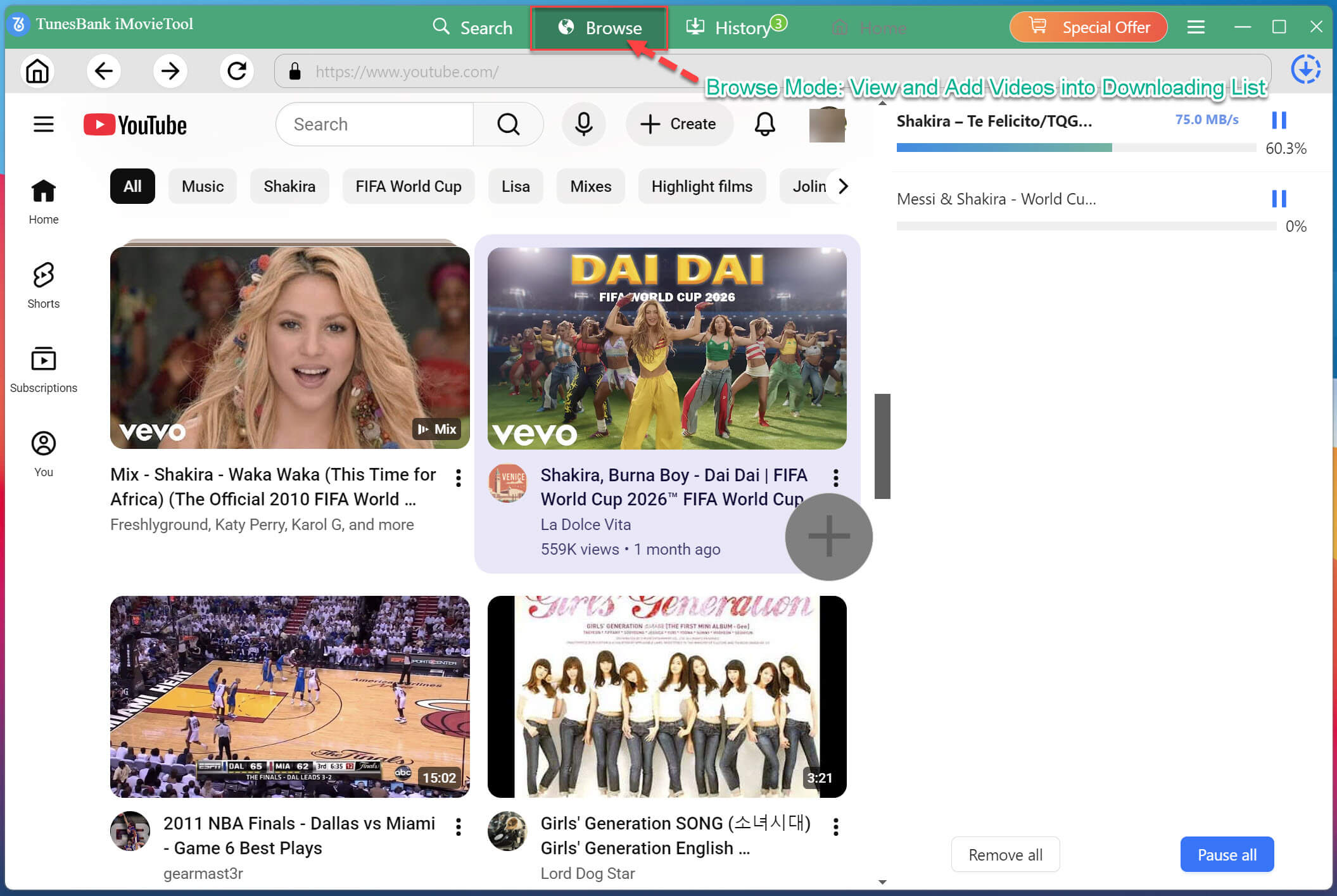
During the downloading process, you can click "Pause" or "Pause All" to stop the download task.
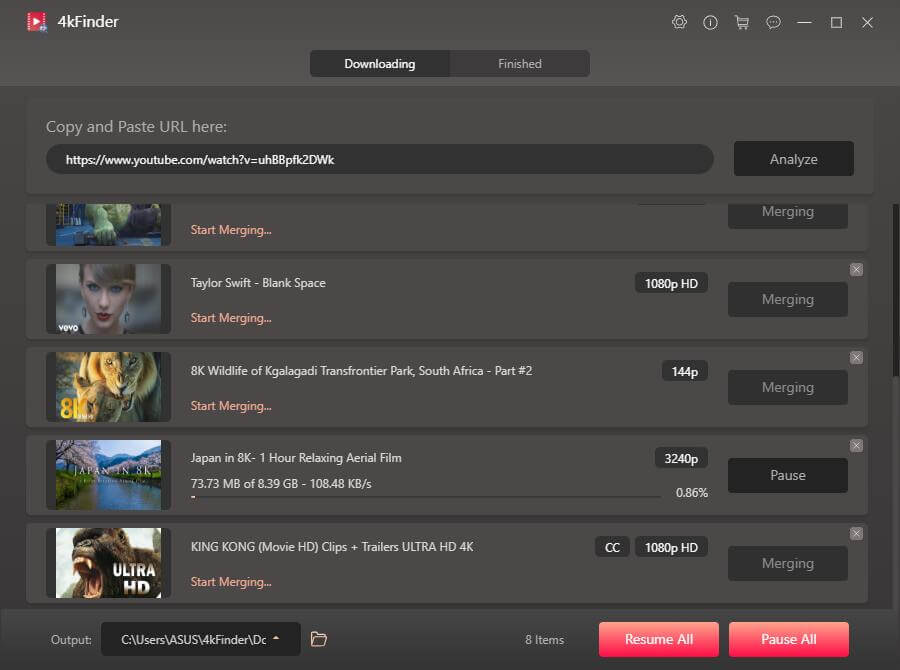
Step 5. Download Is Complete
After the download is complete, your video will be visible in the "Finished" list.
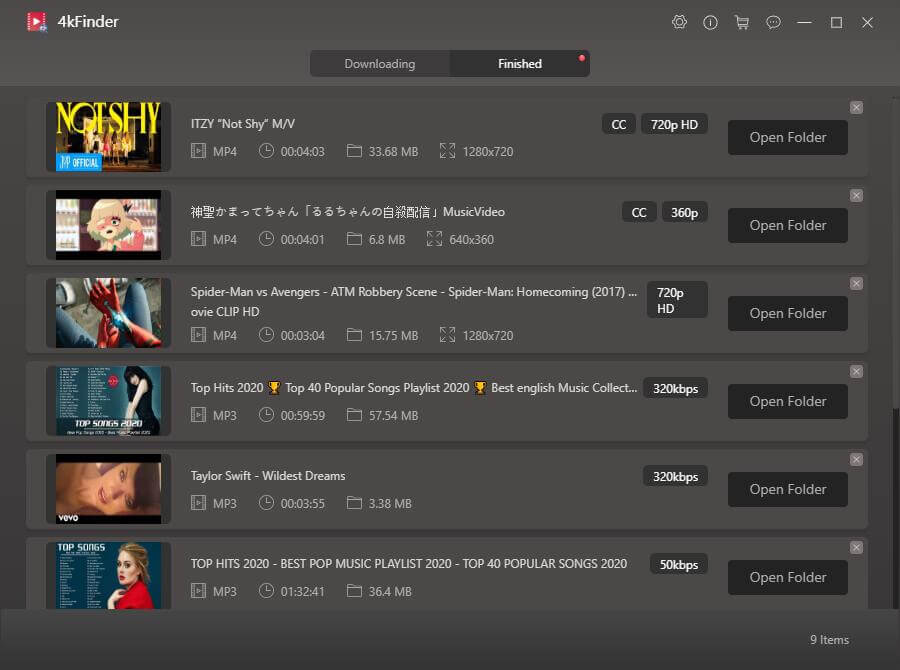
Step 6. Get MP4 Videos on PC
Click the red "Open Folder" on the right of the video to open the out folder. Now you can enjoy the downloaded video on your computer offline.
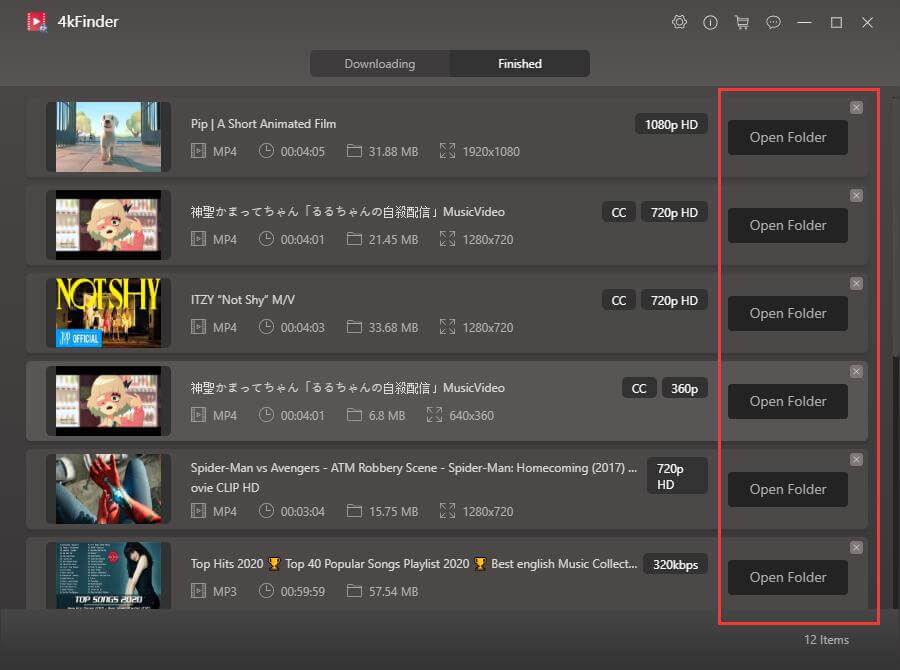
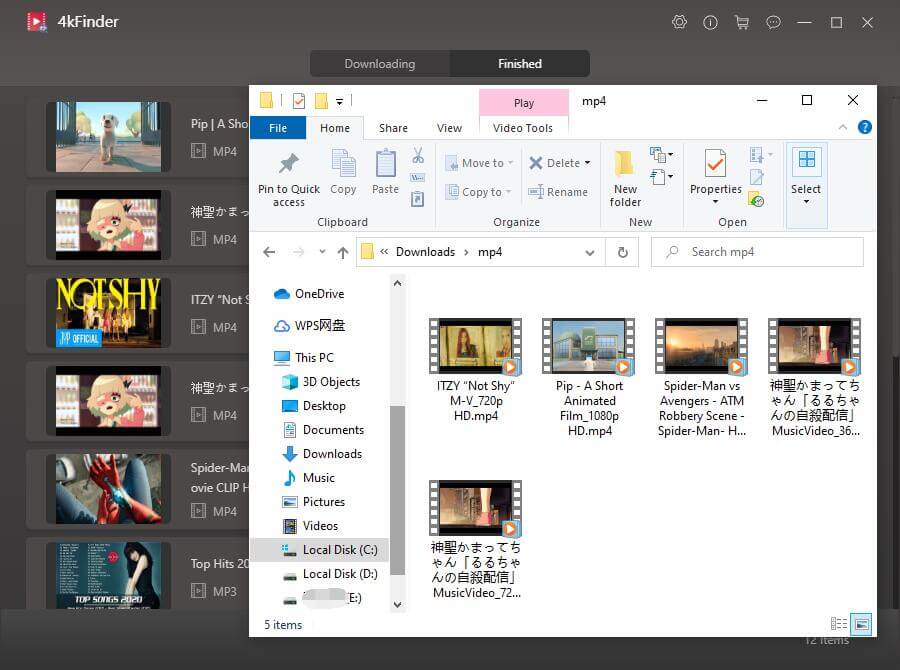
Double-click the video and you can use the default media player of the computer to play the video. Of course, you can also transfer them to your HD TV, iPad, iPhone, Android phone & tablet, PS5/PS4/PSP, Xbox, any MP4 players and other devices for offline playback.

Professional
Years of study, skilled staff and guaranteed quality

100% Safe
Risk-free and thoughtful service promised

Support
Free Updates & 7*24 Nice Support

Find and download 4K videos.
Multimedia Converter
Downloader
COMPANY
FOLLOW US
Copyright © 2023 4kfinder software Inc. All rights reserved.